Partner commissions and payouts
Updated Aug 17, 2026
As a partner, you earn money every time a client pays for a product subscription. This article explains where to see what you've earned, how it adds up, and how to get paid.
Commissions
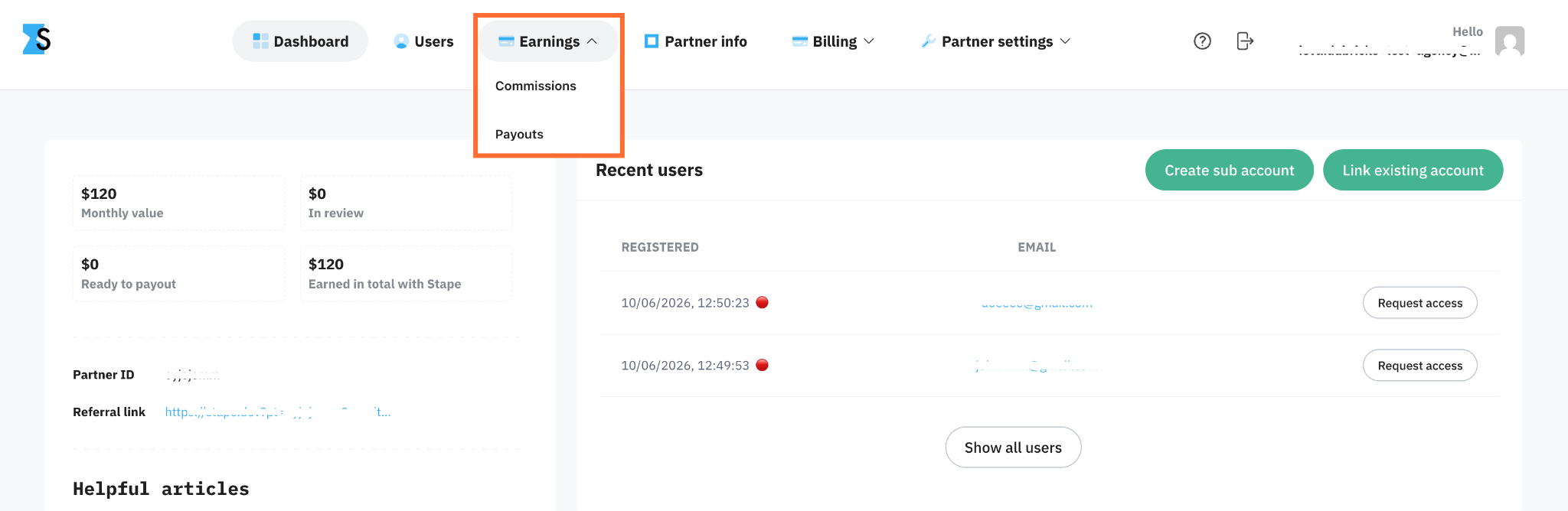
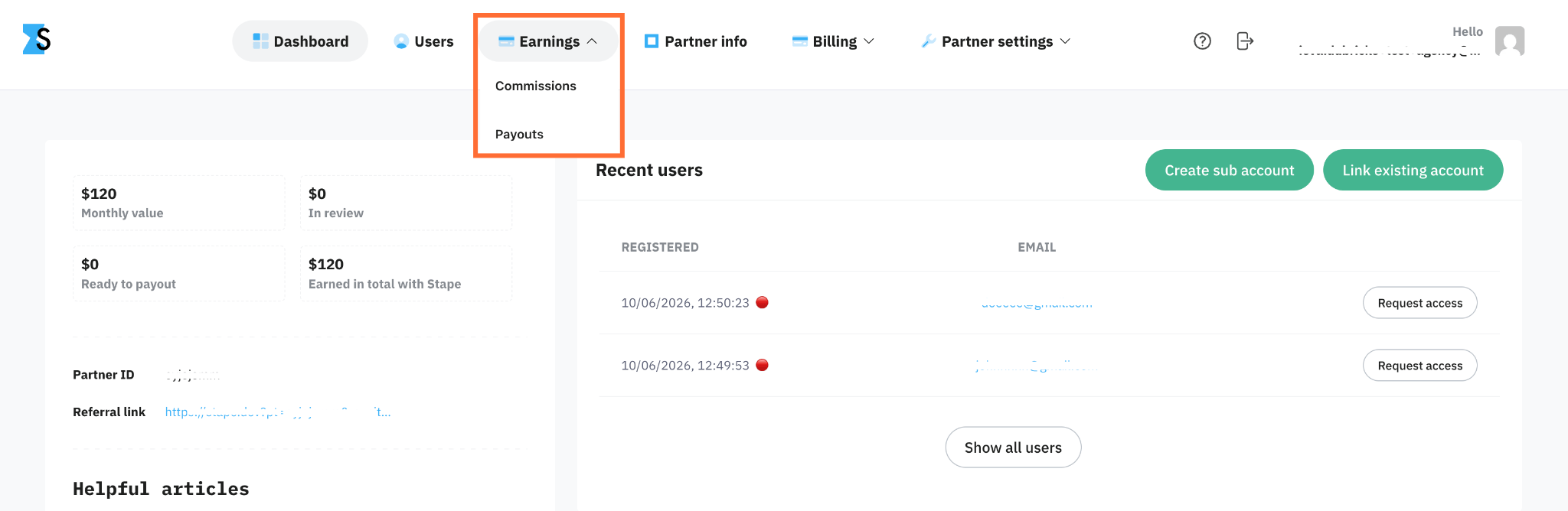
At the top-level menu, click Earnings → Commissions to see everything you've earned.
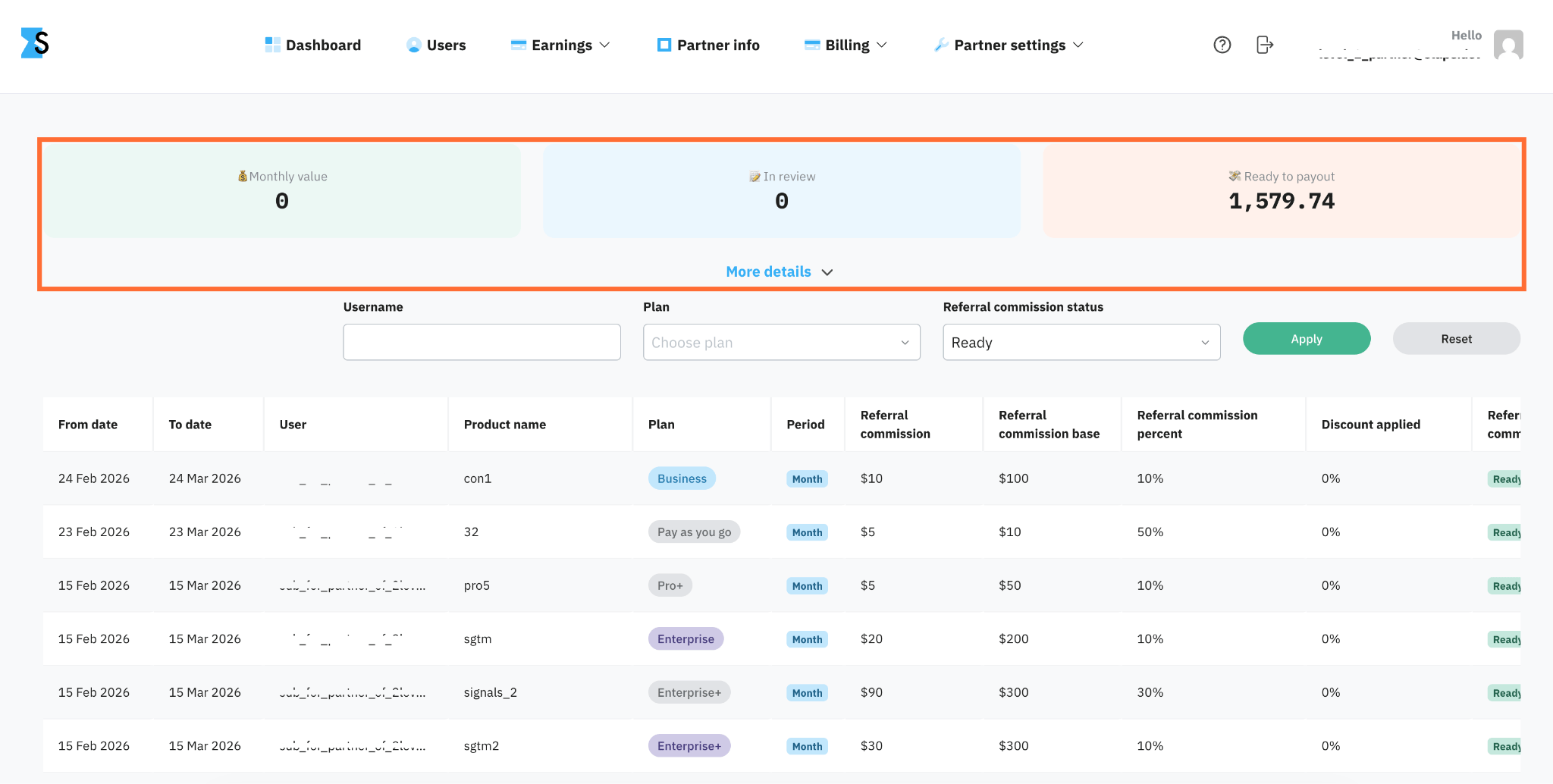
At the top of the Commissions page you can see 3 numbers:
- Monthly value – the estimated total commission you can expect to receive each month. It's calculated from your clients' currently active and paid subscriptions.
- In review – a 14 day period for monthly subscriptions during which the commission is frozen so that Stape can confirm the client doesn't request a refund, miss a payment, or cancel their subscription early.
- Ready to payout – the actual balance that's available for withdrawal. You can request the withdrawal once you collect $100 or 100€.
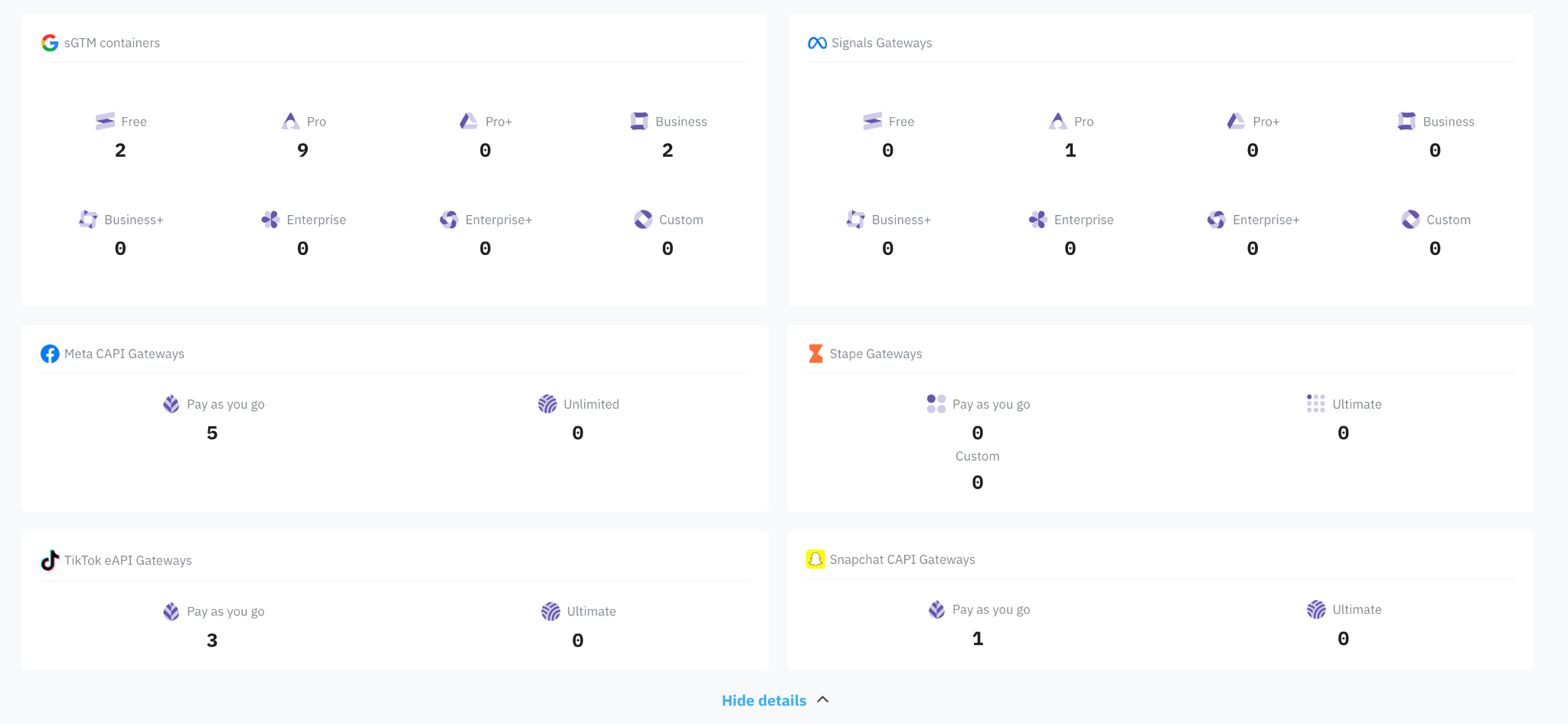
If you click More details, you'll get a list of how many purchased plans there are for each product.
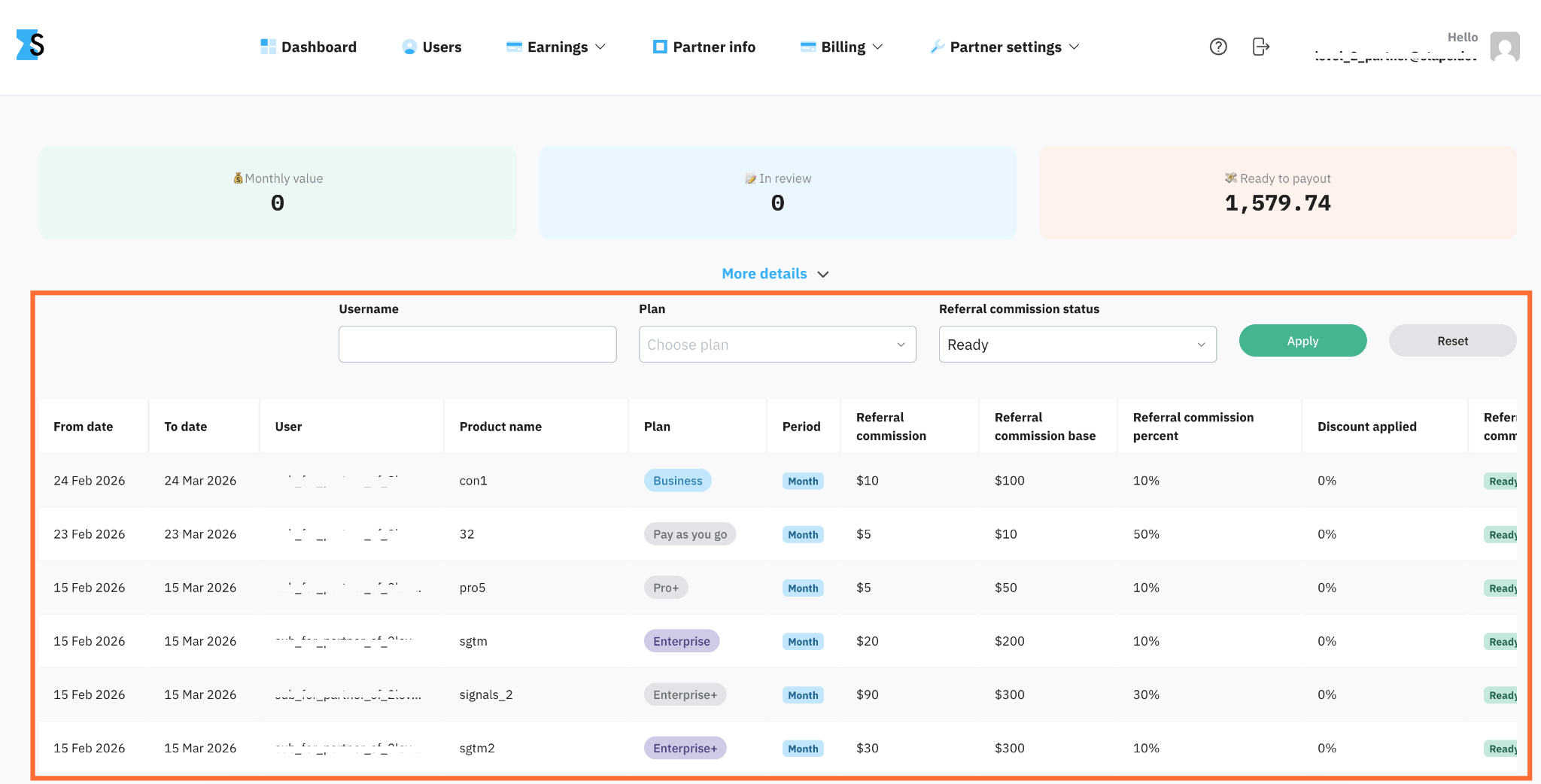
The commissions table
In the commissions table each row is one client, for one billing period. You can see the following columns:
- From date / To date – the start and end dates of the client's subscription billing cycle that this commission was calculated for.
- User – the email address of the referred client who owns the product and paid for the subscription.
- Product name – the name of the Stape product the client subscribed to.
- Plan – the subscription tier the client selected.
- Period – how often the subscription renews – monthly or yearly.
- Referral commission – the amount you have earned, or will earn, as your payout from this billing cycle's payment. Global Partner accounts billed in EUR can have sub-accounts in EUR and USD. EUR amounts are converted to USD using the Paddle/Stripe exchange rate on the invoice date. This rate is then applied consistently across all calculations, including partner commissions, monthly value totals, payout sums, and admin reports.
- Referral commission base – the standard cost of the subscription plan (before any discounts) that your commission percentage is applied to. The base is shown in the currency the sub account was billed in (EUR or USD).
- Referral commission percent – the percentage you earn for this referral (usually 10-40%, depending on your partner level).
- Discount applied – the discount applied to the client's subscription (for example, from a promo code). It reduces the commissionable base proportionally. For example, if a client has a $100 plan and uses a 20% discount coupon (paying $80):
- The commission base becomes $80.
- If your commission rate is 30%, your payout is calculated as 30% of $80, rather than 30% of $100.
- Referral commission status – the current stage of this commission:
- Pending – the commission is temporarily frozen (under review) during the 14-day period while Stape confirms there are no cancellations or refunds.
- Ready – the client's billing cycle has completed successfully, and the commission has been added to your main balance.
- Paid – the commission has been requested, processed, and paid out.
- Transaction refunded – the client's payment for this billing cycle was refunded, so the matching referral commission is cancelled.
- Payout requested – you've submitted a payout request for this commission, and it's now awaiting processing or queued to be transferred to your account.
You can narrow the table with three filters:
- Username – filter by the client's email.
- Plan – filter by the plan name.
- Referral commission status – filter by the status.
Click Apply to filter, or Reset to clear. Filters only affect the table – the three numbers at the top always show your whole account.
Commissions for yearly subscriptions
When a client pays for a yearly subscription, you don't receive your full commission as one full sum up front. Instead, it's spread out and paid to you gradually over the year.
Here's how it works:
- 1.The year is split into 12 monthly parts. When a yearly subscription starts or renews, Stape divides it into 12 separate monthly periods.
- 2.Your commission is split evenly across those 12 months. The commission base (and any discount that was applied) is divided by 12, so each month accounts for 1/12 of the total sum.
- 3.Each month’s referral commission is calculated the same way. For every monthly part, your referral percentage is applied to that month's share.
- 4.Each part has its own 14-day review period. Just like monthly subscriptions, each month's commission is held for 14 days before it becomes available to withdraw.
For example, one of your referred clients signs up for a yearly plan:
- Plan: Business
- Total for the year: $1,000, paid up front
- Your commission rate: 20%
1. The year is split into 12 months. Instead of paying you all at once, Stape divides the $1,000 into 12 monthly parts:
$1,000 ÷ 12 = $83 per month (this is your commission base for each month).
2. Your rate is applied each month. Your 20% is applied to each month's $83:
$83 × 20% = $17 per month.
The result: instead of getting $200 in one sum, you earn $17 each month across the year.
Payouts
At the top-level menu, go to Earnings → Payouts to take out your money and download statements.
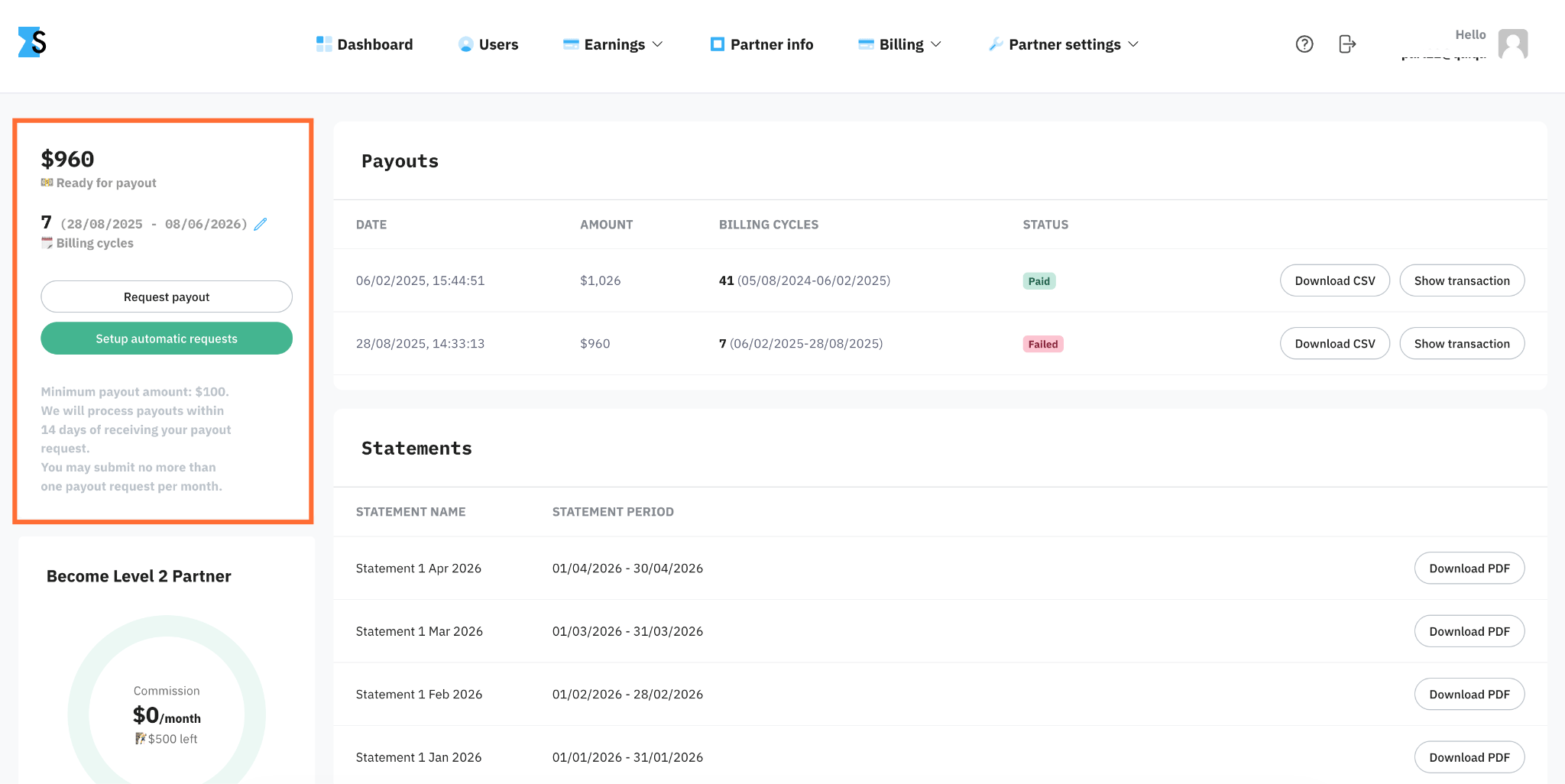
On the left side of the page you'll see:
- The amount that's ready for payout.
- The number of billing cycles the amount was accumulated over, along with the dates – for example, 89 billing cycles (10/02/2026 – 08/06/2026). Click the pencil icon to choose which cycles to include before you request a payout.
Underneath are two buttons:
- Request payout – manually request a withdrawal.
- Setup automatic requests – you can automate your commission payout requests, saving you from having to manually request withdrawals each time you reach the payment threshold.
Notes:
- The minimum payout amount is 100€ or $100.
- You’ll receive the money in 14 days after requesting the payout.
- You can submit no more than one payout request per month.
- Payouts for Stape Global are always made in USD.
- Payouts for Stape EU are always made in EUR.
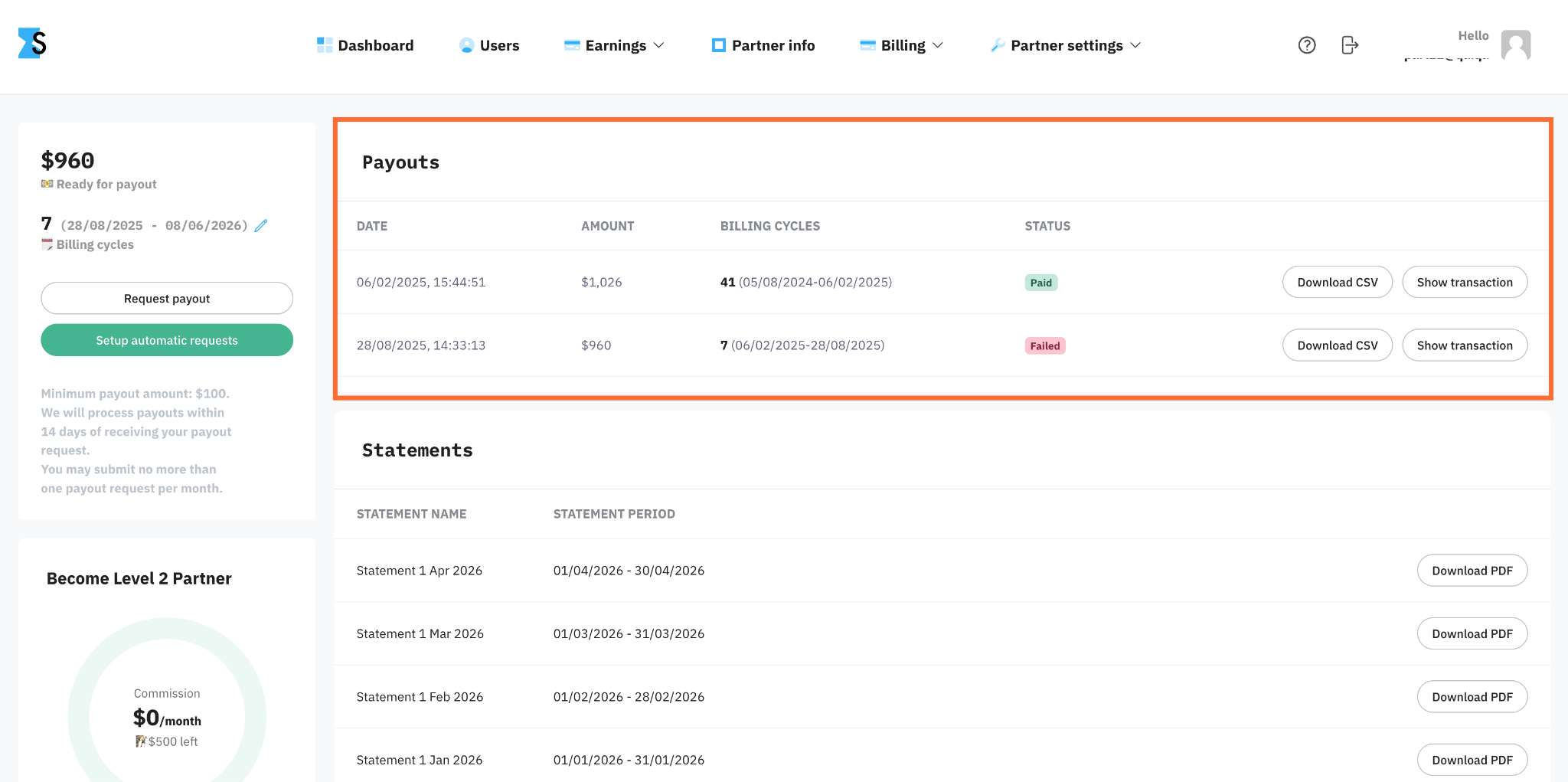
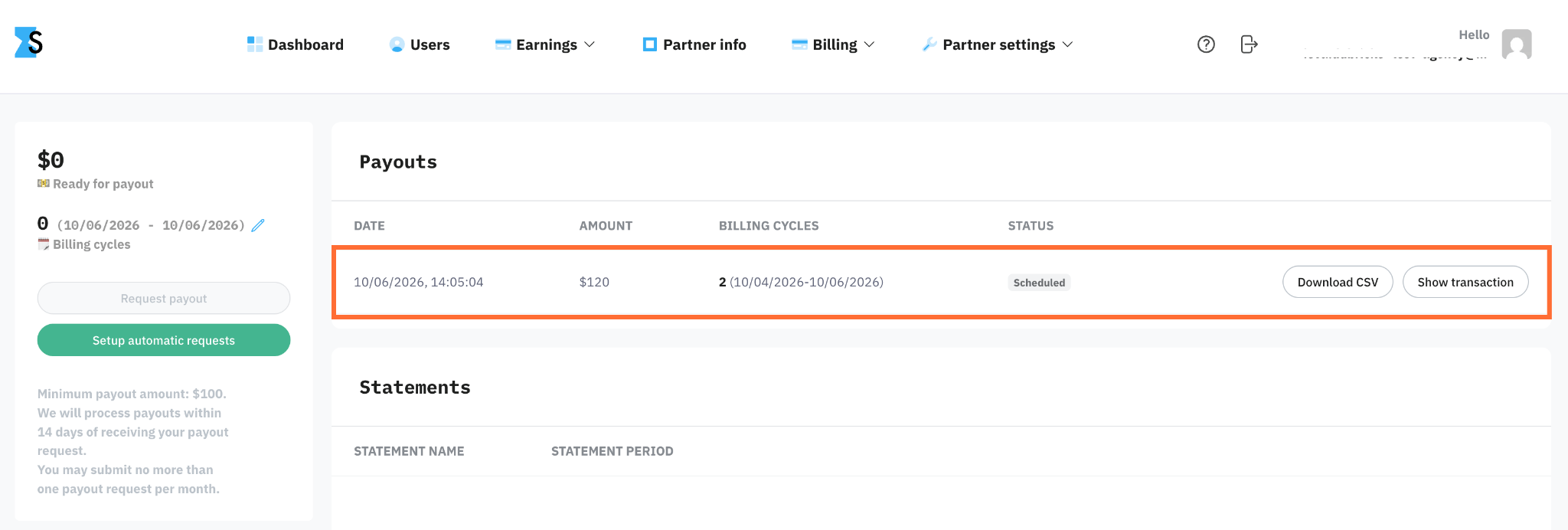
On the right side of the page you'll see every payout with a date, amount, billing cycles and status. You can download the summary by clicking Download CSV, or you can click Show transaction, and it'll take you to the Commissions page, where commissions will be automatically filtered by the transaction.
Payouts can have the following statuses:
- Scheduled – the payout has been requested but not yet processed.
- Paid – the payout has been transferred to the partner successfully.
- Failed – the payout couldn't be processed. This usually happens when the payout details are outdated or incorrect.
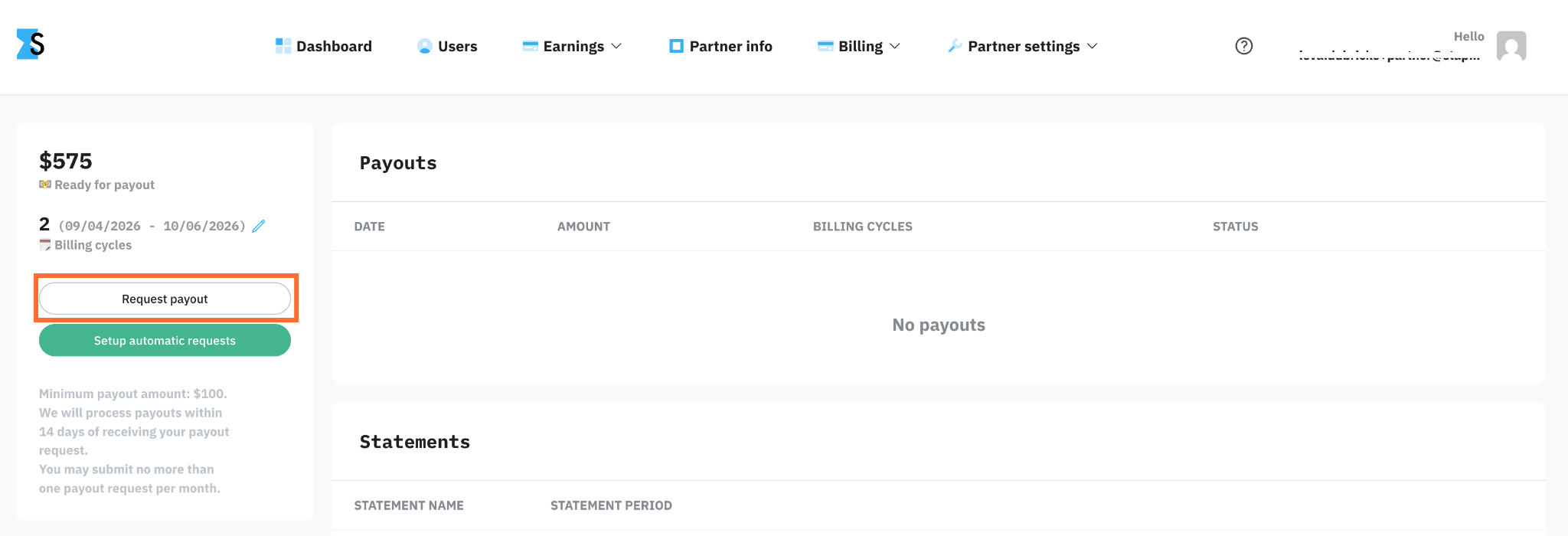
How to request a payout
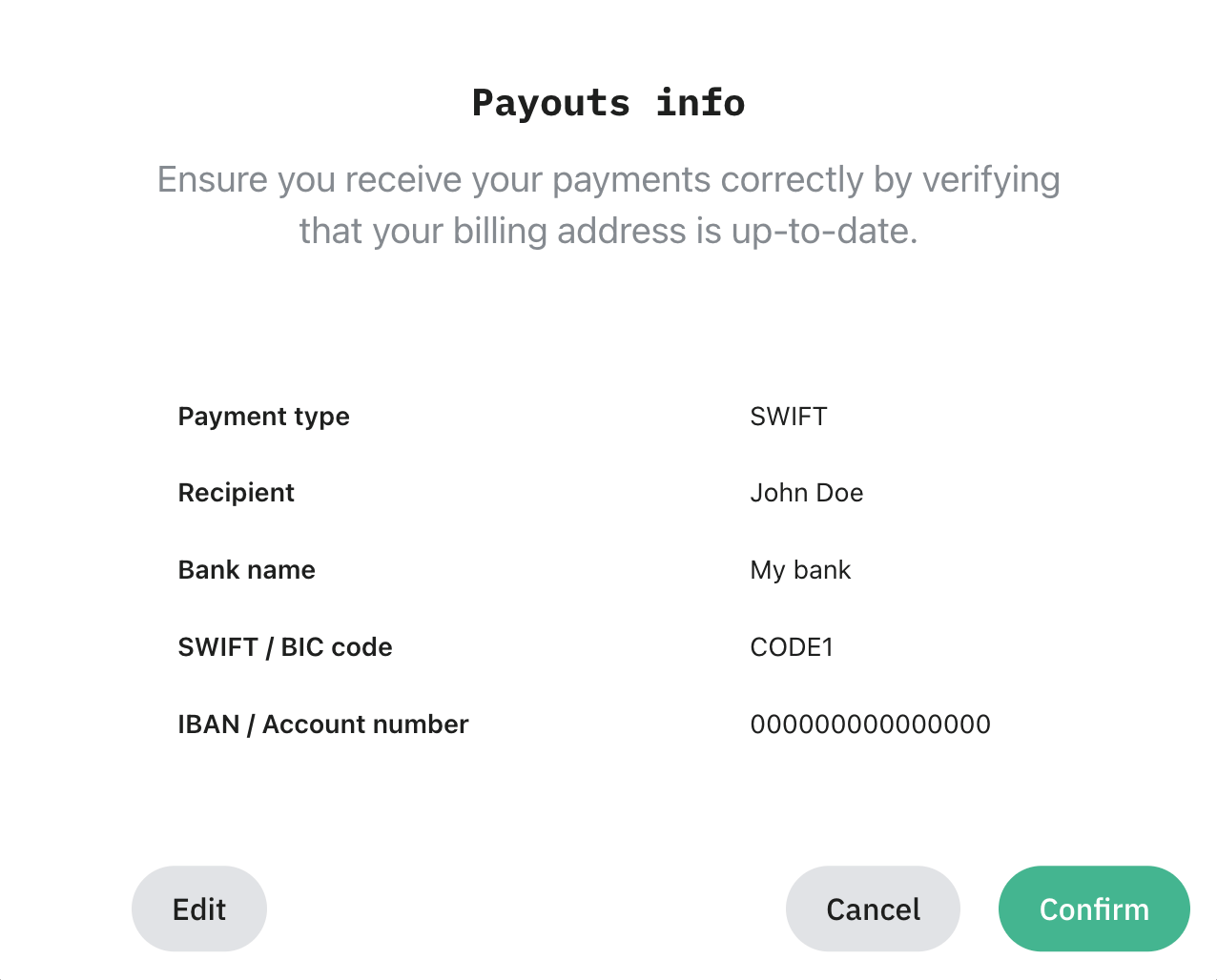
1. Click the Request payout button.
2. In the pop-up, verify your billing info. If it needs corrections, click Edit. If everything is good, click Confirm.
3. Your payment will appear in the Payout section with the Scheduled status.
How to set up automatic payout requests
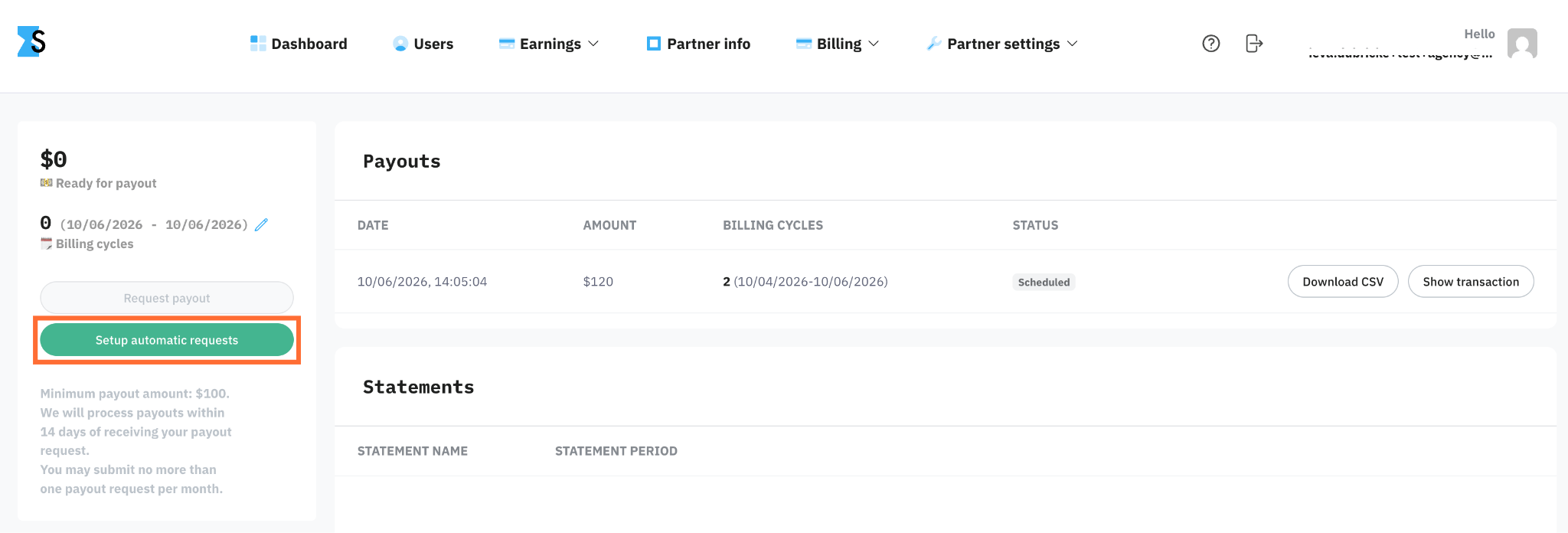
1. Click the Setup automatic requests button.
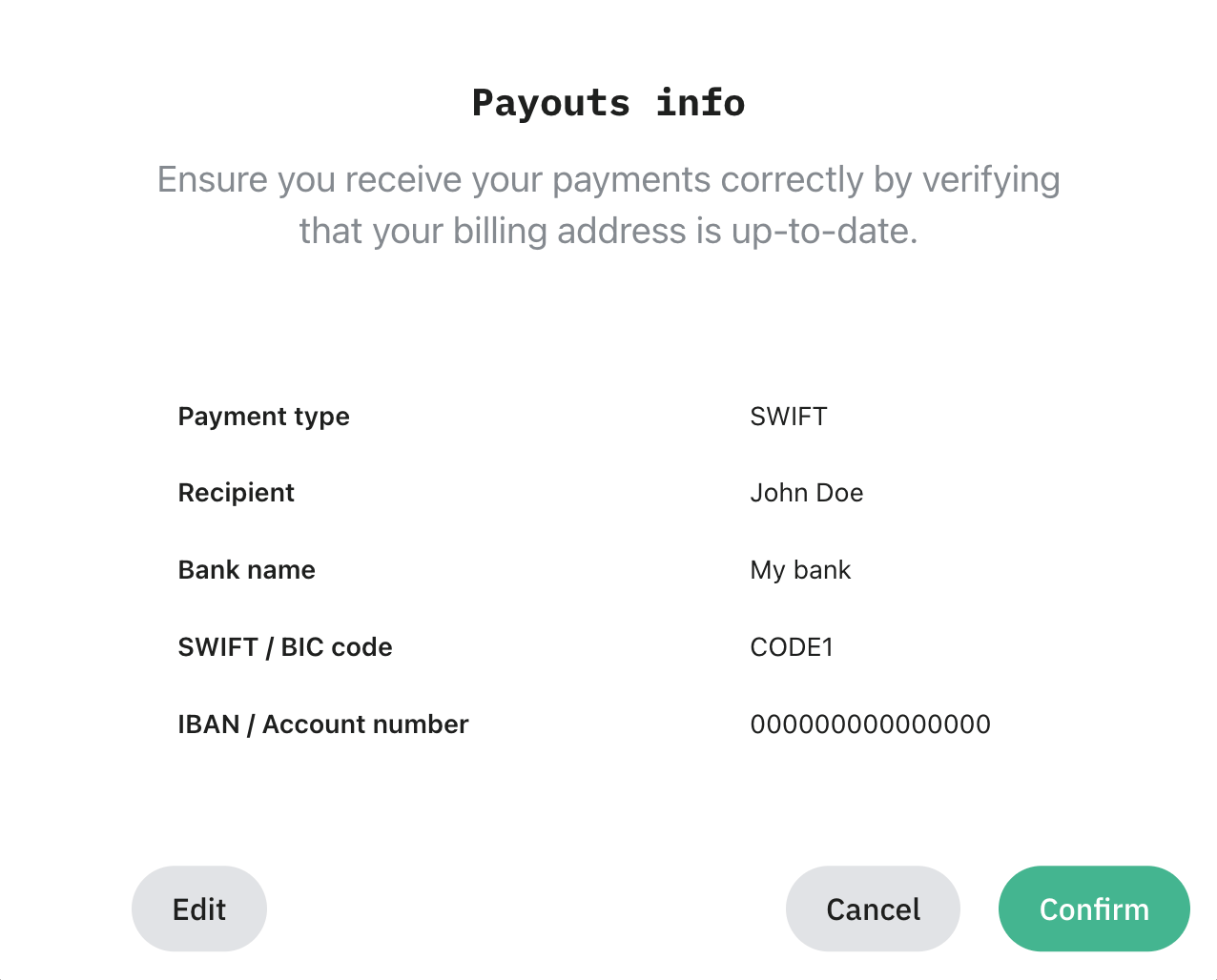
2. In the pop-up, verify your billing info. If it needs corrections, click Edit. If everything is good, click Confirm.
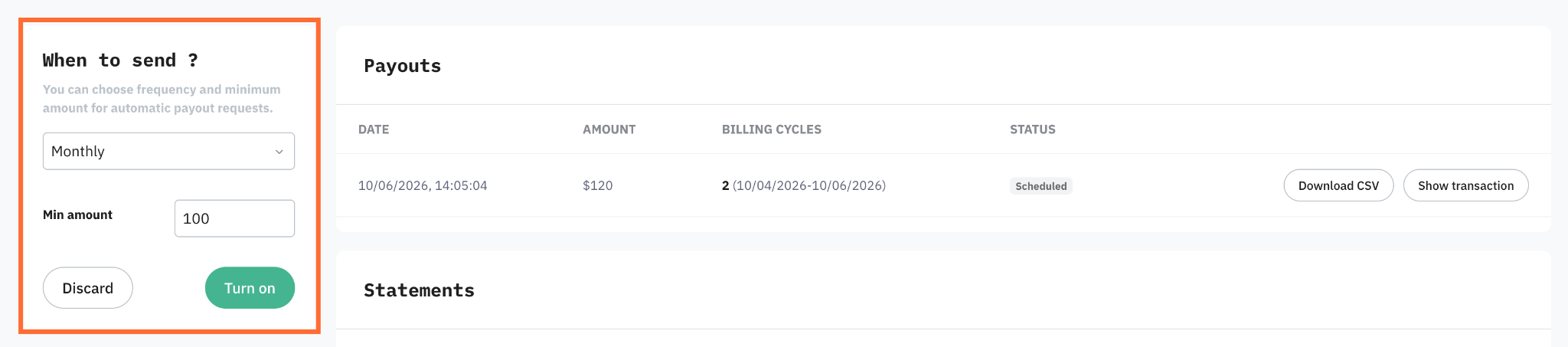
3. In the When to send box, choose frequency and minimum amount for the payout.
4. Click Turn on. Now you'll get paid automatically once you reach the minimum amount.
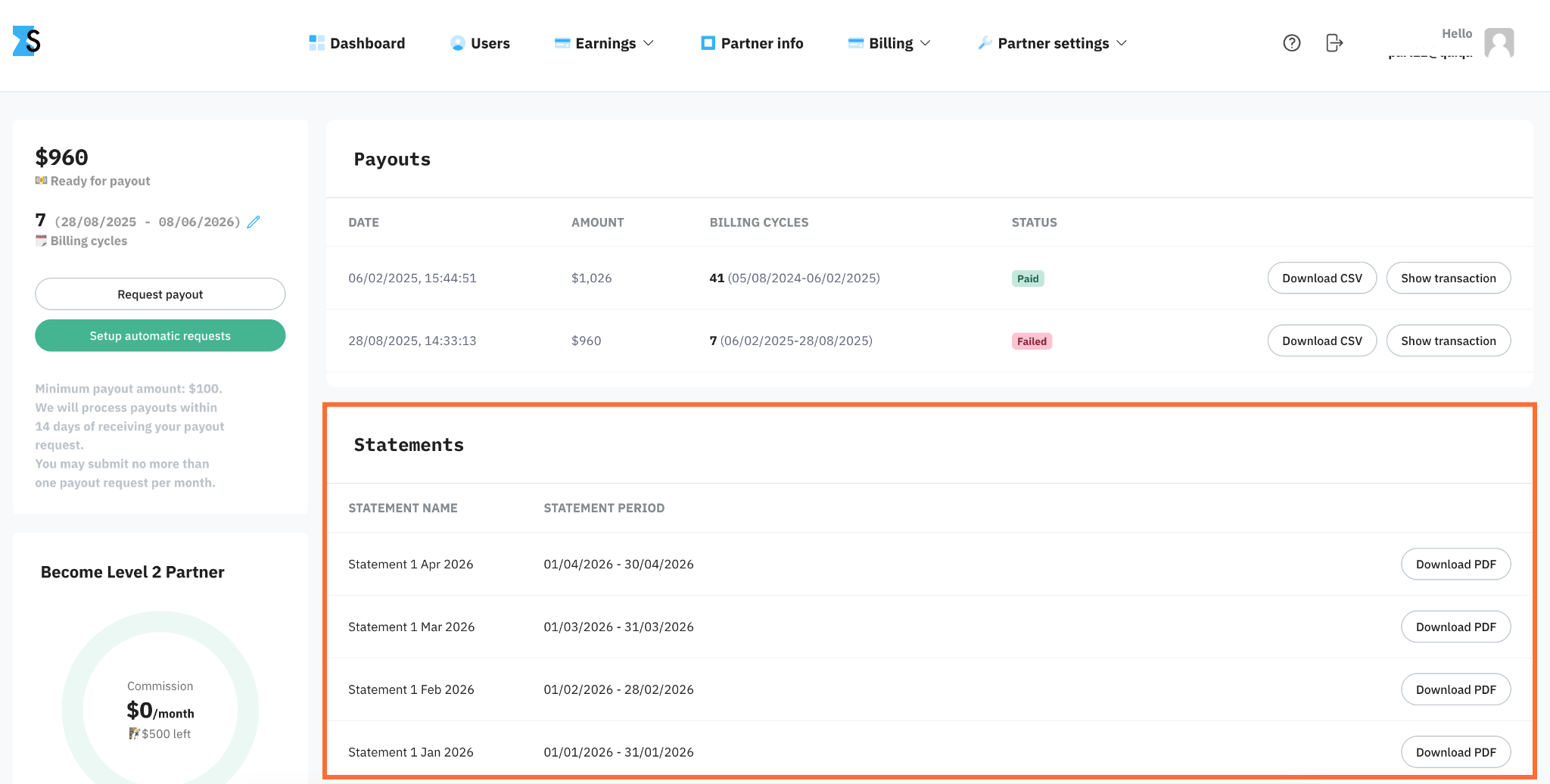
Statements
Below your payout history, you can download a PDF showing the monthly commission balance.
Note:
The statement isn't an invoice – it's a summary of partner activity for the stated period.
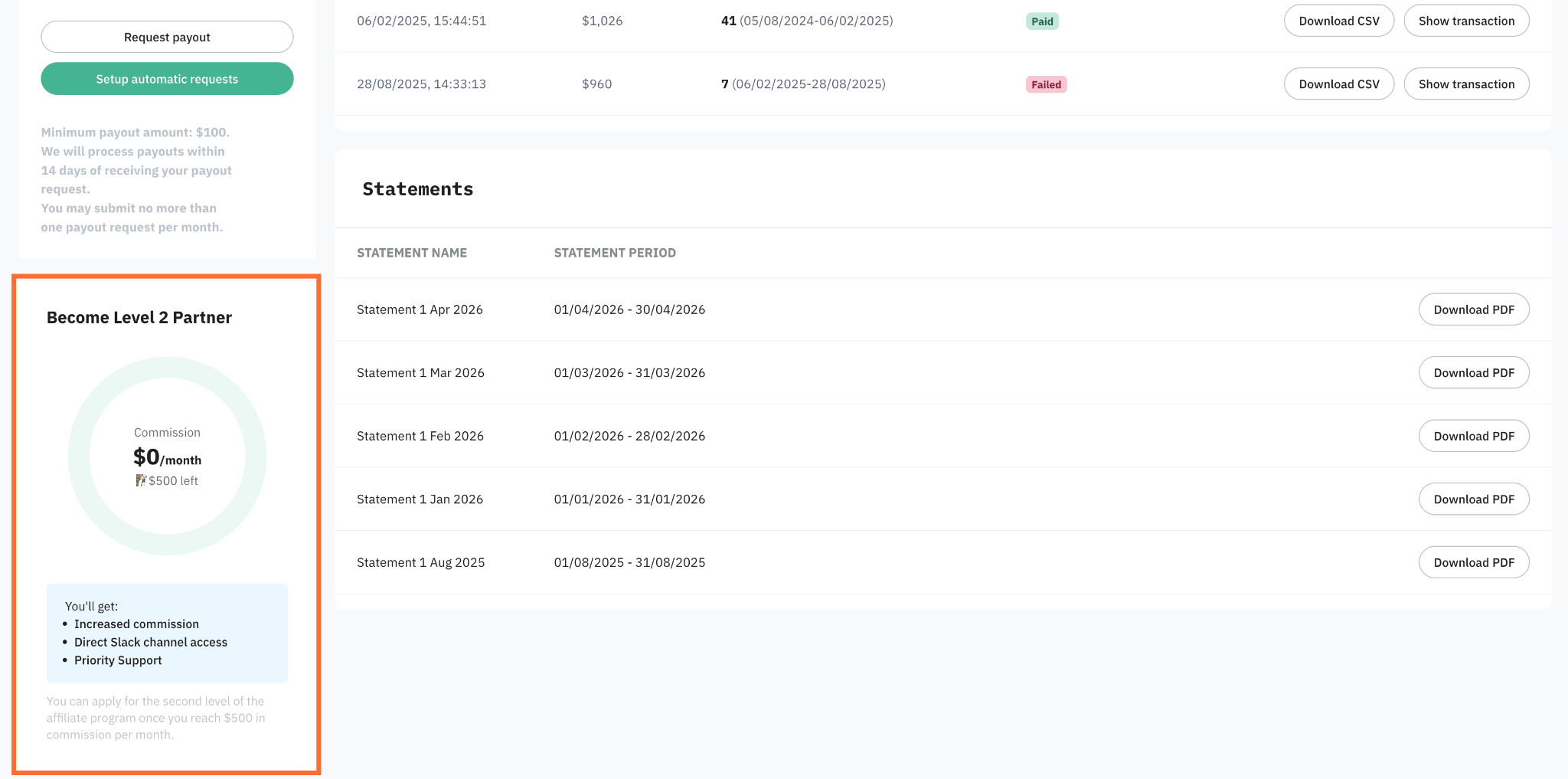
Become Level 2 Partner
At the bottom left of the Payouts page, the Become Level 2 Partner box shows how close you are to Level 2 of the partner program. For more information read Partner program levels.
Was this article helpful?
🍽 Table of content:
Comments