How to manage team members
Updated Aug 12, 2026
You can add your team members to your Partner account so they can work with the clients as well. There's no restriction on how many members you can add.
Your team members get the same level of access to clients as you do. Although the team members have some restrictions:
- They can't change the payout information and request payouts.
- They can't manage Partner's settings or add additional team members.
How to add a team member
Warning:
You can only invite emails that haven't been registered on Stape before. If the account is already registered, it shouldn't have any containers/gateways. If you connect an account with products in use, the account could lose access to those products and to shared workspaces.
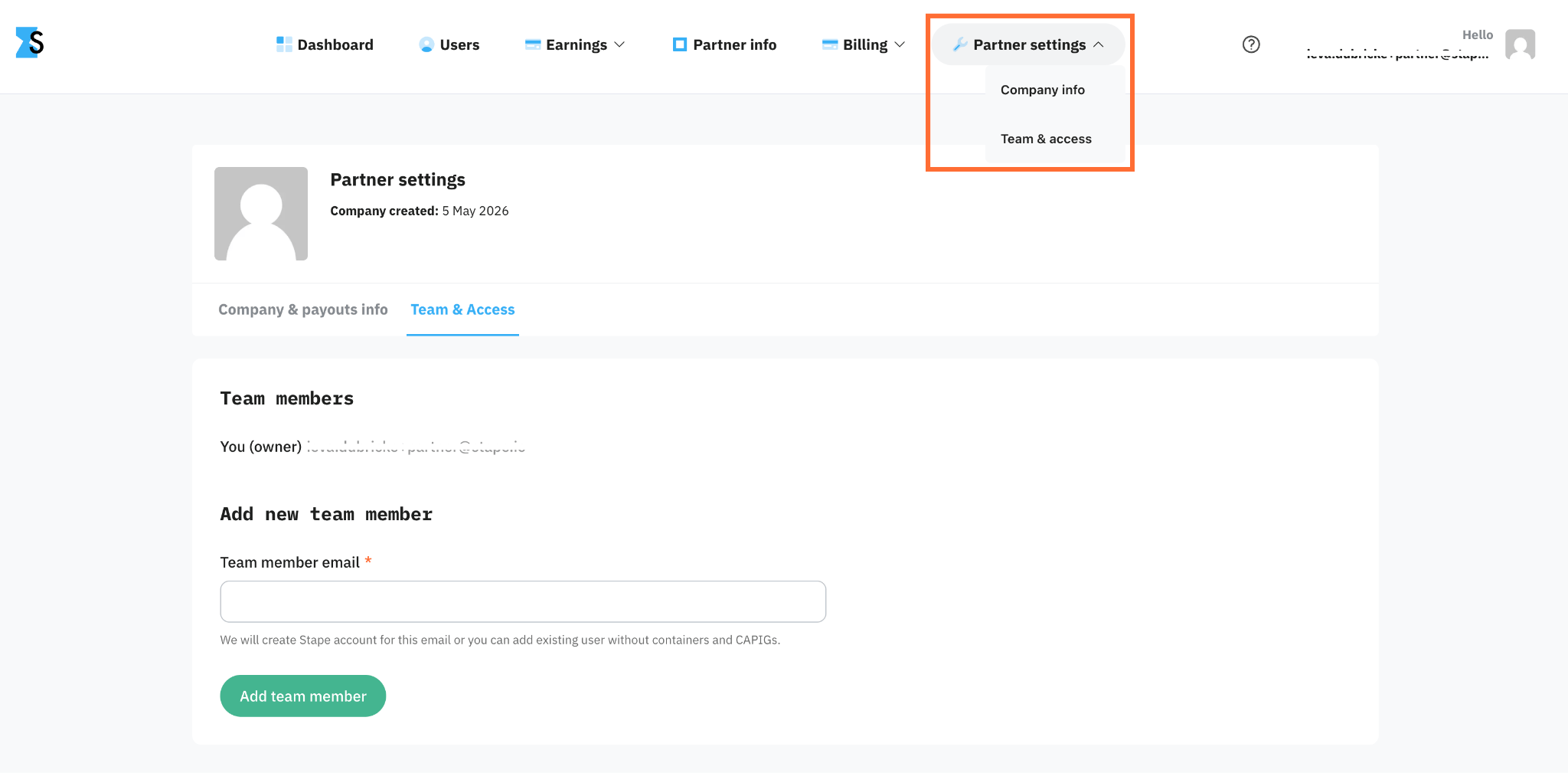
1. Open Partner settings → Team & access.
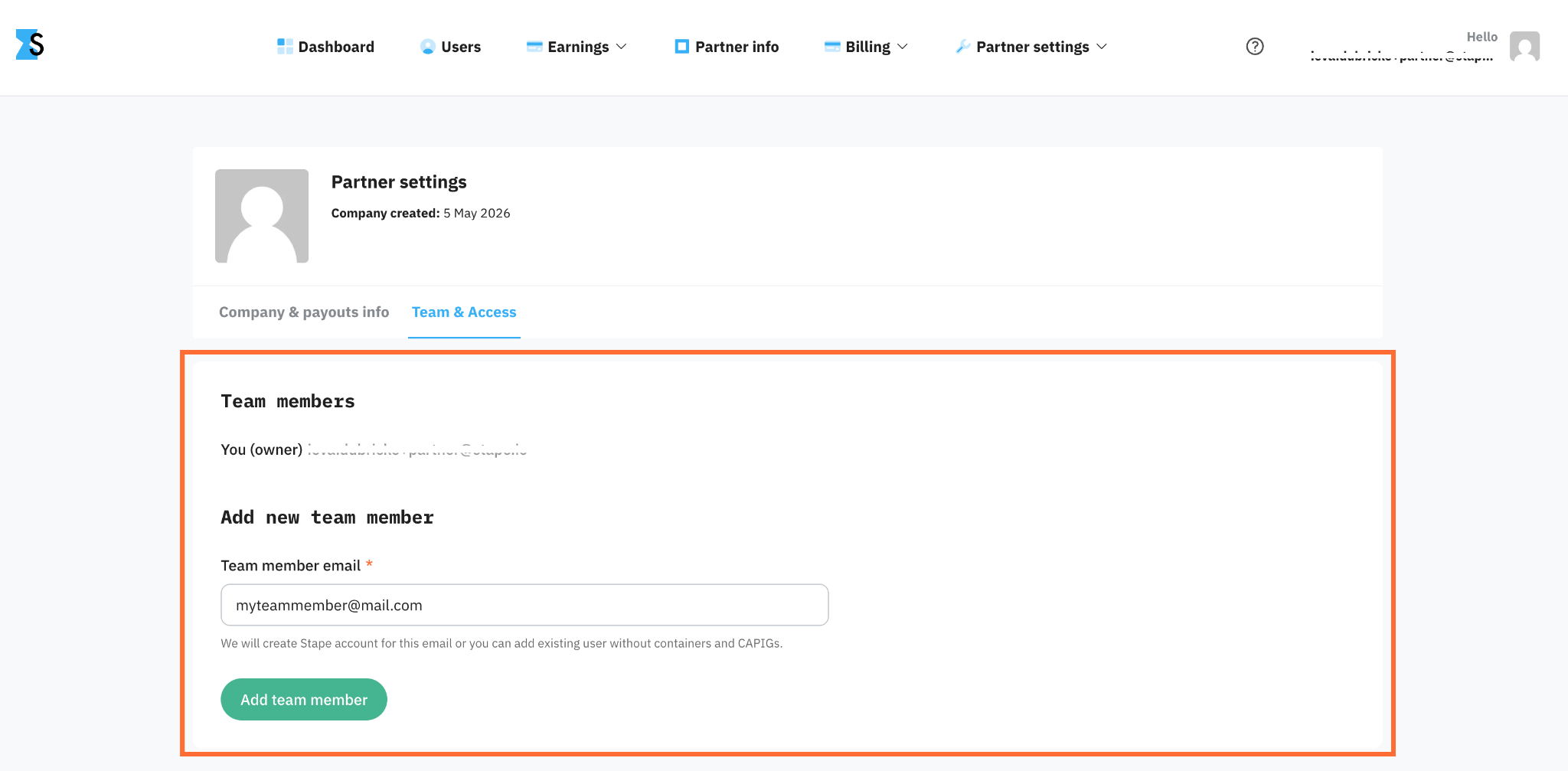
2. Enter the Team member email and click Add team member.
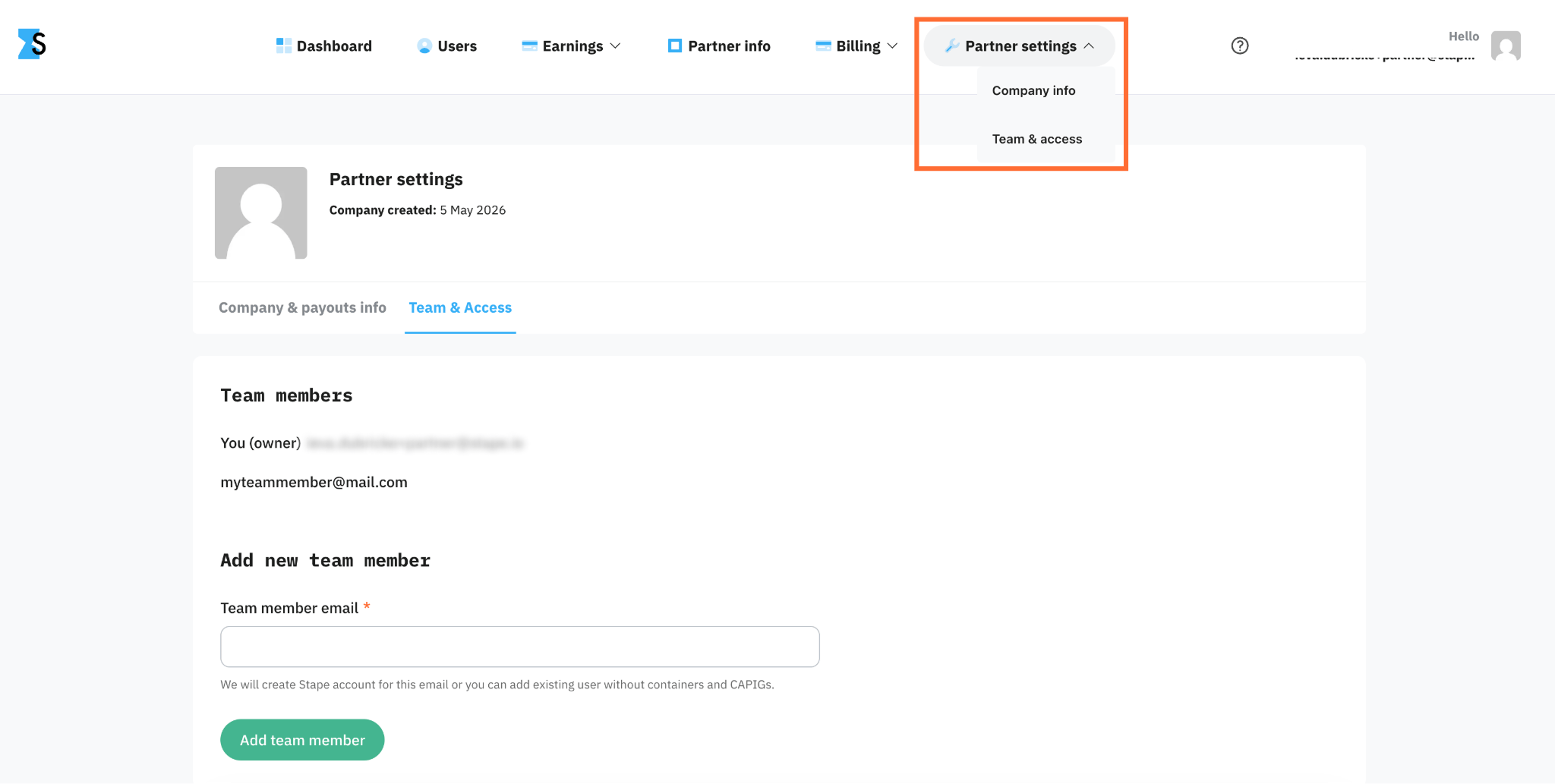
3. The team member gets an email from Stape with a link to sign in.
How to remove a team member
1. Open Partner settings → Team & access.
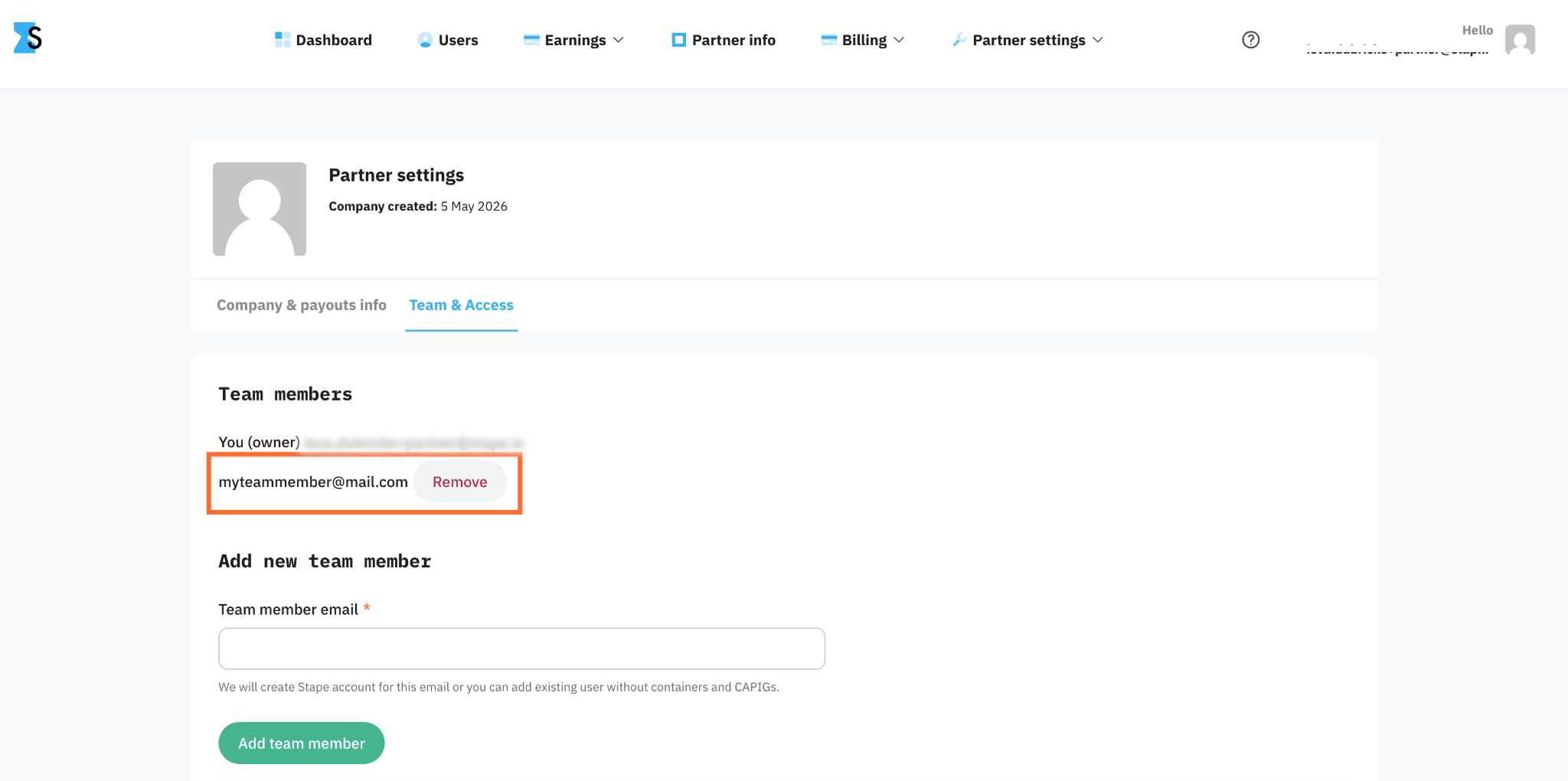
2. Find the team member in the list and click the Remove button next to their name.
3. In the pop-up click Delete.
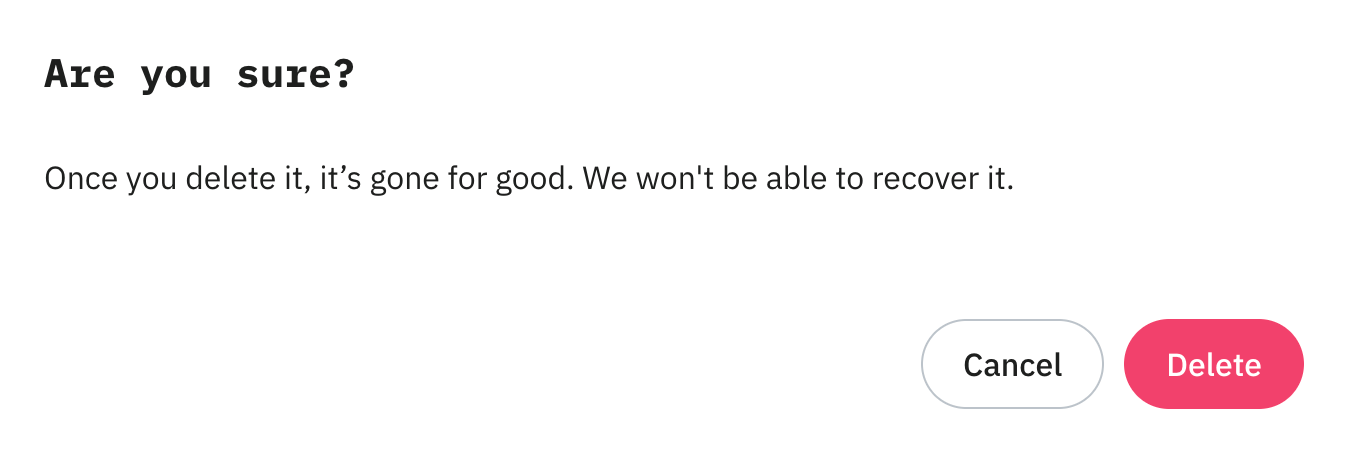
The team member loses their ability to sign in to your Partner account right away. Their personal Stape login still exists and can be used.
Was this article helpful?
🍽 Table of content:
Comments