Shopify app troubleshooting
Updated Sep 25, 2026
Duplicate events and over-reporting
Issue: If another app or your existing GTM setup is already sending ecommerce events, the Stape app may use identical event names. This can cause Web GTM to fire twice for a single action, resulting in inflated data reporting.
Solution: To resolve this, navigate to the app's Data Layer tab and enable the Decorate dataLayer event name option. This will append _stape to Stape event names (for example, purchase_stape, add_to_cart_stape). You can then update your Stape tags and triggers to reference these unique names. You may then choose to either keep your existing setup active for legacy events or pause those tags.
For more information on event names and payloads, see the Shopify app dataLayer article.
Power-ups aren’t working
Issue: You have enabled Custom Loader or Cookie Keeper in the Shopify app settings, but the features aren’t functioning correctly.
Solution: Simply enabling Custom Loader or Cookie Keeper within the app settings isn’t sufficient on its own. To ensure these features function correctly, please first enable the corresponding power-up within your Stape account, and then activate it in the app settings.
Note:
Cookie Keeper and Custom Loader work only when the server container is hosted on Stape. Cookie Keeper also needs a paid Stape plan.
Webhook tests don’t show in sGTM Preview
Issue: The Send test webhook feature triggers a request directly from Shopify, rather than a site visitor's browser, which is why it typically won't appear in the server GTM (sGTM) Preview.
Solution: To view these test webhooks in the sGTM Preview, follow these steps:
- 1.Open Preview in your sGTM container.
- 2.Enable the sGTM Preview header config power-up in your Stape account and follow the setup instructions.
- 3.Click Send test webhook in the app.
- 4.You should now see the request appear in the sGTM Preview.
Note:
Since the header value changes periodically, ensure you use a current one for testing, and remember to disable the power-up once you're finished.
Item IDs don’t match Merchant Center (or another catalog)
Issue: You’re noticing that tracking data fails to match across platforms like Google Ads or Merchant Center, despite the Stape app being configured.
Solution: The app generates the items array directly from your Shopify product catalog. If your external platforms (such as Google Ads or Merchant Center) use different product identifiers, the tracking data can’t be synchronized (for example, a mismatch between the data layer item_id and the Merchant Center id attribute). To resolve this, adjust your item_id directly in the Advanced Data Layer Settings:
- 1.In the
item_idmapping section, configure the identifier format to match your Google Merchant Center or external feed:
- Prefix – add a prefix if required by your feed (for example,
shopify_). - Data Points – choose the product identifier components (for example, Country / Market code, Product ID, Variant ID, SKU, Barcode(GTIN), or Metafield). You can combine up to 3 data points.
- Separator: Set a delimiter between data points (for example, _ ).
2. Click Save.
The app isn’t working
Issue: The Stape Conversion Tracking app for Shopify is installed, but it doesn’t appear to be working properly.
Solution: To troubleshoot this issue, verify the following configuration steps:
- 1.Ensure you have followed all setup steps in our server-side tagging guide.
- 2.Confirm that the data layer is active in your Web GTM container preview.
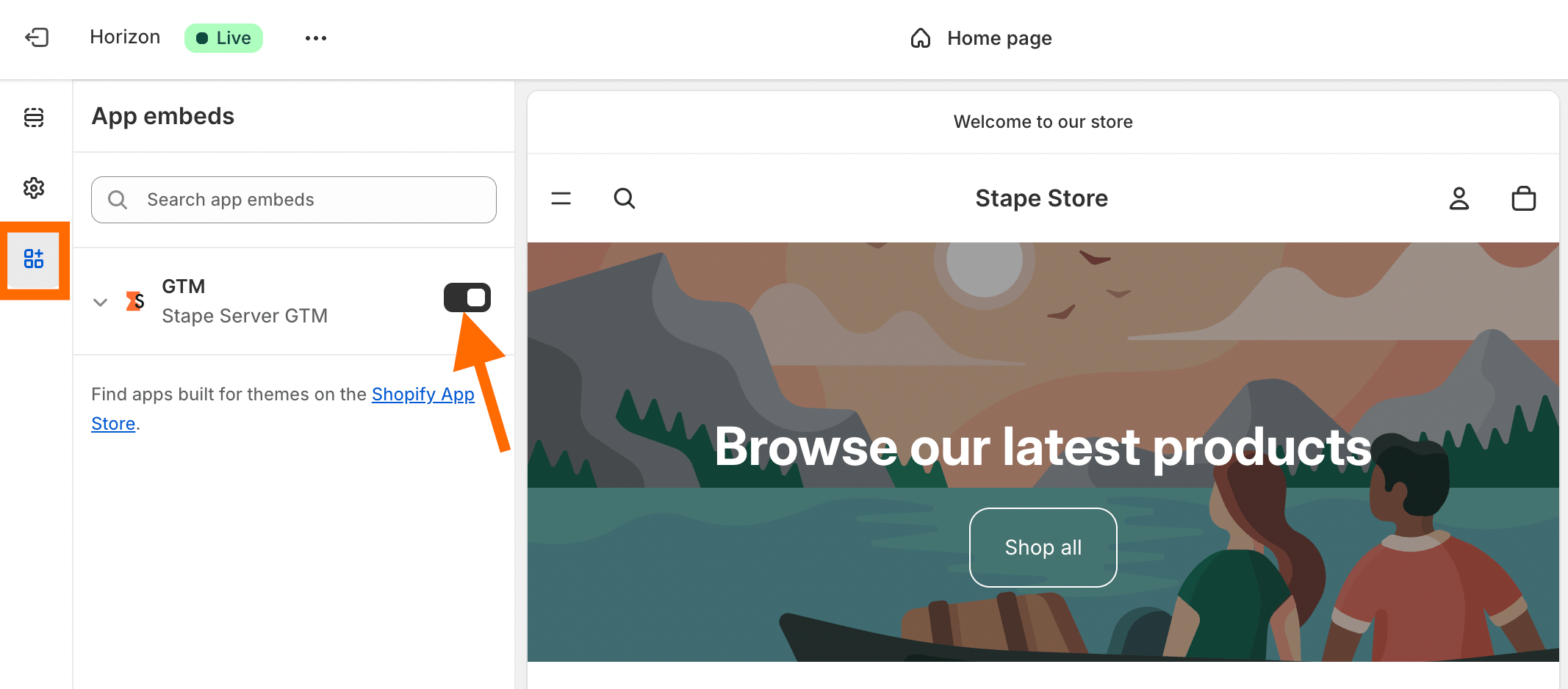
- 3.Check that the plugin embed is active in Shopify by opening Theme customization > App embeds and ensuring the Stape app toggle is enabled.
“No Google Tags” error in sGTM Preview
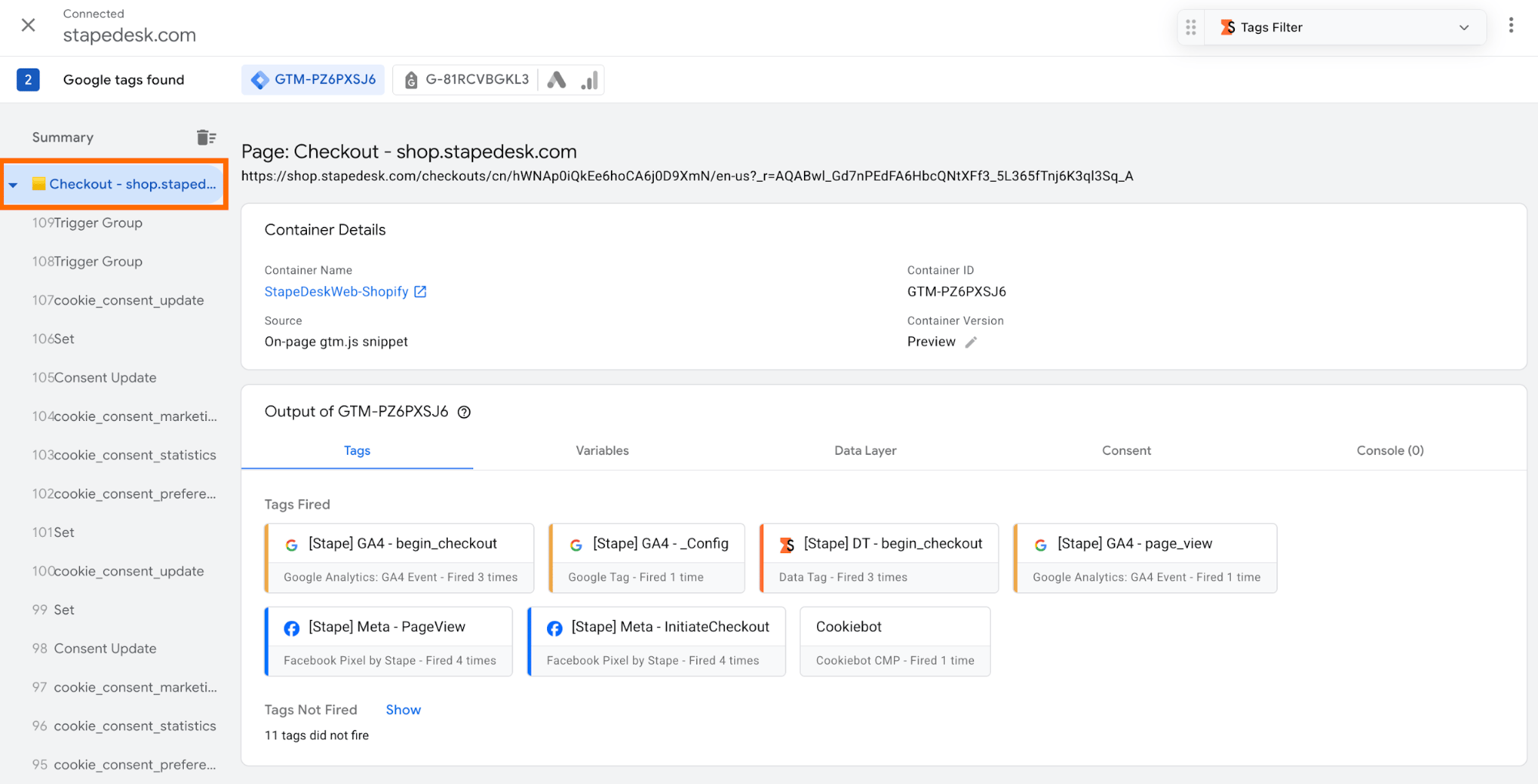
Issue: When debugging a Shopify setup, the GTM dataLayer isn’t accessible on the checkout page because Shopify limits access to the checkout environment. Unlike other Shopify pages, the checkout is sandboxed and doesn’t permit unrestricted DOM manipulation or custom script injection. As a result, users see the “No Google tags found” error while running through the checkout flow.
Solution: To work around this limitation and debug checkout events on your Shopify store, manually insert the GTM snippet using the Stape GTM Helper extension:
- 1.Add the Stape GTM Helper Chrome extension to your browser.
- 2.Run Preview Mode in your GTM container.
- 3.In the extension settings, turn on the Shopify Sandbox dataLayer toggle.
- 4.In the Inject GTM tab, click Enable injection, enter your domain name and GTM ID, and click Save changes.
- 5.Verify that events are being recorded in the GTM Preview.
Cart data needs attention in Google Ads for Shopify
Issue: While verifying that your events fire properly during container testing, you may notice conversion payload warnings in your Google Ads account diagnostics. One of the most common issues on Shopify stores is the "Cart data needs attention" flag, which occurs when the item_id passed in your sGTM e-commerce payload doesn't match the offer_id in your Google Merchant Center product feed.
Solution: To resolve these item-level reporting errors and ensure proper attribution for Smart Bidding, check out our dedicated guide on How to fix “Cart data needs attention” in Google Ads for Shopify for step-by-step instructions on aligning SKU formats and configuring payload transformations.
Was this article helpful?
🍽 Table of content:
Comments