How to set up the Squarespace app
Updated Oct 30, 2026
Before you begin
To use power-ups such as Custom Loader and Cookie Keeper, you need to have an sGTM container hosted on Stape and GA4 or Data tags configured in your web GTM container.
If you haven’t set this up yet, follow our Get started with sGTM hosting guide.
How to set up the app
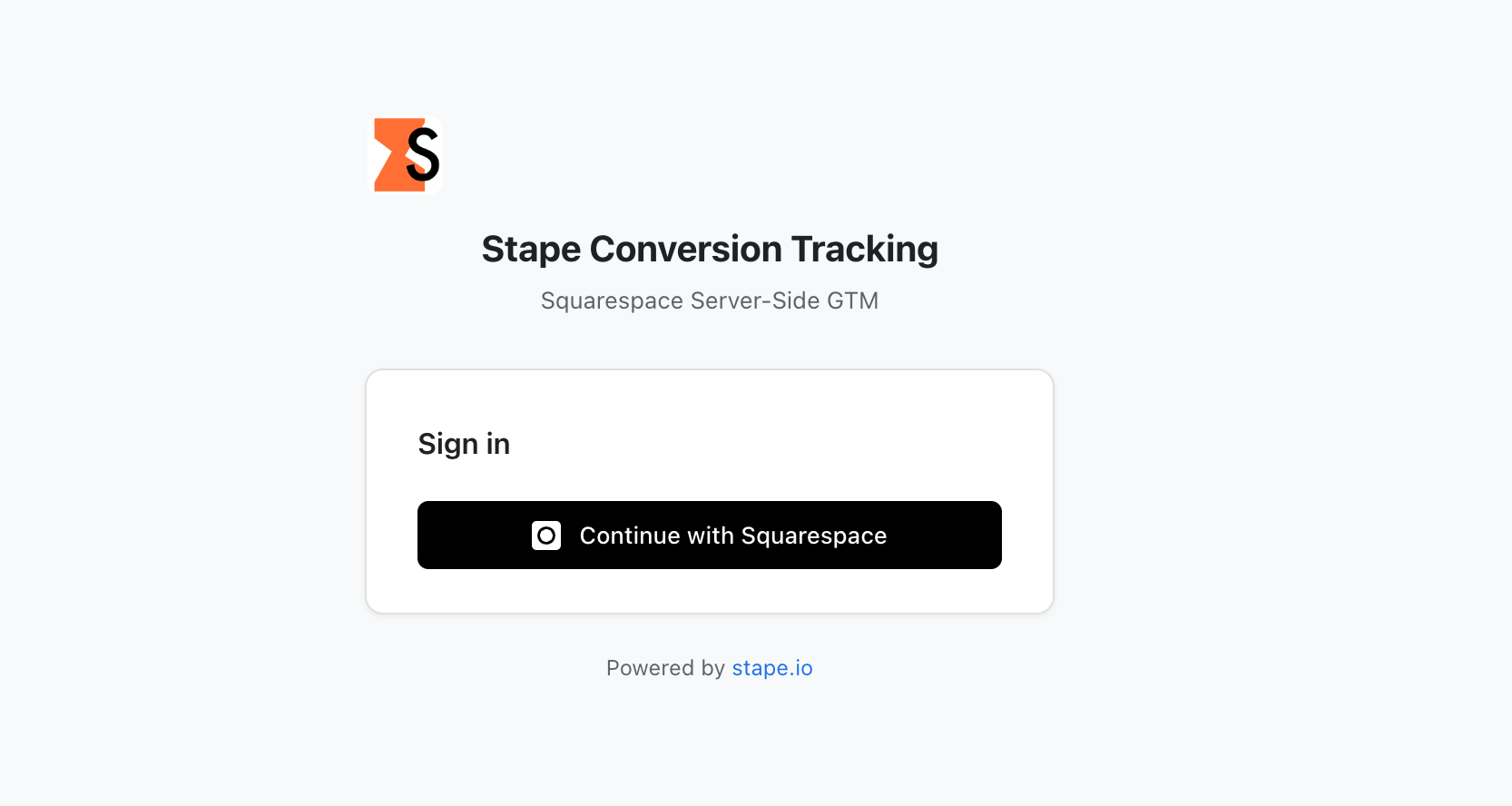
1. Follow Squarespace app configuration link → click on Continue with Squarespace → sign in to your Squarespace account.
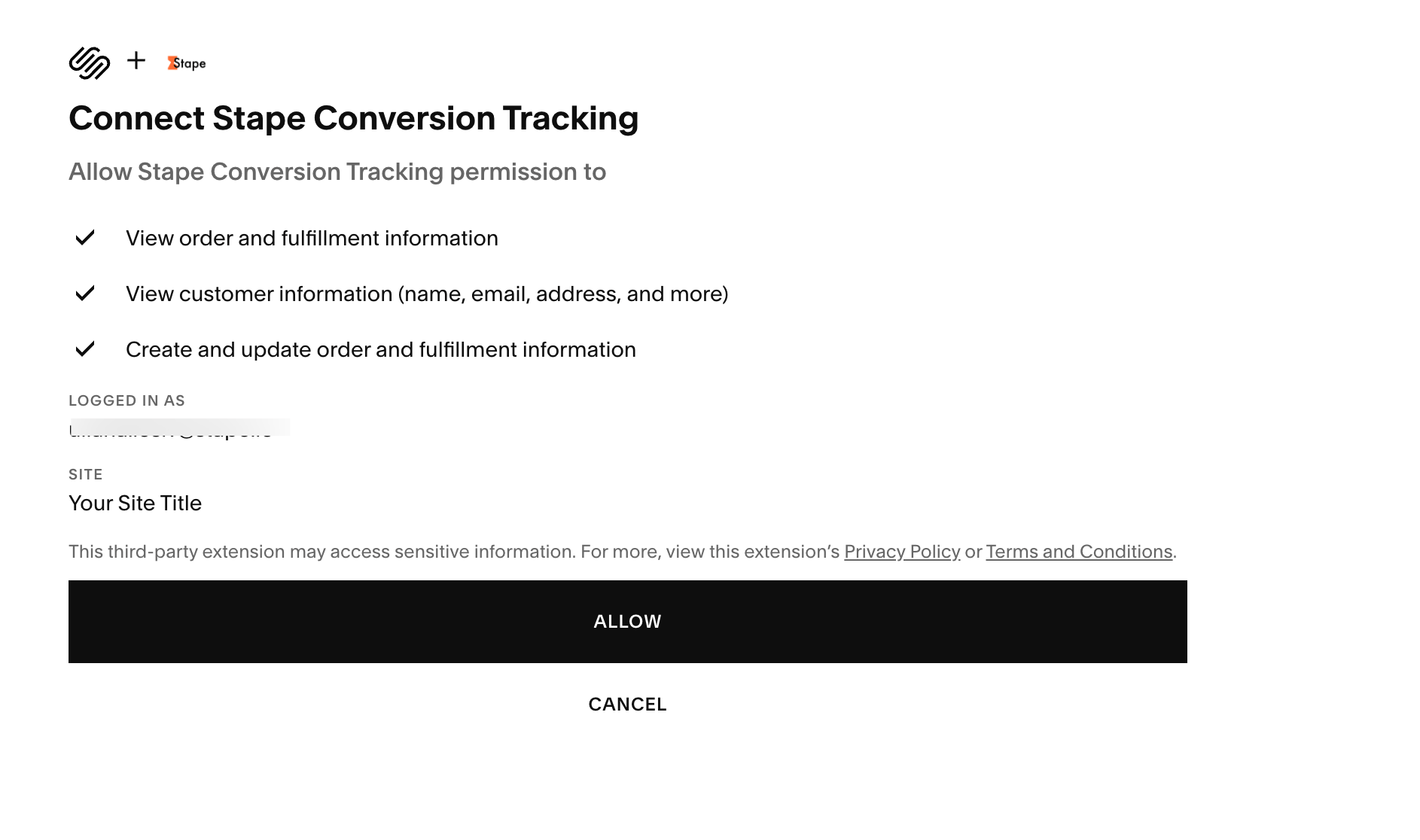
2. Click “Allow” to connect your Squarespace account with the Stape Conversion Tracking app.
General
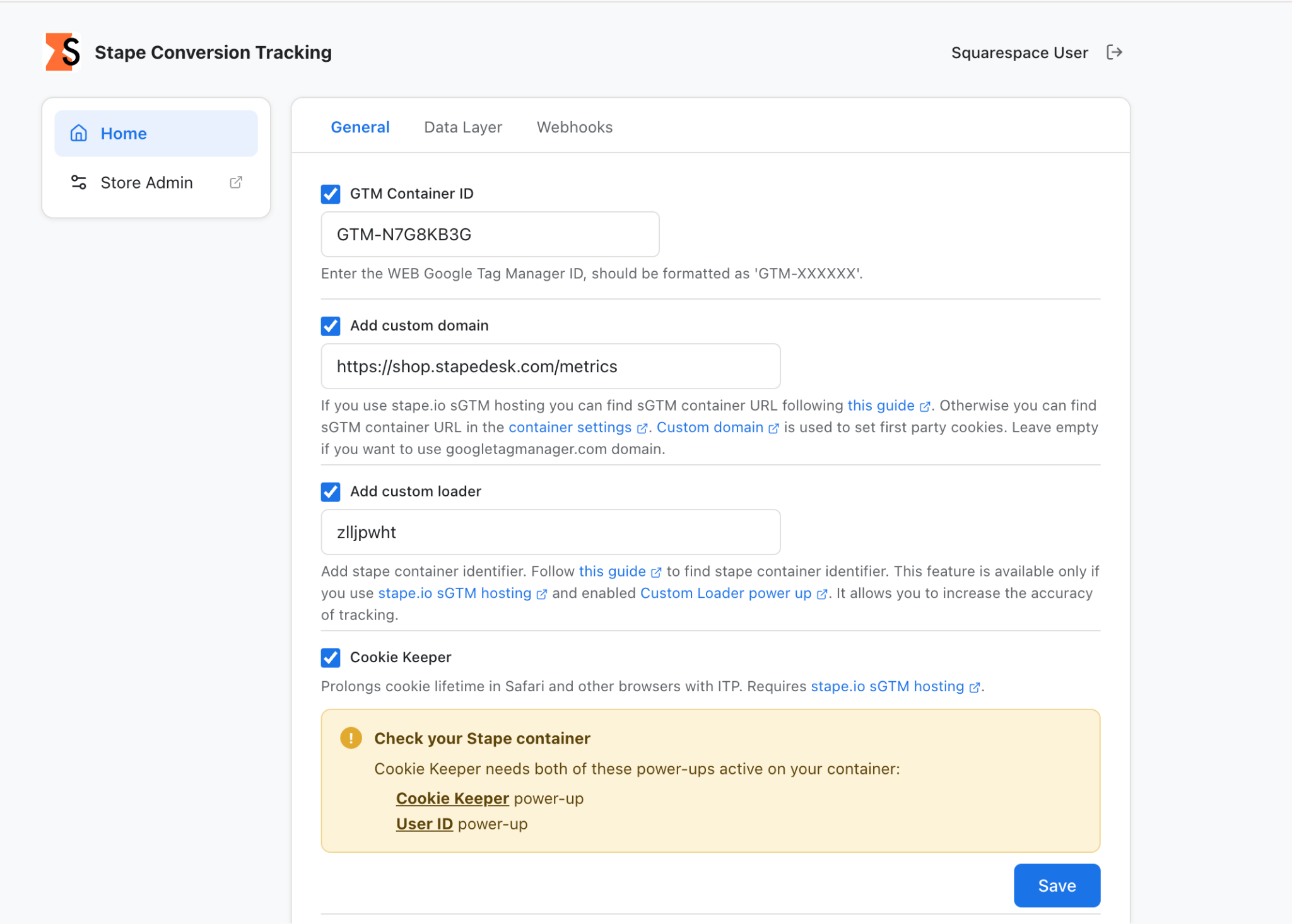
1. Configure the General tab:
- Insert GTM snippet – check this box to let the app automatically install the GTM snippet on every page of your Squarespace site.
If enabled, enter your GTM Container ID – the ID of your web GTM container, which you can find in the Accounts tab of your GTM account. The ID should follow this format: GTM-XXXXXXX. Learn more about how to find your web container ID.
- Add custom domain – enter your custom domain (optional). Requests will be sent through your tagging subdomain, helping keep cookies first-party.
- Add Custom Loader – enter your Stape container identifier (optional). This allows the
gtm.jsscript to load from your domain instead of Google's. It helps minimize ad blockers' impact. To use this feature, make sure Custom Loader is enabled in your Stape account. - Cookie Keeper – choose this power-up to extend cookie lifetime in Safari and other browsers that use Intelligent Tracking Prevention (ITP). This option is available only if you use Stape’s sGTM hosting and have configured the Cookie Keeper power-up.
Make sure to also enable Stape User ID in your container’s power-ups. This power-up generates a persistent, privacy-conscious user identifier and attaches it to every incoming request processed by your sGTM container.
2. Click Save.
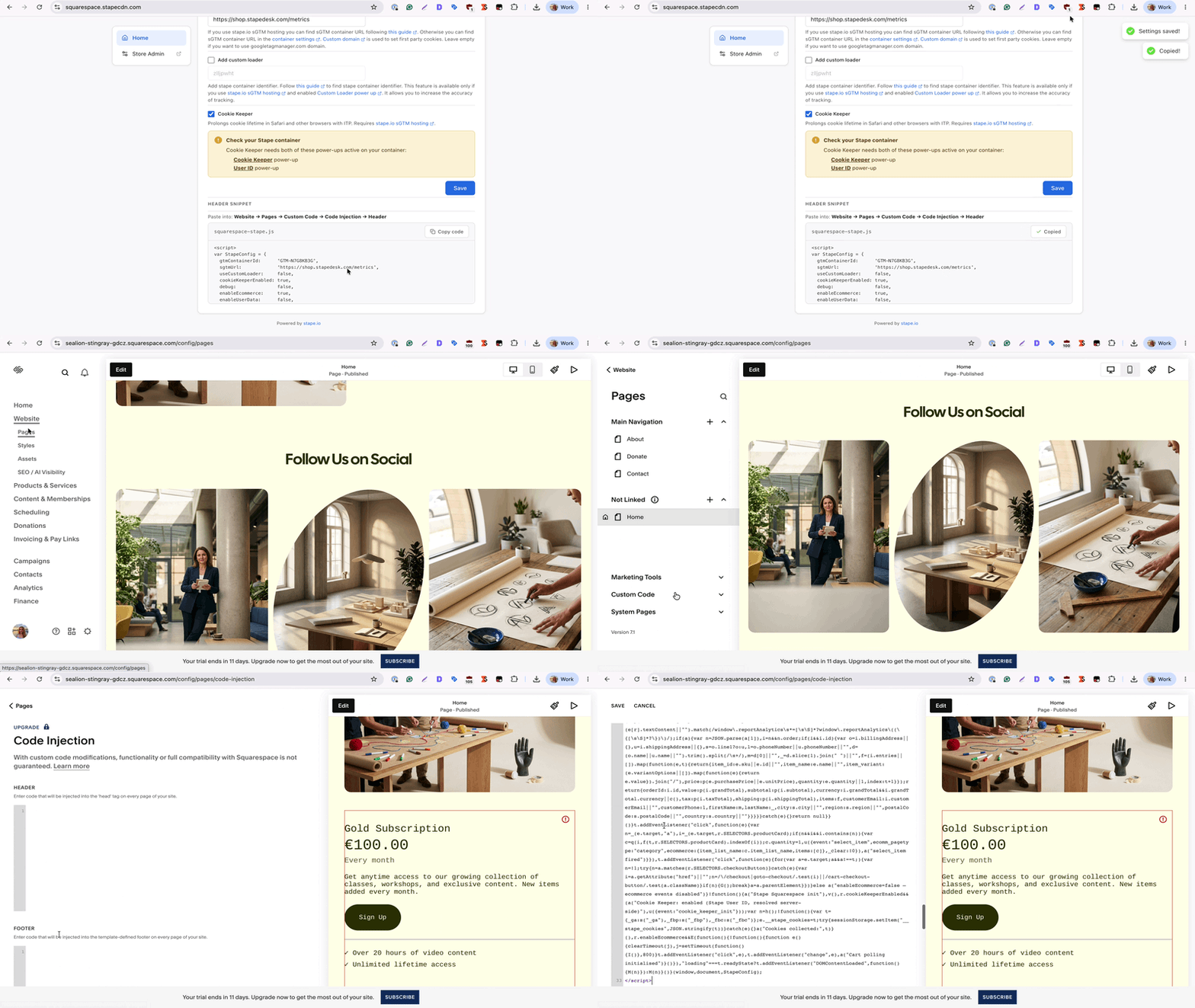
3. Once the changes are saved successfully, the header snippet is modified according to the existing setup.
Copy the snippet → open the “Website” → click on “Pages” → navigate to “Custom Code” click on “Code Injection” → paste the snippet in the “Header” field.
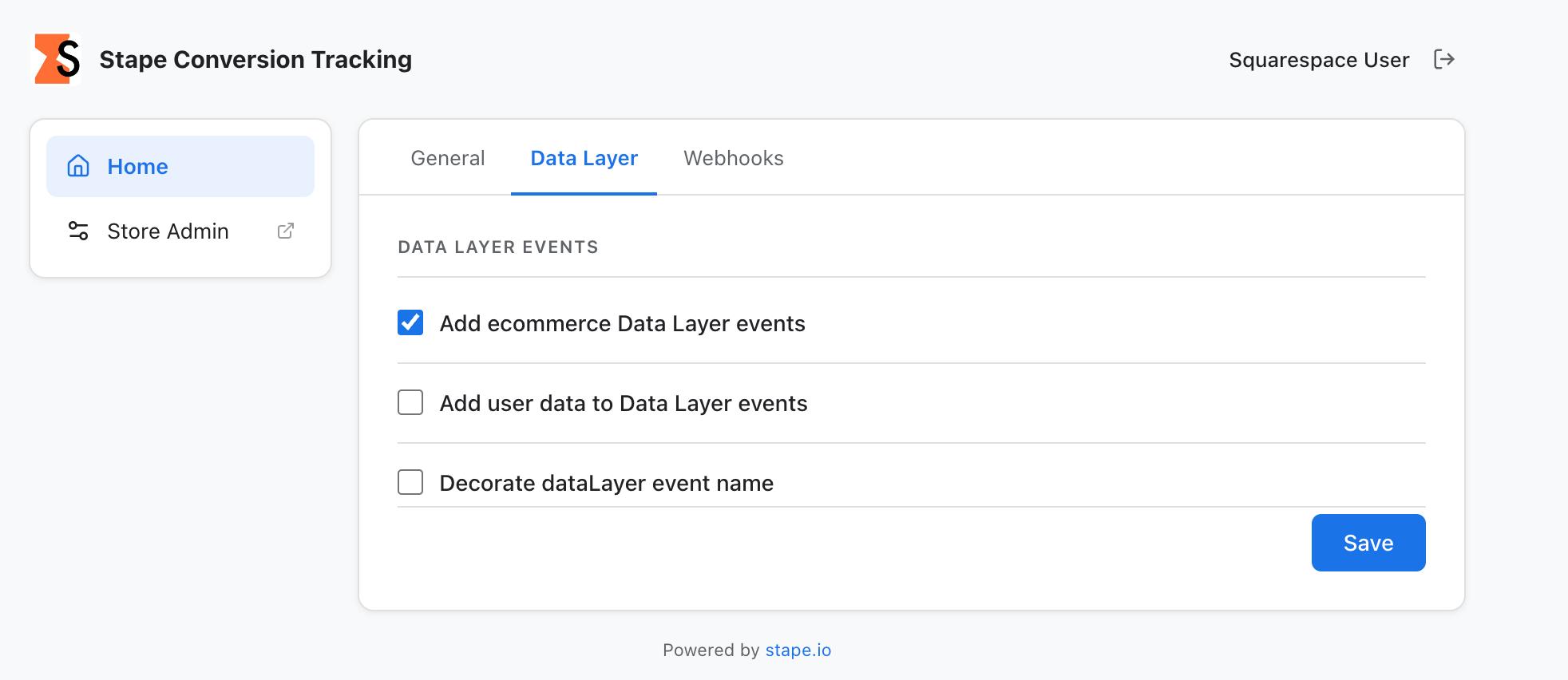
Data Layer
1. Configure the Data Layer tab:
- Add ecommerce Data Layer events – enables sending ecommerce data to the Data Layer.
- Add user data to Data Layer events – includes user data in Data Layer events.
- Decorate data layer event name – adds the
_stapeprefix to event names to avoid conflicts with existingdataLayerpushes that could cause tags to fire twice. If this option is disabled, event names follow the GA4 event naming schema.
2. Click Save.
Webhooks
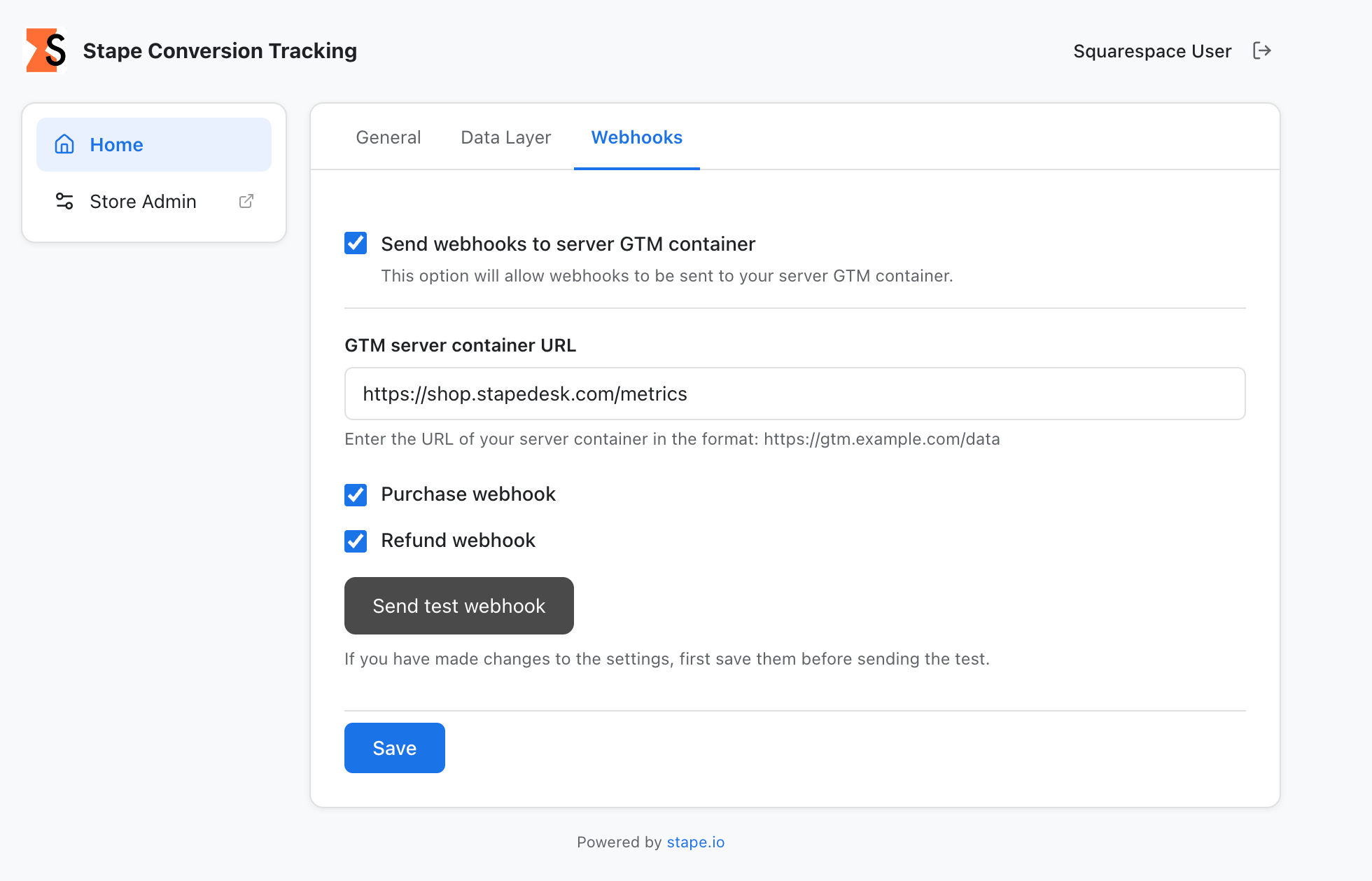
1. Configure the Webhooks tab. Webhooks are useful for tracking events that occur outside your website, such as phone orders or offline sales.
- Enable Send webhooks to server GTM container.
- Enter your Server container URL.
- Select the webhooks you want to use:
- Purchase webhook – sends a purchase event when a new order is created.
- Refund webhook – sends a refund event when an order is refunded.
2. Click Save.
Configure tags and triggers in GTM
After configuring the Stape Conversion Tracking app for Squarespace, you need to configure your GTM containers to process the events sent by the app. You can do this in two ways:
- Use the Setup Wizard to automatically generate and import the required tags, triggers, and variables.
- Configure tags and triggers manually if you prefer to manage your GTM setup yourself or already have an existing tracking configuration.
Using the Setup Wizard
The Setup Wizard will generate the required templates for your web and server GTM containers based on your website platform and tracking destinations.
To access the Setup Wizard, log in to your Stape account → open the sGTM section → select your server container and click the Setup Wizard icon next to Container settings.

Follow the wizard instructions to configure your web and server GTM containers and select the platforms you want to track, such as GA4, Meta, or Google Ads.
For detailed instructions, see how to use Setup Wizard guide.
Configuring tags and triggers manually
If you prefer to configure your GTM containers manually, follow these steps.
1. Configure tags in your web GTM container. Create or update the GA4 tags or Stape Data Tag to send the events collected by the Squarespace app to your server GTM container. Make sure the tags use the correct server container URL.
2. Configure triggers for data layer events. Create triggers for the events you want to track, such as product views, add-to-cart actions, checkout events, and purchases.
Use the event names pushed to the dataLayer by the Squarespace app. If you enabled the option to append the _stape suffix in the app settings, make sure your trigger event names match the suffixed event names.
To see the event names pushed to dataLayer, right-click the page of your website → select Inspect → open the Console tab → enter this command:
window.dataLayerAfter pressing Enter, inspect the returned array for entries containing an event property
3. Configure tags in your server GTM container. Add the server GTM tags required to forward incoming events to your analytics and advertising platforms, such as GA4, Meta Conversions API, or Google Ads. Configure the appropriate triggers and required parameters for each destination.
4. Configure webhook events if needed. If you enabled purchase or refund webhooks in the Squarespace app, make sure your server container is configured to process the incoming requests and send the corresponding events to your selected destinations.
Testing
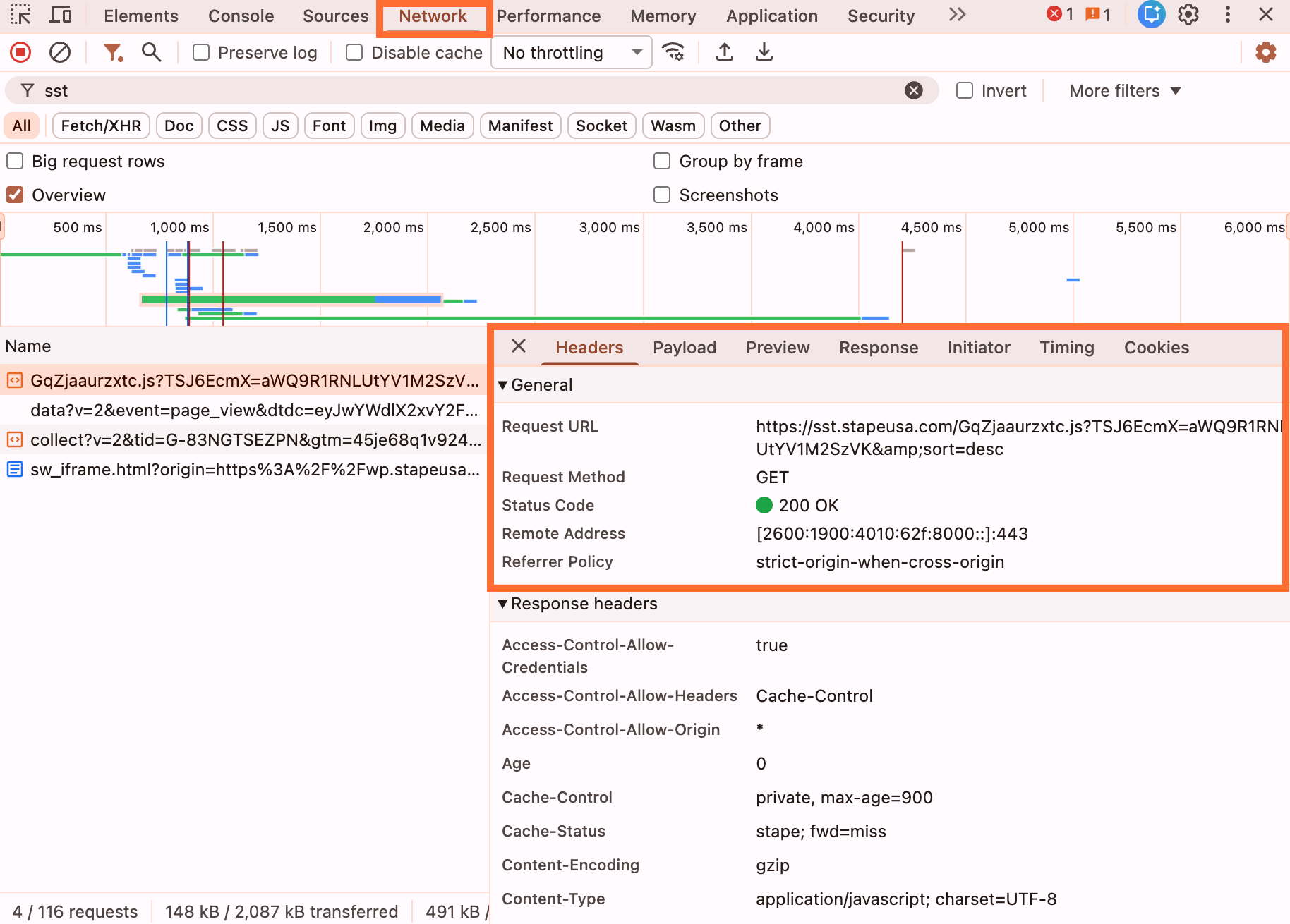
1. Open any page on your website and launch Developer Tools.
Go to the Network tab and filter requests by your tagging server URL. If you haven’t configured a custom domain, search for gtm.js instead.
Verify that the web GTM script loads through the specified URL and returns a 200 status code.
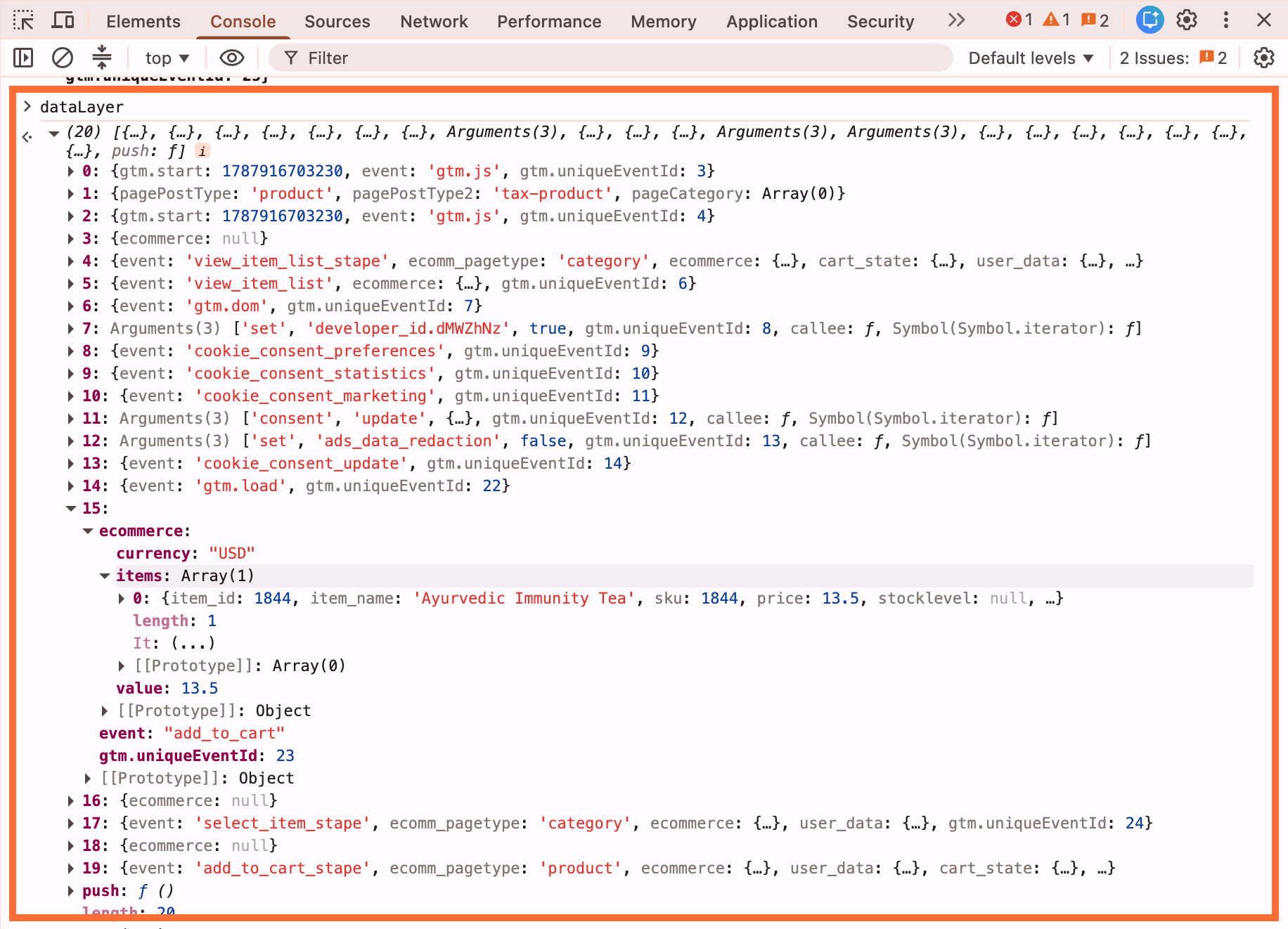
2. In Developer Tools, open the Console tab and perform a few actions on your website, such as adding a product to the cart.
Enter dataLayer in the console and press Enter. Check that the Data Layer contains the expected events and data.
3. Test the setup in Google Tag Manager.
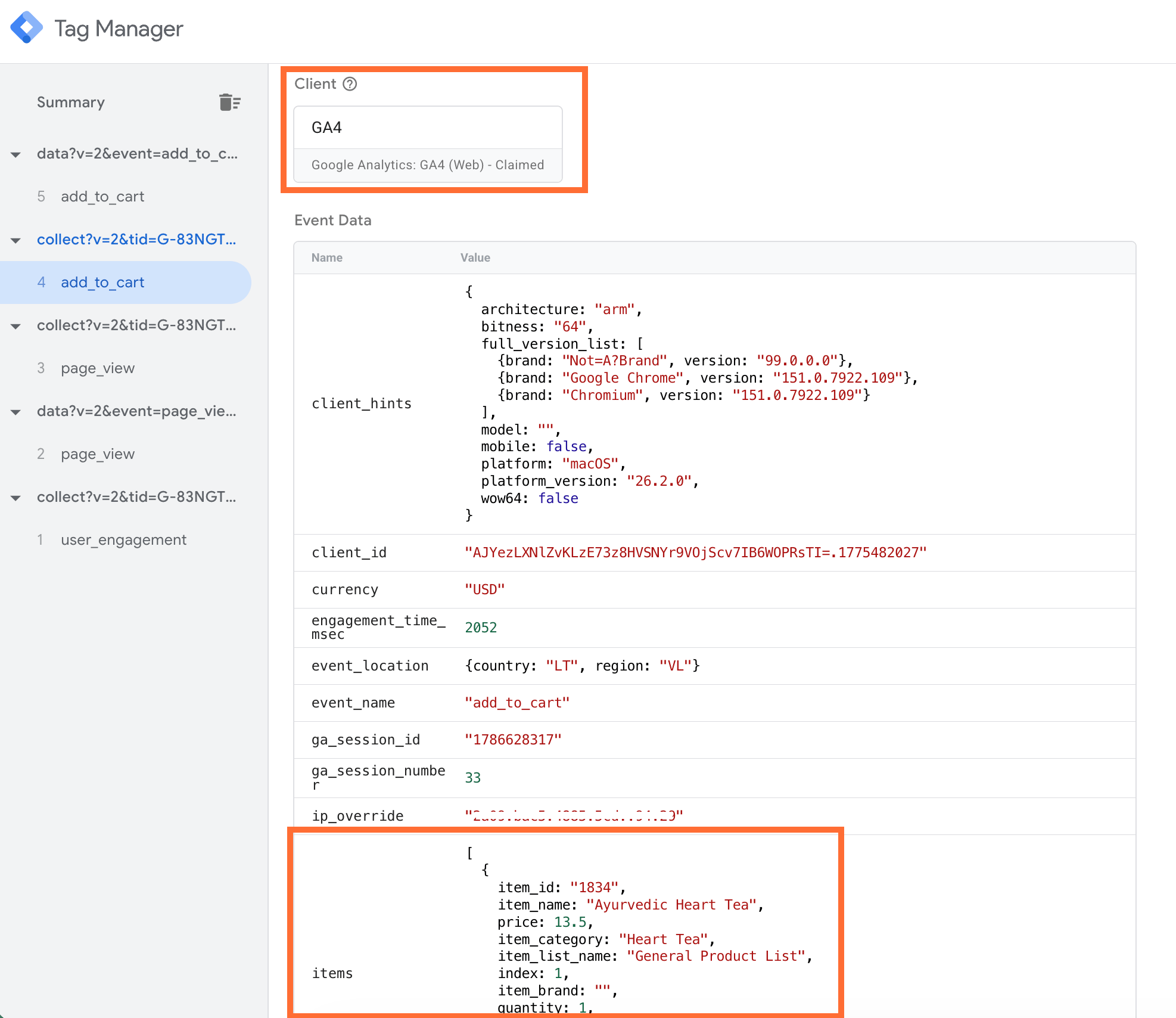
3.1. Open your sGTM container and click Preview.
3.2. In a separate tab, open your web GTM container, click Preview, and enter your website URL.
3.3. Perform test actions on your website, such as adding a product to the cart.
3.4. In the sGTM preview window, verify that incoming requests reach your server container and are handled by the appropriate Client, such as the GA4 Client or Data Client.
Was this article helpful?
🍽 Table of content:
Comments