How to set up Odoo CMS app
Updated Sep 28, 2026
Before you begin
If you want to use functionalities such as the Custom Loader and Cookie Keeper power-ups, you need to have an sGTM container hosted on Stape. You will also need GA4 or Data tags configured in a web GTM. If you don’t have this, follow the Get started with sGTM hosting instructions.
How to set up the app
- 1.Log in to your Odoo account.
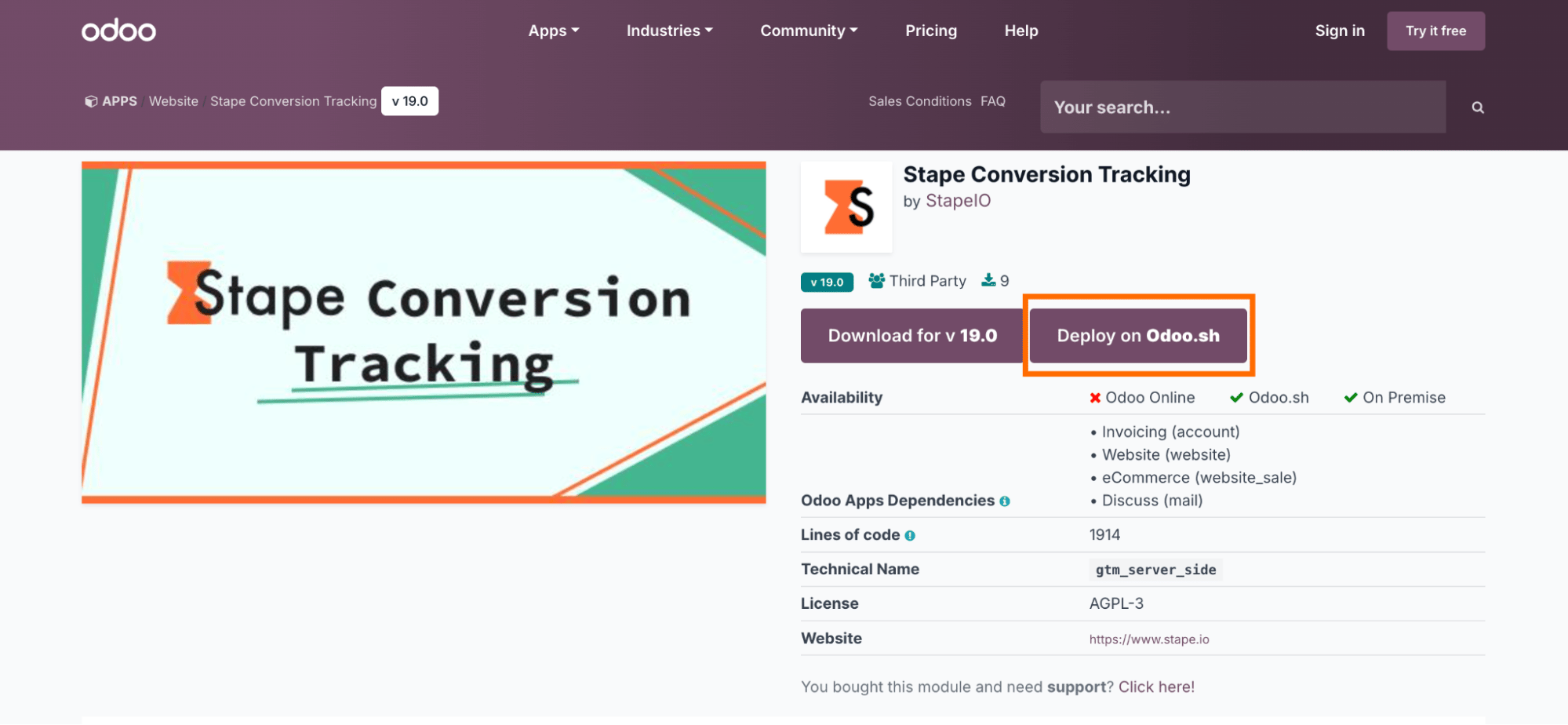
- 2.Open Apps and search for Stape Conversion Tracking.
- 3.Click on Deploy on Odoo.sh → sign in to your GitHub account and install the app.
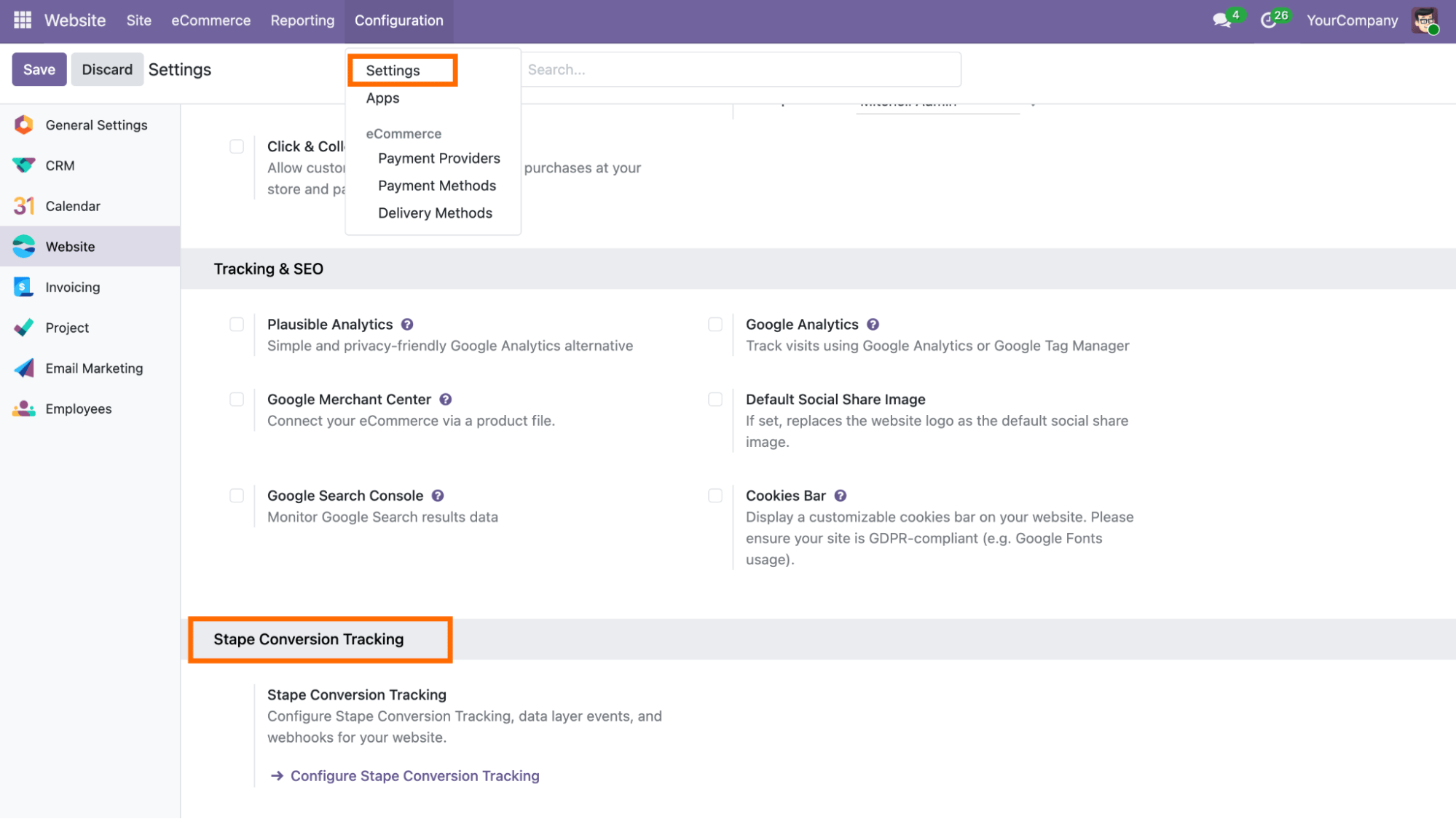
4. To configure the app after installation, open the Website module.
5. Click on Configuration → Settings.
6. Scroll to find Stape Conversion Tracking app and click Configure Stape Conversion Tracking.
General
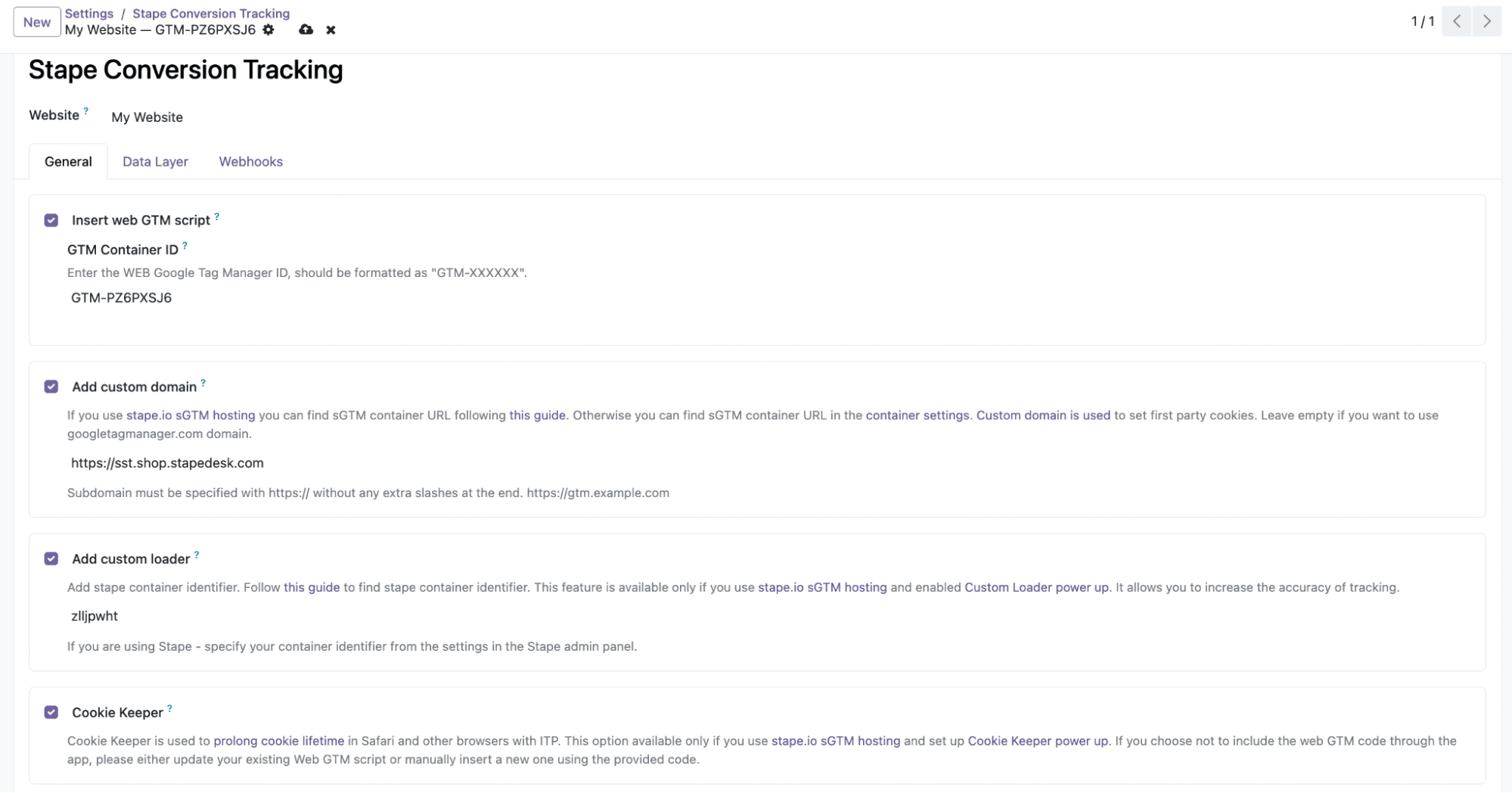
- 1.Configure the General tab:
- Insert GTM snippet – automatically adds the snippet with JavaScript code to every page on your website.
- GTM container ID – enter your web container ID.
- Add custom domain – specify the custom domain (optional). In this case requests go through your tagging subdomain, so cookies stay first-party.
- Add custom loader – specify Stape container identifier (optional). The
gtm.jsscript loads from your domain instead of Google’s, which helps the script get past ad blockers. Custom Loader needs to be turned on in your Stape account to use it. - Cookie Keeper – select whether to use the Cookie Keeper. Cookie Keeper needs to be turned on in your Stape account to use them.
2. Click Save.
Data Layer
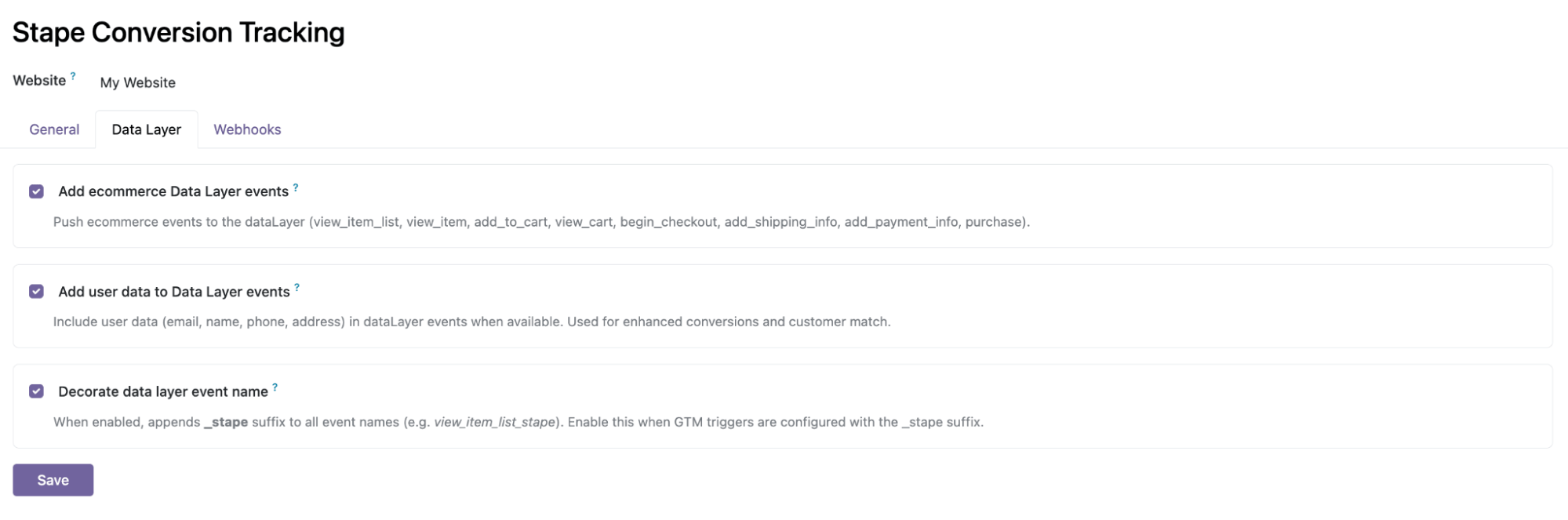
- 1.Configure the Data Layer tab:
- Add ecommerce Data Layer events – send ecommerce data.
- Add user data to Data Layer events – send user data.
- Decorate data layer event name – adds
_stapeto event names so they don’t clash with existing dataLayer pushes, potentially triggering your tags twice. When it’s unchecked, event names are pushed as per GA4 schema.
2. Click Save.
Webhooks
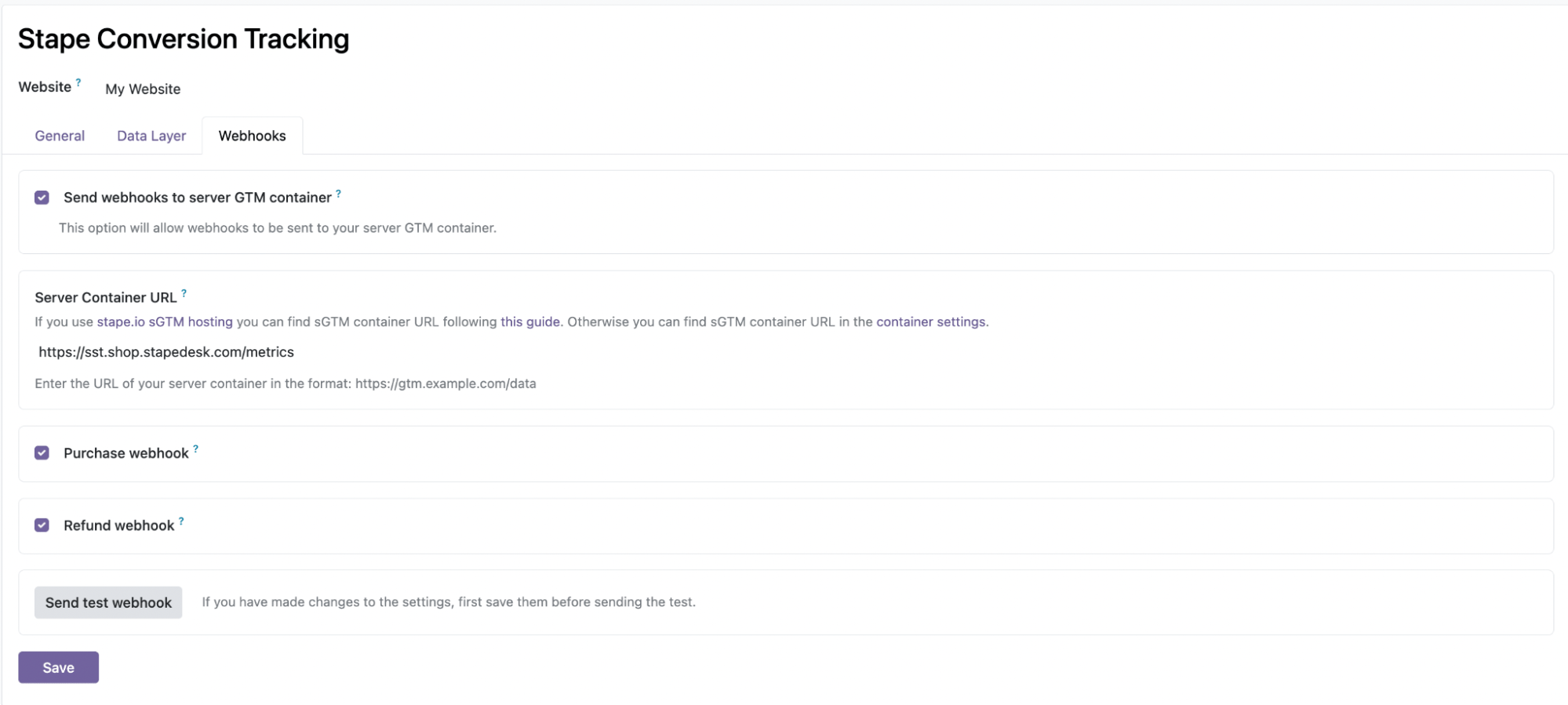
- 1.Configure the Webhooks tab. Webhooks are useful for events outside the website (for example, phone or offline sales).
- Enable Send webhooks to server GTM container.
- Add your Server container URL.
- Choose the webhooks:
- Purchase webhook – send a purchase event when a new order is created.
- Refund webhook – send a refund event when an order is refunded.
2. Click Save.
Testing
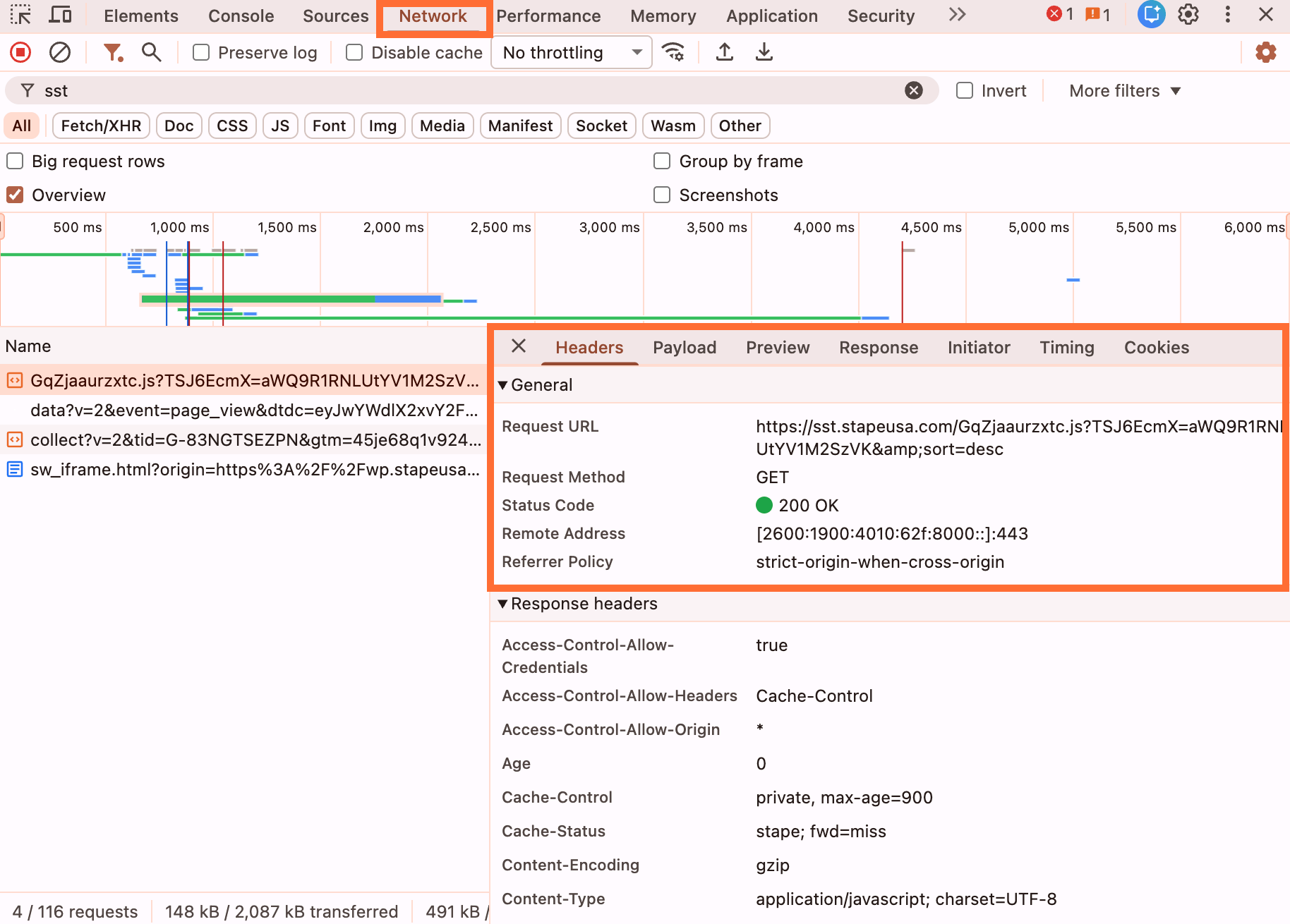
- 1.Open any site page, open the Developer Tools, and in the Network tab filter by your tagging server URL. If you didn’t set up a custom domain, search by
gtm.js. You should see the web GTM script served through that URL, with status 200.
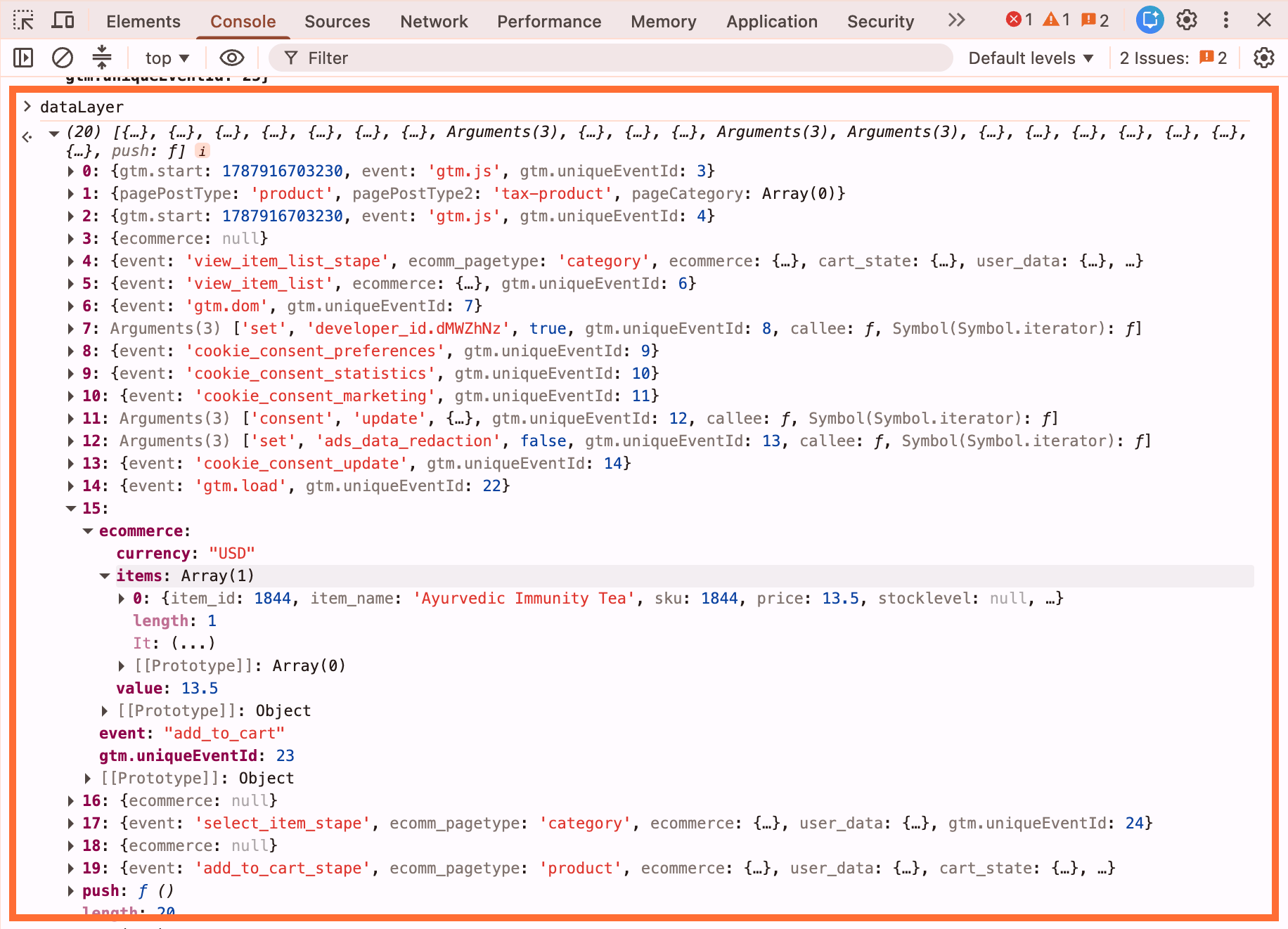
2. In the same Developer Tools, go to Console and do some actions on your site (for example, add to cart). Type in dataLayer and press Enter. Confirm that the dataLayer is being filled.
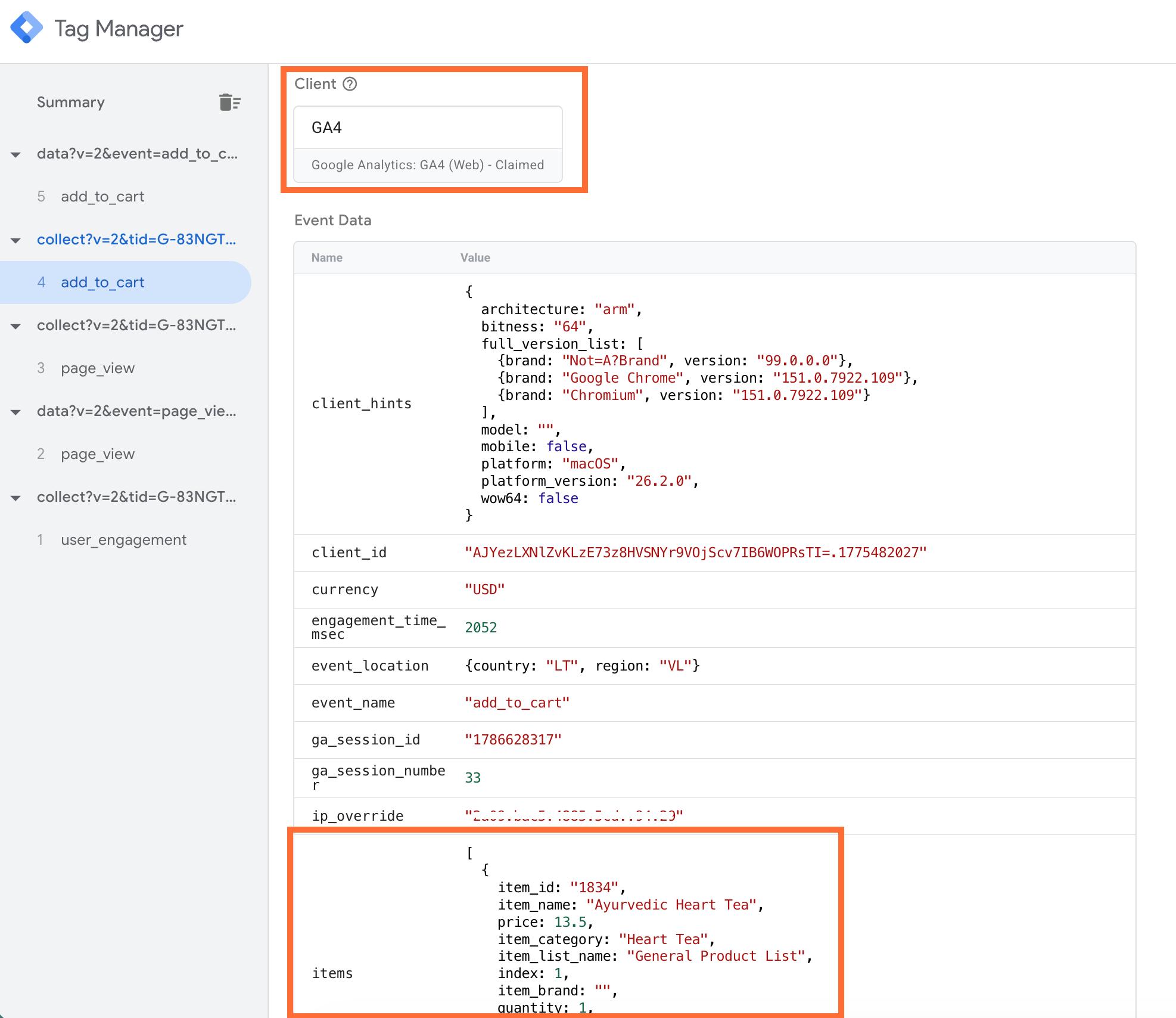
3. Test in Google Tag Manager:
3.1. Open your sGTM container → click Preview.
3.2. In a separate tab, open your web GTM container → click Preview and enter your site URL.
3.3. Perform test actions on your website (such as add to cart).
3.4. In the sGTM debug window, verify that incoming requests arrive at your sGTM and are claimed by your Client (GA4 Client or Data Client).
Was this article helpful?
Comments