Consent Parser variable
Updated May 10, 2026
The Consent Parser variable for server-side Google Tag Manager helps you decode the complex ‘gcd’ parameter used in Google Consent Mode v2.
Using the Consent Parser makes sure you stay compliant, manage consent efficiently, and respect user choices without losing valuable data. By providing the "fuel" of accurate consent signals to your server-side tags, you maximize your ROI while building user trust.
This variable uses the Analytics Debugger OpenAPI to check that your data processing is accurate and compliant with global privacy laws like GDPR and CCPA.
Requirements for setting up the Consent Parser variable
Please ensure that you already have Google Tag Manager web and server containers, as well as a configured server container and custom domain in Stape. Please follow these guides if you don’t have any of those:
How to set up the Consent Parser variable
1. Configure sending data to the server GTM container. The gcd parameter is automatically collected by Google Analytics 4 (GA4) if your consent banner supports Google Consent Mode. Ensure your container is sending this data to your sGTM. You can use GA4 or the Stape Data Tag for this purpose.
- Read how to send data from web to server container via the Data tag.
- Discover how to send data from the web to a server container via Google Analytics 4.
2. Add the Consent Parser variable template. In your server GTM container, import the template from the Community Template Gallery:
- Navigate to the Templates menu → in the Variable Templates section, click Search Gallery → search for Consent Parser by Stape → click Add to workspace.
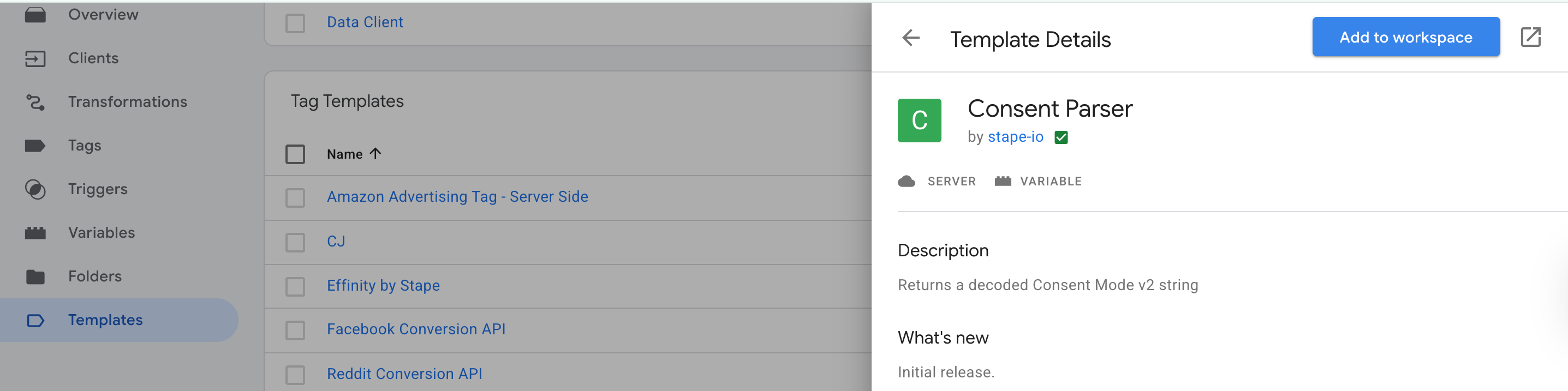
3. Create the Consent Parser variable:
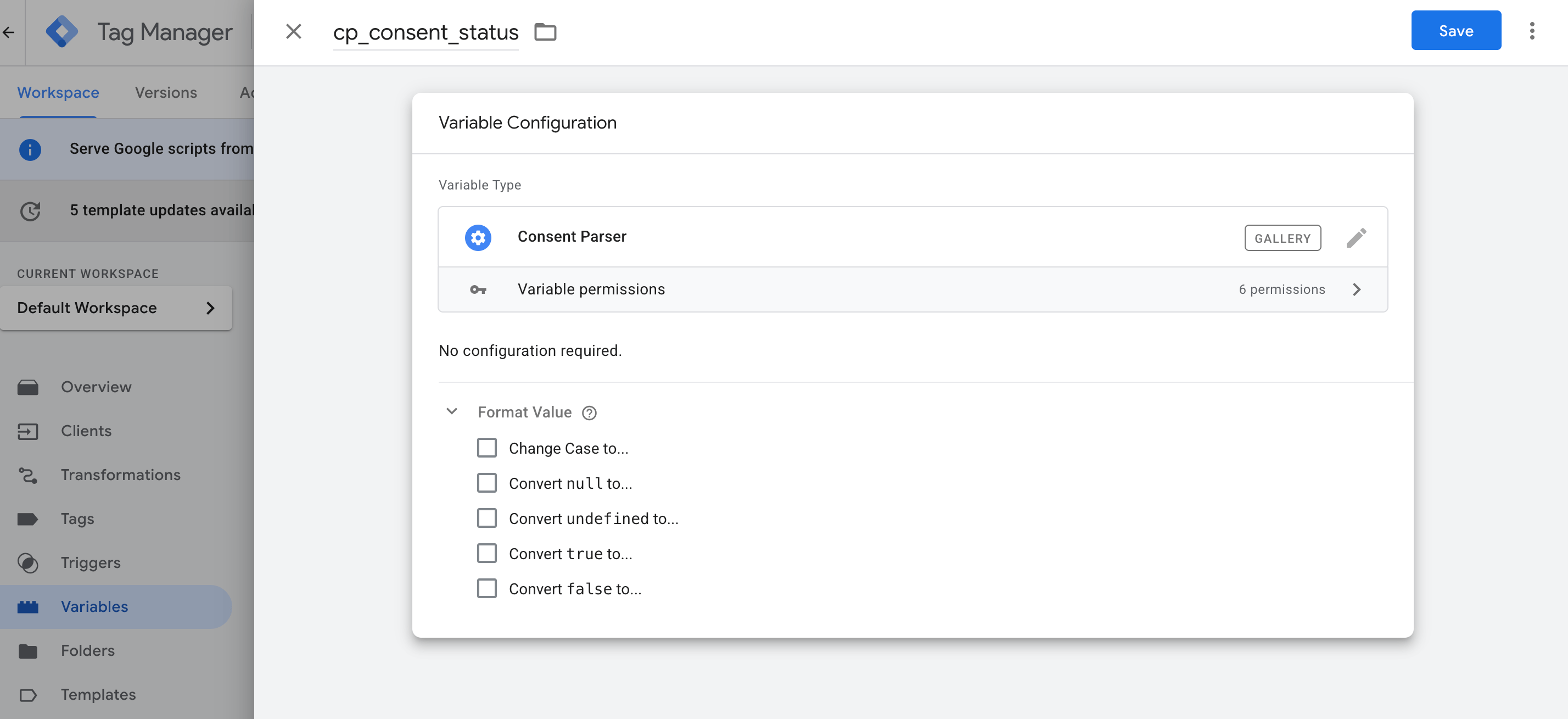
- Go to the Variables menu → click New → click Variable Configuration → select the Consent Parser variable.
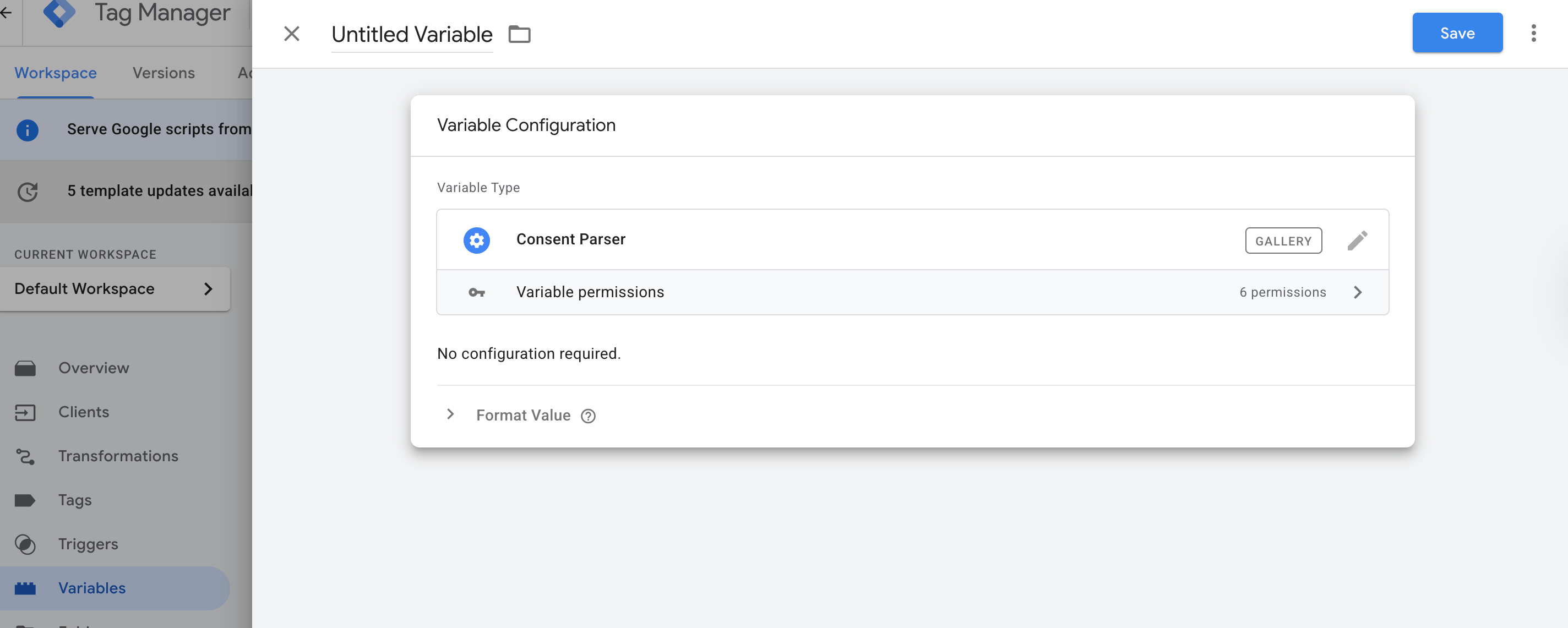
4. Configure the Consent Parser settings.
The variable automatically looks for the gcd parameter in the incoming hit and decodes it. Because this variable interacts with external services and internal data, check if you understand the following permissions:
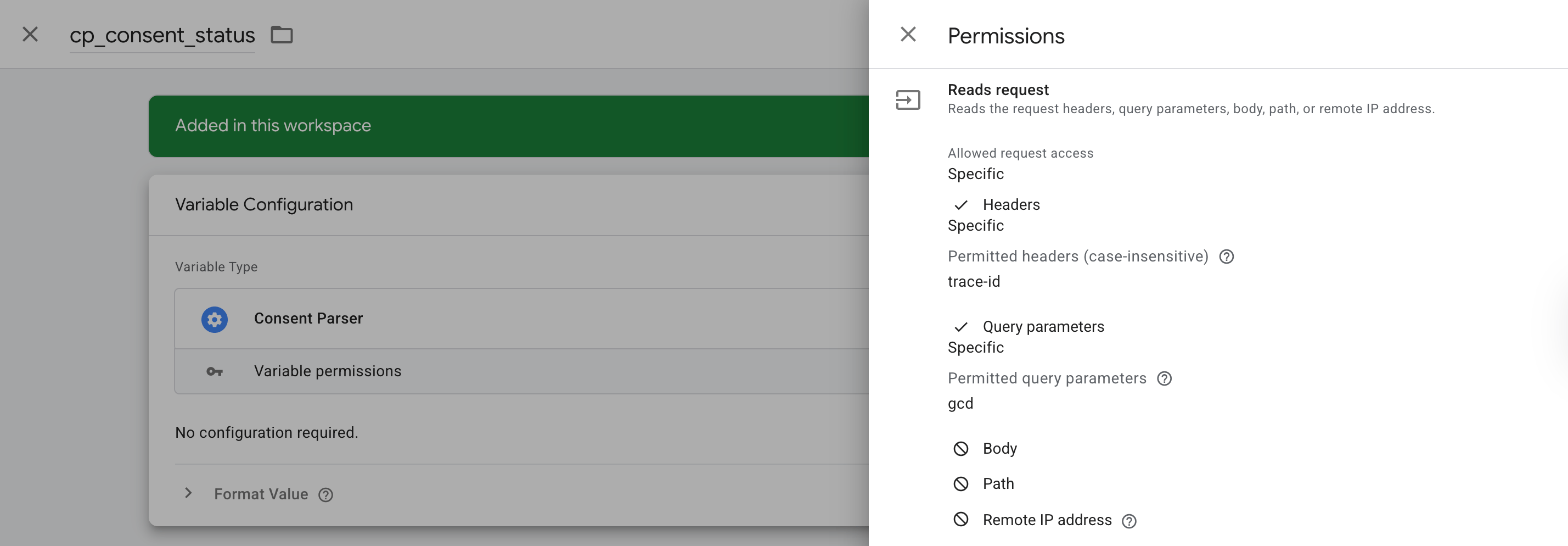
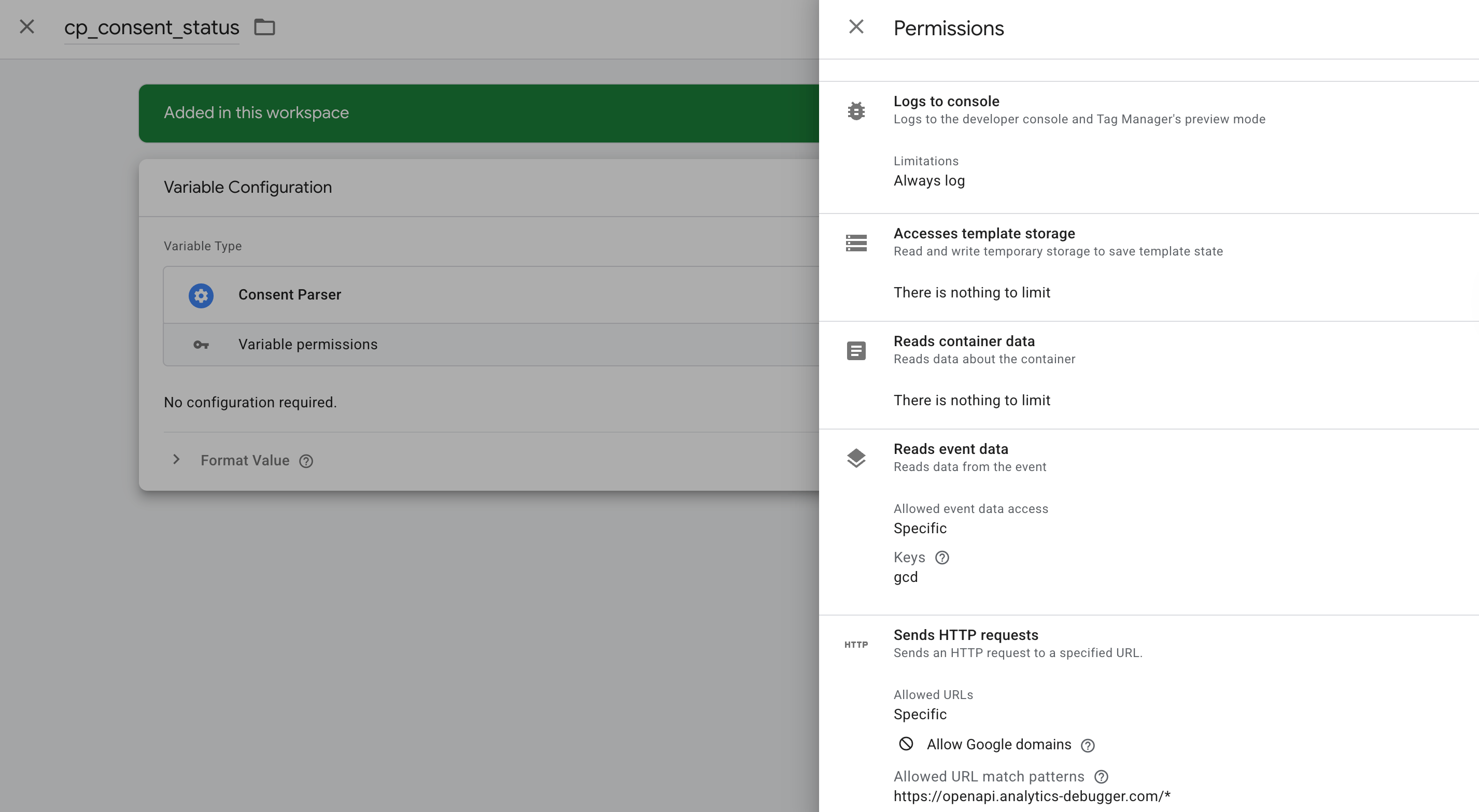
- Reads request & event data. The variable is granted specific access to read the ‘gcd’ query parameter and event data key. It also reads the ‘trace-id’ header to assist with debugging.
- Accesses template storage. The variable uses internal storage to "remember" previously decoded strings. It minimizes external requests and keeps your server performance high.
- Sends HTTP requests. To decode the string, the variable securely communicates with “https://openapi.analytics-debugger.com.”
- Logs to console. The variable is set to "Always log" during debug sessions, allowing you to see the raw request and response data in GTM’s Preview mode.
- Format Value. Normalize your output by clicking Format Value at the bottom. You can change the case to lowercase/uppercase or convert null, undefined, or boolean values into text that fits your specific tag requirements:
- Change Case to... (lowercase or uppercase).
- Convert null/undefined to... a specific text or variable.
- Convert true/false to... custom values that match your internal logic.
How to test and troubleshoot the Consent Parser setup
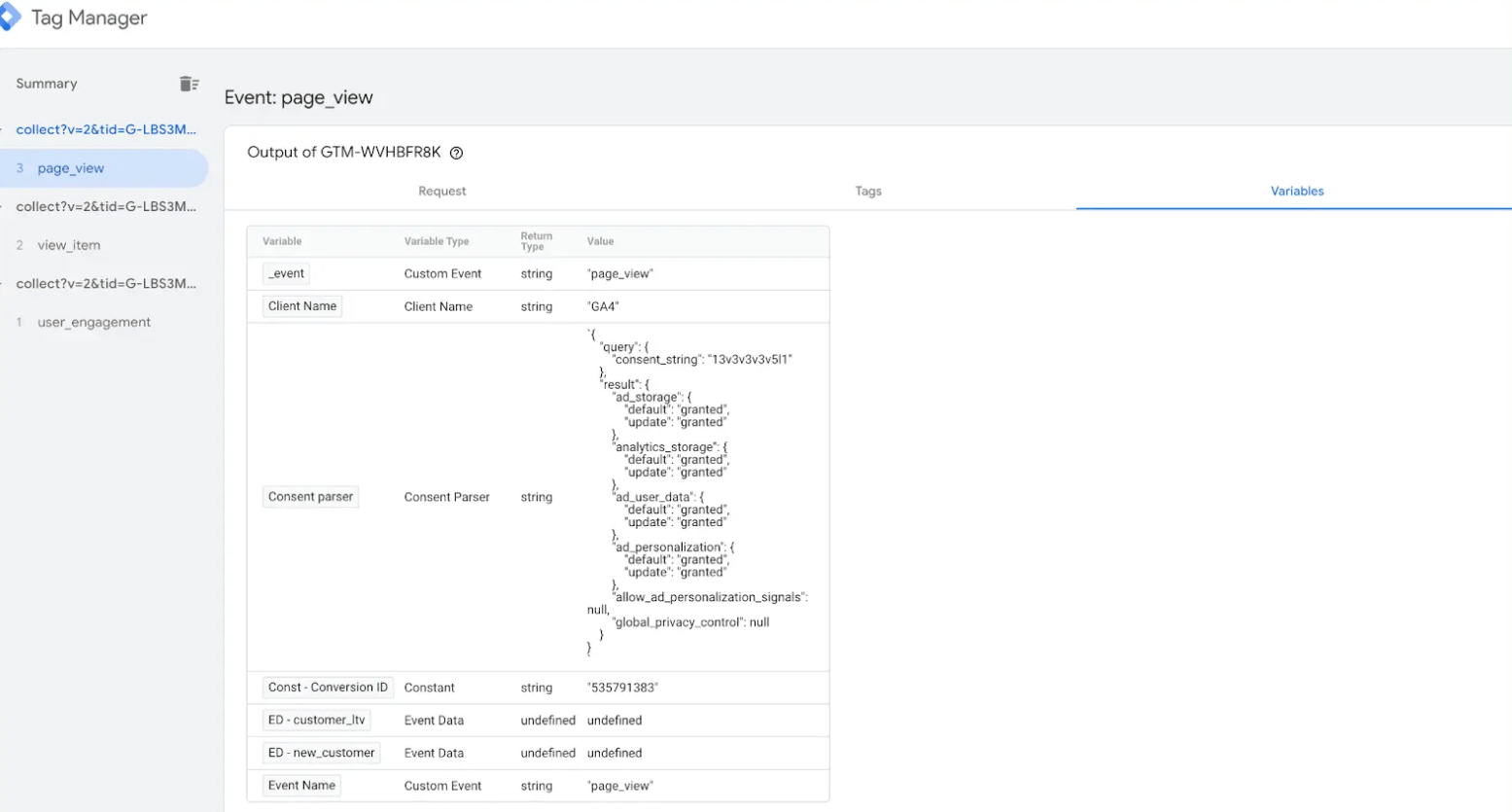
1. Use GTM Preview Mode. Click Preview in your server container and trigger an event from your website. Navigate to the Variables tab in the debugger. Find your Consent Parser variable and verify that the ‘gcd’ string has been decoded into separate categories (e.g., ad_storage, analytics_storage).
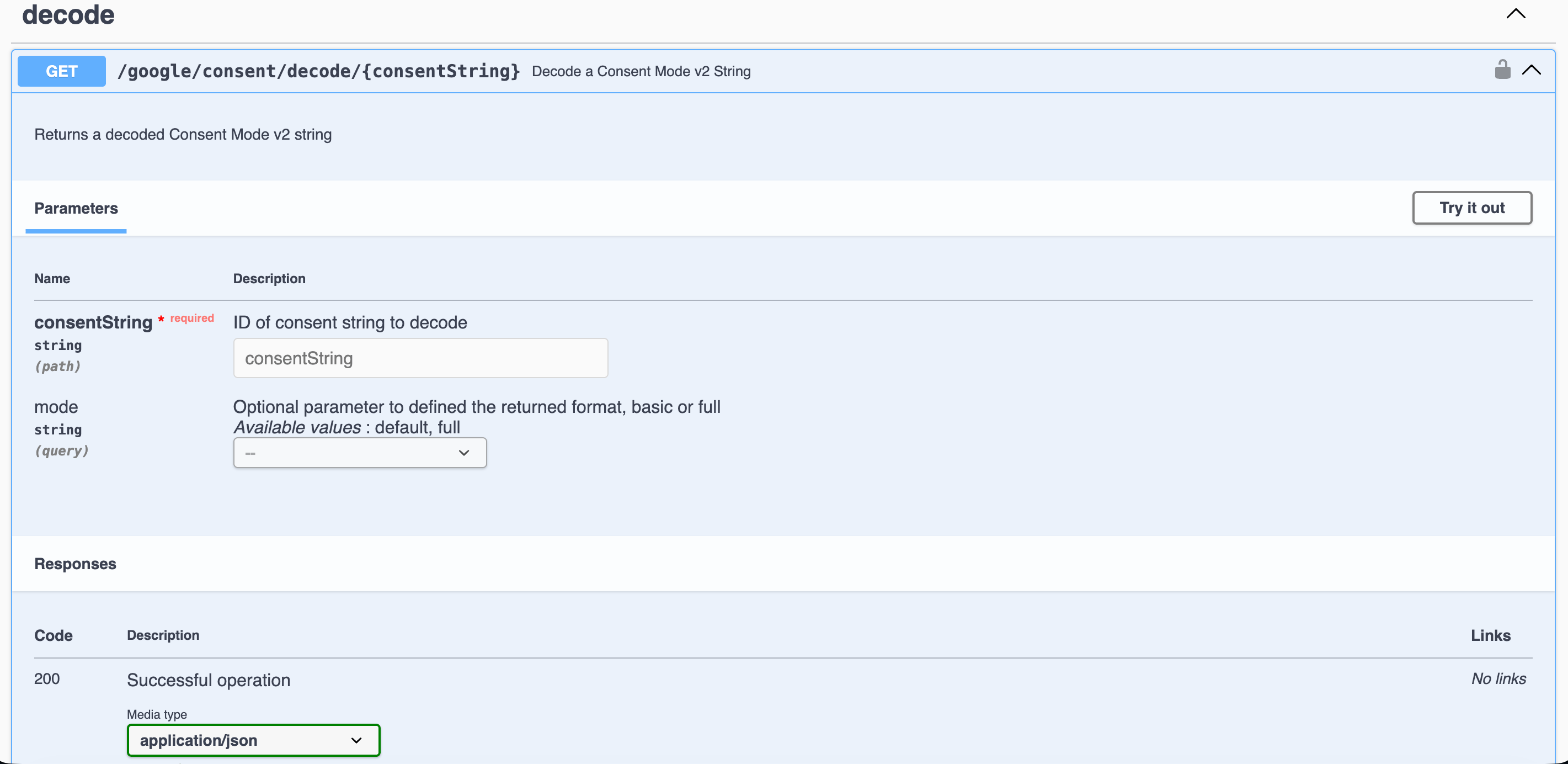
2. Analytics Debugger OpenAPI tool. If you want to manually verify a specific string, you can use the Analytics Debugger Online Decoder. Paste the encoded ‘gcd’ string from your user session to compare the results with your GTM variable.
3. Check status codes. In the Stape logs or GTM console, ensure the tag fires with a 200 status code. If the variable returns an empty object, double-check that the ‘gcd’ parameter is actually present in the incoming request from your web container.
Find out more about debugging and monitoring server-side tracking configuration in our guide.
Was this article helpful?
🍽 Table of content:
Comments