How to use same origin through Fastly
Updated Oct 23, 2026
Google recommends mapping a server-side Google Tag Manager (sGTM) container to the same origin (example.com/sgtm). Using the same origin makes first-party cookie setup easier and avoids extra cookie-lifetime configuration, but the implementation is more complex than a subdomain setup. In this guide, you’ll learn how to configure the same origin through Fastly.
Before you begin
Make sure that your website traffic is already proxied through Fastly. You should already have:
- DNS pointing your website domain to Fastly.
- An active TLS certificate for the domain.
- At least one working route for normal site traffic.
If you’re unsure how to configure any of those, please refer to the official Fastly documentation.
Also, this guide assumes that you already have a Stape account with a connected server GTM container and a configured custom domain. If you don’t have any of those yet, check out our guides on getting started with sGTM hosting with Stape.
Setup guide
1. Create a host for your Fastly service
1. Go to the Fastly control panel. Click on your service or create a new one.
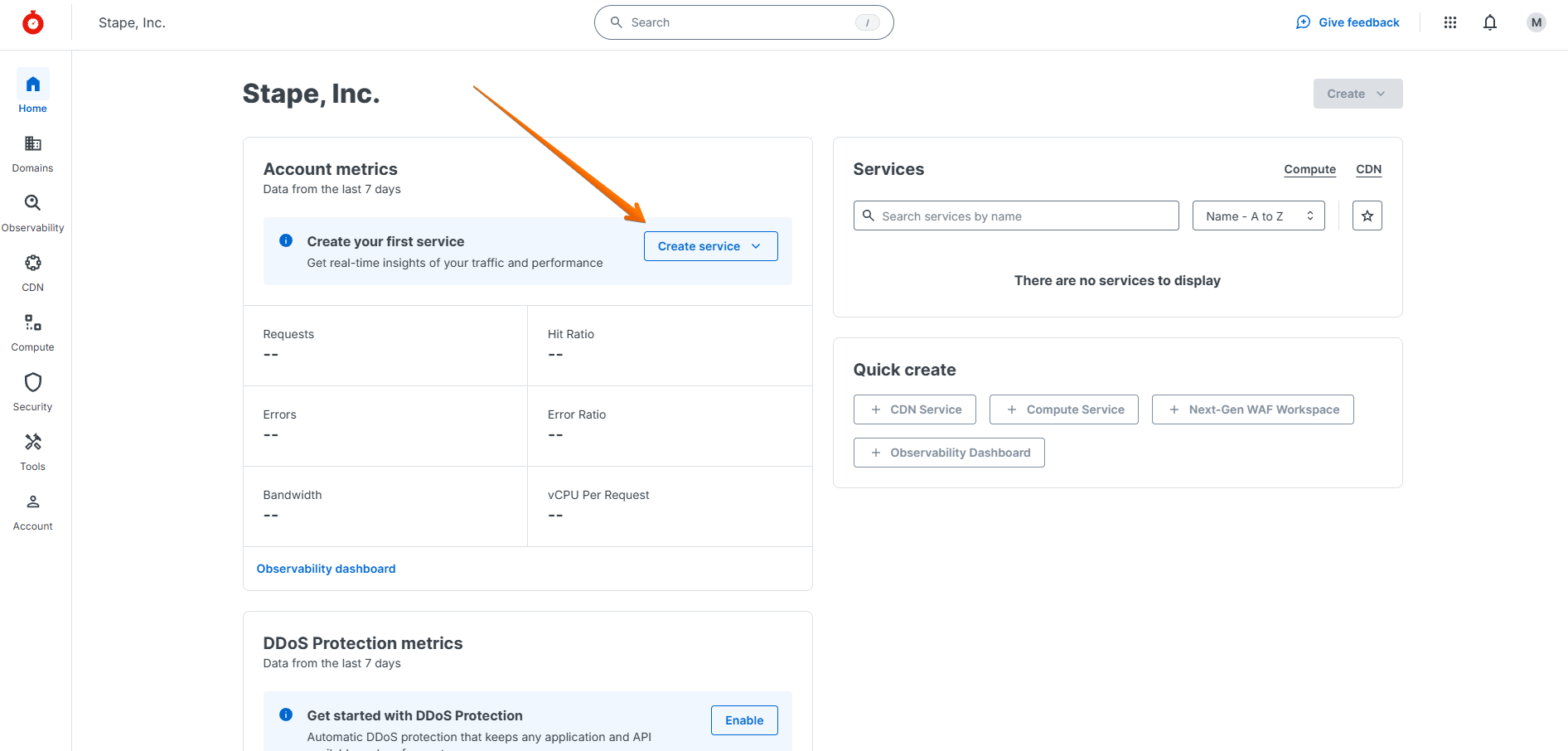
2. Open the Service configuration tab and click the Clone button next to the version number.
3. Open the Observability menu → Origins → click the Create a host button.
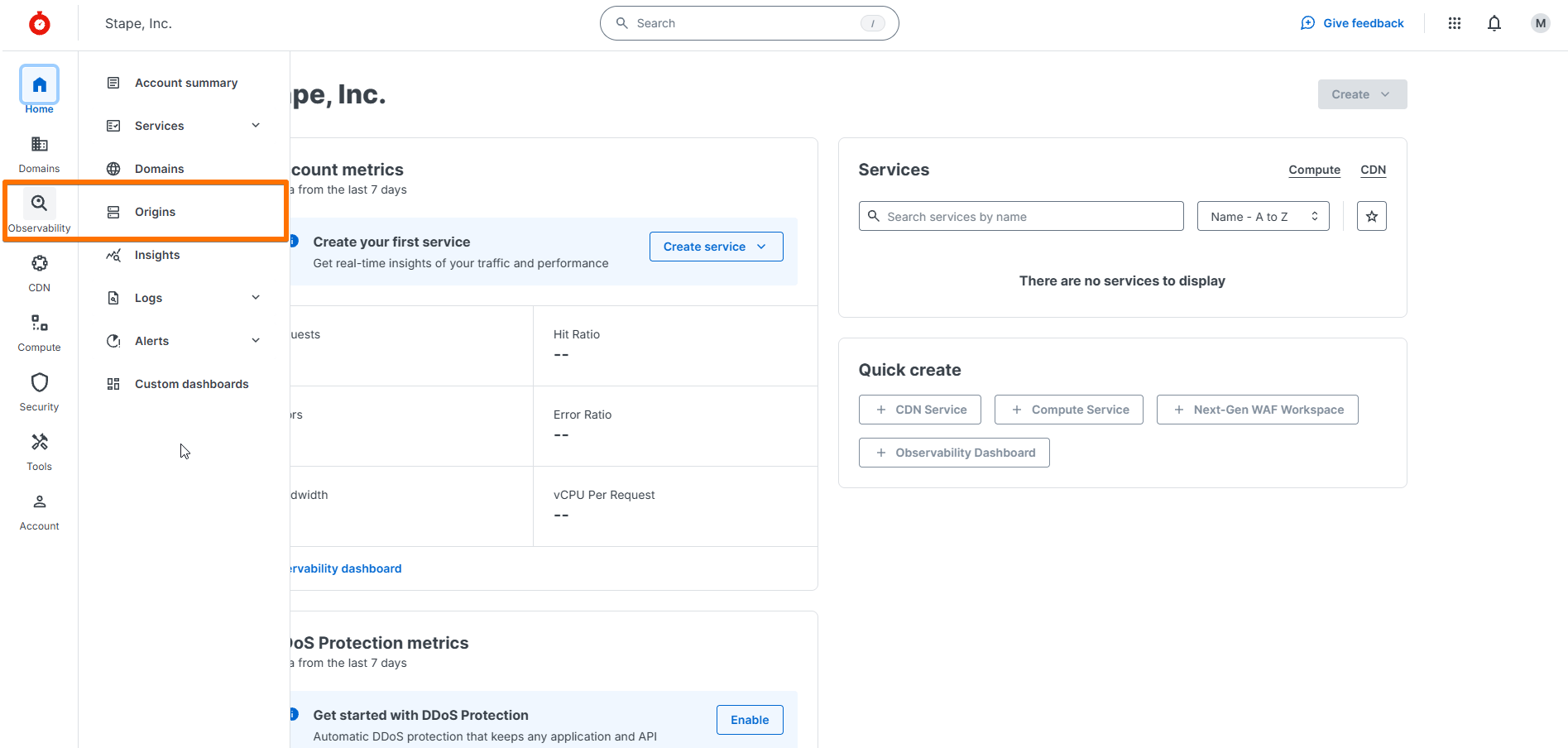
4. Fill the Hosts field with your Stape container domain, for example, gtm.getstape.com (located in the Domains section of your Stape container) → click Add.
5. Click the pencil icon next to the created host. Fill the Name field with a descriptive name → for the Enable TLS? radio buttons, select Yes, enable TLS and connect securely using port 443 → for Verify certificate?, select Yes, verify the authenticity of the TLS certificate.
6. Ensure that the Certificate hostname and SNI hostname fields contain your Stape container domain.
7. In the Shielding dropdown, select (none) → in Health check, select (none) → in Auto load balance, select No.
8. Fill the Override host field, at the bottom of the form, with your Stape container domain and click the Update button.
2. Create a request condition for the same origin path
1. Return to the Hosts area and click the Attach a condition link next to the name that you gave your Stape sGTM host.
2. Click the Create a new request condition option.
3. Fill the Name field with a descriptive name → fill the Apply if… field with req.url.path ~ "^/metrics(?:/|\z) → сlick Save and apply to Stape sGTM.
3. Create the VCL snippets that trim the path prefix
1. Open the CDN menu → CDN Services → in Service configuration, click on VCL → VCL snippets → сlick Add a VCL snippet.
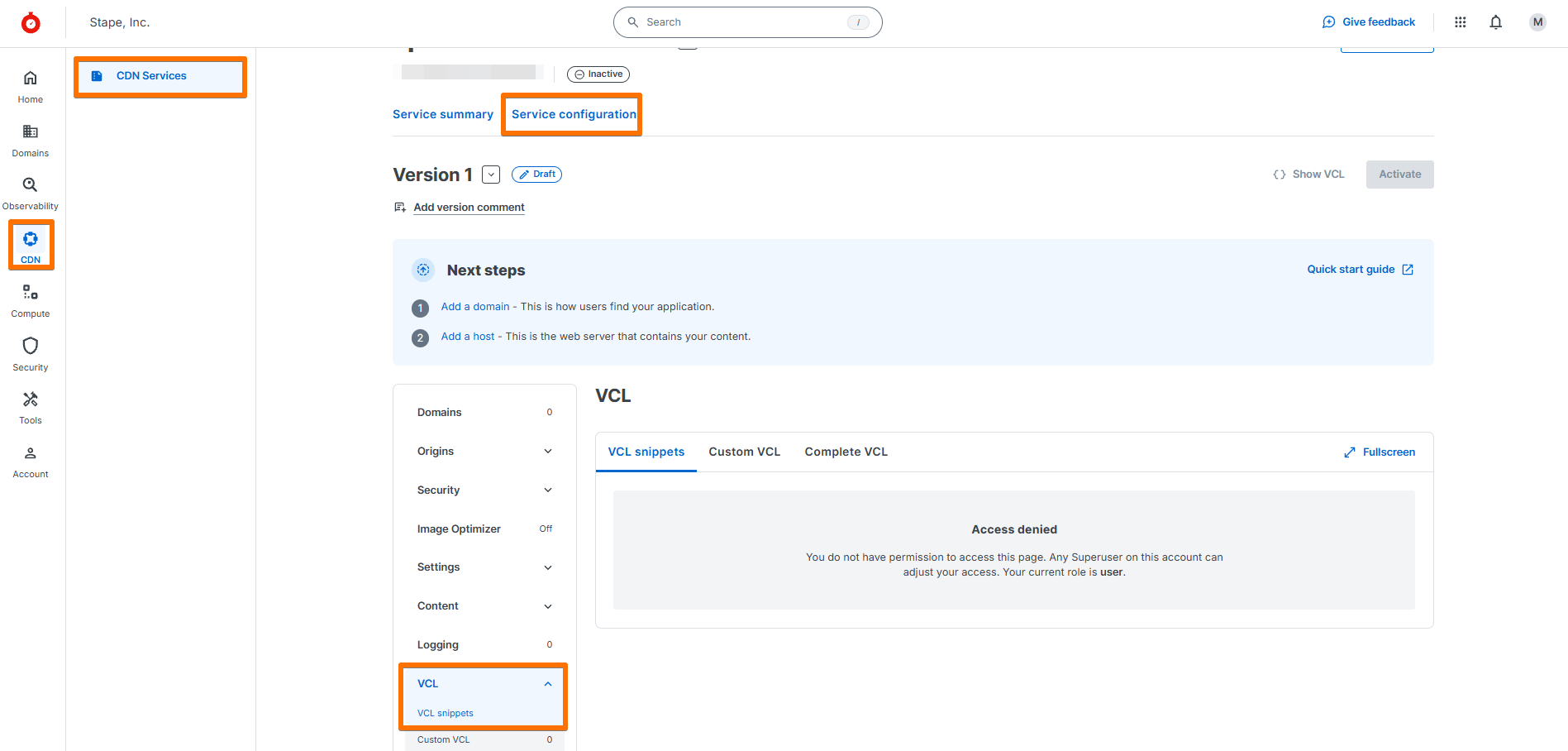
2. For Type radio buttons, select the Regular option → fill the Name field with a descriptive name → for Placement, select Within subroutine.
3. From the Subroutine dropdown, select the miss (vcl_miss) option.
4. Use the following code for the snippet (ensure that the path prefix in the code matches the request condition prefix):
if (req.url.path ~ "^/metrics(?:/|\z)") {
  set bereq.url = regsub(bereq.url, "^/metrics/?", "/");
}
5. Click Add.
6. Repeat the steps above for a second snippet, filling the Name field with the same name you’ve set in step 2 and selecting the pass (vcl_pass) option from the Subroutine dropdown.
4. Create the request header that identifies the CDN
1. Open the CDN menu → CDN Services → in Service configuration, click Content → click Create a header.
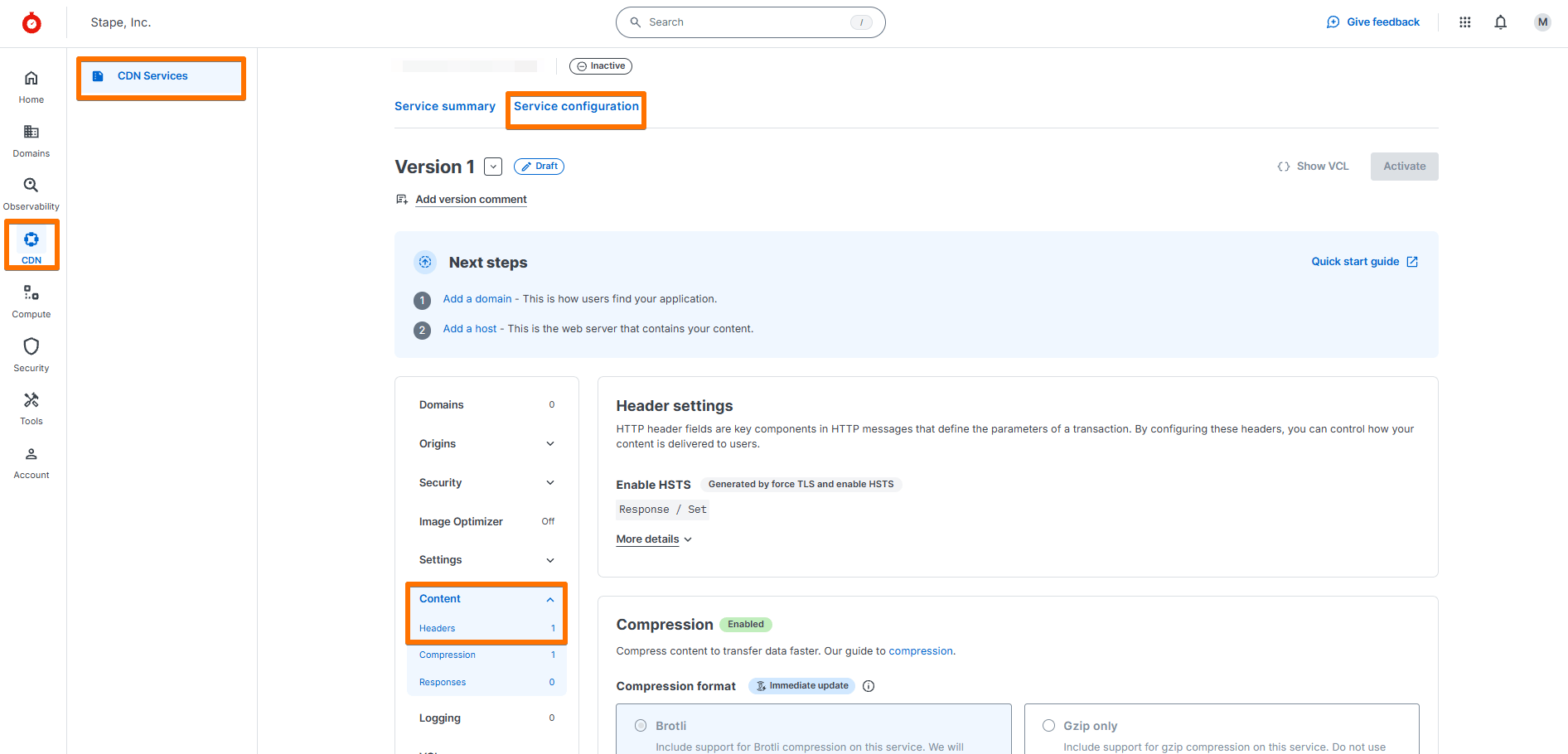
2. Fill the Name field with a descriptive name → in the Type / Action row, select the Request option in the first dropdown and the Set option in the second.
3. In the Destination field, enter http.X-From-Cdn → in Source, enter "cf-stape" (including the quotation marks) → in Ignore if set, select No → in Priority, enter 10.
4. Click Create.
5. Click the Attach a condition link next to the created header → from the Select a condition dropdown, select the sGTM same origin path condition.
5. Create the request header that forwards the visitor IP
1. Click the Create a header button again (in the Service configuration menu → Content).
2. Fill the Name field with a descriptive name → in the Type / Action row, select the Request option in the first dropdown and the Set option in the second.
3. In the Destination field, enter http.CF-Connecting-Ip → in Source, enter client.ip → in Ignore if set, select No → in Priority, enter 10.
4. Click Create.
5. Click the Attach a condition link next to the created header → from the Select a condition dropdown, select the sGTM same origin path condition.
6. Create the request header that carries the original host
This step is only necessary when proxying to the default Stape subdomain, such as abcdabcd.us.stape.io.
1. Click the Create a header button again (in the Service configuration menu → Content).
2. Fill the Name field with a descriptive name → in the Type / Action row, select the Request option in the first dropdown and the Set option in the second.
3. In the Destination field, enter http.X-Stape-Host → in Source, enter regsub(req.http.host, "^www\.", "") → in Ignore if set, select No → in Priority, enter 10.
4. Click Create.
5. Click the Attach a condition link next to the created header → from the Select a condition dropdown, select the sGTM same origin path condition.
7. Create the cache setting that disables caching for the same origin path
1. Open the CDN menu → CDN Services → in Service configuration, click on Settings → Cache settings → Create cache setting.
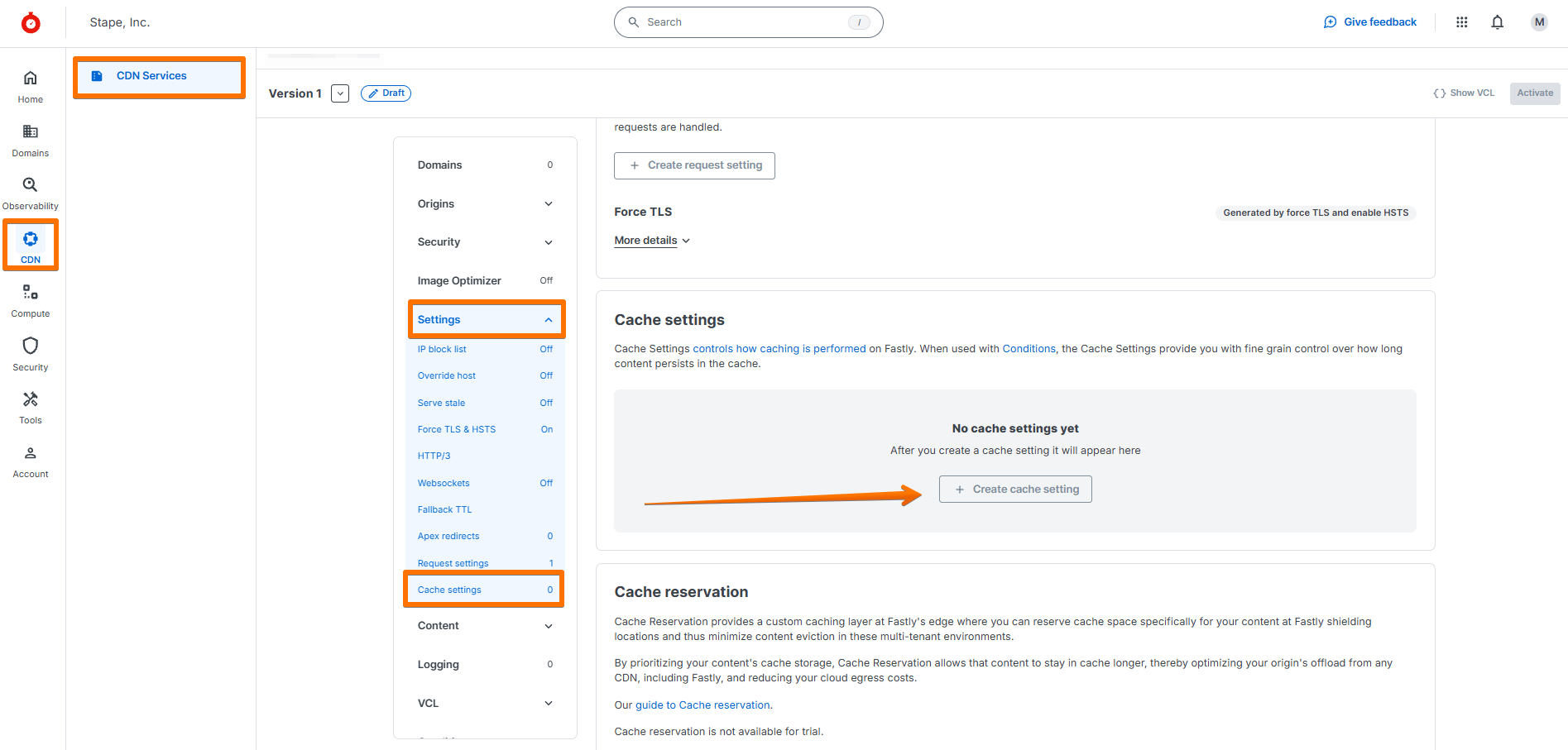
2. Fill the Name field with a descriptive name → in TTL (seconds), enter 0 → in the Action dropdown, select Pass → in Stale TTL (seconds), enter 0.
3. Click Create.
4. Click the Attach a condition link next to the created cache setting → click Create a new cache condition.
5. Fill the Name field with a descriptive name → in Apply if, enter req.url.path ~ "^/metrics(?:/|\z)".
6. Click Save and apply to.
8. Create the VCL snippet that bypasses the cache lookup
1. Open the CDN menu → CDN Services → in Service configuration, click on VCL → VCL snippets → сlick Add a VCL snippet.
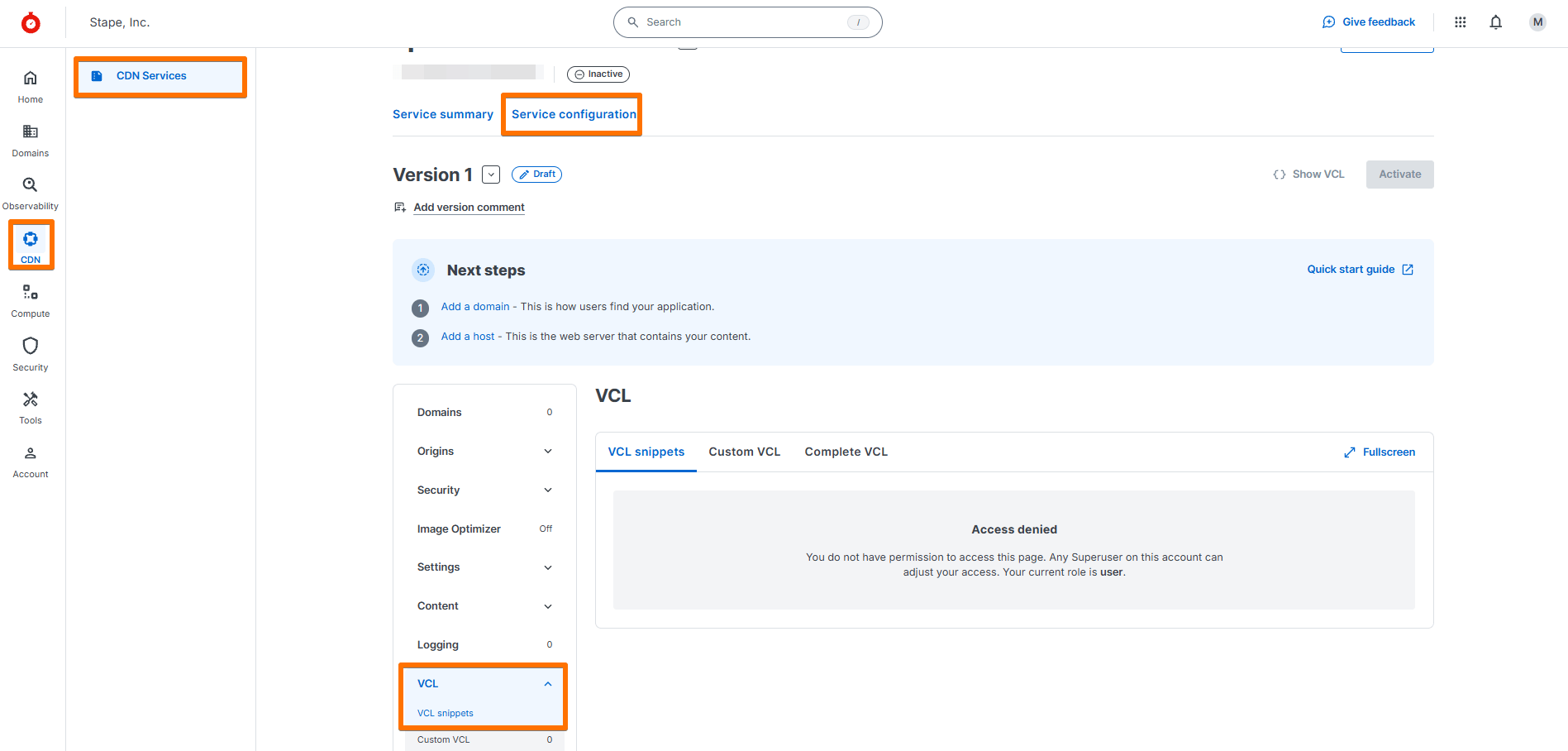
2. For Type radio buttons, select the Regular option → fill the Name field with a descriptive name → for Placement, select Within subroutine.
3. From the Subroutine dropdown, select the recv (vcl_recv) option.
4. Use the following code for the snippet (ensure that the path prefix in the code matches the request condition prefix):
if (req.url.path ~ "^/metrics(?:/|\z)") {
  set req.hash_always_miss = true;
  set req.hash_ignore_busy = true;
}
5. Click Add.
9. Activate the service version
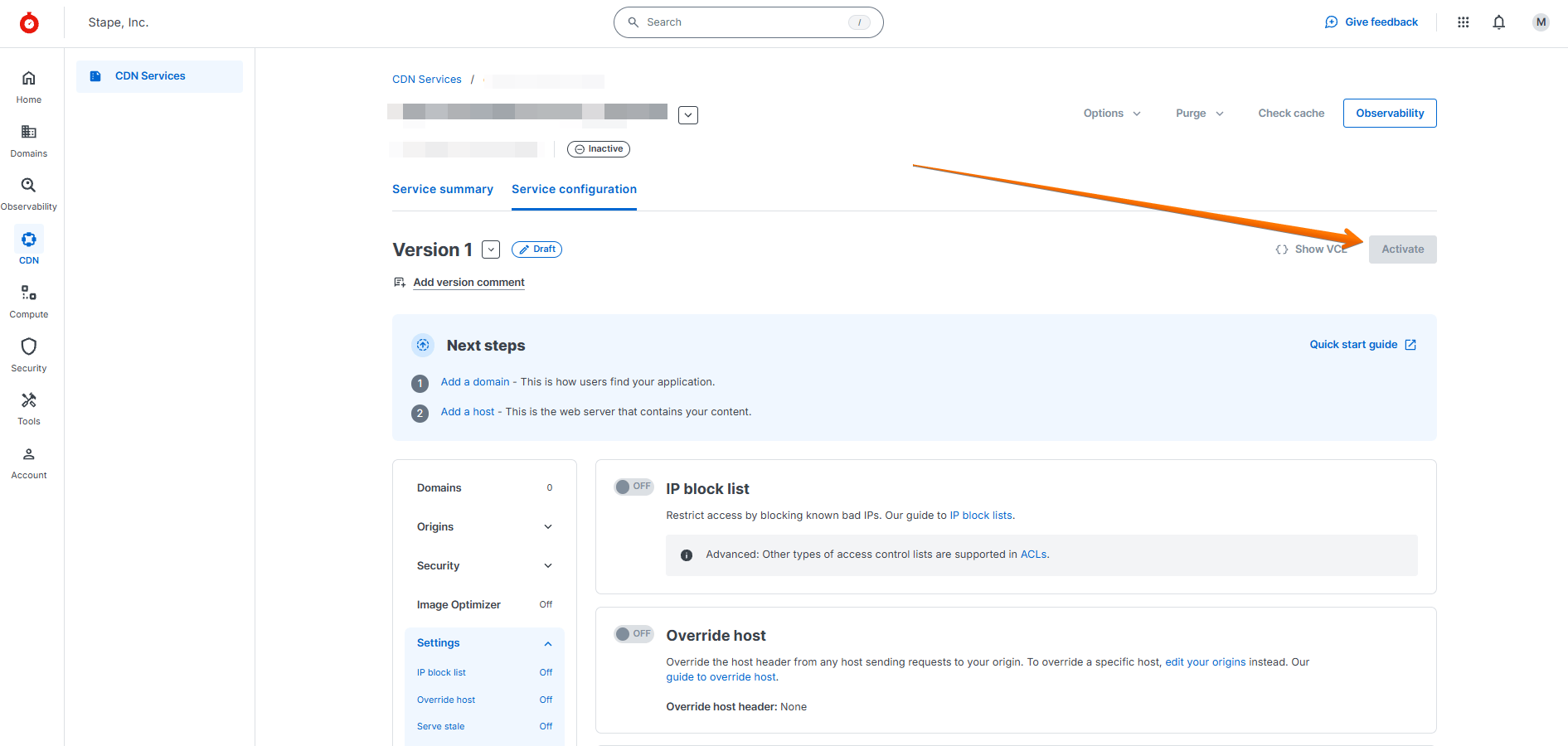
1. Click the Activate button at the top right of the version.
2. Wait for the service version to be deployed.
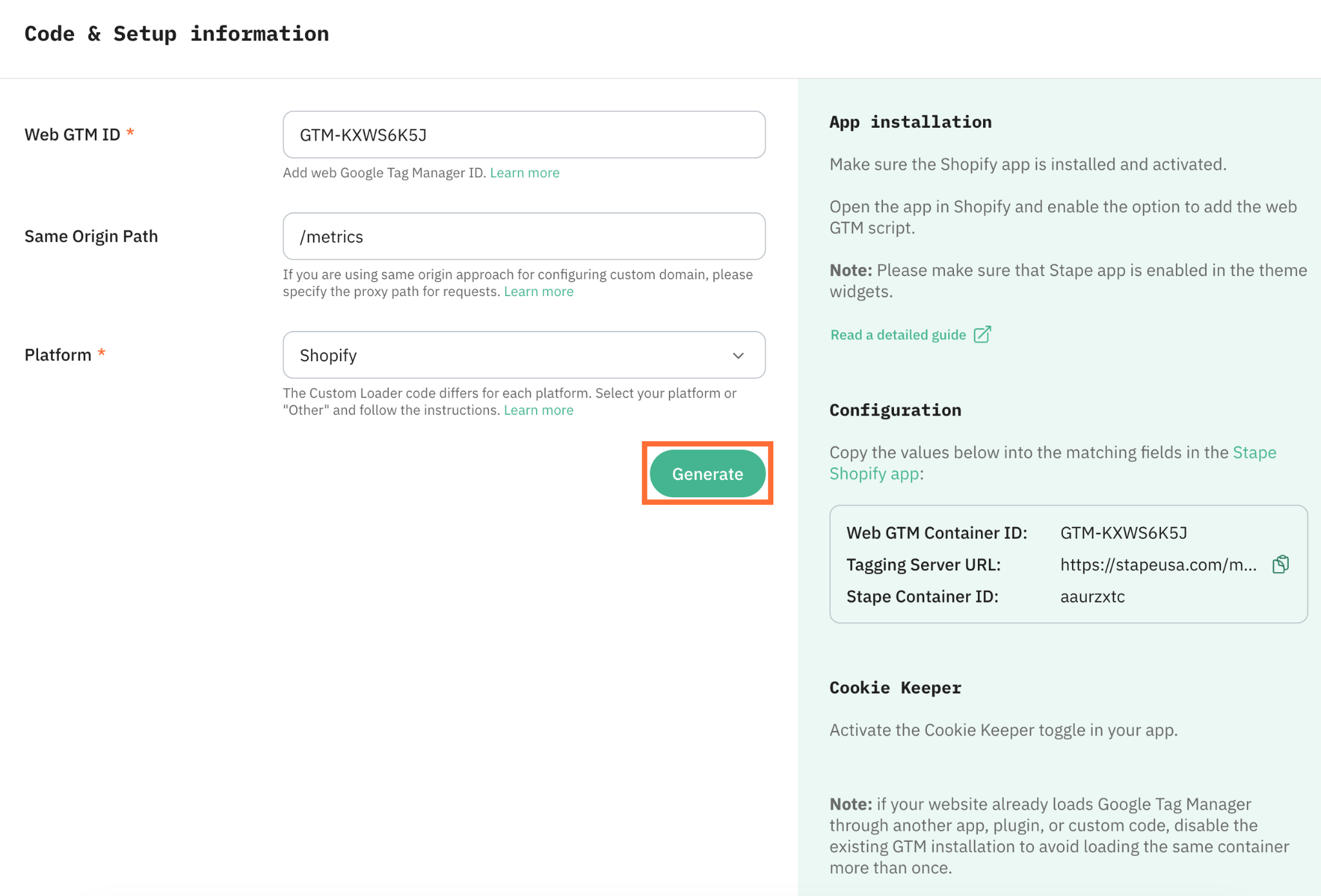
Custom Loader
Once the same origin setup is done, we also recommend activating Custom Loader for ad blocker protection and implementing it on your site. Don’t forget to specify your Same Origin path in it.
For more information, see our guide on Custom Loader.
Testing your same origin setup
After you configure same origin with Fastly, verify that requests are correctly proxied to your sGTM container by sending a simple GA4 page_view request.
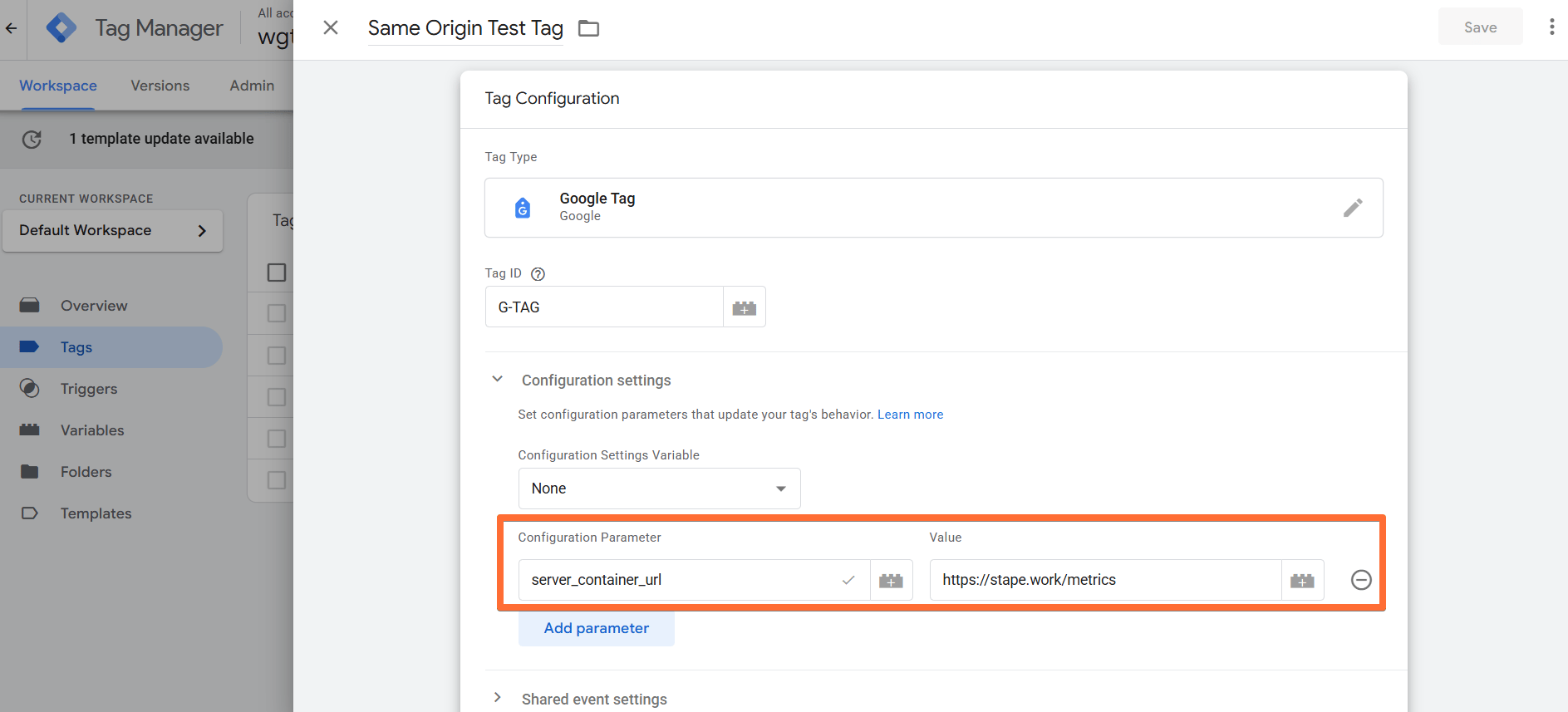
1. Create a GA4 tag in your web GTM container. Add a Tag ID (any ID works for testing) and set the server_container_url to the same-origin path you configured (in our example below, it is https://stape.work/metrics, but you should use your Stape container domain from the Domains section of your Stape container).
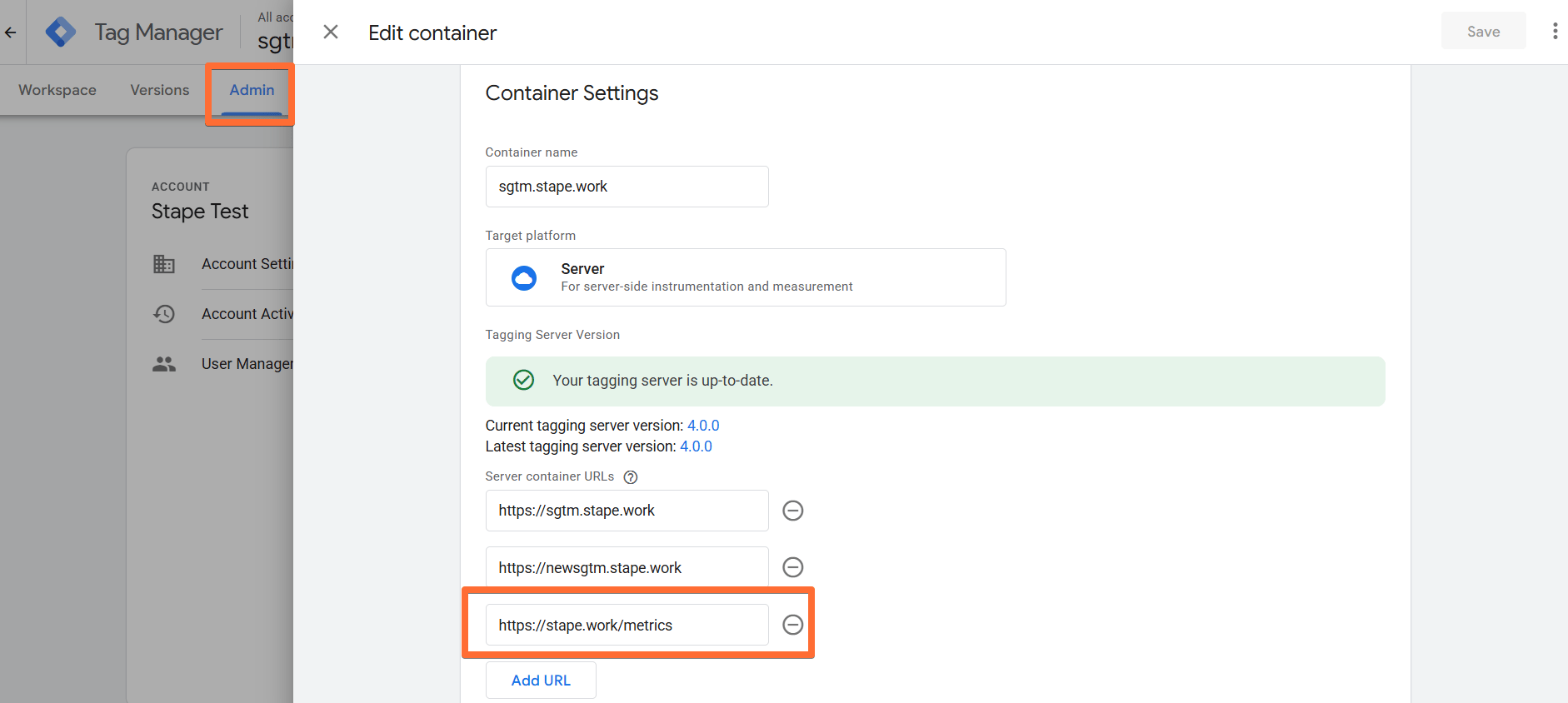
2. (Optional) To streamline testing, add your same-origin path (in our case below, https://stape.work/metrics, but you should use your Stape container domain from the Domains section of your Stape container) to your server GTM settings. Click Admin → Container Settings → enter the path under Server container URLs.
3. Open the Preview mode in both your web GTM container and your server GTM container. If you completed step 2, the preview opens at the same-origin path.
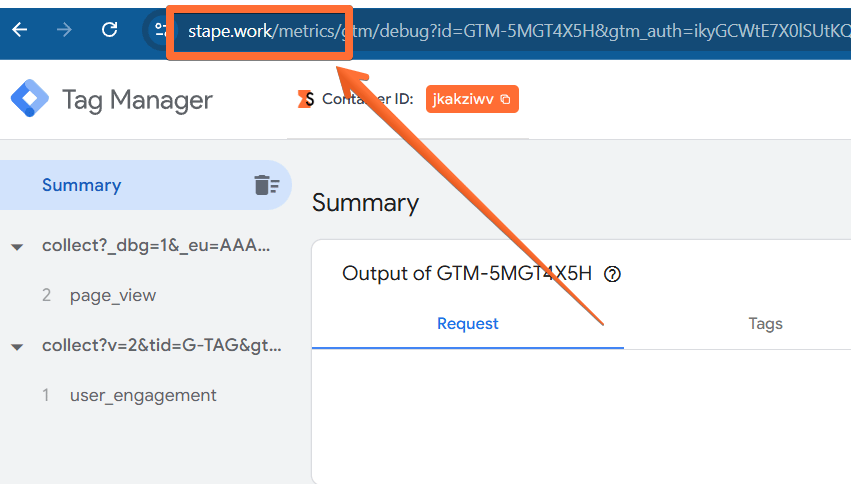
If, for some reason, the preview doesn’t open at the new path, you can manually enter it in the preview window’s URL.
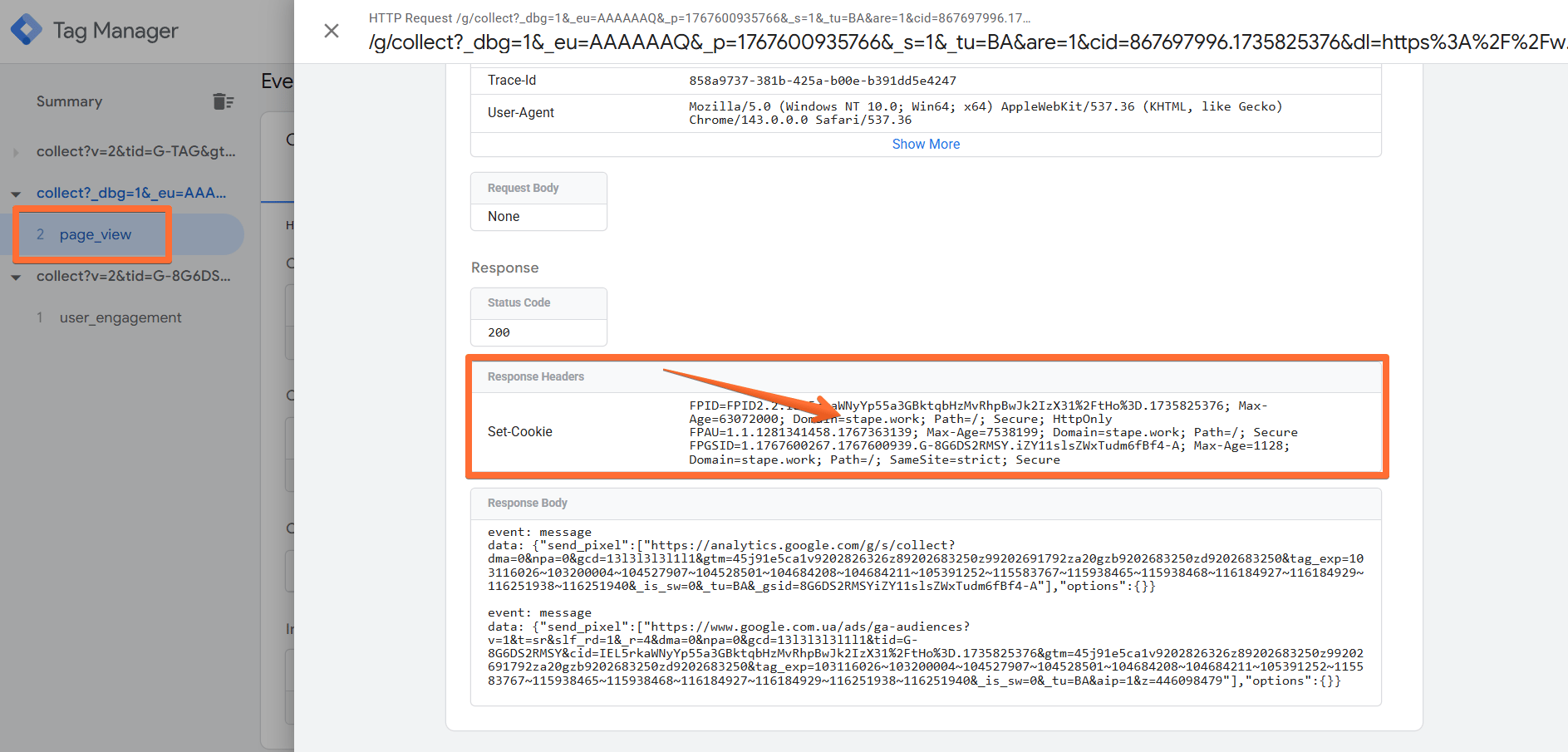
4. Trigger a page view on your site. In the server container preview, you should now see an incoming page_view request from your website’s real domain.
If something doesn’t work, check:
- Route pattern: confirm the Fastly route uses the correct match pattern (in our example,
req.url.path ~ "^/metrics(?:/|\z)") and points to the correct host (origin). - Origin hostname: confirm the origin is set to your Stape container domain (such as sgtm.stape.work in our example, but you should use your Stape container domain from the Domains section of your Stape container).
- Service version: confirm the Fastly service version with your changes is activated.
Was this article helpful?
🍽 Table of content:
Comments