How to use same origin through Vercel
Updated Aug 12, 2026
This instruction uses /metrics as an example of the same origin path. You can use any of your own.
You should also use the URL of your sGTM container instead of https://sgtm.example.com.
Create a Serverless Function
In your project, create a file under API/ (for example, api/metrics.js):
// api/metrics.js
// The external URL you want to proxy to:
const TARGET_URL = "https://sgtm.example.com";
module.exports = async (req, res) => {
// Vercel populates x-forwarded-for with the real client IP (among others).
// The first IP is typically the visitor’s IP.
const forwardedFor = req.headers["x-forwarded-for"] || "";
const clientIp = forwardedFor.split(",")[0].trim() || "unknown";
// Build new headers for forwarding
const newHeaders = {
// Spread original request headers if you want
...req.headers,
// Override or add your custom ones
"X-Forwarded-For": clientIp,
"X-From-Cdn": "cf-stape",
"Host": "sgtm.example.com",
"CF-Connecting-Ip": clientIp
};
// Forward the request to the target
// NOTE: If you need the original body, you can pass it along.
// But in Node serverless on Vercel, `req` is a stream, so you’d typically
// parse it first (e.g. using `req.body` if using Next.js API routes).
const response = await fetch(TARGET_URL, {
method: req.method,
headers: newHeaders,
// If you need the original POST body, see note below
body: req
});
// Relay the response back to the client
const text = await response.text();
// Copy headers from the upstream response
for (const [key, value] of response.headers.entries()) {
res.setHeader(key, value);
}
res.status(response.status).send(text);
};
If you are not using your own subdomain and are proxying requests to the standard Stape subdomain, you also need to add the X-Stape-Host header with the value of the host where the events are taking place (for instance, X-Stape-Host: www.example.com).
After following these steps, add your /path for the same origin to the Custom Loader's settings. Check the article on Same Origin Path to do this.
Testing your Same Origin setup
You can check that everything is configured correctly by sending a single test request using a GA4 tag.
1. Create a GA4 tag in your web GTM container.
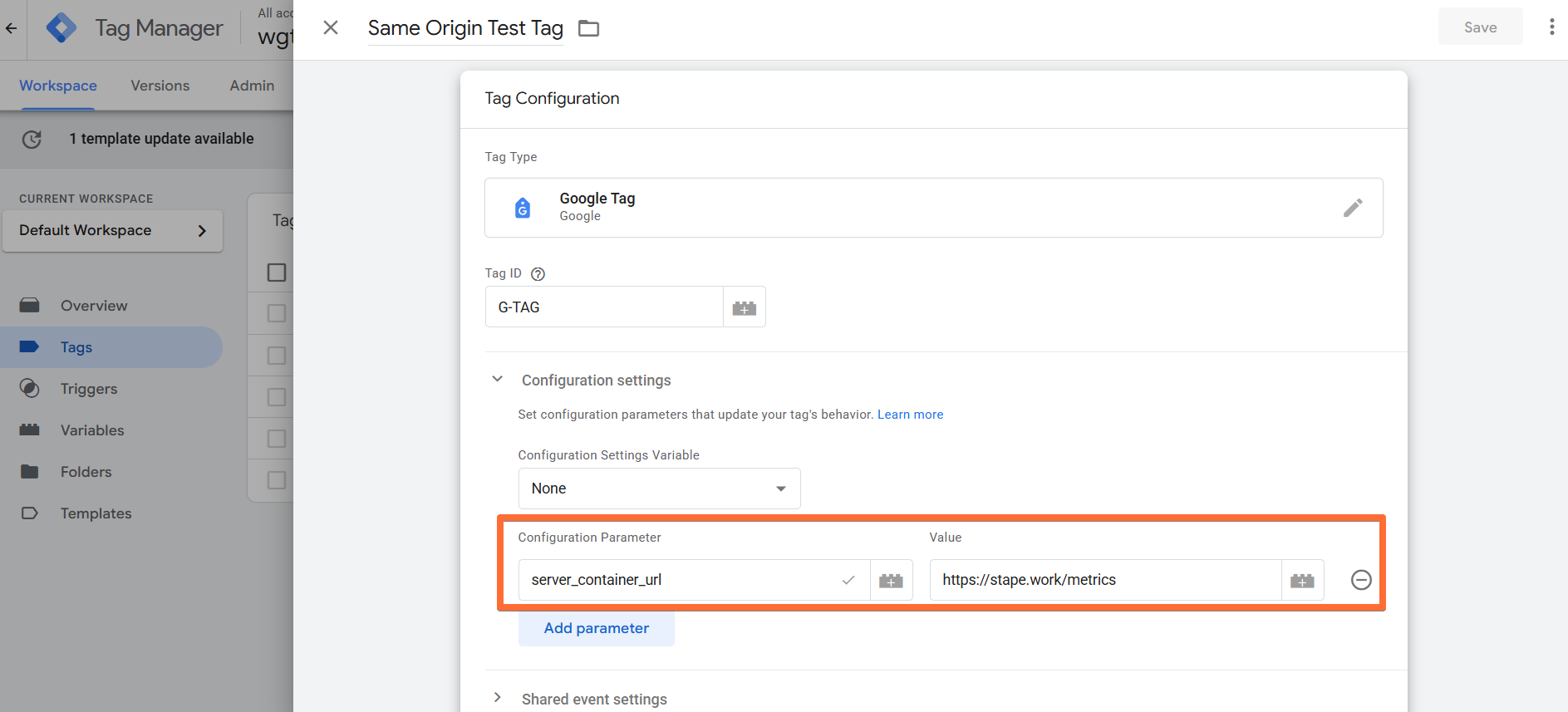
Add your Measurement ID (any ID works for testing) and set the server_container_url to the same-origin path you configured (we'll use https://stape.work/metrics as an example).
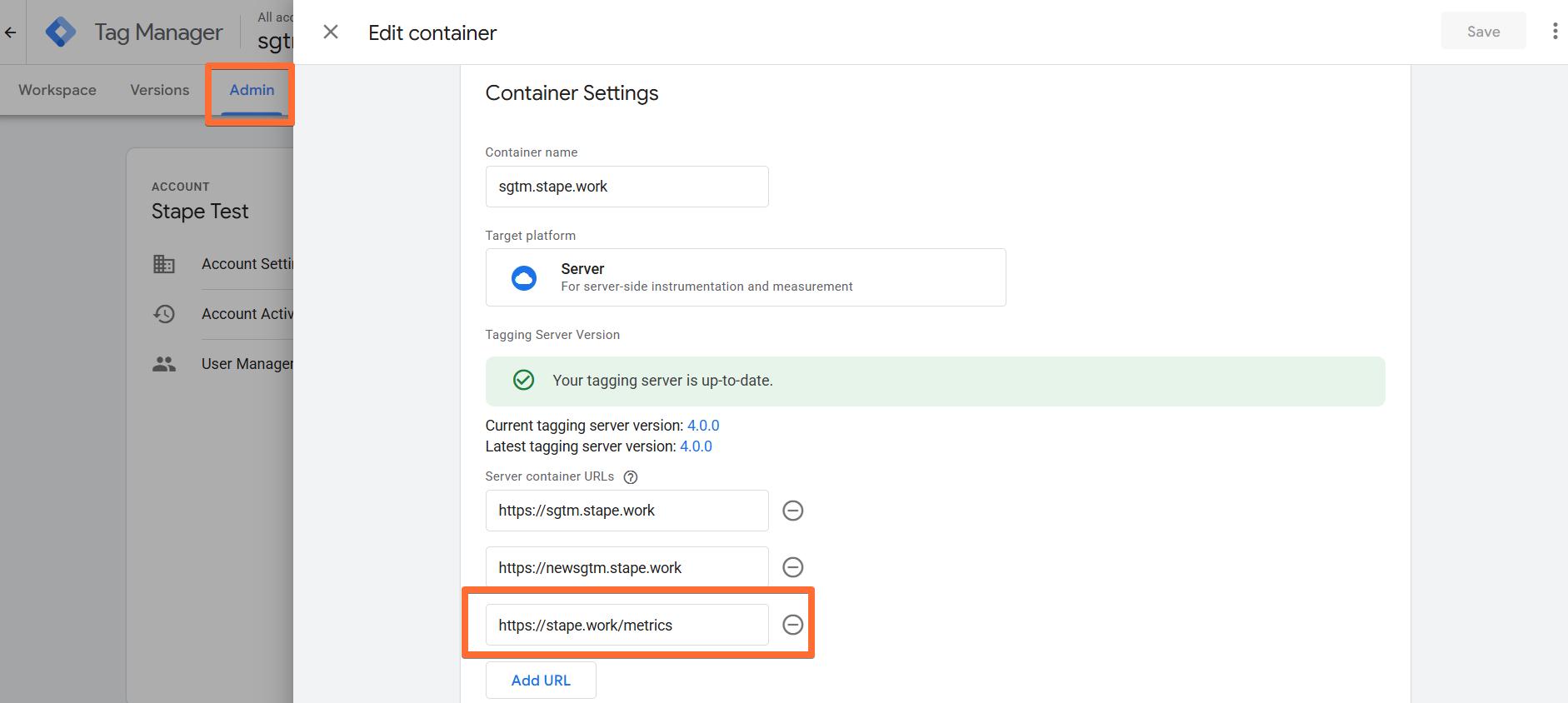
2. (Optional) To streamline testing, add your same-origin path (in this example, it's https://stape.work/metrics) to your server GTM settings. Click Admin → Container Settings → enter the path under Server container URLs.
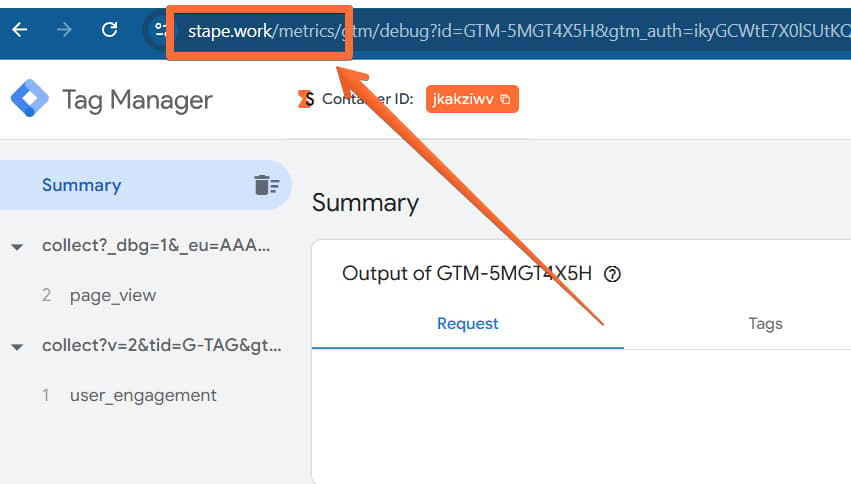
3. Open Preview mode in both your web GTM container and your server-side GTM container. If everything is set up correctly, the server container should open in preview at the new path you created.
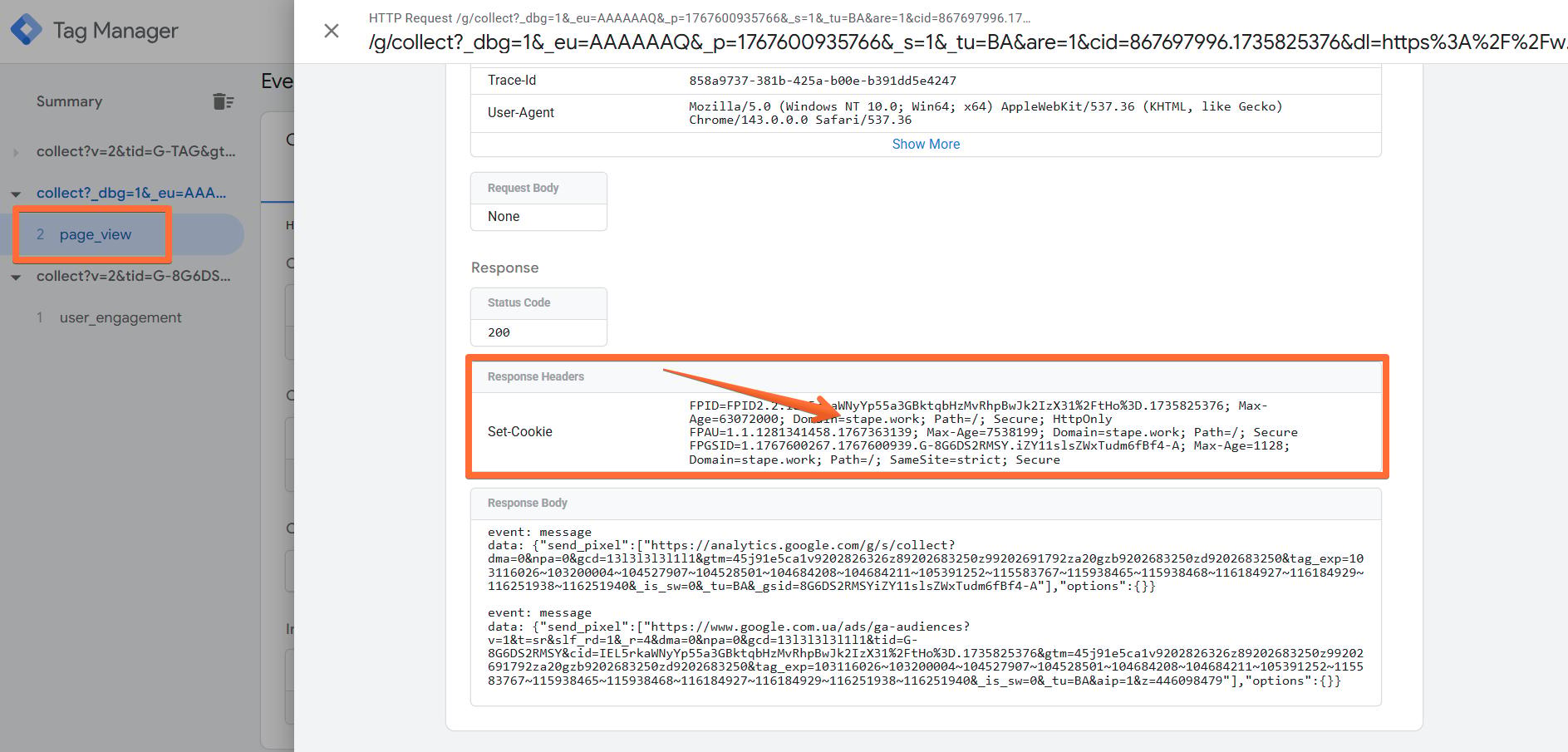
4. Trigger a page view on your site. In the server container preview, you should now see an incoming page_view request from your website’s real domain.
Was this article helpful?
🍽 Table of content:
Comments