How to use same origin through AWS CloudFront
Updated Sep 14, 2026
Google recommends mapping a server-side Google Tag Manager (sGTM) container to the same origin (example.com/sgtm) instead of a subdomain (sgtm.example.com). Using the same origin makes first-party cookie setup easier and avoids extra cookie-lifetime configuration, but the implementation is more complex than a subdomain setup. In this guide, you’ll learn how to configure the same origin through AWS CloudFront.
Before you begin
Make sure that your website traffic is already proxied through AWS CloudFront. You should already have:
- DNS pointing your website domain to CloudFront.
- An active TLS certificate for the domain.
- At least one working route for normal site traffic.
If you’re unsure how to configure any of those, please refer to the official AWS CloudFront documentation.
Also, this guide assumes that you already have a Stape account with a connected server GTM container and a configured custom domain. If you don’t have any of those yet, check out our guides on getting started with sGTM hosting with Stape.
Setup overview
This setup uses:
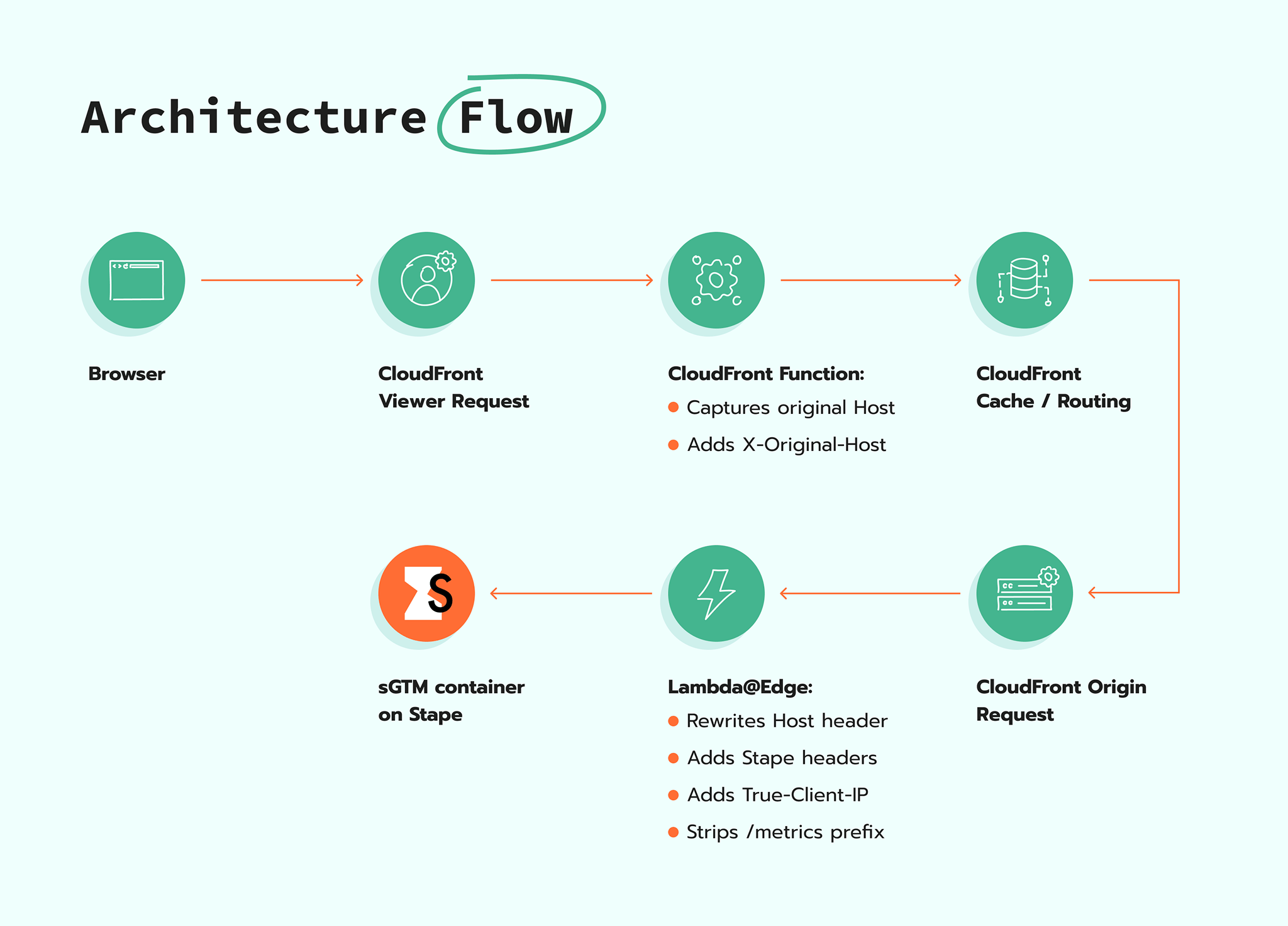
- CloudFront Function at Viewer Request.
- Lambda@Edge at Origin Request.
- Stape sGTM as the origin.
The goal is to:
- Preserve the original viewer hostname.
- Preserve the real client IP.
- Rewrite requests correctly for sGTM.
- Support dynamic domains (this is only necessary if you are proxying requests to the standard Stape subdomain, rather than to your own connected subdomain).
CloudFront Function (Viewer Request)
A lightweight CloudFront Function captures the original viewer Host header before CloudFront rewrites it.
Lambda@Edge (Origin Request)
Lambda@Edge performs:
- Host rewrite.
- Client IP forwarding.
- Stape header injection.
- URI rewrite.
This keeps:
- Dynamic domain support.
- Correct Stape routing.
- Low latency.
- Lower cost compared to Viewer Request Lambda@Edge.
Step 1. Create an origin in CloudFront
To create the Stape origin in CloudFront:
1. Go to AWS CloudFront → Distributions.
2. Open your distribution → open the Origins tab.
3. Click Create origin.
4. Configure it as follows:
Origin domain:
[enter your stape server container domain] (without https://, e.g. sgtm.example.com)
Protocol:
HTTPS only
HTTPS port:
443
Origin path:
[leave empty]
Origin name:
[name it as you like]
Step 2. Create a CloudFront Function
1. Sign in to the CloudFront console → Functions.
2. Click Create function.
Trigger: Viewer Request.
Function Code:
function handler(event) {
    var request = event.request;

    // Capture original viewer host
    if (request.headers.host) {
        request.headers['x-original-host'] = {
            value: request.headers.host.value
        };
    }

    return request;
}
Step 3. Create Lambda@Edge Function
1. Sign in to the AWS Management Console and open the AWS Lambda console.
2. If you already have one or more Lambda functions, choose Create function. If you've don't have any functions, choose Get Started Now.
Trigger: Origin Request.
Function Code:
export const handler = async (event) => {
    const request = event.Records[0].cf.request;

    const viewerIp = request.clientIp;

    // Read original viewer host captured by CloudFront Function
    let originalHost =
        request.headers['x-original-host']?.[0]?.value || '';

    // Convert www.example.com → example.com
    originalHost = originalHost.replace(/^www\./i, '');

    // Rewrite Host header to the Stape origin domain
    request.headers.host = [
        { key: 'Host', value: request.origin.custom.domainName }
    ];

    // Tell Stape traffic came through CloudFront
    request.headers['x-from-cdn'] = [
        { key: 'X-From-CDN', value: 'cft-stape' }
    ];

    // Pass real viewer IP
    request.headers['true-client-ip'] = [
        { key: 'True-Client-IP', value: viewerIp }
    ];

    // Pass original domain to custom header. This is only necessary if you are proxying requests to the standard Stape subdomain, rather than to your own connected subdomain.
    request.headers['x-stape-host'] = [
        { key: 'X-Stape-Host', value: originalHost }
    ];

    // Strip /metrics prefix
    if (request.uri.startsWith('/metrics')) {
        request.uri = request.uri.replace(/^\/metrics/, '') || '/';
    }

    return request;
};
Step 4. Configure the required CloudFront settings
1. Go to CloudFront → Distributions → your distribution.
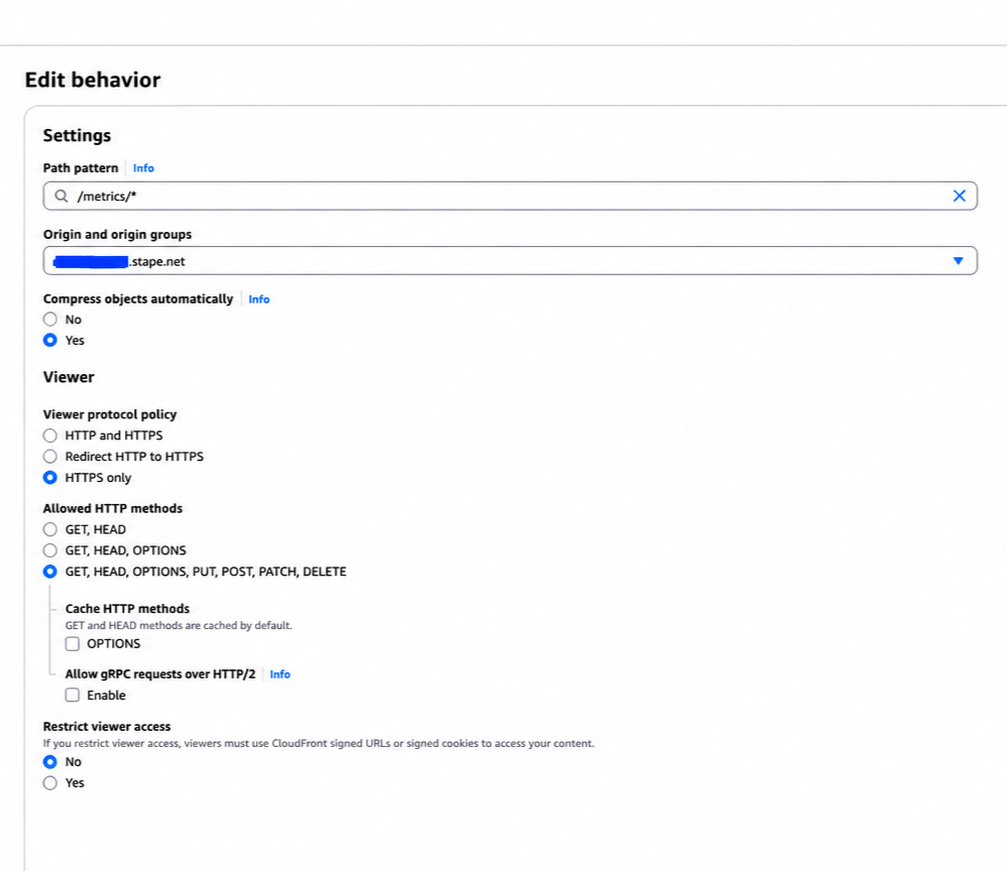
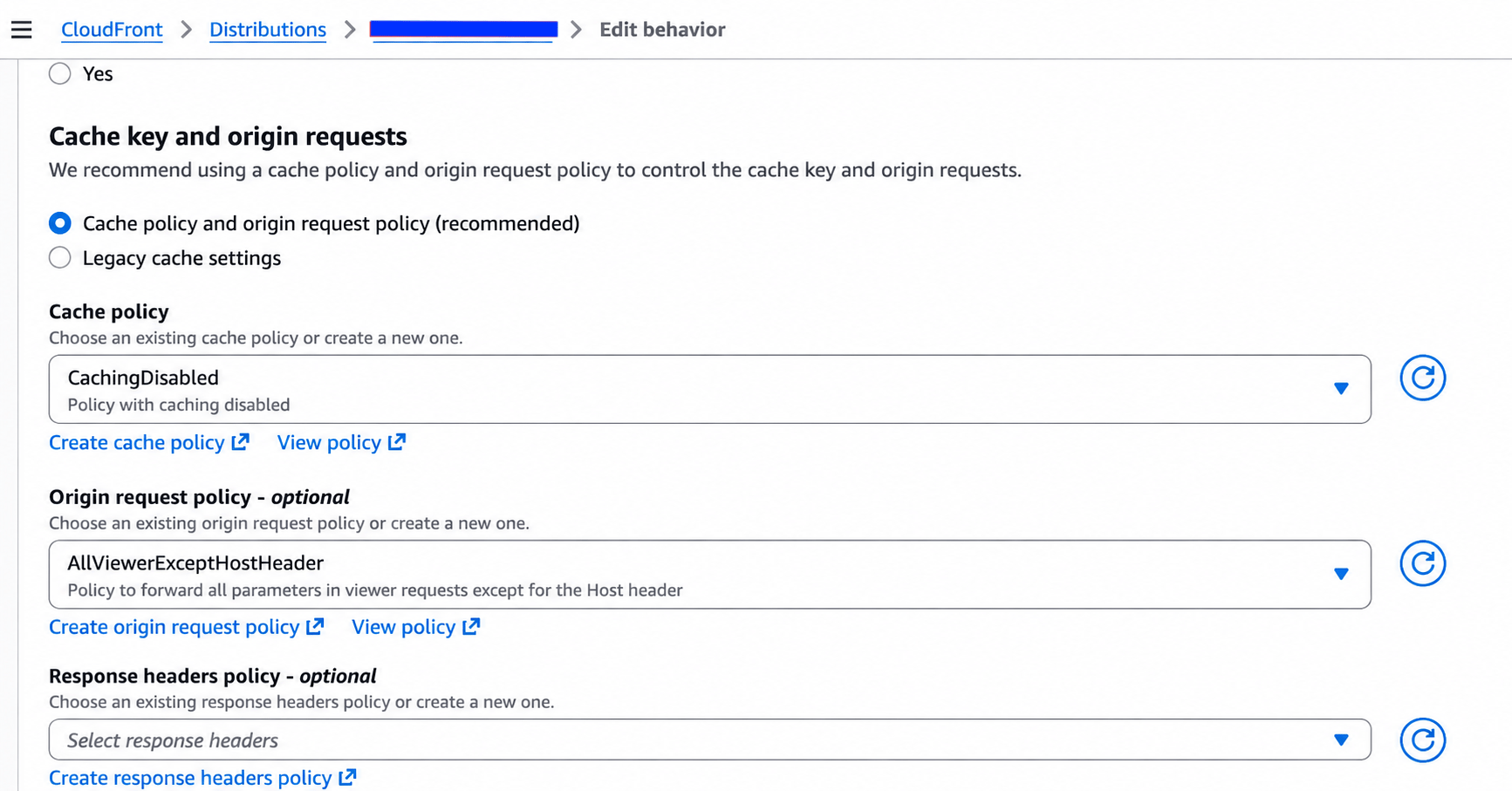
2. Then open the Behaviors tab and click Create behavior. Configure the behavior:
| Path Pattern | /metrics/* | Path that will receive tracking requests. |
| Allowed HTTP Methods | GET, HEAD, OPTIONS, PUT, POST, PATCH, DELETE | Allows POST tracking payloads to pass. |
| Cache policy | Managed-CachingDisabled | Disables caching to avoid stale or reused responses. |
| Origin request policy | Managed-AllViewerExceptHostHeader | Forwards UA, Referer, and custom headers except Host. |
| Viewer Request Function | CloudFront Function (Host-capture script) | Extracts the original hostname before rewriting. |
| Origin Request Function | Lambda@Edge (Routing script) | Modifies the request with proper headers and settings before sending it to your Stape domain. |
This is required so the header added by the CloudFront Function is available to Lambda@Edge.
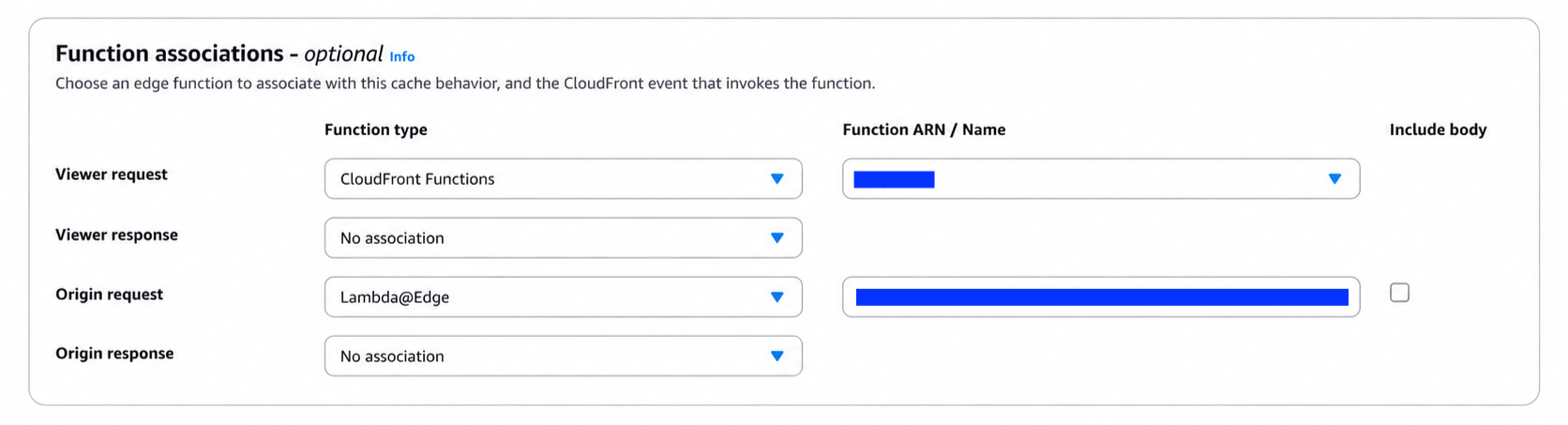
Include Body
Disabled - the Lambda does not need request body access.
Keeping it disabled improves:
- Performance.
- Latency.
- Cost.
Origin Custom Headers
If you have configured the Stape origin in the past, be sure to remove:
- X-Stape-Host
- X-From-CDN
These are now dynamically generated inside Lambda@Edge.
Testing and troubleshooting
Deploy changes and verify the proxy is working by opening your proxy path in the browser (e.g., https://sgtm.example.com/metrics). If you see error 400, then everything is working correctly. You can also run a preview of the server container on your /metrics path.
After following these steps, add your /path for the same origin to the Custom Loader's settings. Check the article on Same Origin Path to do this.
Was this article helpful?
🍽 Table of content:
Comments