How to connect billing to your Stape product
Updated Aug 17, 2026
Connect billing to an sGTM container
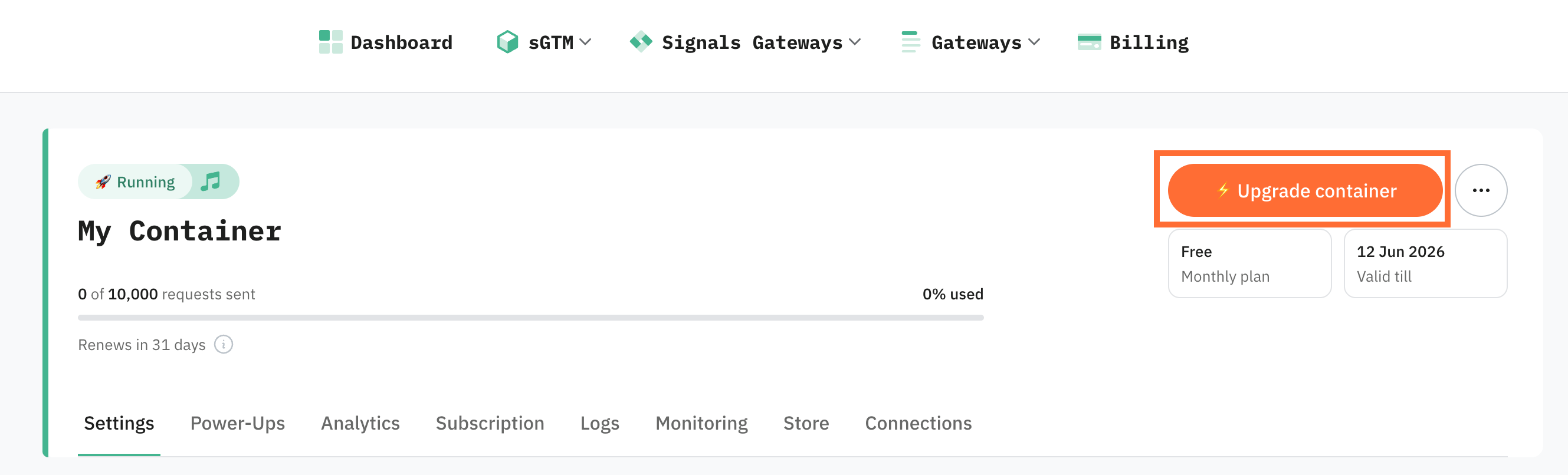
1. Open the container you want to upgrade.
2. In the top right corner, click Upgrade container.
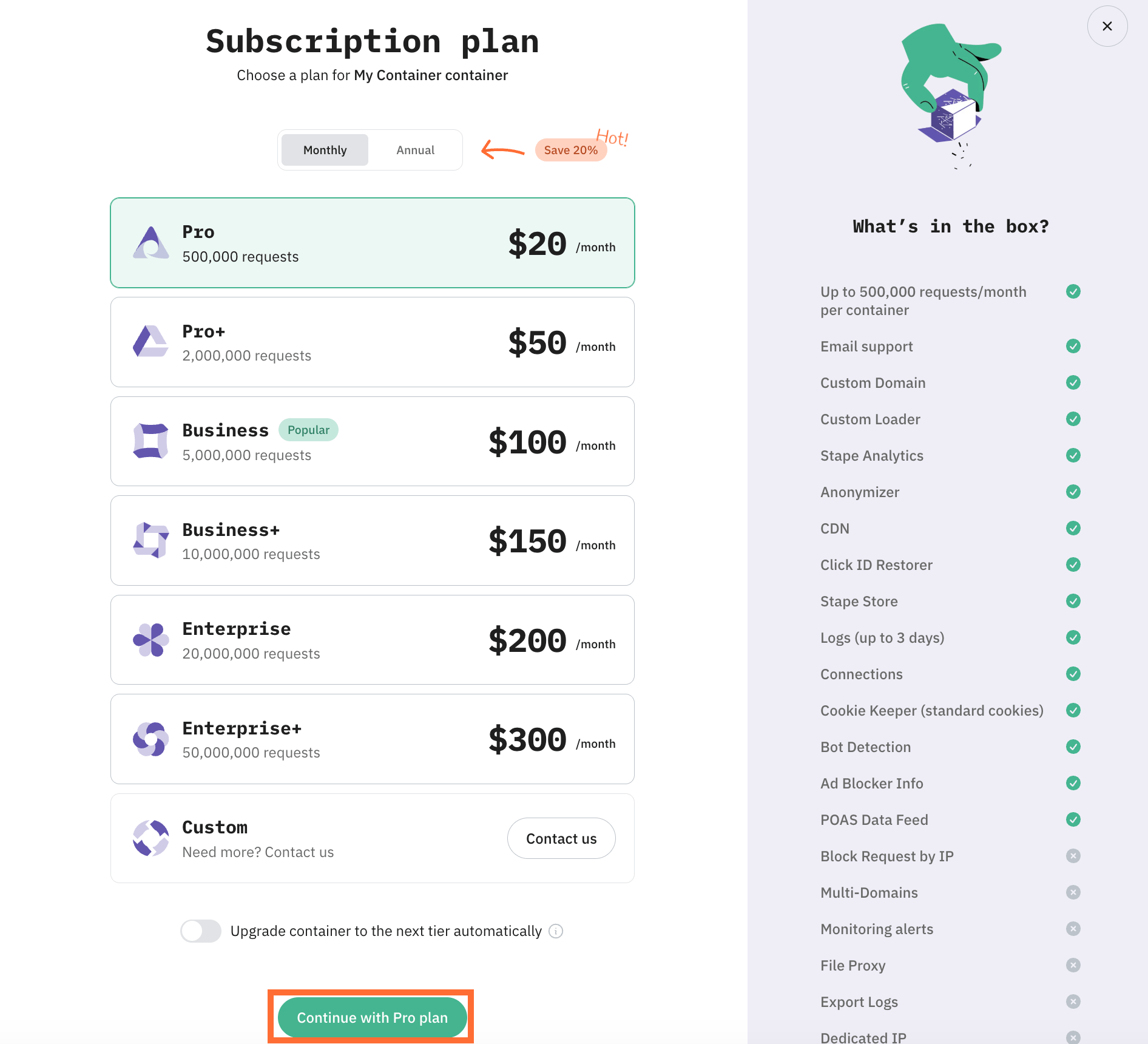
3. Select the plan tier you want. If you’re on a Global account and haven’t set up billing yet, you can select currency to preview plan prices in EUR or USD.
4. Click Continue with <...>.
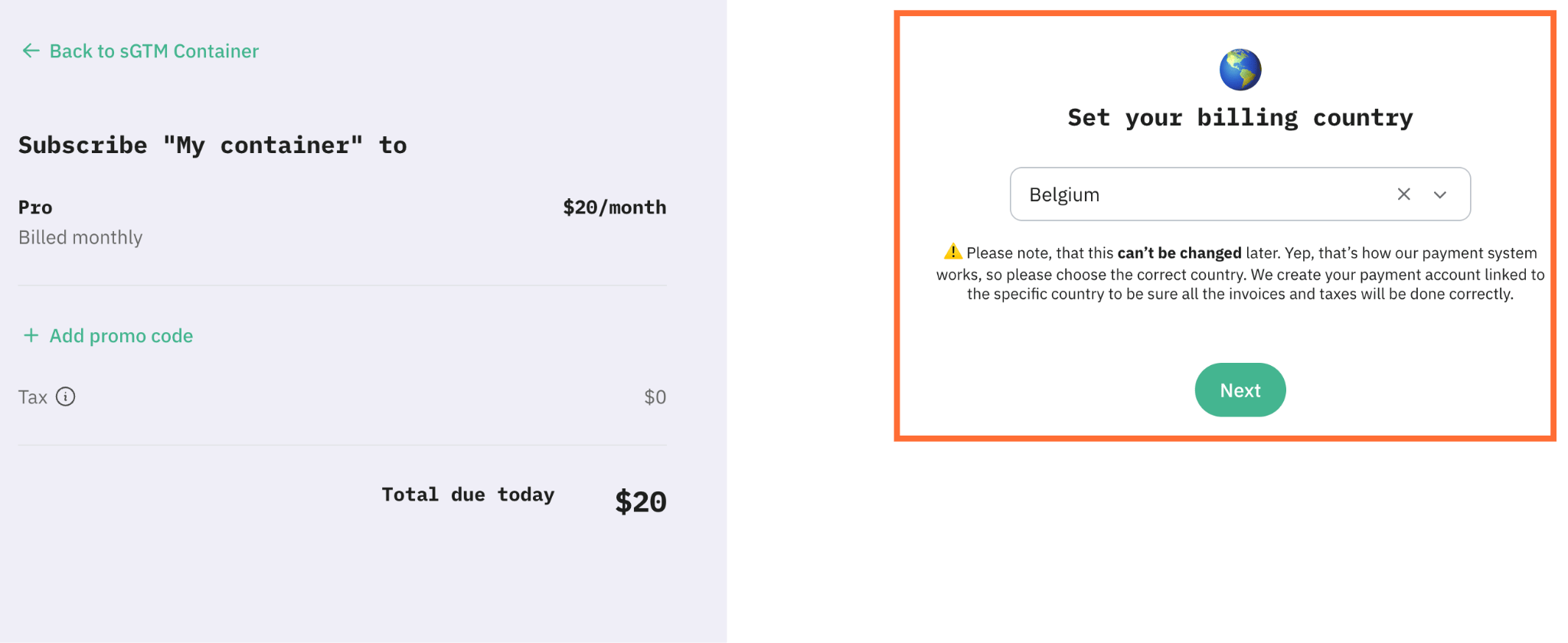
5. If you haven’t set up the billing yet, you’ll be asked to select your billing country. If you already have billing, skip to step 8.
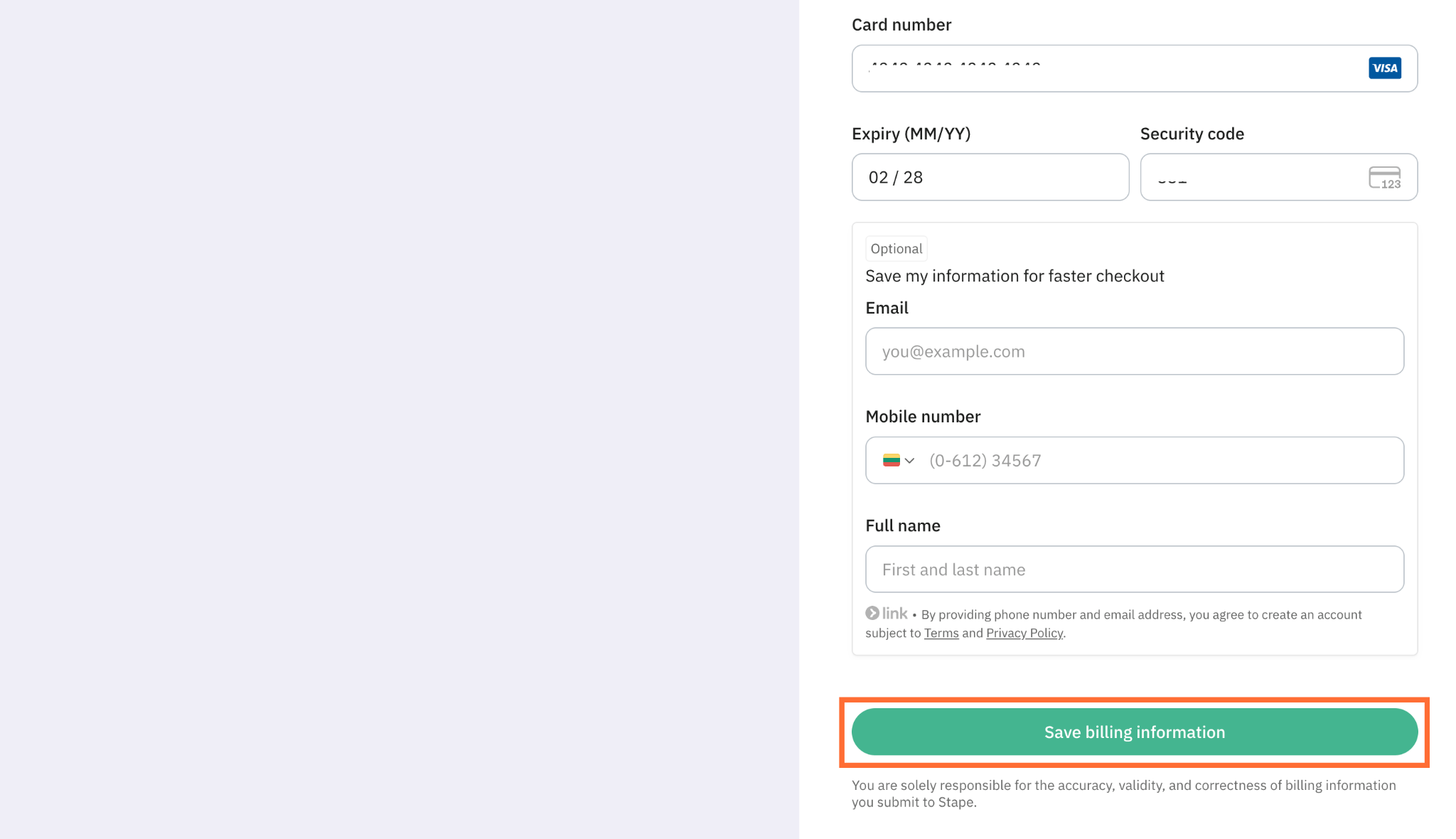
6. Add your billing information and payment method.
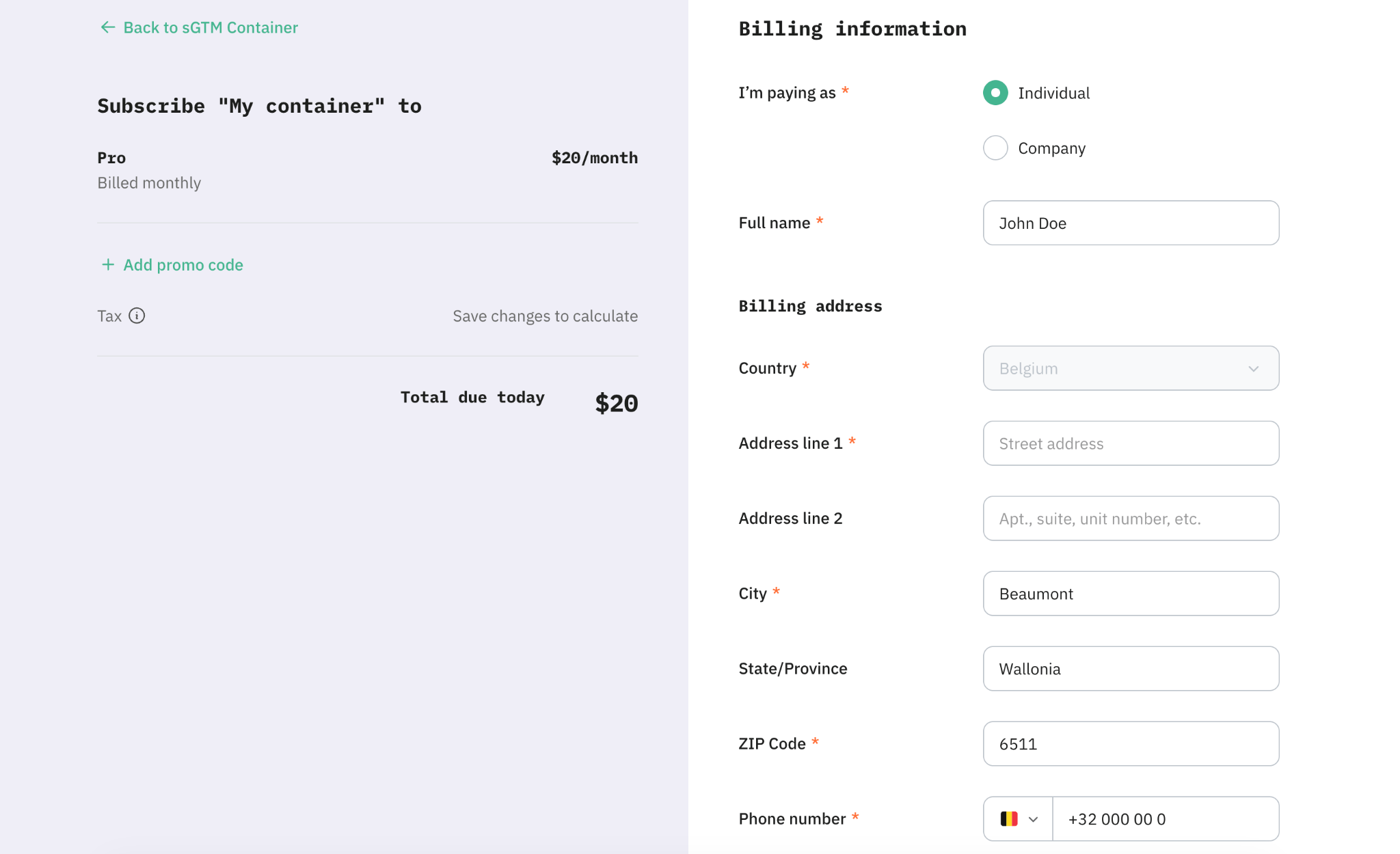
7. Click Save billing information.
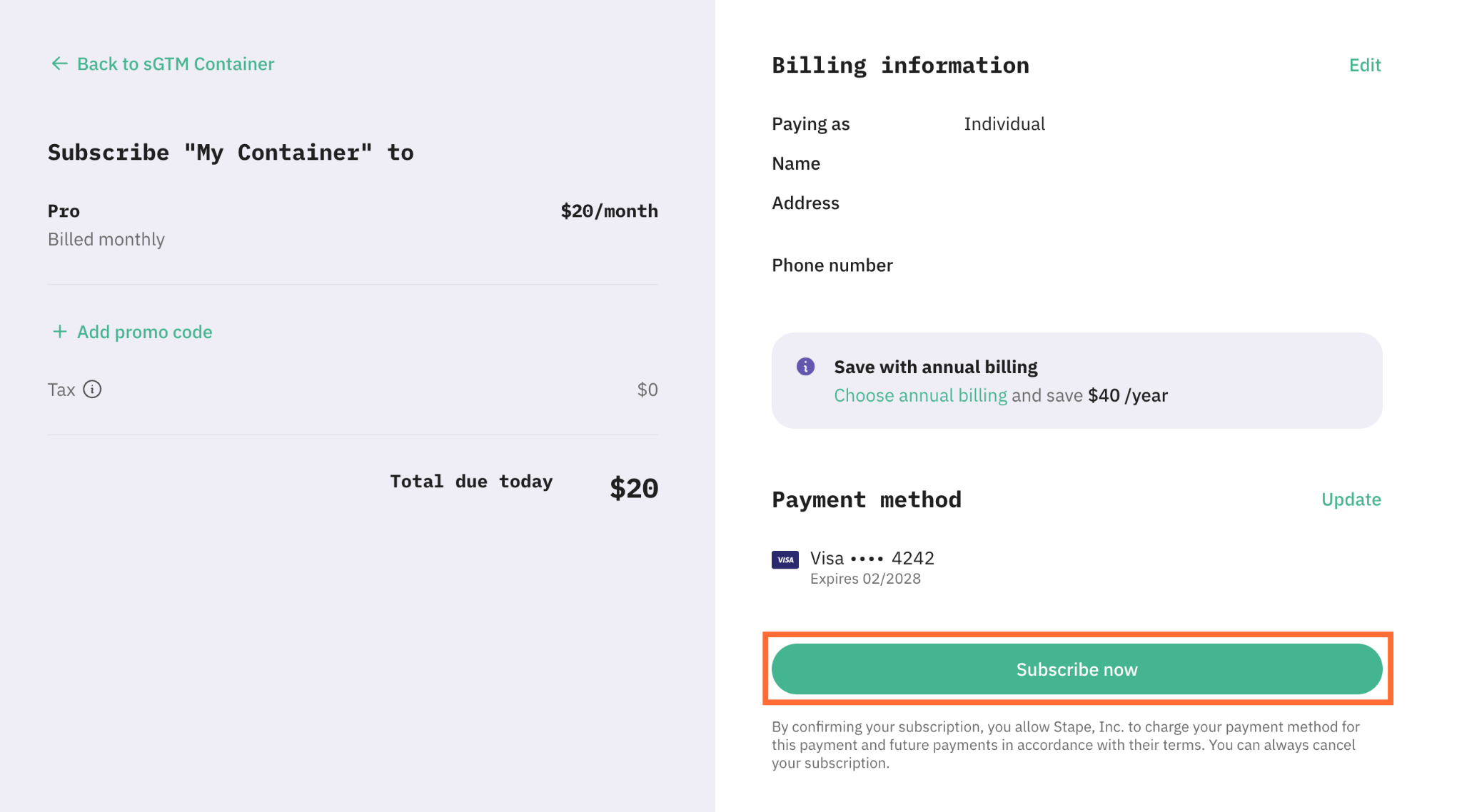
8. Click Subscribe now to confirm. Stape creates the subscription and starts charging the selected plan immediately.
After you connect billing
- The container moves from Free plan to the paid tier you selected.
- A subscription is created with its own billing cycle, separate from any other containers or gateways on the same account.
- You'll see the new line item on your next invoice.
- Renewals charge automatically to the connected card.
Was this article helpful?
🍽 Table of content:
Subscribe to product updates:
Can’t find what you are looking for?
Comments