ContactOut Lookup variable
Updated Oct 2, 2026
The ContactOut Lookup variable by Stape allows you to retrieve and enrich contact information in your server Google Tag Manager (sGTM) container using the ContactOut API. It supports multiple lookup and verification endpoints, allowing you to enrich user profiles, verify email addresses, and retrieve contact details from LinkedIn profiles.
- The variable supports the Contact Info - Single, People Enrich, and Email Verifier APIs, allowing you to retrieve contact details or verify email deliverability based on the available identifiers.
- It includes built-in response caching through Template Storage to reduce API requests, save ContactOut credits, and improve lookup performance. You can configure the cache expiration period.
- It offers flexible response handling, allowing you to return the complete API response, extract a specific value using dot notation, or build a custom flat or nested JSON object from the returned data.
Before you begin
Please ensure that you already have Google Tag Manager web and server containers, as well as a configured server container and custom domain in Stape. Please follow these guides if you don’t have any of those:
How to set up the ContactOut Lookup variable
1. Configure sending data to the server GTM container. The most popular options for sending data to sGTM are Google Analytics 4 and Data Tag/Data Client. For more information, read the Send data to server container article.
2. Add the ContactOut Lookup variable template in the server GTM container by importing it from the Template gallery:
- Search for the ContactOut Lookup variable by Stape in the Google Tag Manager Template gallery.
- Click Add to workspace.
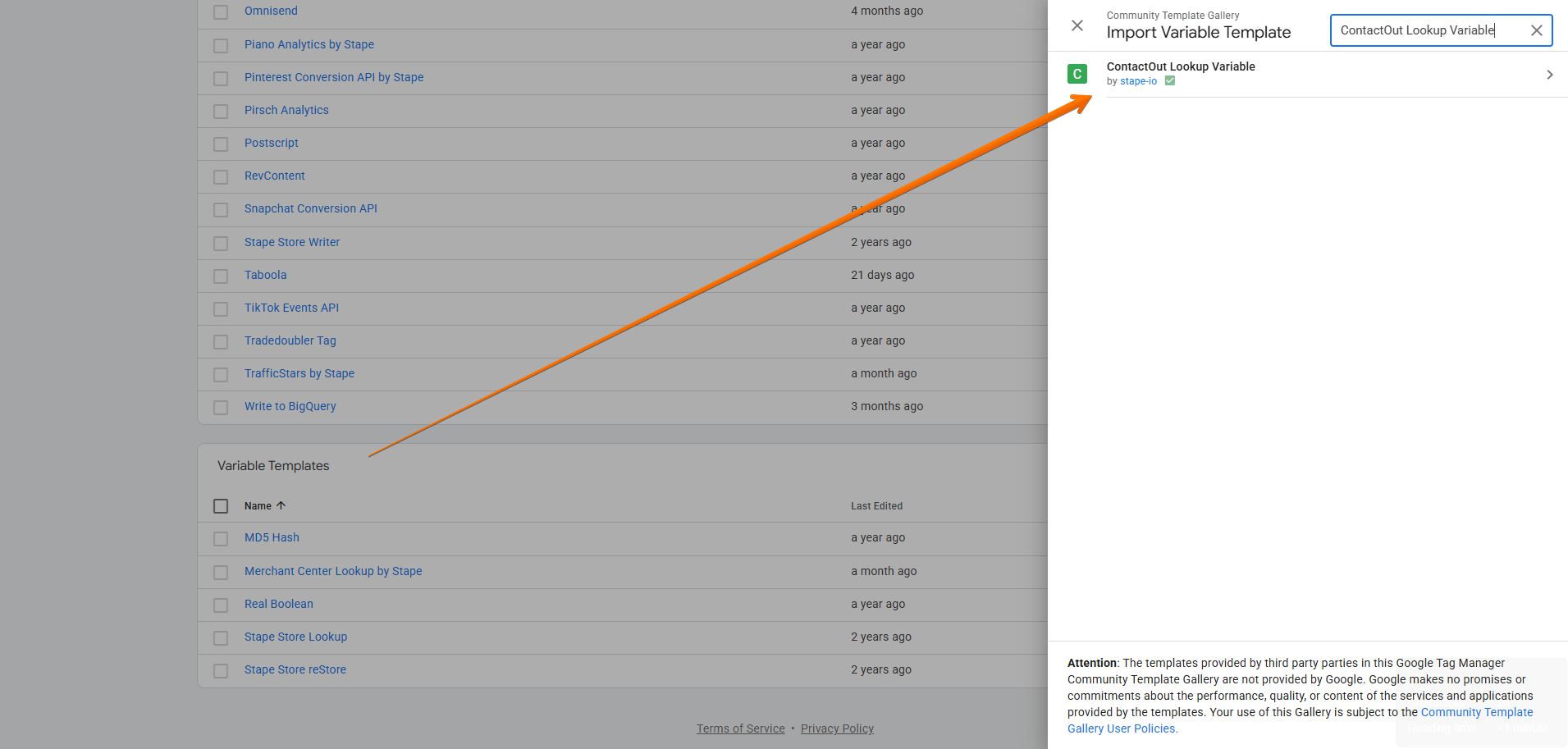
3. Create the ContactOut Lookup variable:
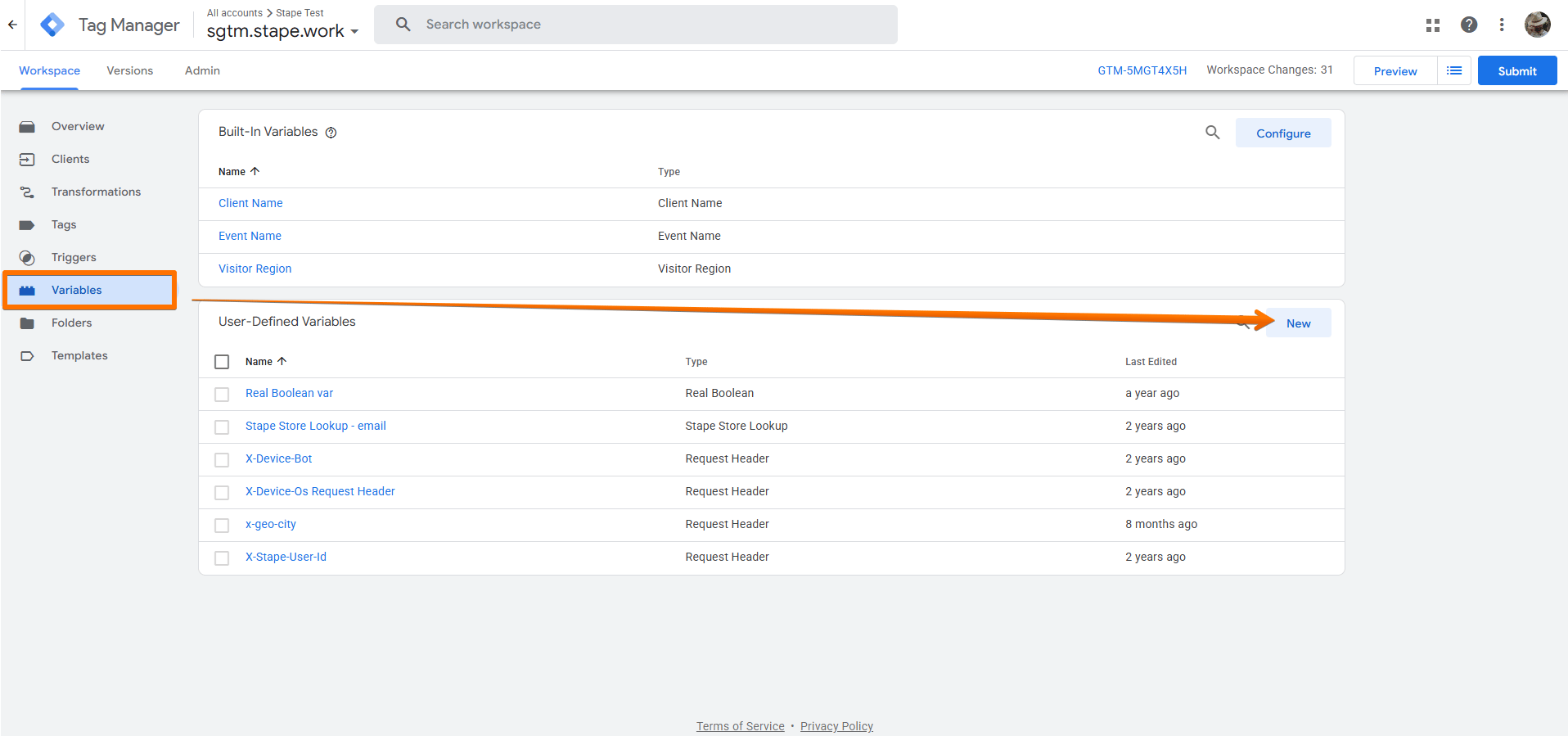
- Go to the Variables menu → click New.
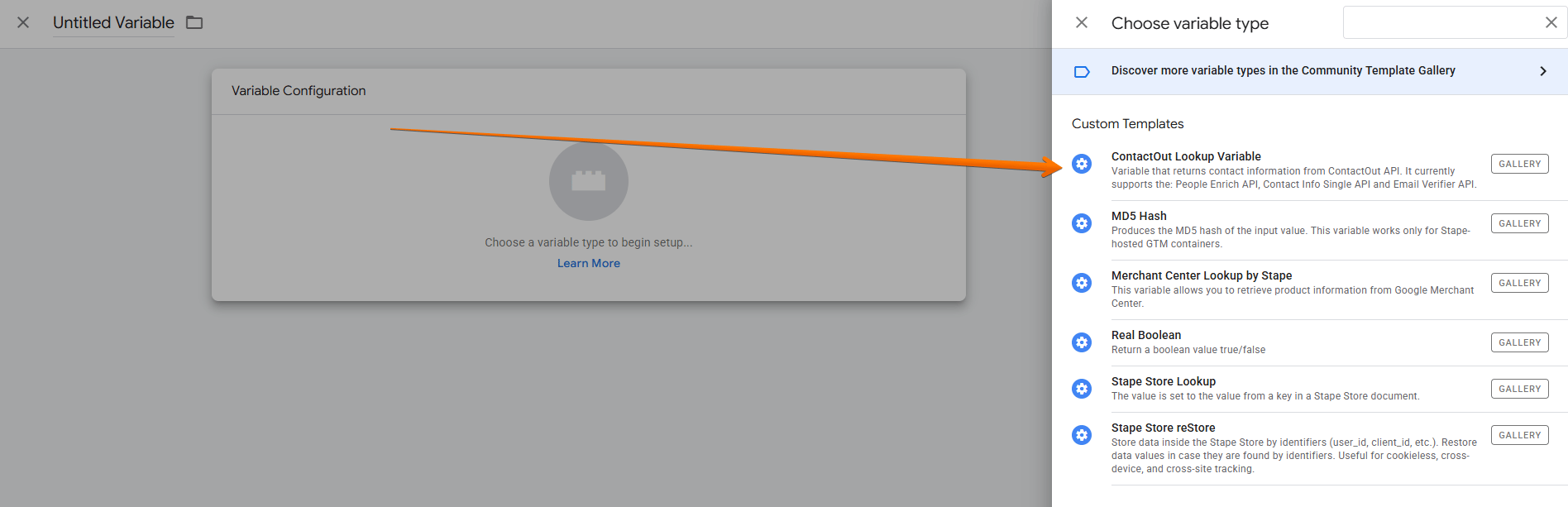
- Click Variable Configuration → select ContactOut Lookup.
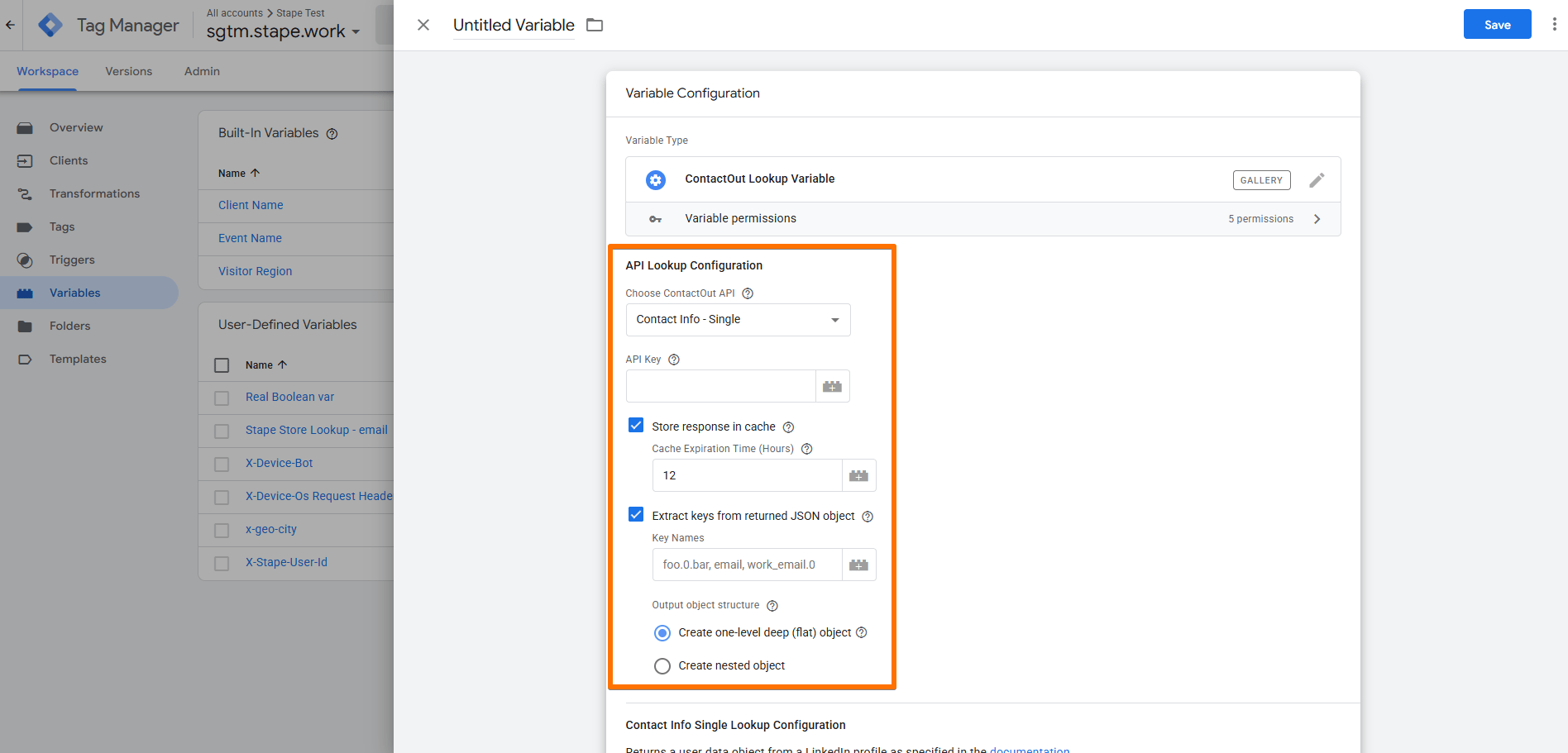
4. Configure the ContactOut Lookup variable:
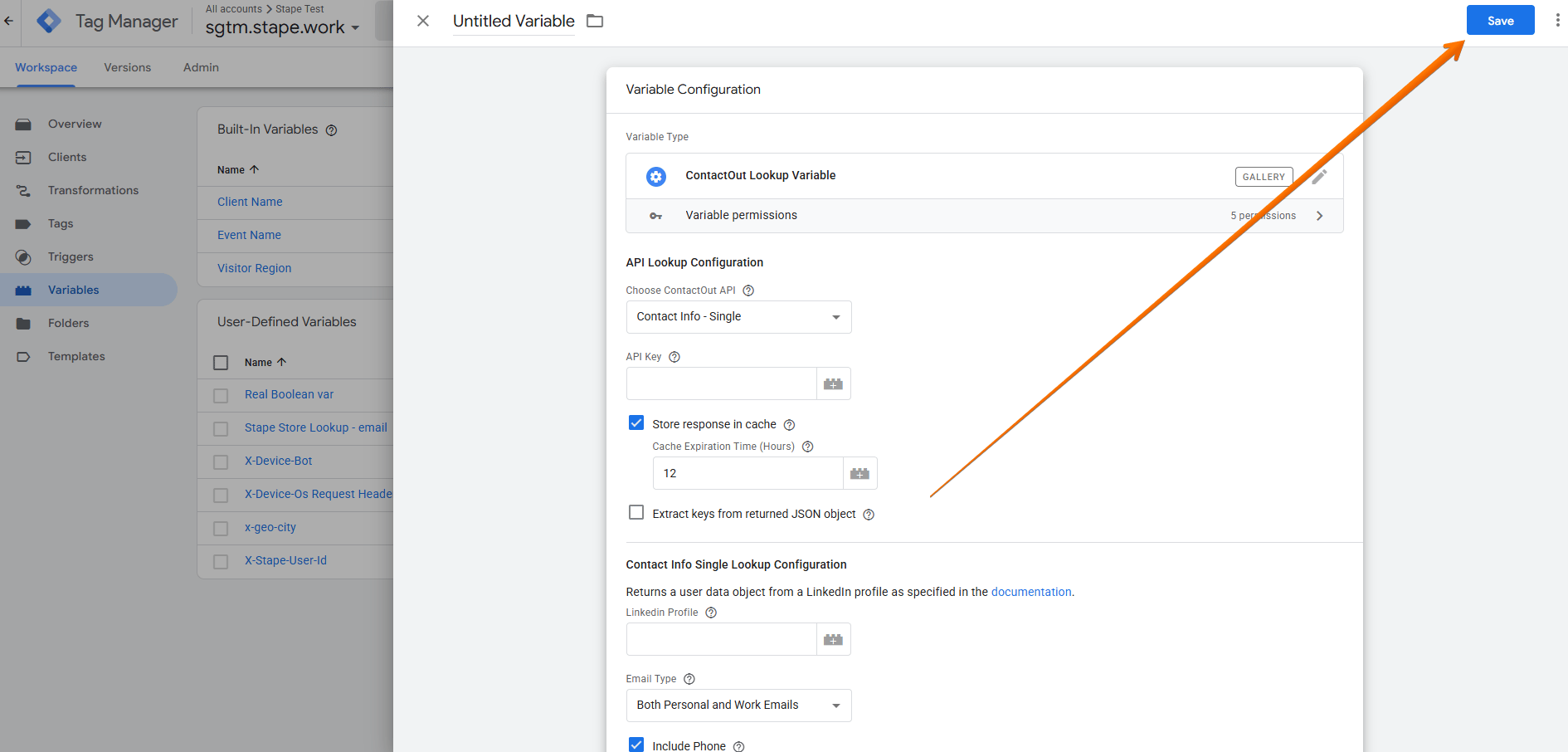
- API Lookup Configuration:
- Choose ContactOut API - select one of the supported endpoints that you wish to use. Learn more in ContactOut’s API reference guide.
- API Key - enter your ContactOut API Key, located in the upper right corner of your API Dashboard.
- Store response in cache - store the response in Template Storage (to cache results). If all parameters of the request are the same, the response will be taken from the cache if it exists. Enabled by default. If enabled, define the Cache Expiration Time (Hours).
- Extract keys from returned JSON object (unavailable for the Email Verifier API) - parse the JSON response and return specific values by choosing one or more specific keys (separate the keys/paths by comma). If multiple keys are listed, they will be returned in a key/value JSON format. Supports dot notation like
foo.barto extract nested values. Use the option Output object structure → Create Nested Object if you want some nested key to persist in the same nested position as the source object.
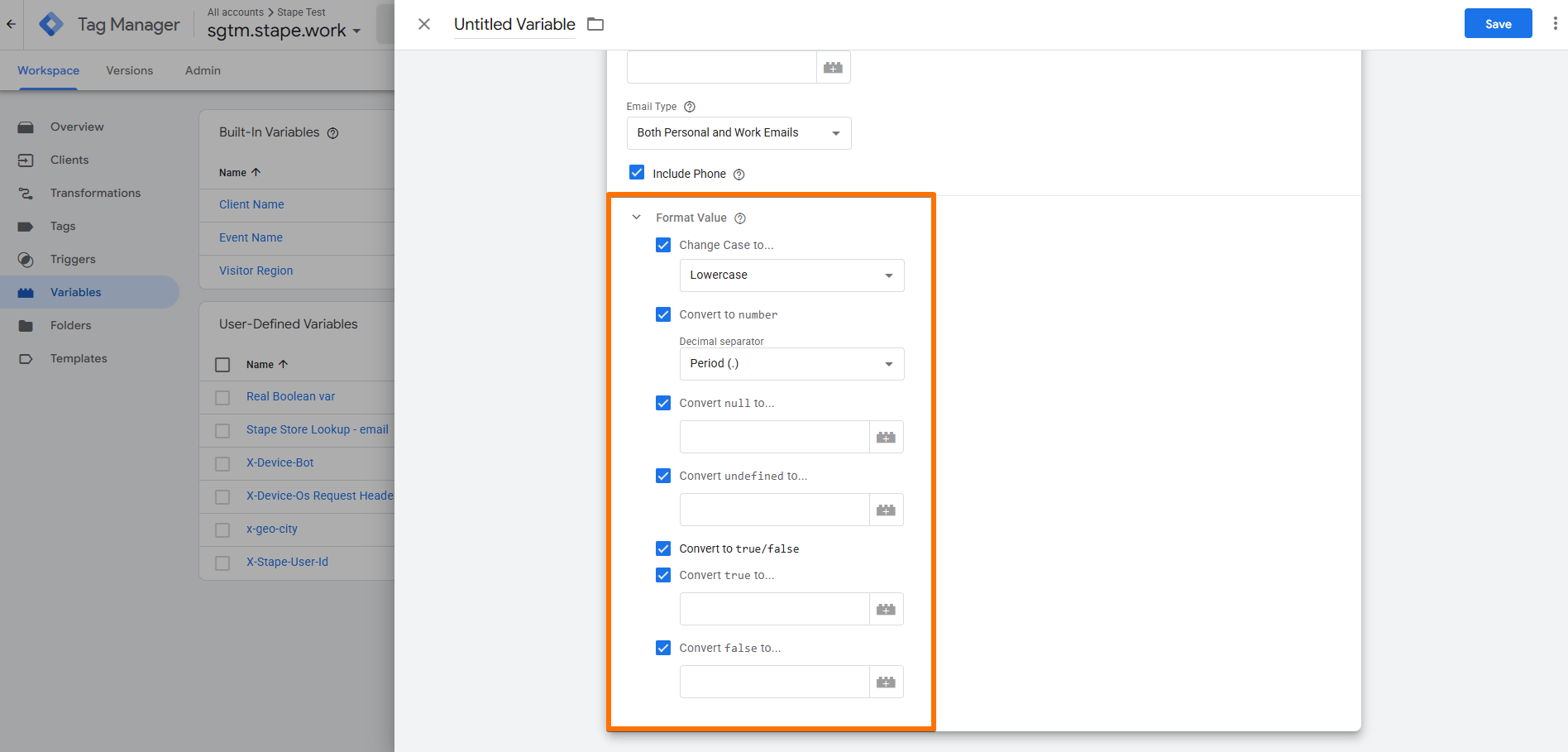
- Format Value - allows you to edit the value that this variable outputs. Learn more in the documentation on format values in user-defined web variables.
- Change Case to… - transforms all data to lowercase or uppercase.
- Convert to number - converts all data to numeric values. Allows you to choose the Decimal separator format.
- Convert null to… - choose a variable to convert
nullvalues to. - Convert undefined to… - choose a variable to convert
undefinedvalues to. - Convert to true/false - changes the value to the
true/falsetype. - Convert true to… - choose a variable to convert
truevalues to. - Convert false to… - choose a variable to convert
falsevalues to.
5. Give your variable a descriptive name and click Save.
Testing
You can test the configurations in Google Tag Manager. Click on Preview, trigger the event where you use the variable. Then navigate to the Variables tab and check the variable you have created and its value.

Find out more about debugging and monitoring server-side tracking configuration in our guide.
Was this article helpful?
🍽 Table of content:
Comments