Google Sheets connection
Updated Aug 7, 2026
The Google Sheets connection writes data from sGTM directly to Google Sheets, with all OAuth tokens handled on Stape's side. It works with the Google Sheets tag, letting you skip Google Sheets authentication and the Firebase account setup that this integration would otherwise require.
The Google Sheets connection is available for sGTM containers on the Pro subscription plans and higher.
How it works
- 1.Enable the Google Sheets connection inside your Connections dashboard.
- 2.Set up the Google Sheets tag.
- 3.Stape securely handles the OAuth tokens, removing the need to manage your own private Google Cloud IAM service account keys.
- 4.The data flows from Stape to Google Sheets through the connection.
Here are the examples of how and when you can use the connection:
Before you begin
Ensure the Google email you plan to authorize on Stape is a user with edit access in your Google Sheets account.
How to connect Google Sheets
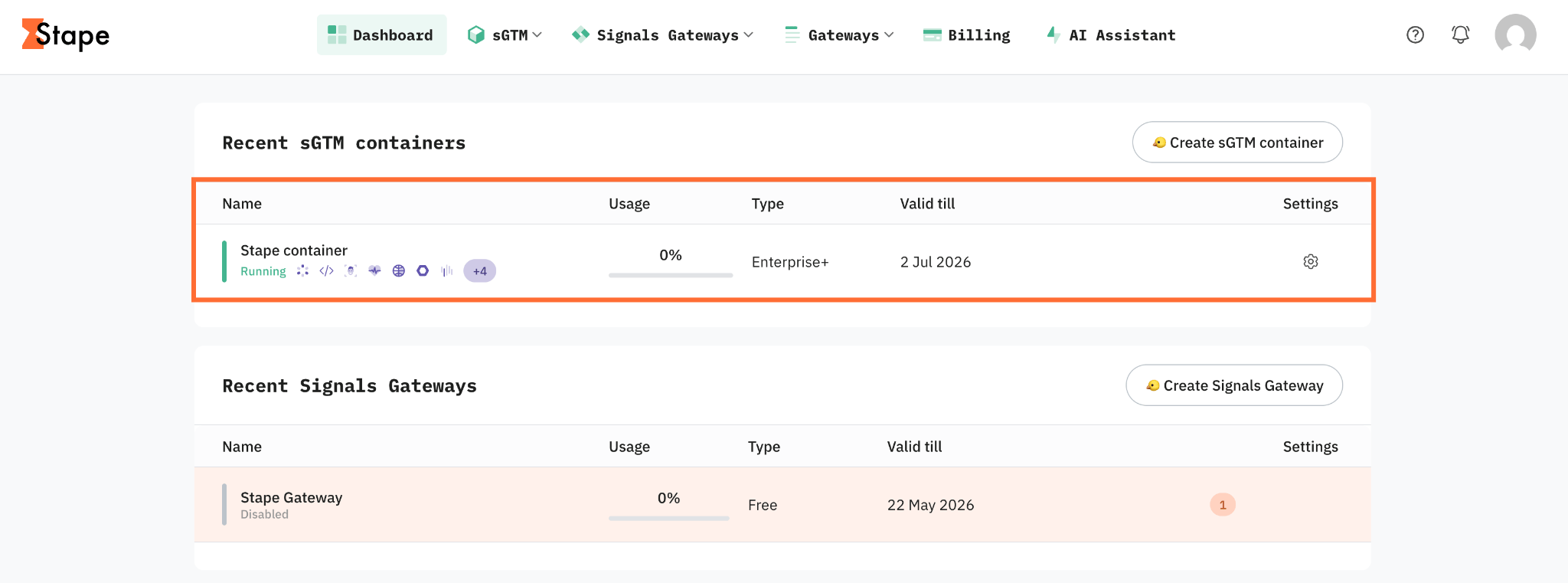
- 1.Log in to your Stape account and select your sGTM container from the dashboard.
2. Click the Connections tab.
3. Click Sign-in in the Google Sheets section.
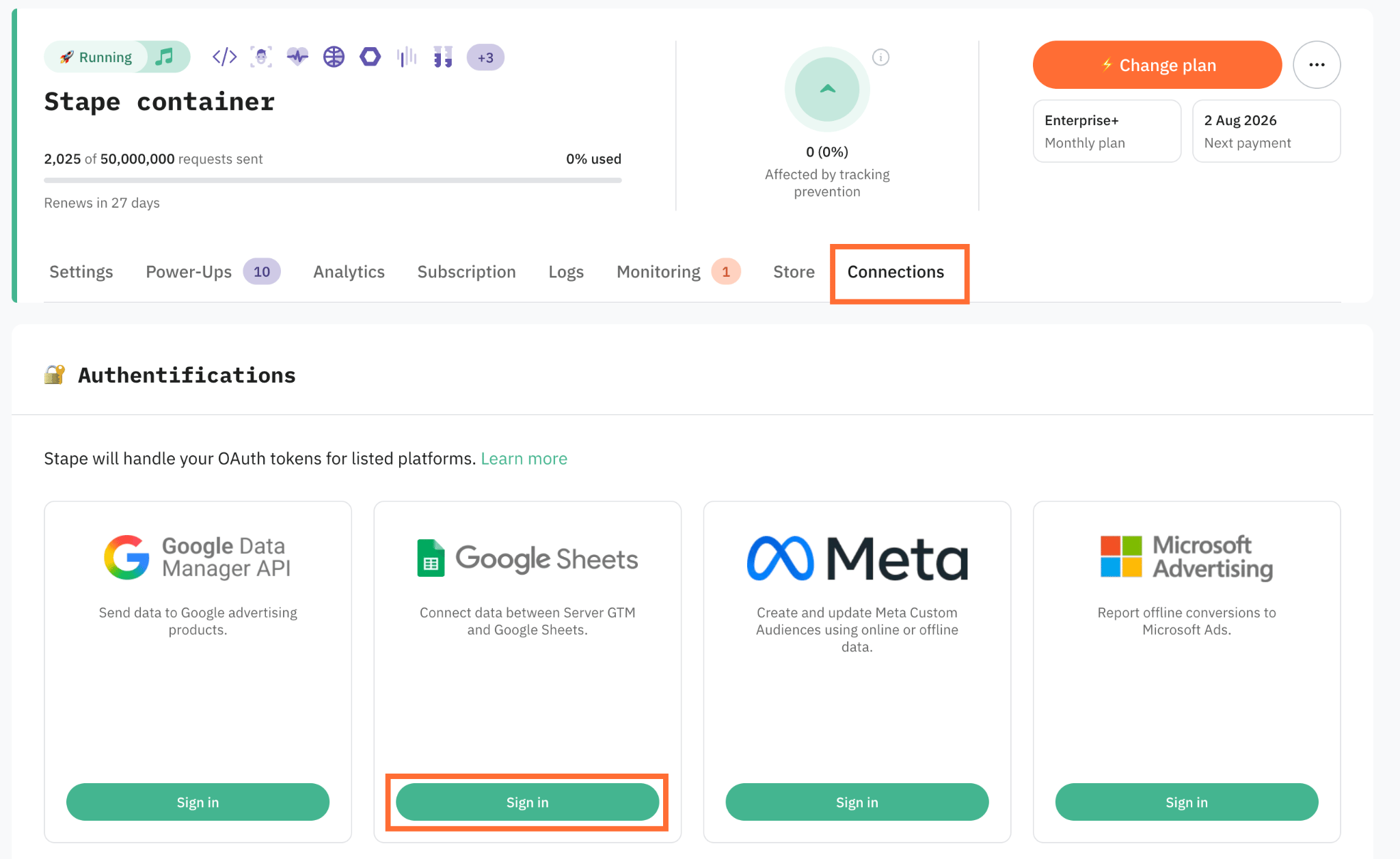
4. Sign in with a Google account that has access to the Google Sheets account.
5. Set up the Google Sheets tag.
How to verify the connection
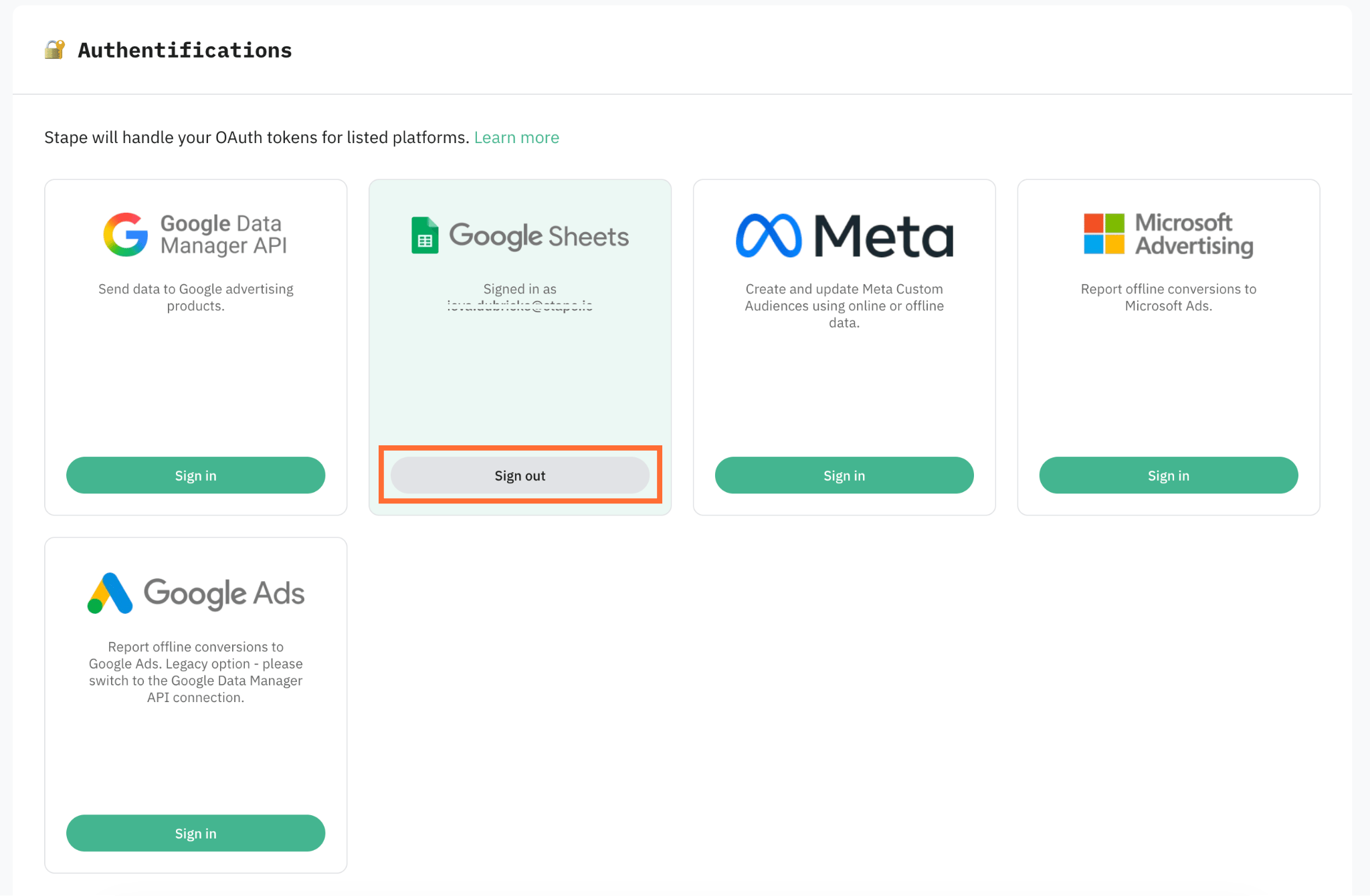
- In Stape – the Google Sheets connection shows you as signed-in.
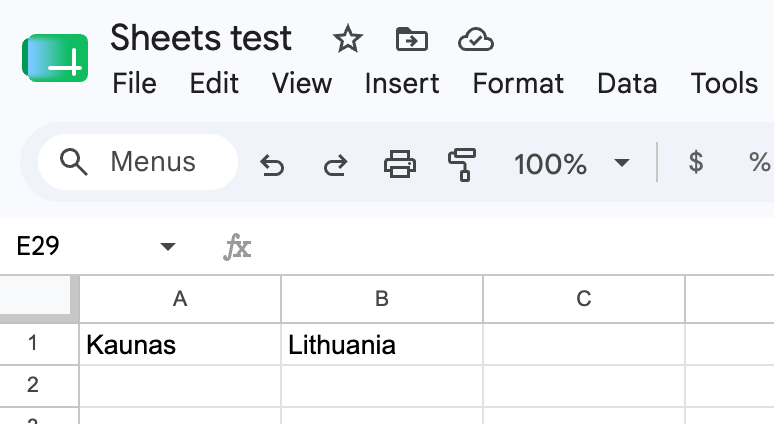
- In Google Sheets – open your spreadsheet and verify that new rows are appearing.
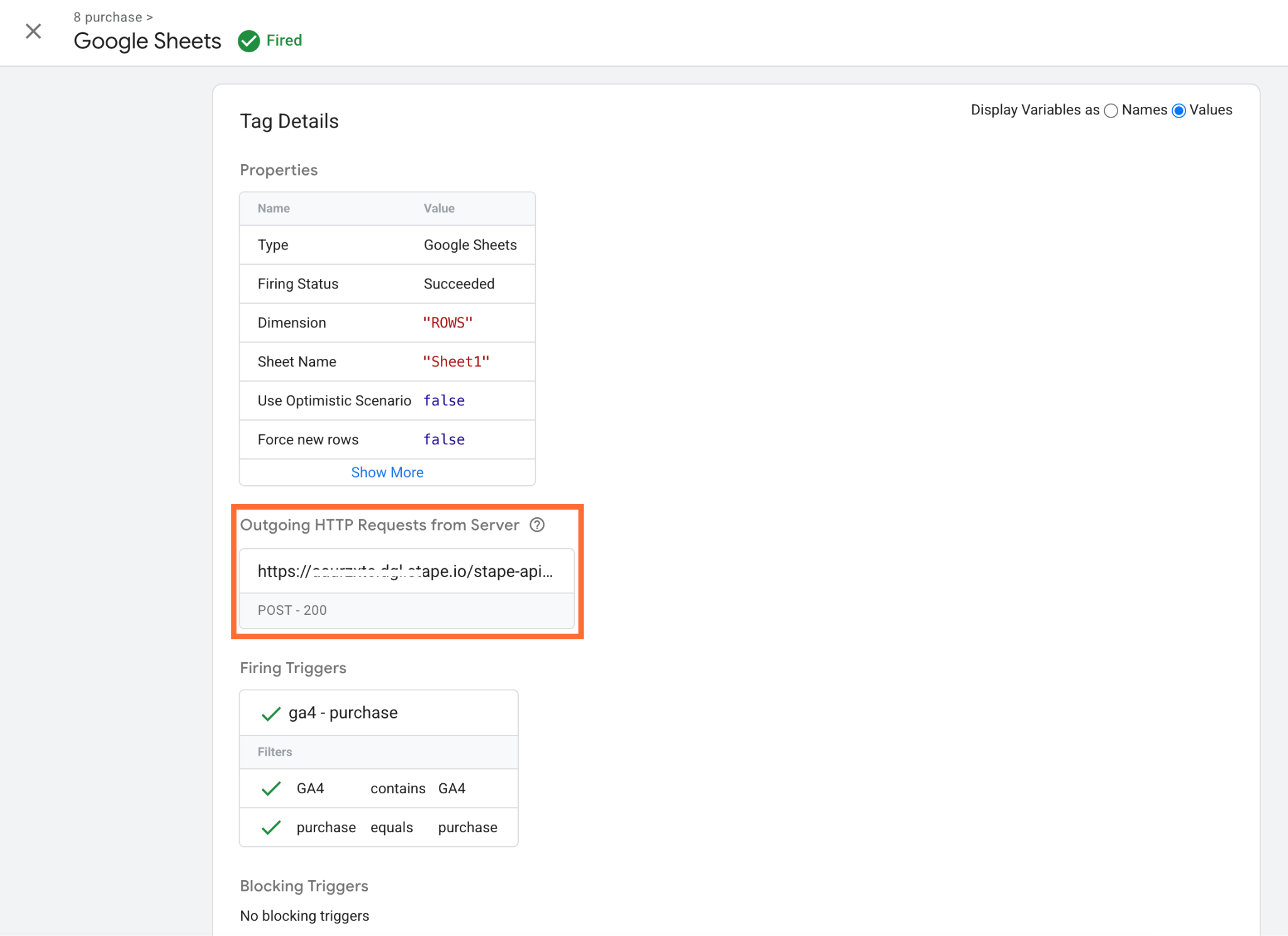
- Test – in Google Tag Manager open the sGTM Preview Mode and perform some actions on your website (such as making a purchase) to trigger an event. Select your Google Sheets tag and inspect the outgoing HTTP request. If the API returns a 200 OK status with no error messages, the connection is successful and Google is processing your data in the background.
How to disconnect or reconnect
- Disconnect – click the Sign out button on your connection. This revokes Stape's stored token for that connection.
- Reconnect – click Sign in again and complete the authorization flow. Reconnecting replaces the previously stored credentials.
Troubleshooting
The access was revoked or the token is expired
Usually, when the token expires, Stape automatically refreshes it. If not, then you’re automatically disconnected from the platform. Click the Sign-in button again, and complete the login.
Wrong account was selected
Disconnect the platform by clicking Sign out, then click Sign in again and choose the correct account with access during the authorization step.
Data isn't appearing in the destination
Check the following:
- Confirm the Google Sheets tag is installed and configured.
- The connection status in the dashboard is Signed-in.
- The signed-in account has the edit access.
Was this article helpful?
Comments