How to cancel a subscription
Updated Aug 3, 2026
1. Open the container/gateway you want to cancel.
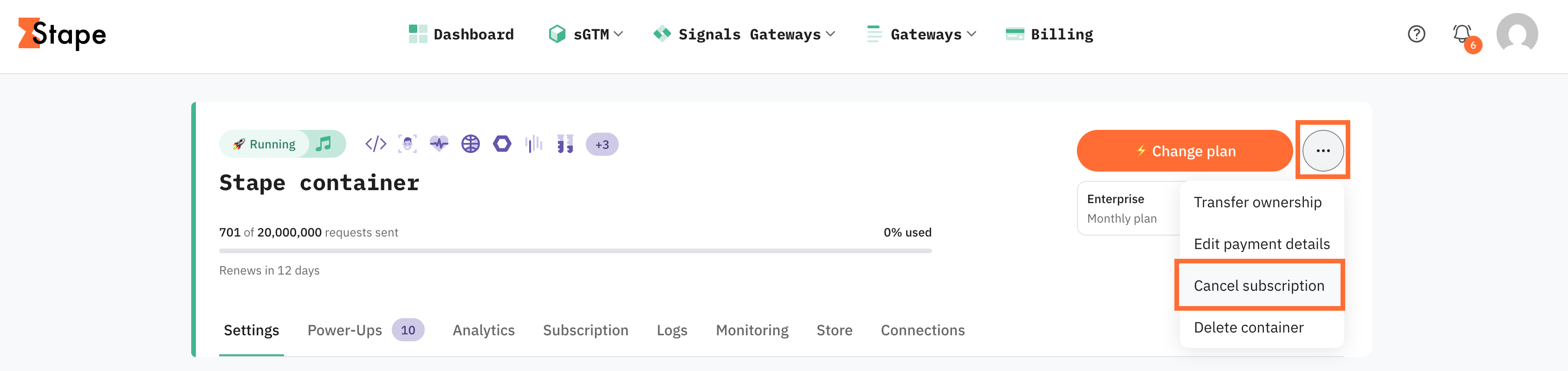
2. Click the three dots at the top right of the container/gateway.
3. Choose Cancel Subscription.
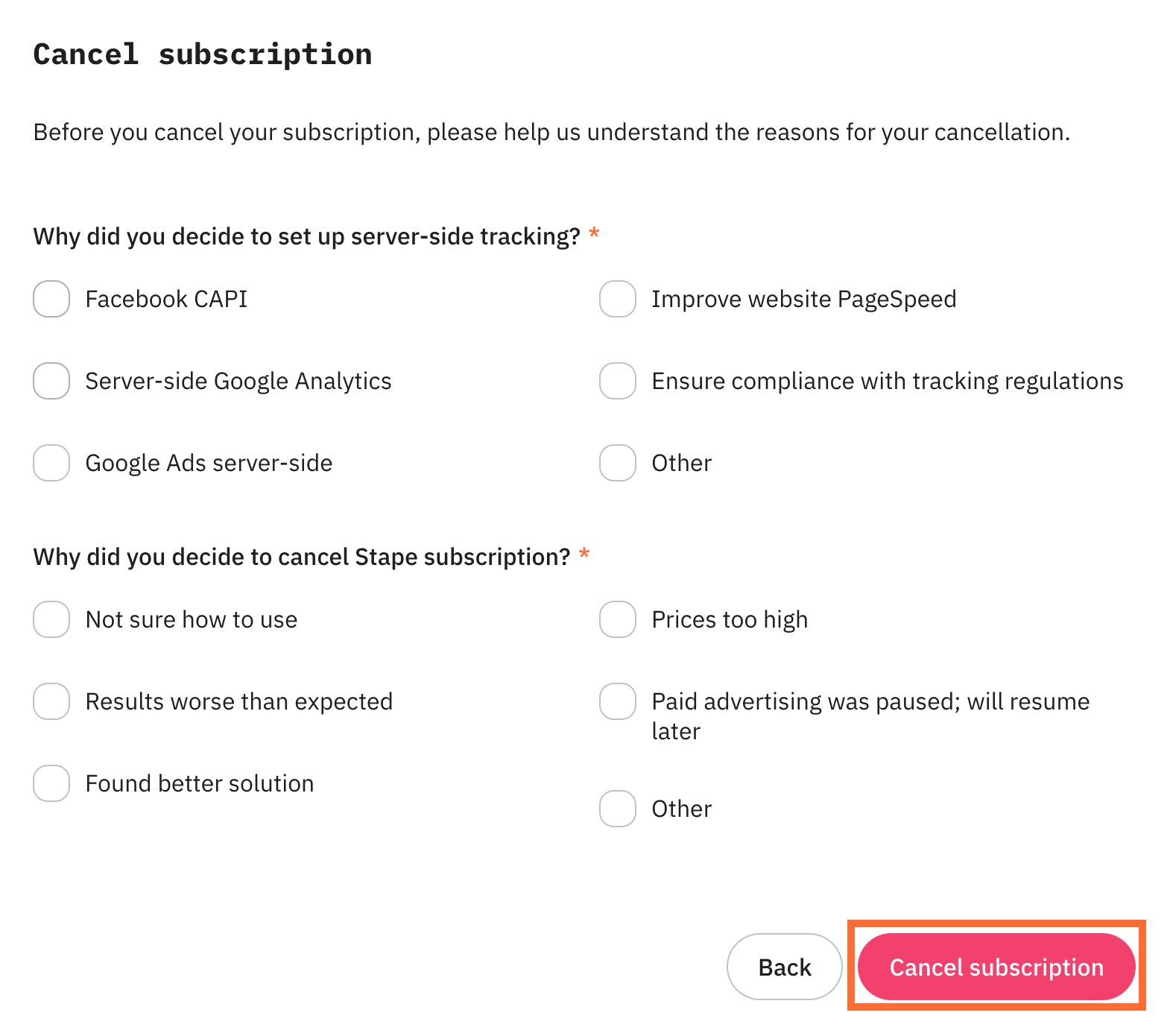
4. Pick a reason for cancelling and click Cancel subscription.
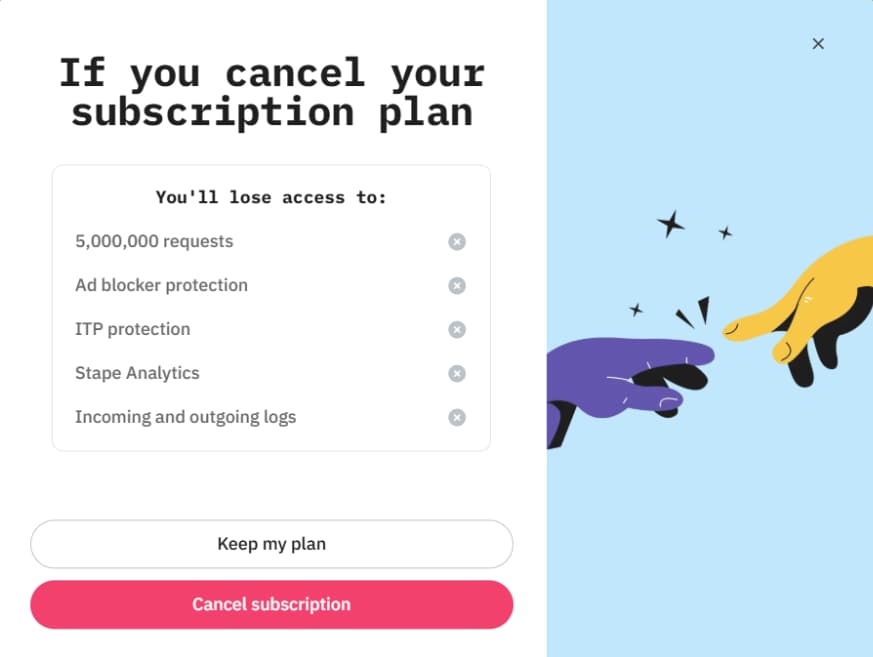
5. Click Cancel subscription.
6. We will send you a confirmation email - use it to finish canceling your subscription.
What changes after cancellation
- The product keeps running on its current plan until the end of the cycle you've paid for.
- At the end of the cycle, the container drops to Free. Free-tier limits apply from then on. Dedicated gateways (Meta/TikTok/Snap/Stape) are disabled.
- Your configuration on the container/gateway stays in place. Features that aren't included on Free are disabled.
- You aren't charged again. Auto-renewal is off.
- On the Pro/Pro+ plans, if the number of requests on the current plan is exceeded and the cancelled subscription hasn't yet expired, the container/gateway will be blocked in 3 days.
- On the Business plans and higher, there's a 30-day grace period regardless of cancellation status. If you exceed the limit, Stape sends a warning but doesn't block the product. You keep using the plan until the end of the paid billing cycle, then drop to Free as planned.
- You can re-subscribe any time from the dashboard. The product will move back up to the paid plan you choose, and your setup will already be there.
- If you're on a yearly plan and cancel within 60 days of the most recent payment, you can ask for a refund. For more information read the Refund policy article.
Was this article helpful?
Subscribe to product updates:
Can’t find what you are looking for?
Comments