Step 4. Configure Stape's Conversion Tracking app for Salla
Updated Dec 1, 2025
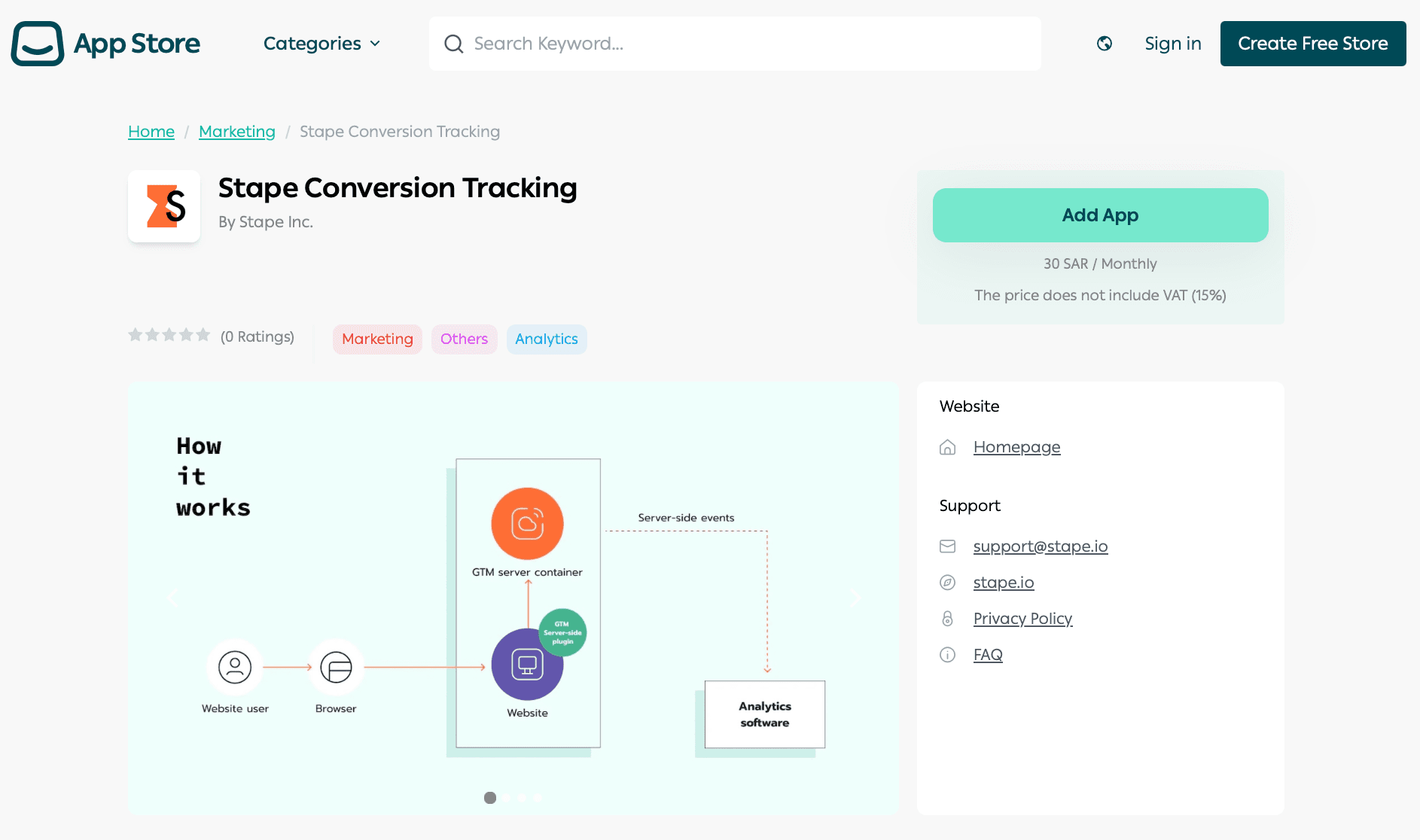
1. Log in to your Salla account. To install the app, buy it from the Salla App Store (7-day free trial available).
2. Configure the app's three sections: General, Data Layer, and Webhooks.
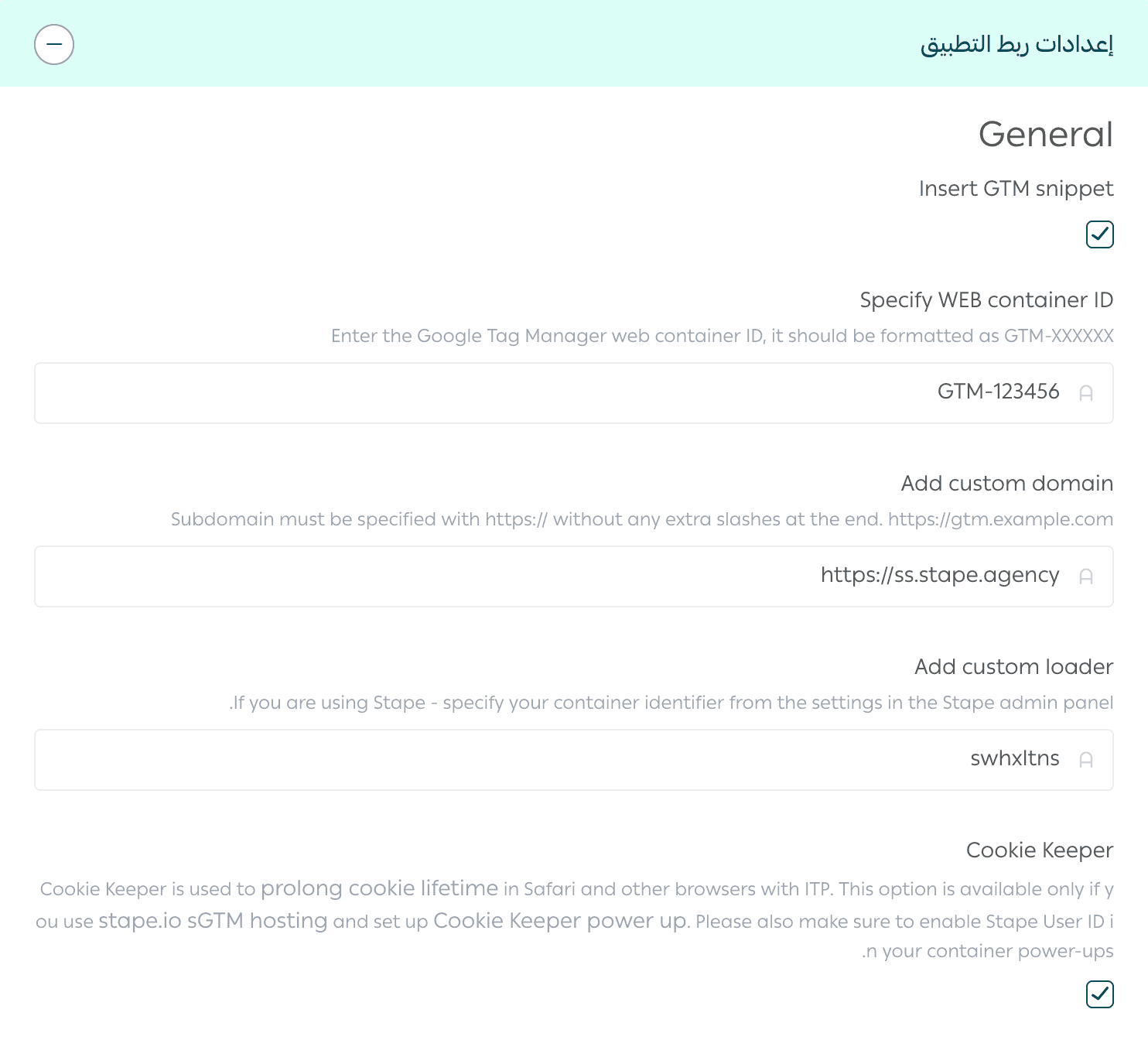
2.1. General section - configures the GTM snippet installation on your Salla site's pages.
- Insert GTM snippet - enable this option (adds the GTM snippet).
- Specify WEB container ID - paste your GTM Web container ID (found in the Accounts tab of your GTM account) in the format GTM-XXXXXXX.
- Add custom domain - enter your tracking subdomain (should start with https://, e.g., https://gtm.example.com). Haven’t configured a custom domain yet? See Stape’s guide on subdomain setup.
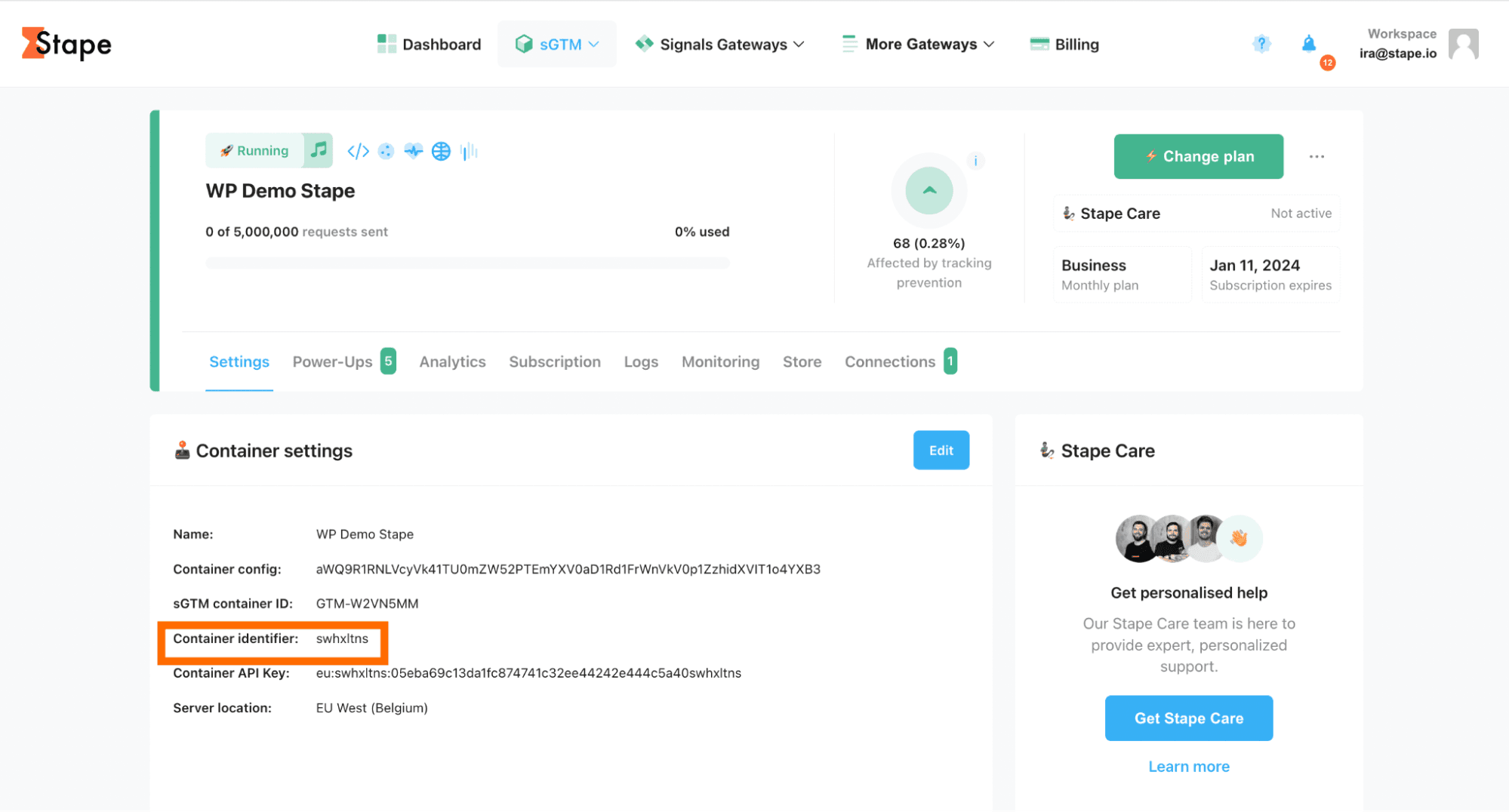
- Add Custom Loader - if using Stape, paste your Stape container identifier (see image below).
- Cookie Keeper - optional Stape power-up to extend cookie lifetime. Only available if you use Stape's sGTM hosting, configured Cookie Keeper, and enabled Stape User ID.
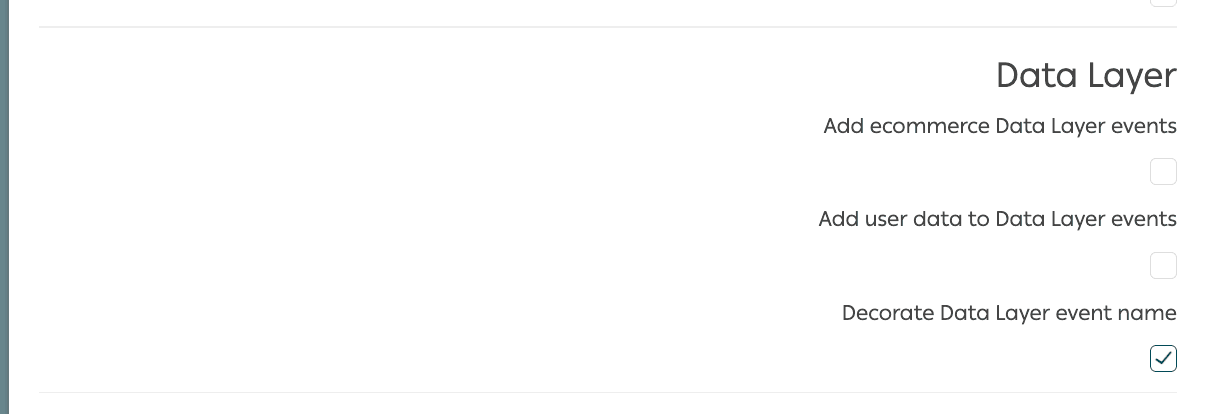
2.2. Data Layer section - options that enable Data Layer events and allow you to enrich the data with user and product details. The new “Decorate Data Layer event name” option lets you choose whether to add the _stape suffix to all event names so they don’t conflict with existing GTM events. When it’s off, events keep their standard names.
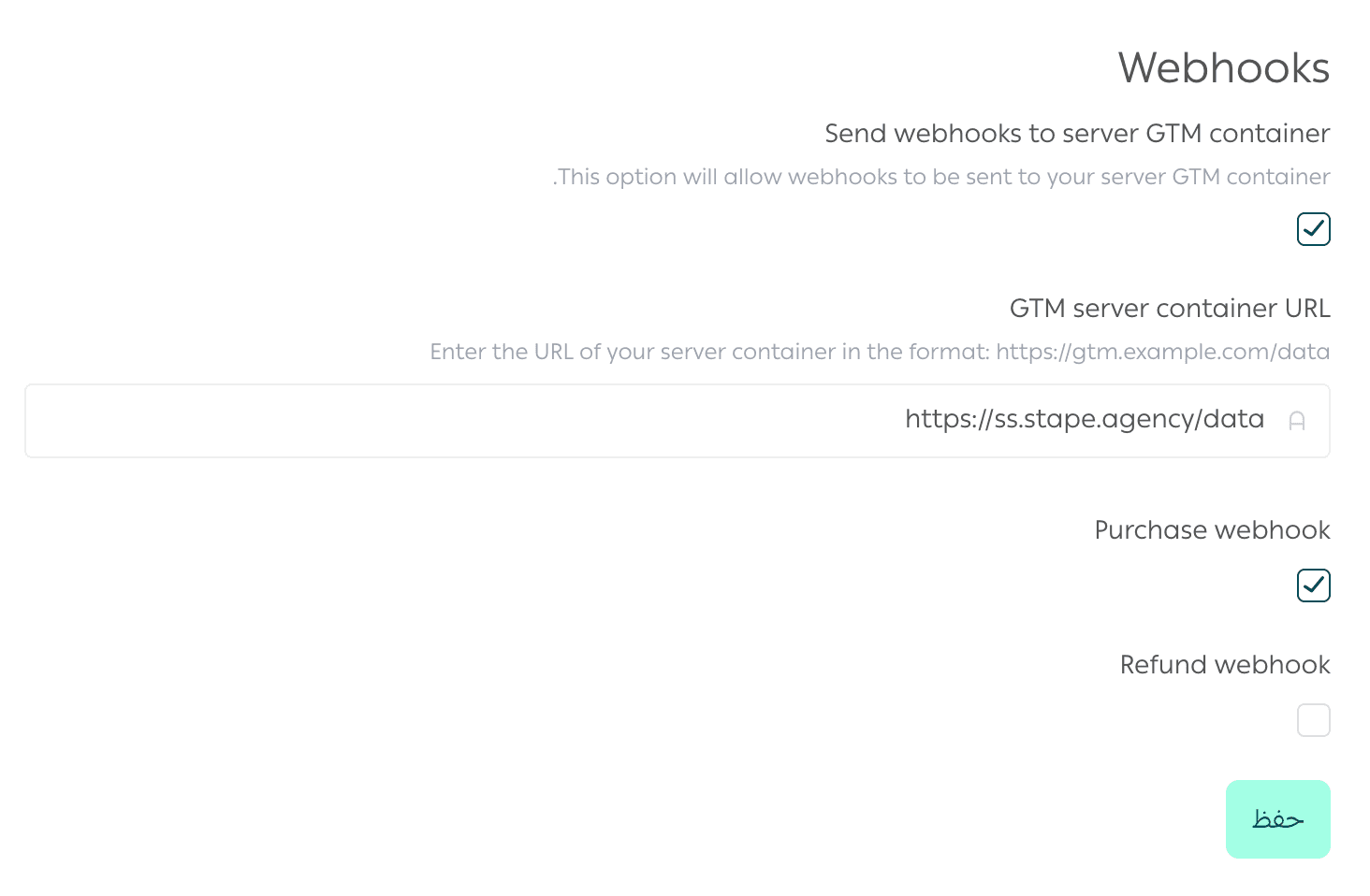
2.3 Webhooks section - allows you to set up sending webhooks to a selected URL for events like refunds or purchases.
- Check Send webhooks to server GTM container.
- Provide your server container URL and /path for webhooks (e.g., https://gtm.example.com/data).
- Choose which events to send (purchase/refund).
- Click Save.
Learn more about webhooks:
Comments