How to use the Workspace Mode tool
The Workspace mode tool in GTM Tools is designed to allow you gain access to several actions on your GTM containers. You can edit JSON of the tags, triggers, variables, and templates in a specific workspace, pause/unpause tags, and delete assets.
If you are implementing updates to tags or variables you have already configured inside an active development branch, Workspace Mode lets you push modifications or templates directly into that draft, merging the new changes and overwriting matching assets in place. Also, by importing new configurations (like standard tracking setups, GA4, or Facebook CAPI templates) directly into an isolated draft workspace first, you can safely preview, test, and debug them using GTM's Preview Mode before publishing.
How to use the tool
- 1.Go to gtmtools.com and sign in with your Google account that has access to your GTM container.
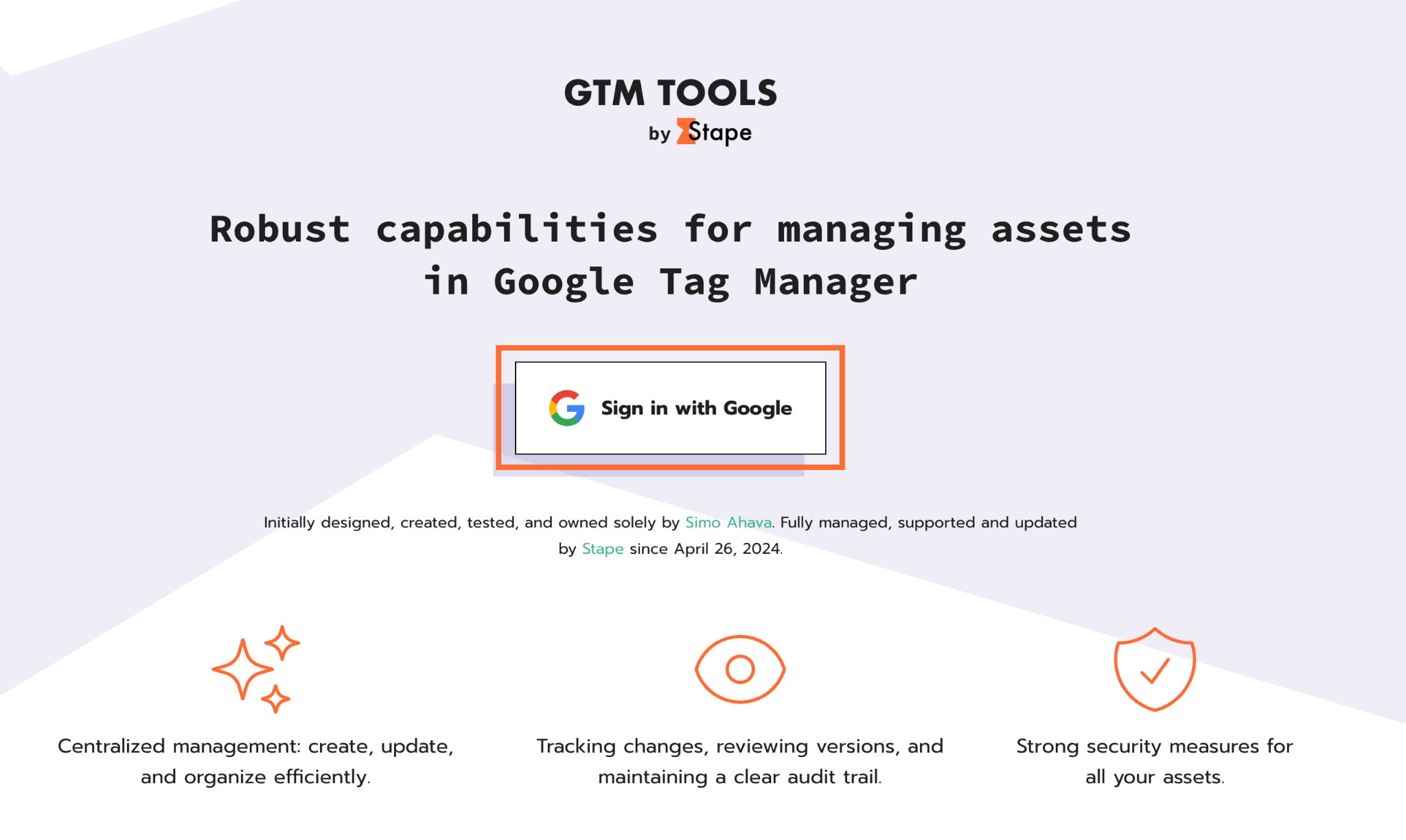
2. Click Proceed and allow the GTM Tools to access your containers.
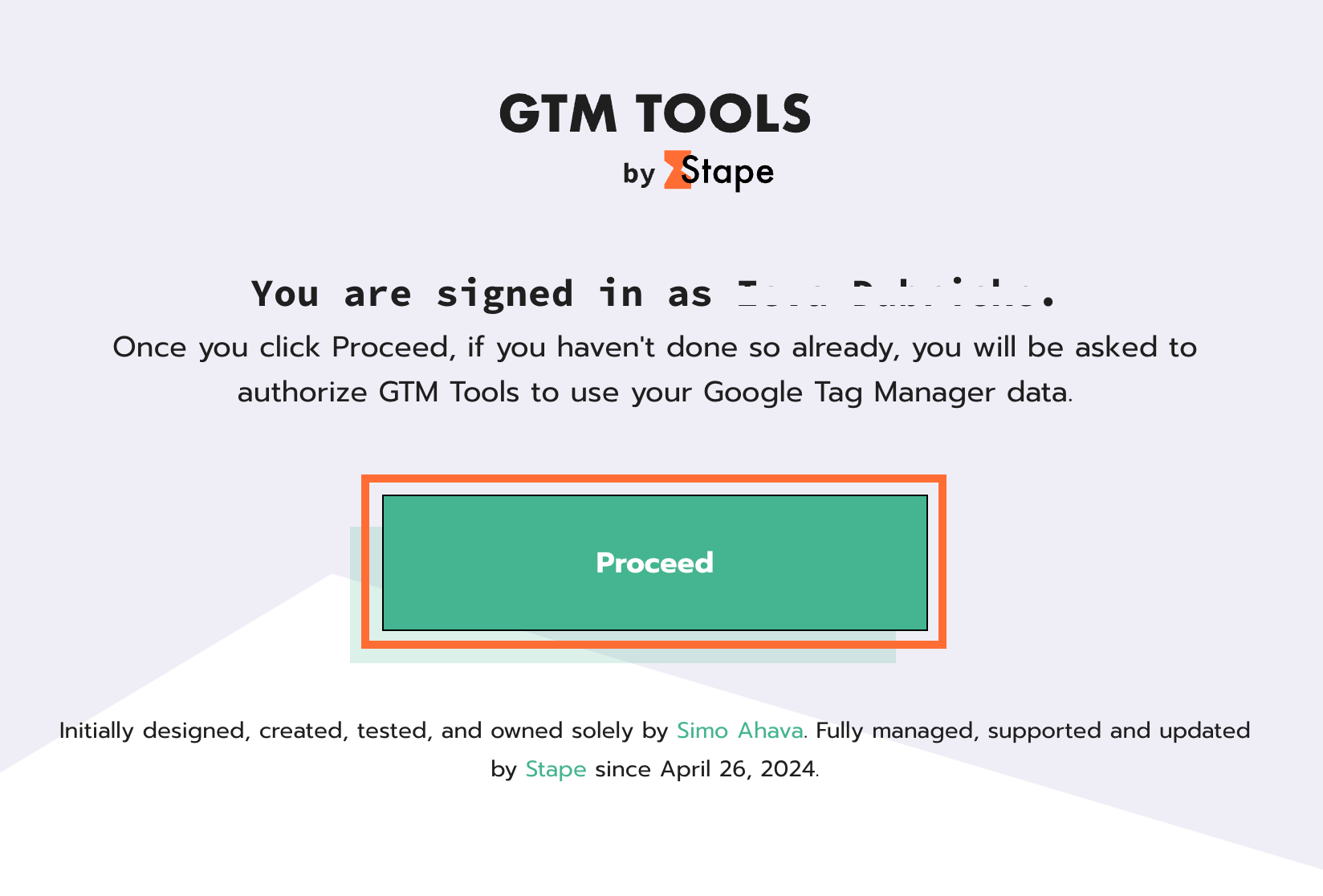
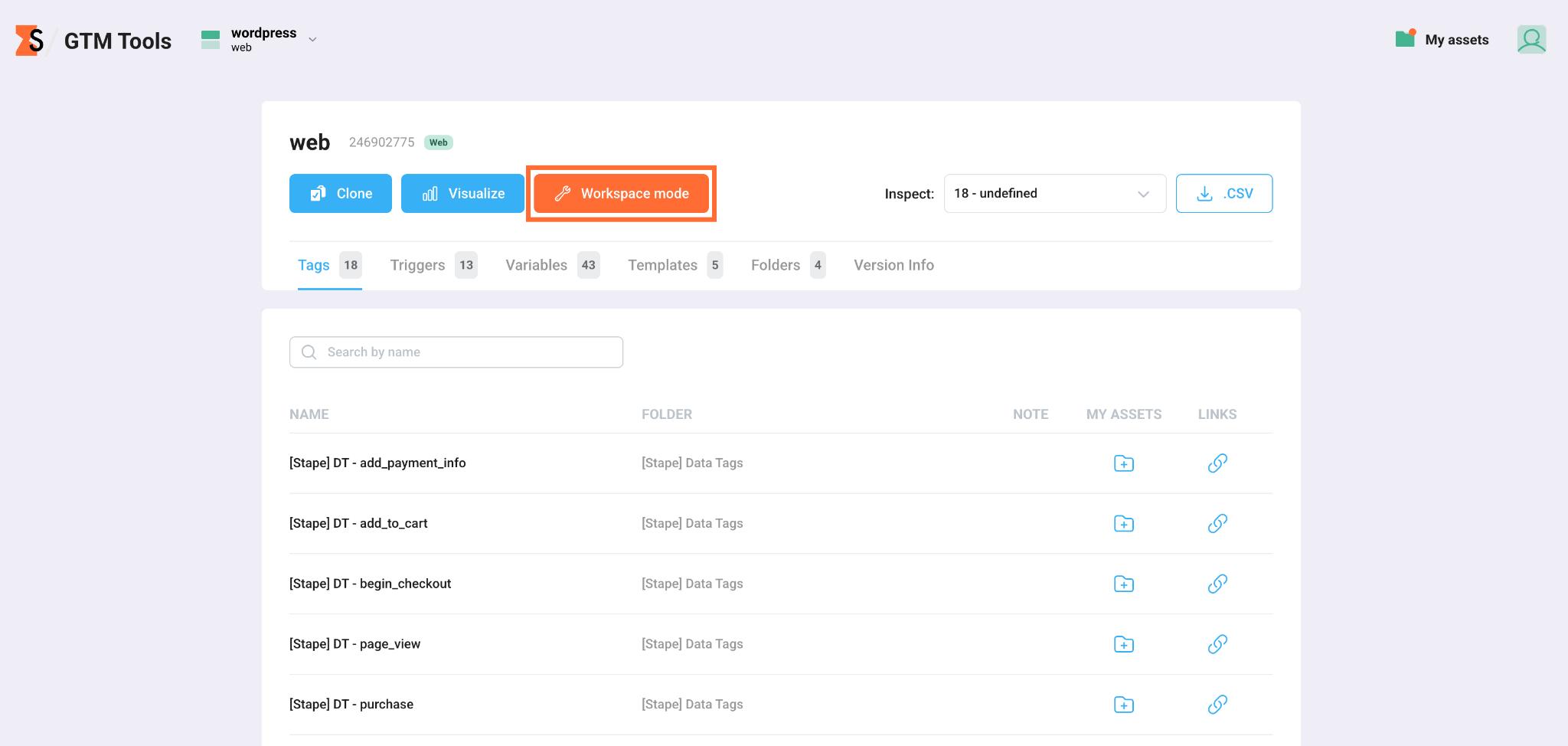
3. Click on the desired container.
4. Click Workspace mode.
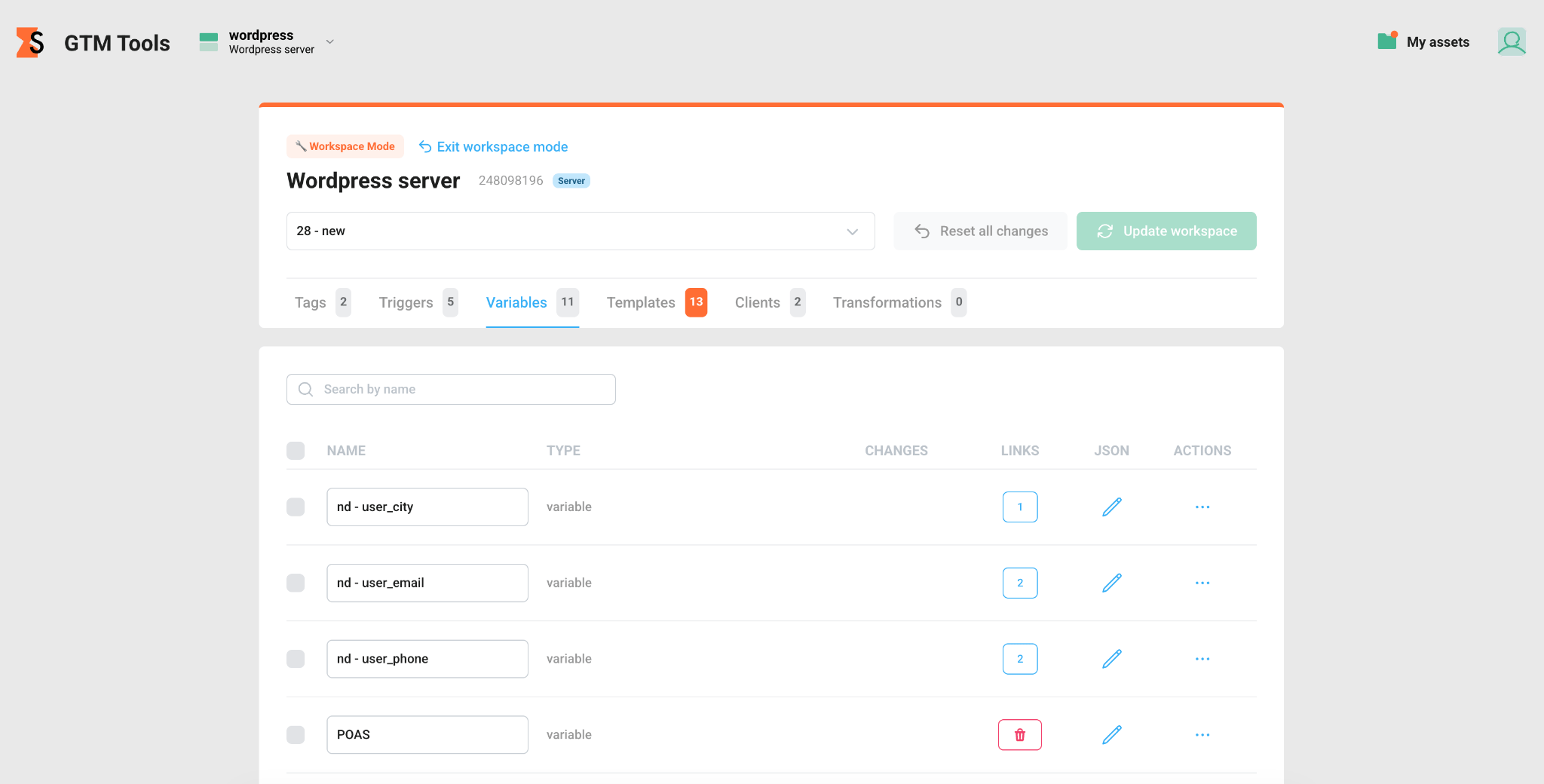
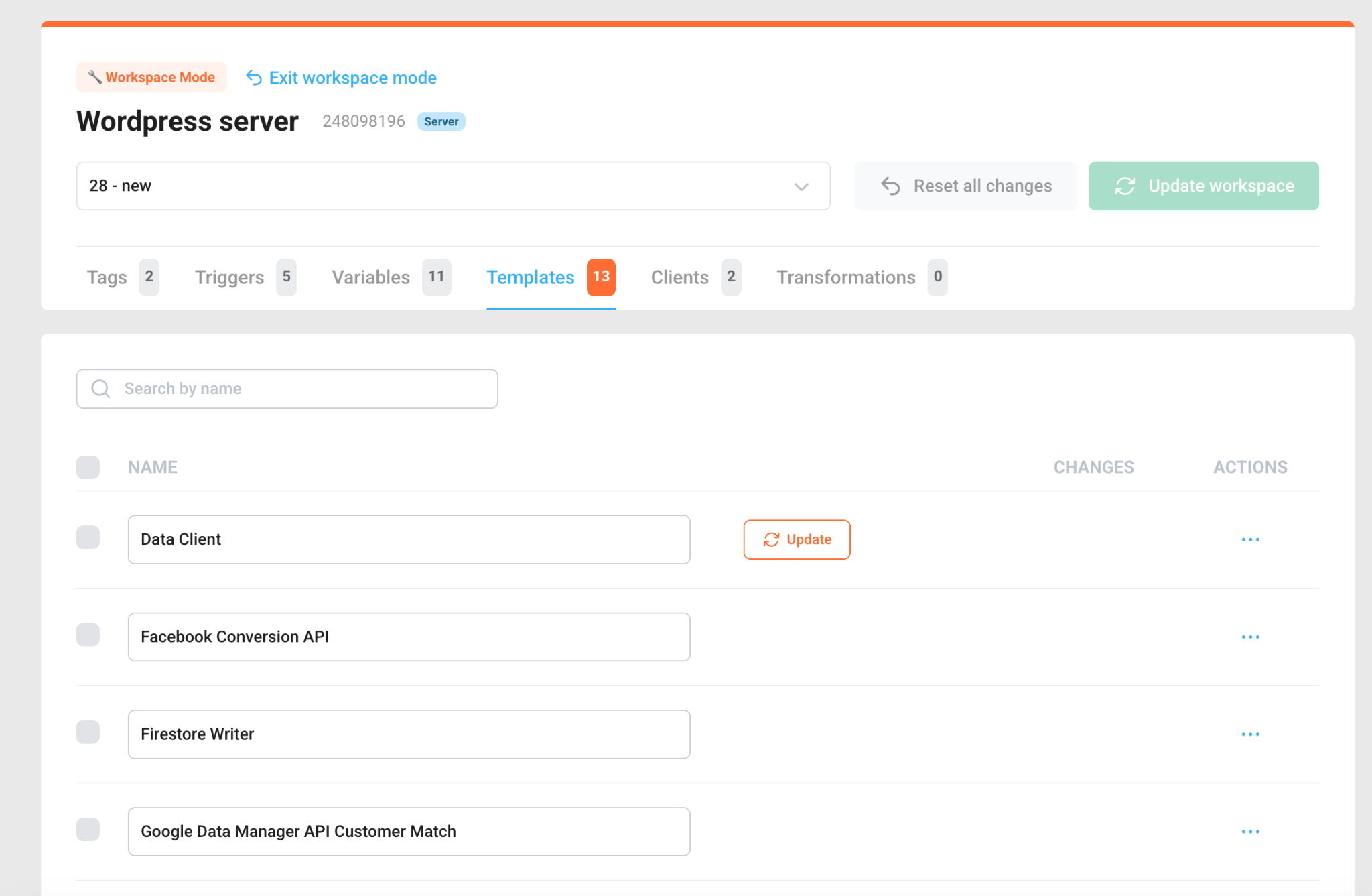
5. This opens the container's workspace. On the left you can see the container's name, ID, and type badge, along with a dropdown to select which specific workspace you're editing. To the right, two buttons let you Reset all changes (discard everything modified in this session) or Update workspace (push your edits to the live draft in GTM). Below that, the container's contents are broken into assets tabs, each with a count badge. When you click on a tab, the asset table includes a few columns:
- Name – asset’s name.
- Type – asset’s type
- Changes – shows any modifications made to that asset within the current session.
- Links – shows how many other assets depend on it. Click on it, and you’ll see a list of related assets. Assets with zero links show a red trash bin icon instead, flagging them as unused and safe to consider for cleanup.
- JSON – click to edit the asset's configuration directly. It’s a handy shortcut for quickly changing specific parameters of an asset (such as updating measurement IDs, changing API endpoints, renaming custom variables, or altering configurations).
Warning:
Editing JSON might break the configuration. Please take a look at the API reference first.
- Actions - additional actions like moving an asset to another folder, pausing/unpausing the tag and resetting the changes in the workspace.
Additionally for templates, you can update it whenever there’s a new version of that template available.
How to pause/unpause a tag
- 1.Click on the Tags tab.
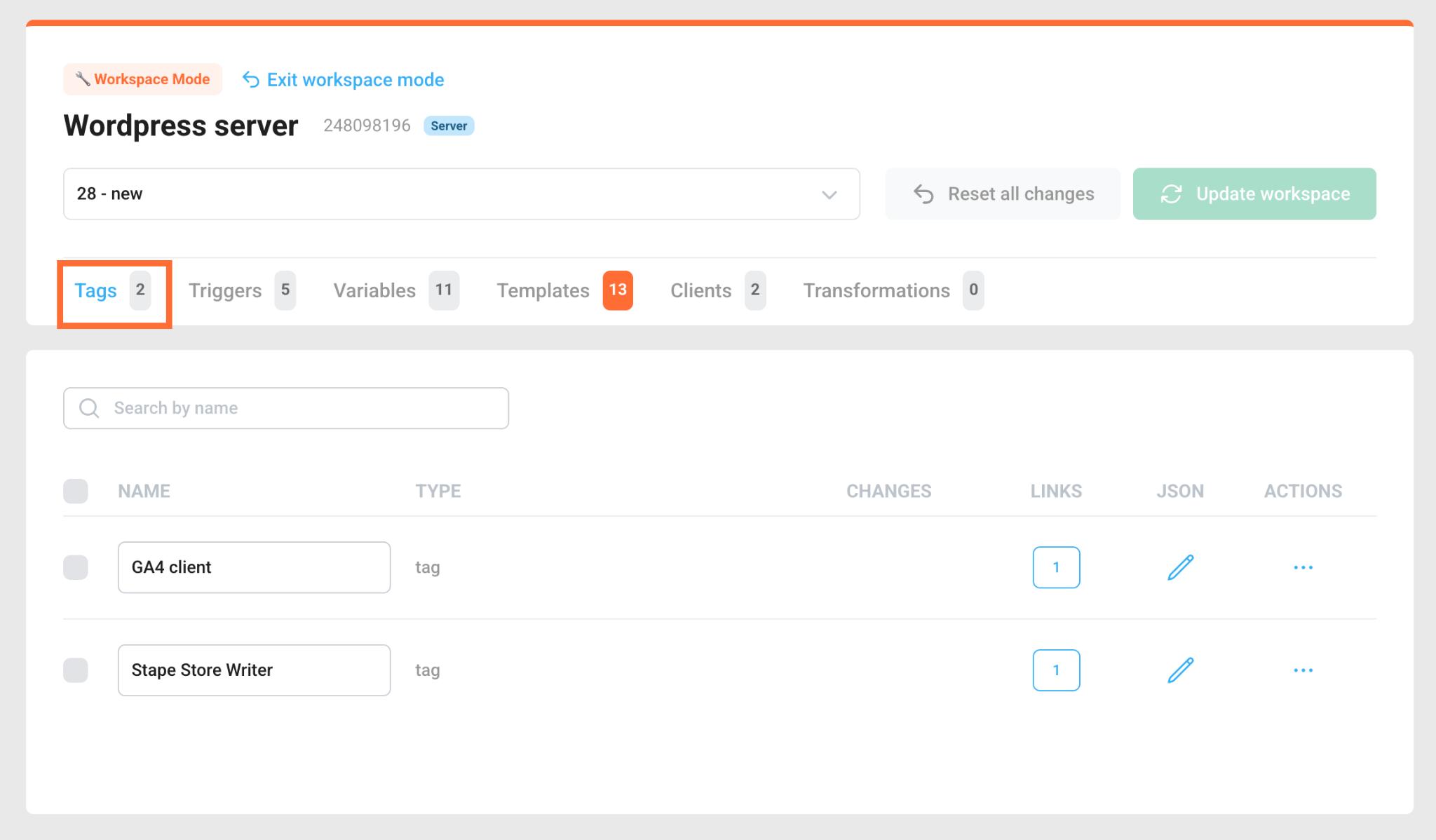
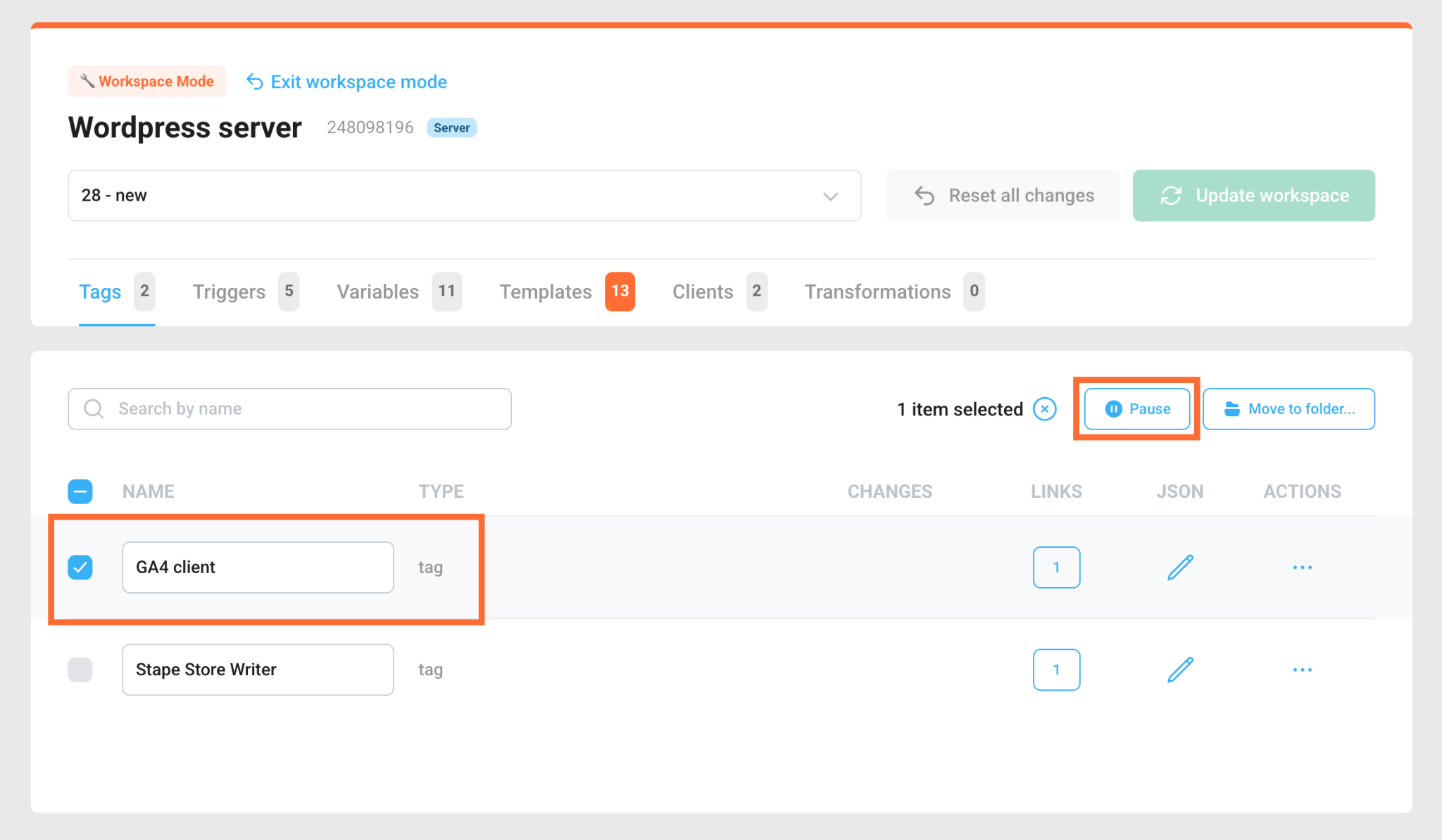
3. Select your desired tag.
4. Click Pause/Unpause.
5. Click Update workspace to save the changes.
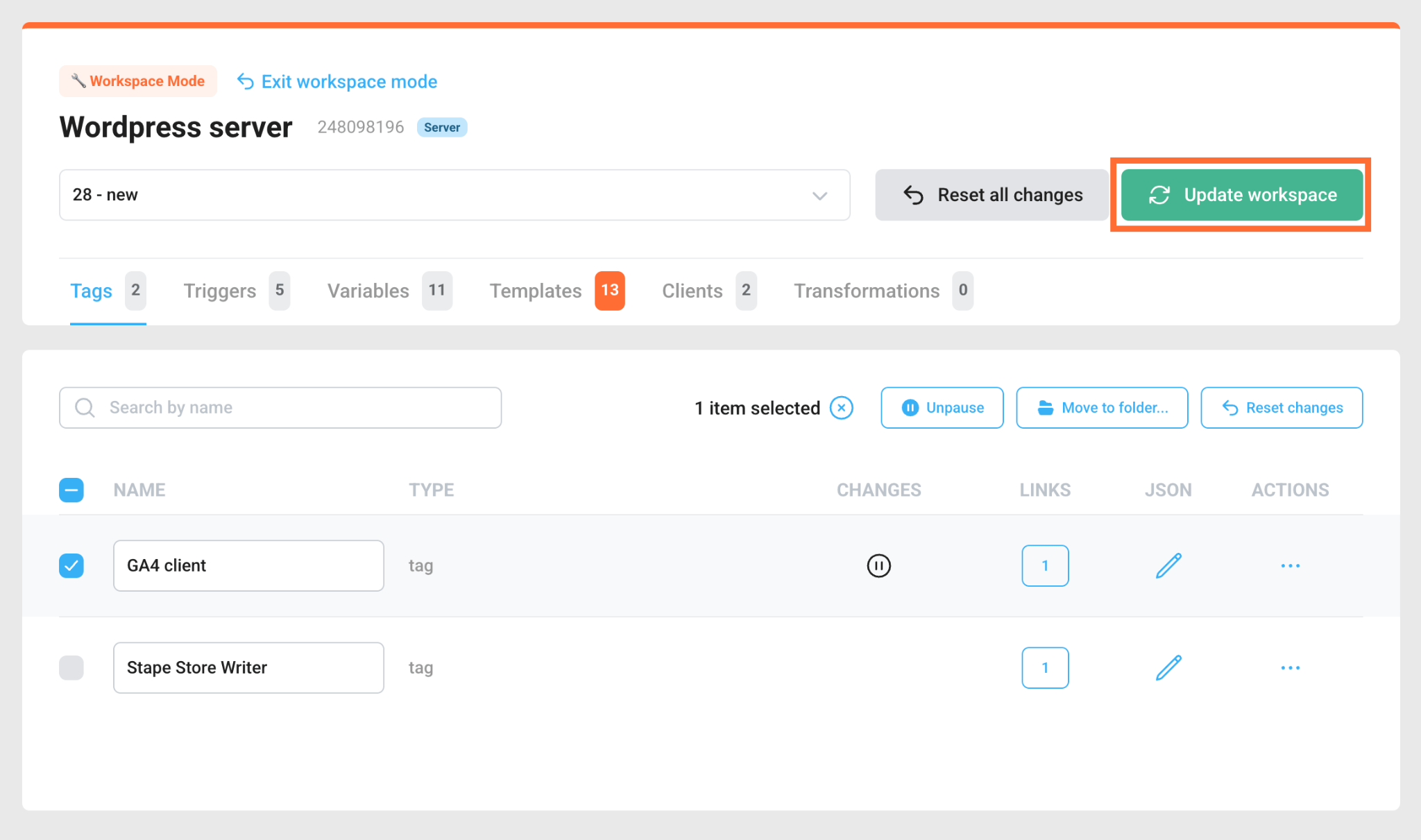
Alternatively, you can click three dots under the Actions column, and click Pause/Unpause.
How to move an asset into another folder
- 1.Click on your asset’s tab.
- 2.Select your desired asset.
- 3.Click Move to folder.
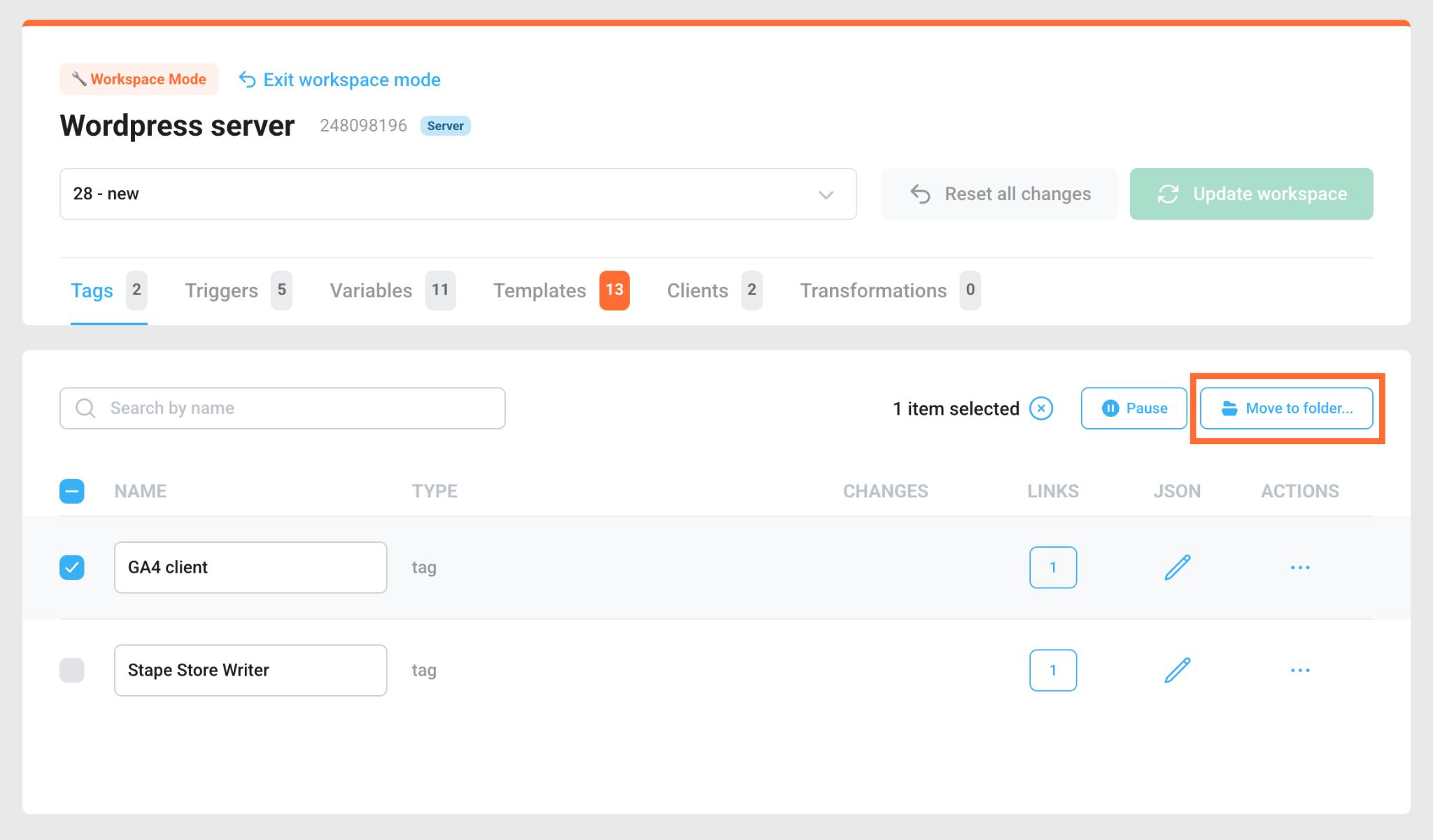
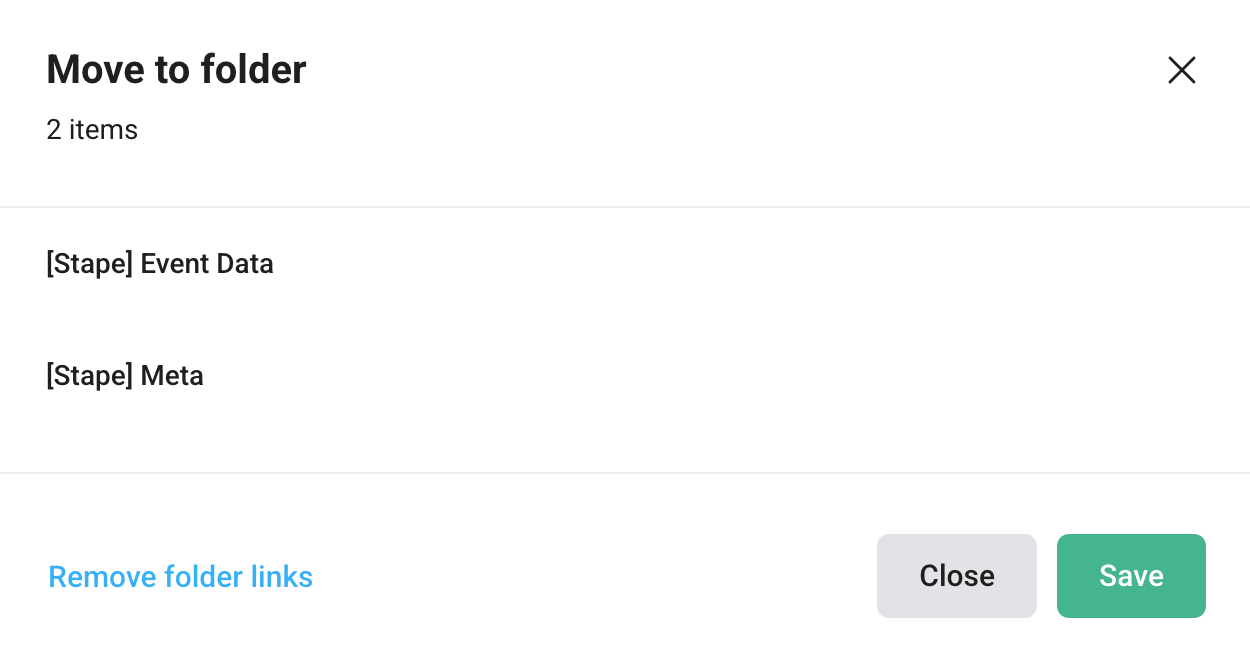
4. Select the folder. Click Remove folder links to disconnect the moved assets from their original folder structure.
5. Click Save.
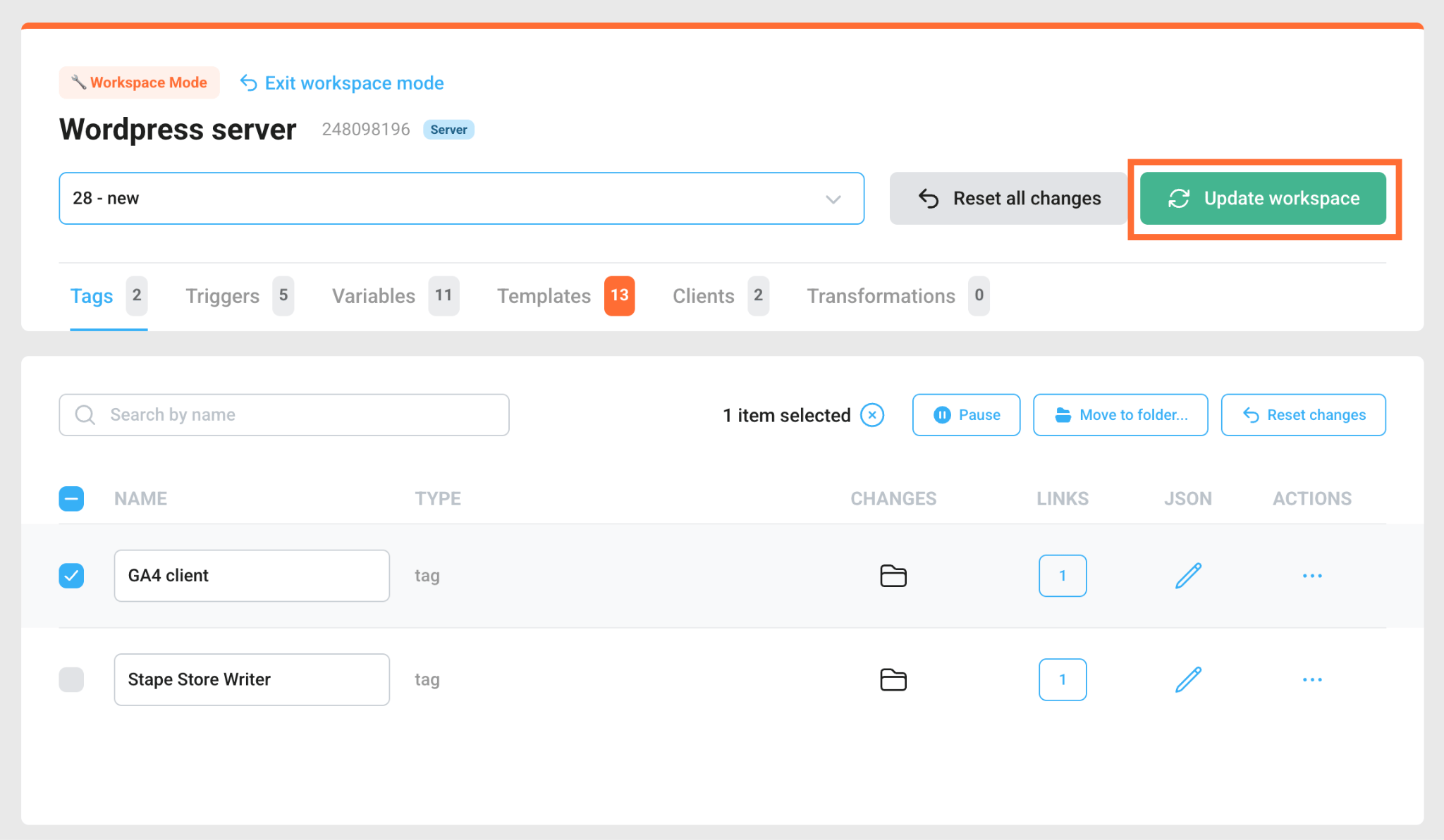
6. Click Update workspace to save the changes.
Alternatively, you can click three dots under the Actions column, and click Edit folder.
Was this article helpful?
🍽 Table of content:
Comments