How to use the Clone tool
Updated Aug 7, 2026
The Clone tool in GTM Tools is designed to copy Google Tag Manager (GTM) container structures, tags, triggers, or variables from one GTM container to another without manually exporting and importing JSON files. Choose a container version and a target GTM account, then start cloning.
If you have an established tracking setup on one website and want to replicate it on a new one, you can clone the container's contents directly to a different GTM account or container. Or if you are a freelancer or agency with standard naming conventions and structures for common tags, triggers, and variables, you can use the Clone tool to copy your template container directly to your client’s new container.
How to use the tool
- 1.Go to gtmtools.com and sign in with your Google account that has access to your GTM container.
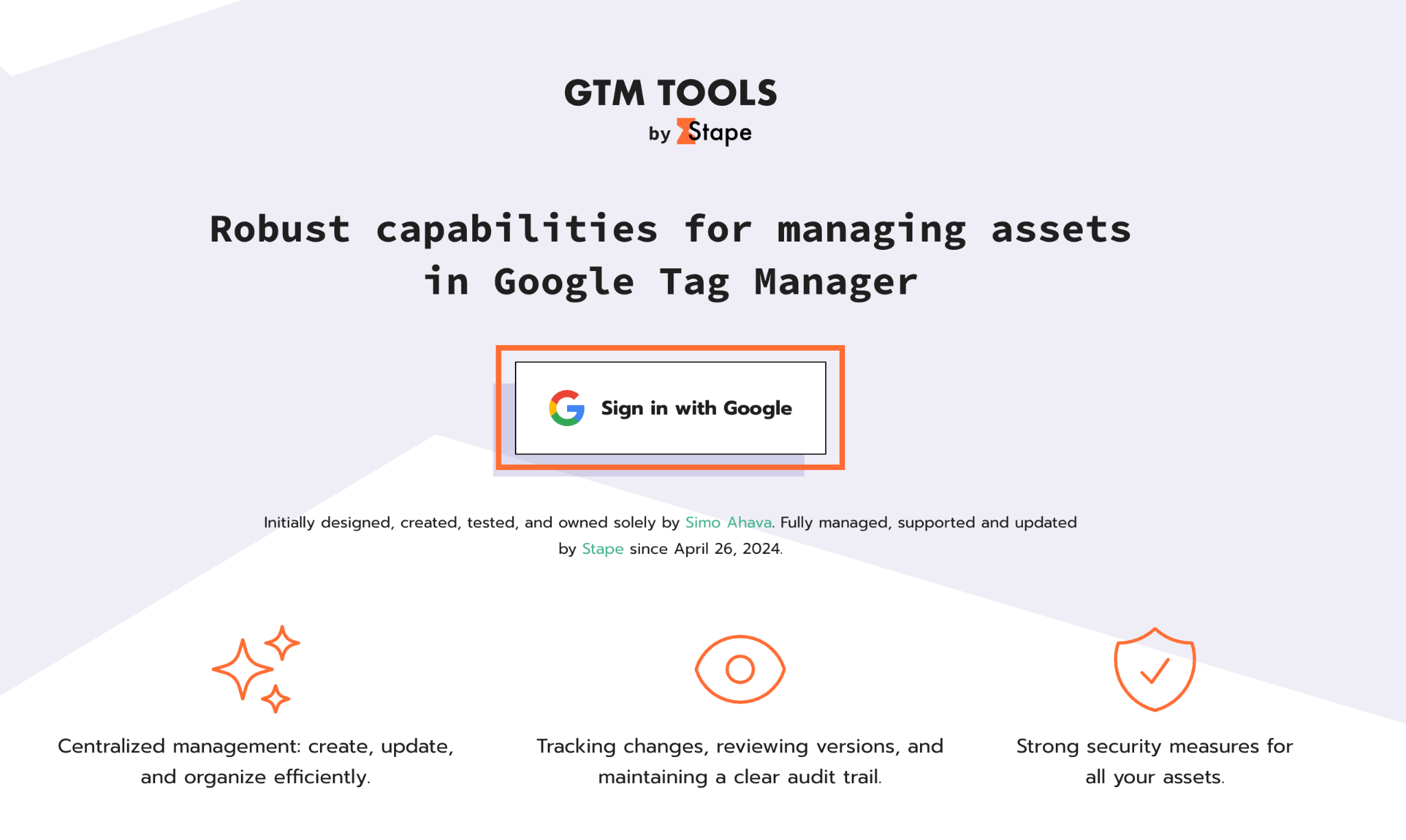
2. Click Proceed and allow the GTM Tools to access your containers.
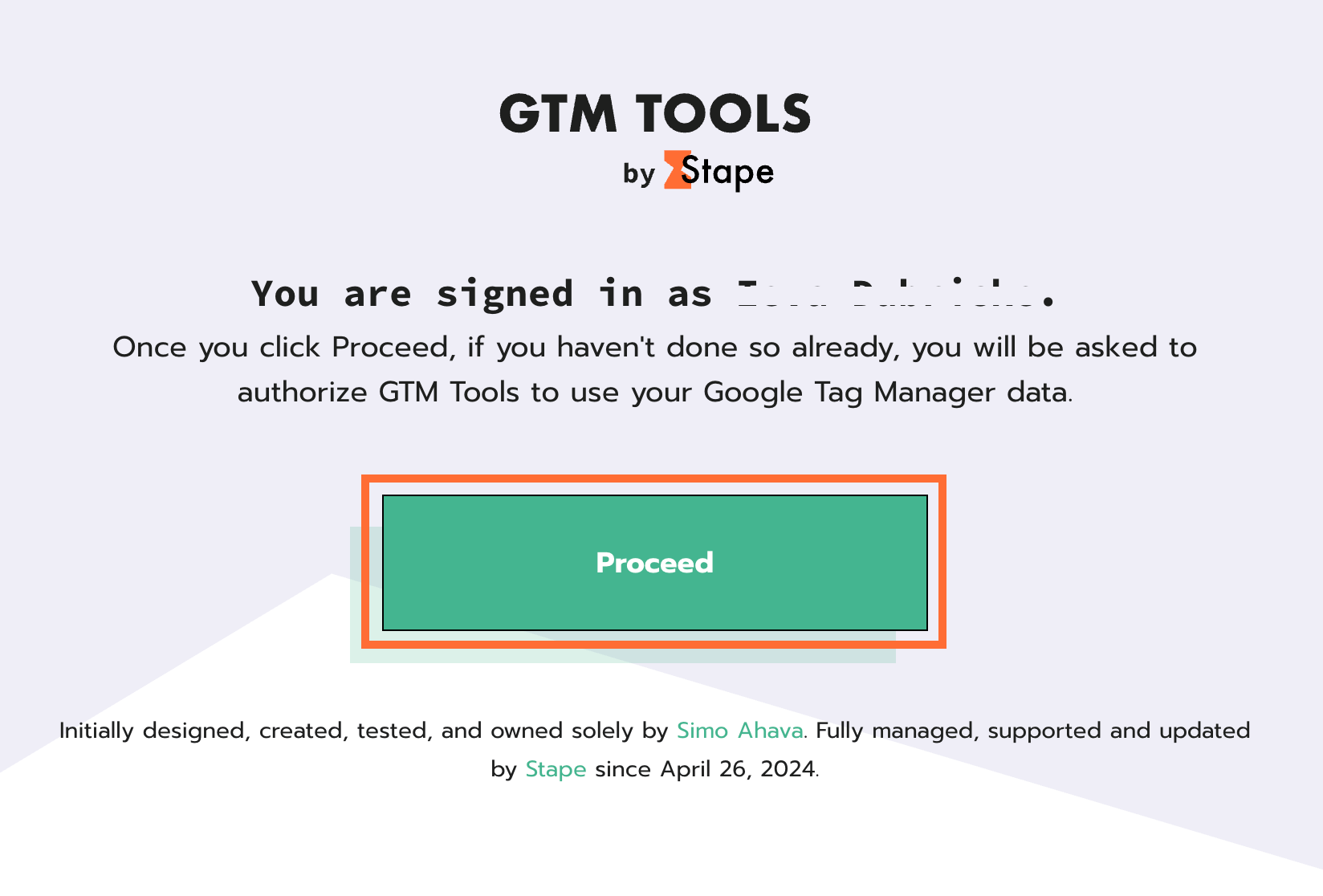
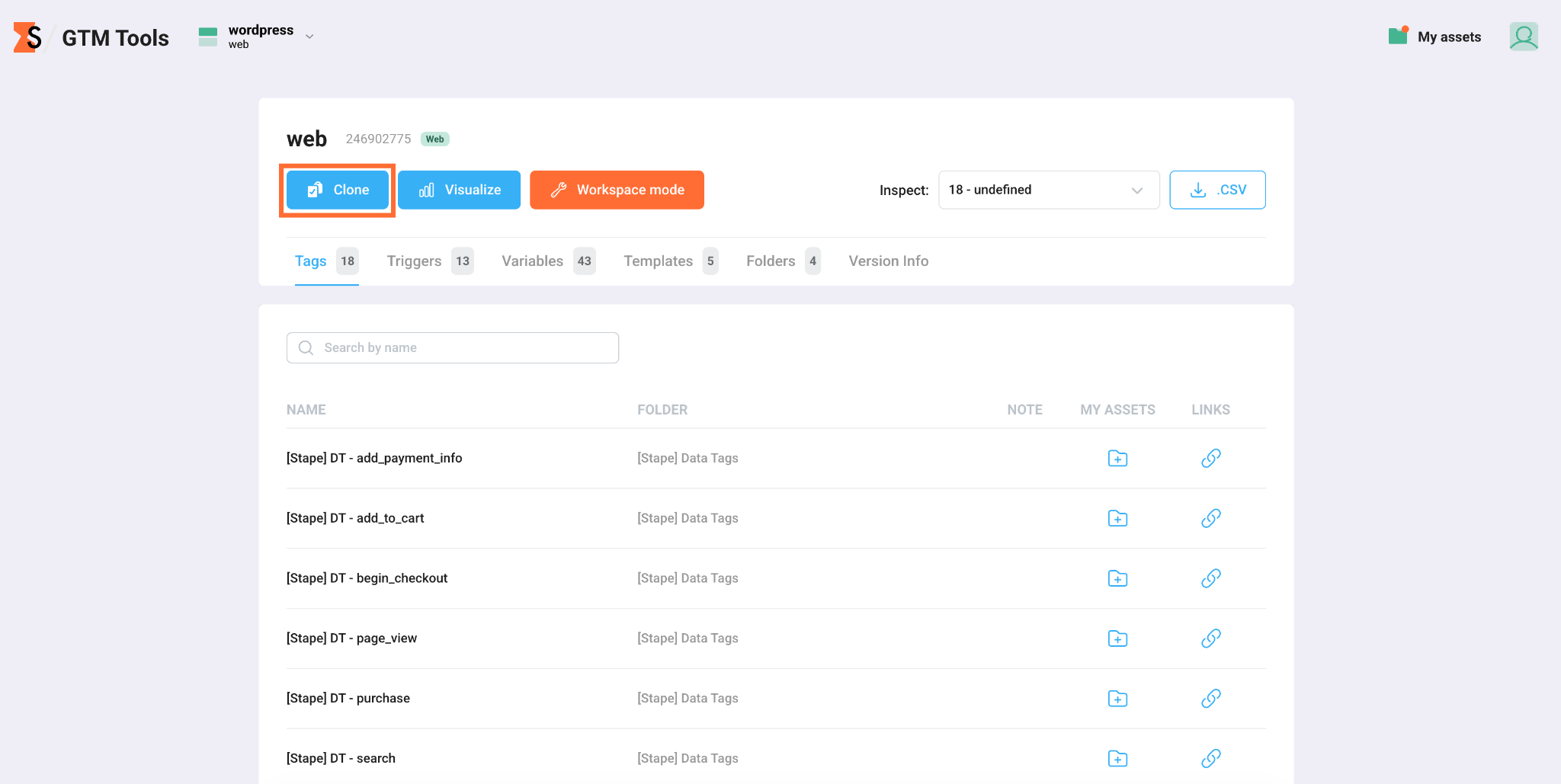
3. Click on the desired container. You can either clone the entire container, or individual assets. The copying of individual assets is explained in GTM tools overview.
4. Click Clone.
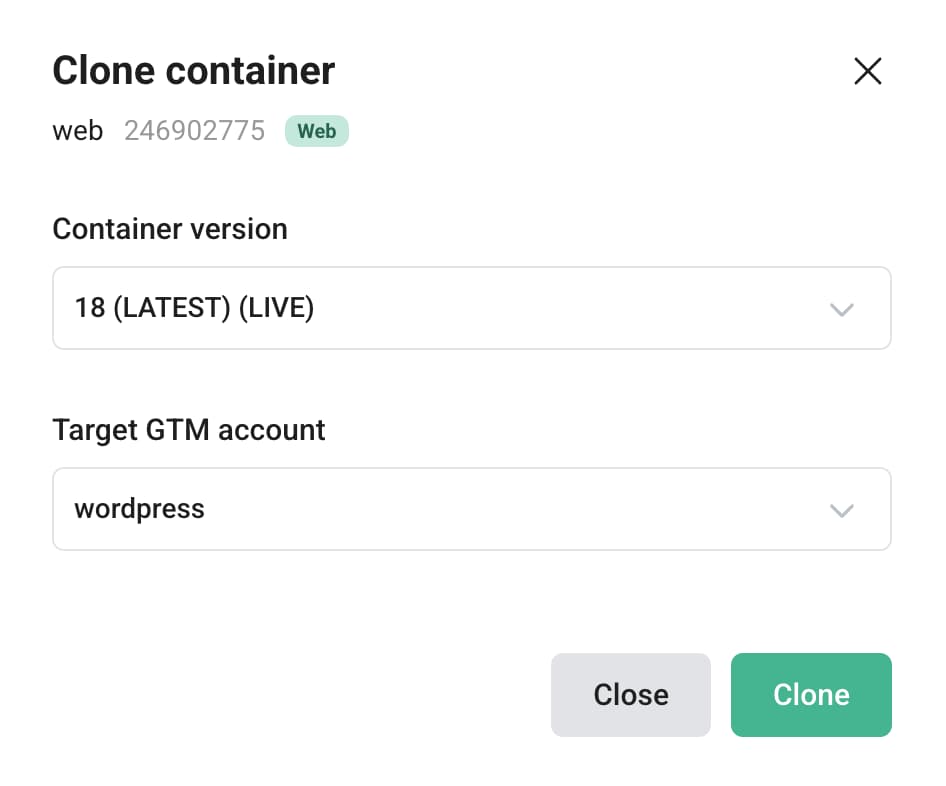
5. This opens the pop-up which displays a summary of the source container you're cloning from – its name, ID, and type followed by two configuration fields:
- Container version – choose which version of the source container to clone. This lets you clone a specific historical version rather than always defaulting to the latest state.
- Target GTM account – select which GTM account should receive the cloned container.
6. Click Clone.
7. After finishing, click Continue.
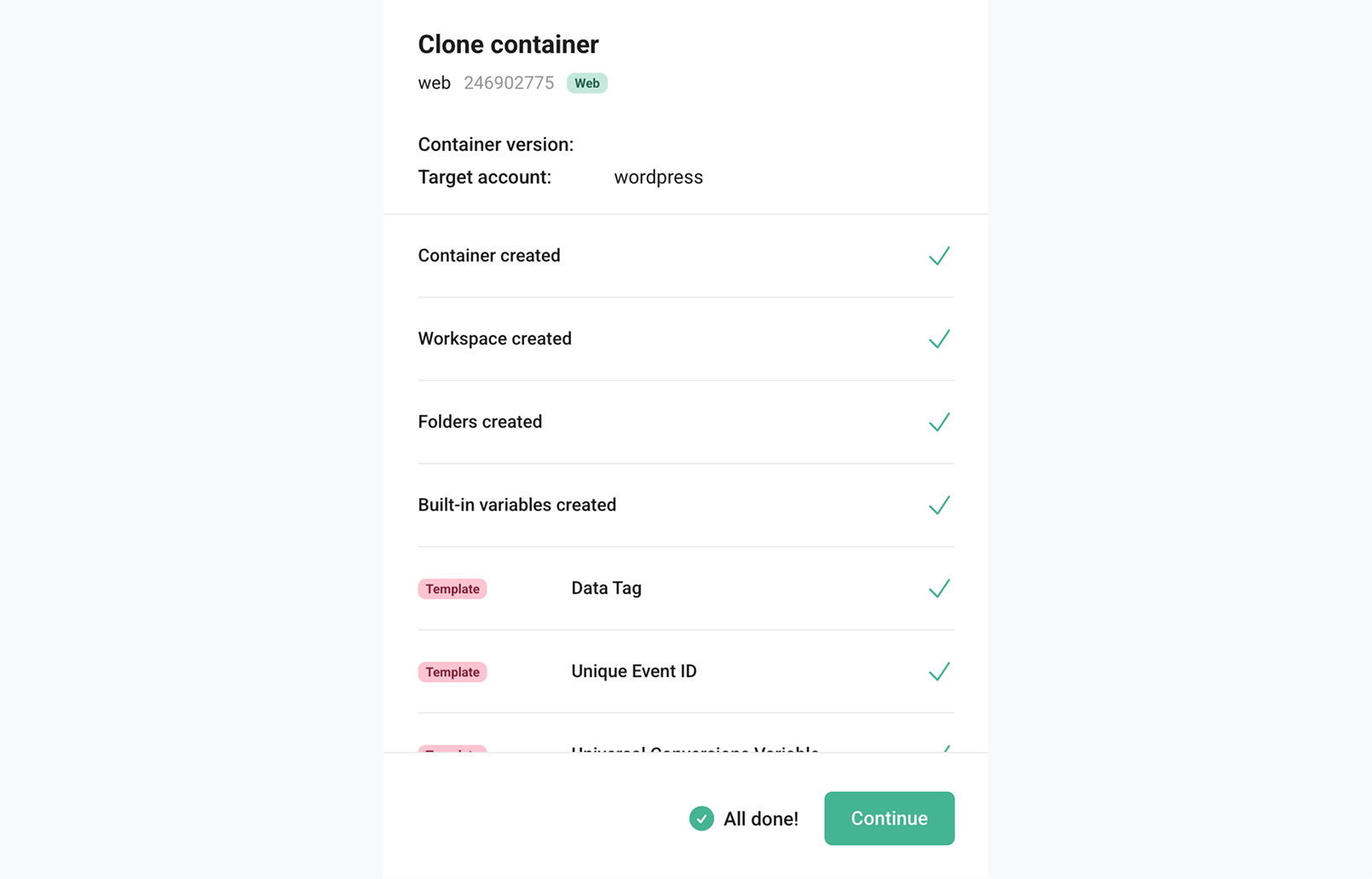
8. In the dashboard you’ll see your cloned container.
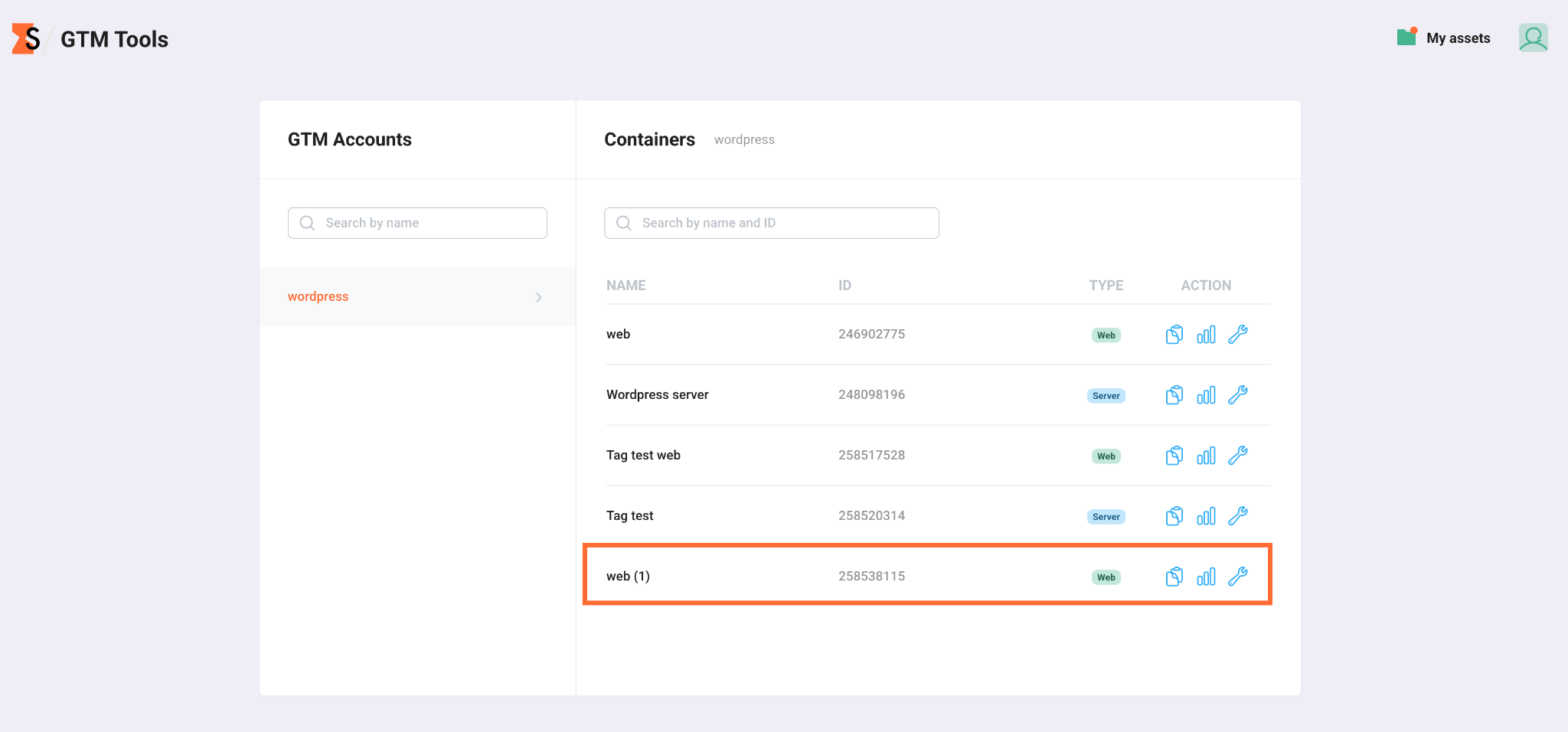
9. Publish your container in Google Tag Manager for it to go live.
Was this article helpful?
🍽 Table of content:
Comments