How to export Logs to GCP bucket and connect BigQuery
Updated Aug 1, 2026
This guide explains how to set up a Google Cloud Storage bucket and connect it with Stape for automated log export. It also shows how to connect your bucket to BigQuery using external tables so your logs are always available for real-time querying and analysis without manual imports.
How to create a Google Cloud bucket and set up an export to it from Stape
Step 1. Create the Google Cloud Storage Bucket
Create an empty bucket to store your logs.
1.1 Log in to your Google Cloud Console.
1.2 Navigate to Cloud Storage → Buckets.
1.3 Click the Create button.
1.4 Name your bucket. Choose a unique name (e.g., your-company-stape-logs).
1.5 Select location type. Choose Region and select the region closest to you or your servers (e.g., us-central1). Note the exact region (for example, us-central1). You’ll use it later when configuring Stape and BigQuery.
1.6 Keep the rest of the settings as their defaults and click Create.
Step 2. Create a Service Account and HMAC keys
Stape needs permission to write files into your new bucket. You can provide access by creating a Service Account and generating specific "HMAC" keys.
2.1 Navigate to IAM & Admin → Service Accounts.
2.2 Click Create Service Account. Give it a name (e.g, stape-logs-export), click Create and Continue.
2.3 Under Role, search for and select Storage Object Admin. This permits it to save files to your bucket.
Click Done.
2.4 Navigate back to Cloud Storage → Settings and click the Interoperability tab at the top of the page.
2.5 Scroll down to the Service account HMAC section and click Create a key for a service account.
2.6 Select the stape-logs-export service account you created in step 2.2.
2.8 Google will generate an Access Key (starts with GOOG...) and a Secret Key.
| Be sure to copy both of these values (Access Key and Secret Key) and paste them in a safe place. You cannot view the Secret Key again once you close the window. |
Step 3. Configure the Stape Logs export
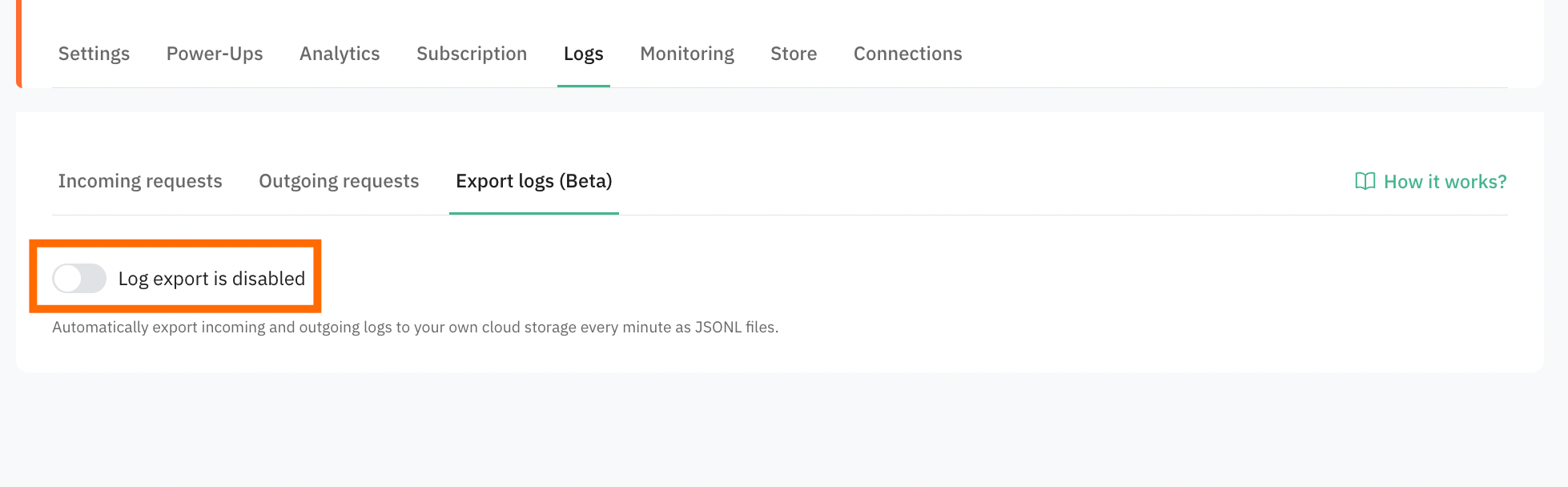
3.1 Open your Stape container → navigate to Logs → Export logs tab → enable Log export.
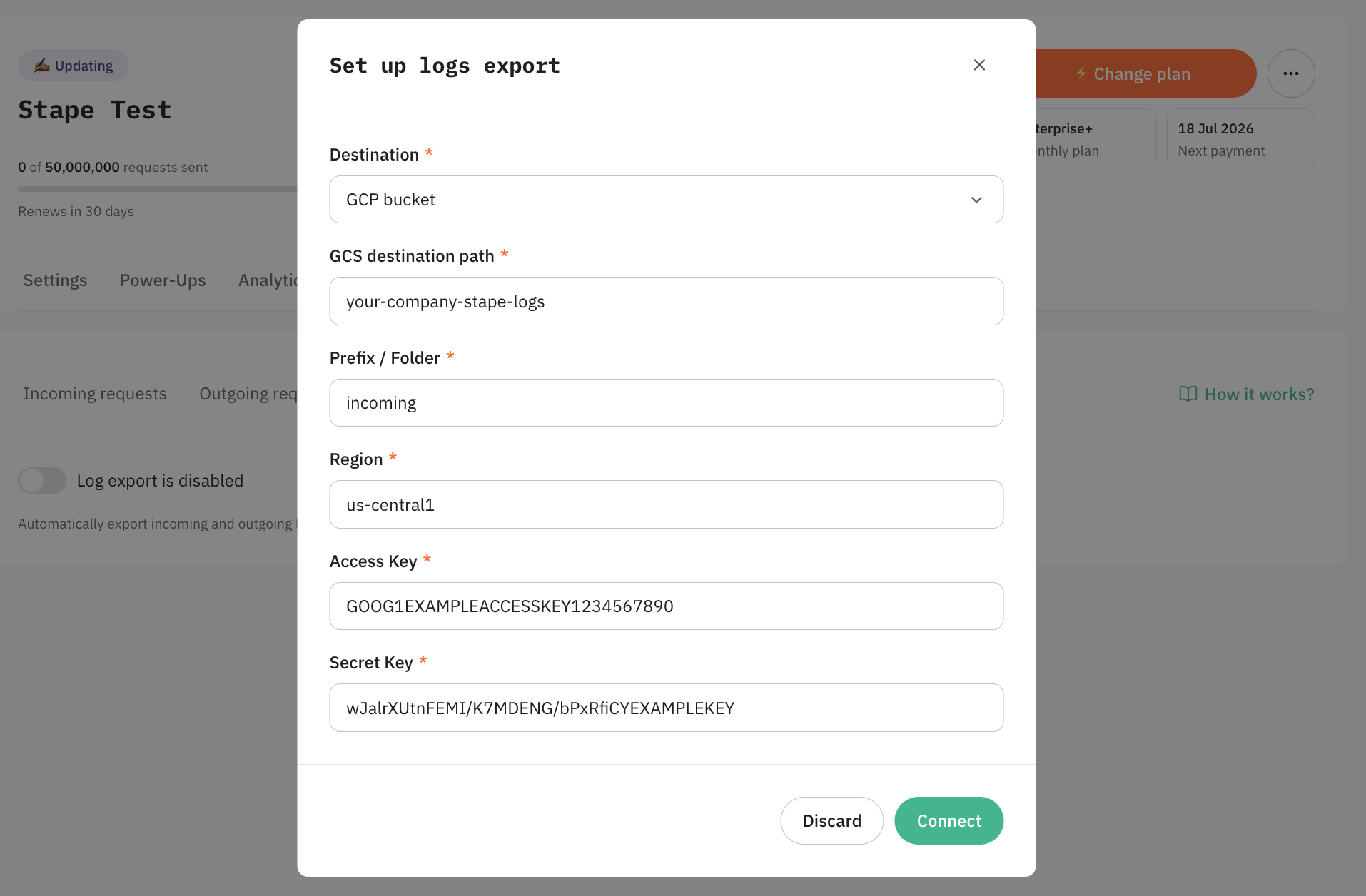
3.2 As Destination, select the GCP bucket.
3.3 In the GCS destination path, enter your bucket name and optionally a top-level folder. Do not put a slash at the end.
Format example: your-company-stape-logs or your-company-stape-logs/test |
3.4 As Prefix / Folder, enter the folder structure where the logs should go. Do not put a slash at the beginning.
Format example: incoming or logs/incoming |
3.5 In the Region field, enter the exact region of your bucket from Step 1 (e.g., us-central1).
3.6 Paste the Access Key and Secret Key you generated in Step 2.
3.7 Click Connect. Once the connection is verified, Stape will automatically export new log files to your Cloud Storage bucket.
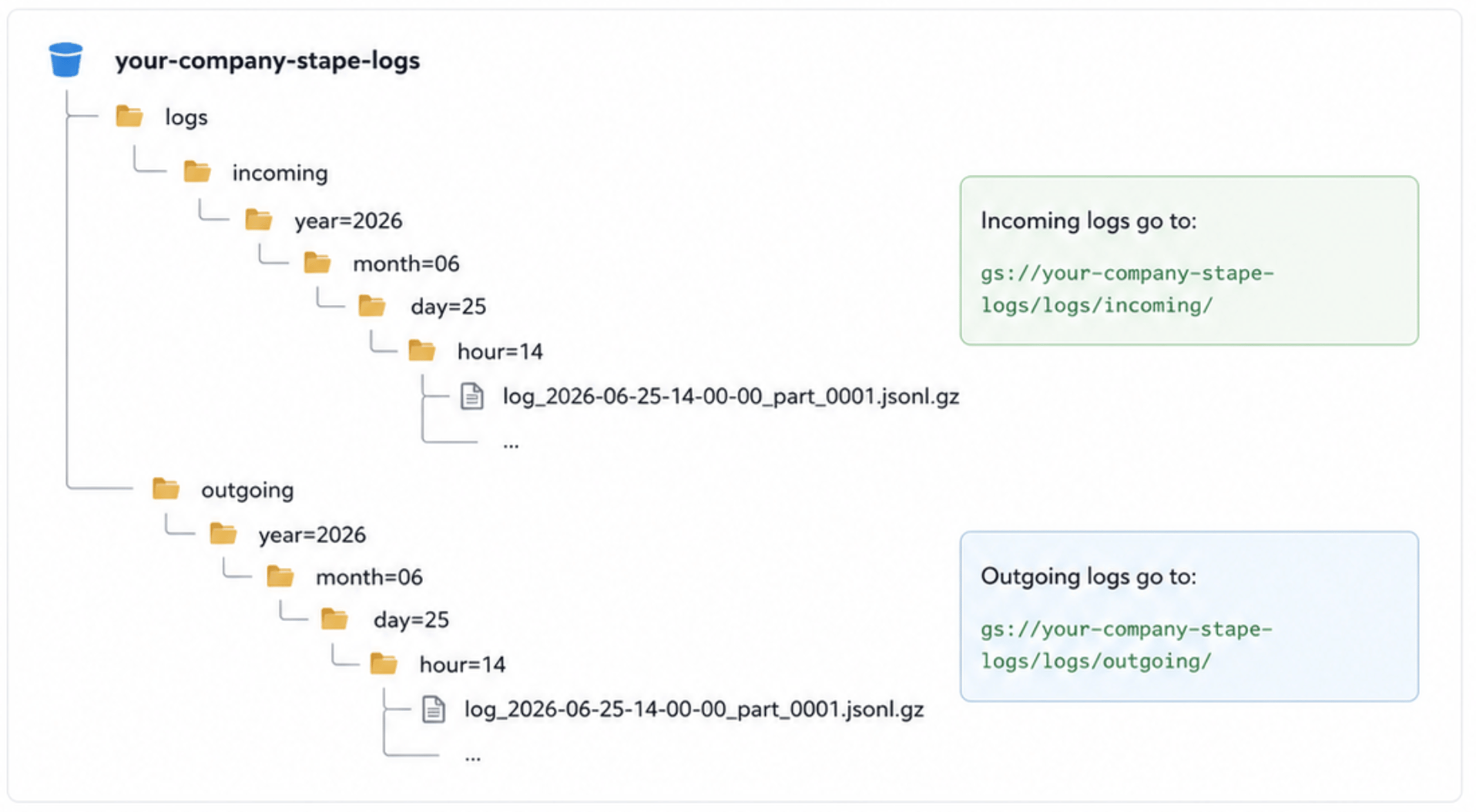
Exported logs structure
How to export logs to BigQuery
To ensure the data updates in real time without manual input, you need to create an External Table in BigQuery. This configuration allows BigQuery to query data from your storage bucket and reflects any new files added by Stape.
Below is a step-by-step guide using the new BigQuery Studio interface:
Step 1: Create a BigQuery dataset
If you already created a dataset in the correct region earlier, you can skip this step. If not, follow the instructions below:
1.1 Open the BigQuery page in your Google Cloud Console.
1.2 In the left-hand Explorer panel, click on your Project ID (e.g., logs-test-496008).
1.3 In the large main workspace area on the right, click the Create dataset button near the top.
1.4 Specify the following:
- Dataset ID - name it
stape_logs. - Location type - you must select the same region where you created your GCS bucket (e.g., us-central1).
1.5 Click Create dataset.
Step 2: Create the External Table
External tables allow BigQuery to read files directly from Cloud Storage without copying or importing the data.
2.1 In the Explorer panel on the left, find your new stape_logs dataset.
2.2 Hover your mouse over the dataset name, click the three vertical dots that appear, and select Create table.
2.3 Fill out the slide-out panel as follows:
- Create a table from - select
Google Cloud Storage. - Select a file from the GCS bucket - type your exact clean bucket path ending with a wildcard.
Format example: your-company-stape-logs/test/incoming/* (Make sure there are no double slashes). |
- File format - select
JSONL (Newline-delimited JSON). - Check the box “Source Data Partitioning” (this tells BigQuery to read your
year=...folders). - Select Source URI Prefix - type the exact path up to the word
incoming/. It must end with a single slash.
Format example: gs://your-company-stape-logs/test/incoming/ |
- Partition Inference Mode - leave as
Automatically infer types. - Table - name it
incoming_logs. - Table type - select
External table. - Schema - check the Auto detect box.
2.4 Click the Create table button at the bottom.
2.5 Repeat Step 2 for your outgoing logs, just changing the word incoming to outgoing in the paths and table name.
Was this article helpful?
Comments