How to set up the Model Context Protocol (MCP) server for Google Ads
Updated Sep 21, 2026
Before you begin
To set up the Google Ads MCP server, you will need:
- An AI app or agent. In our example, we’ll use the Claude app. See installation instructions for other services.
How to configure the MCP server for Google Ads
We’ll cover two ways to configure an MCP server:
- 1.Using HTTP connection - generally a better option, as long as your MCP client supports it. It prevents a lot of bugs and is way easier to install.
- 2.Using mcp-remote - more complicated and error-prone, but can be the only option for some MCP clients (or if you specifically wish to use it for your setup).
How to configure the MCP server using HTTP connection
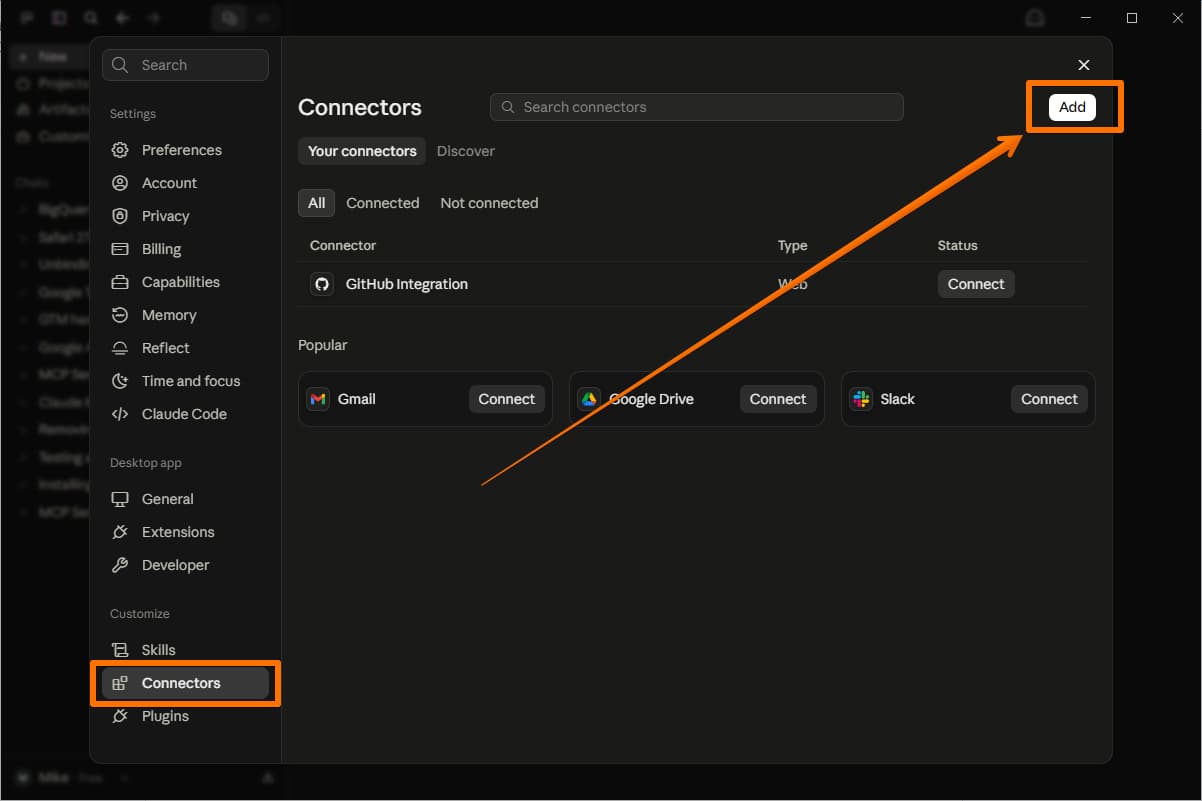
1. Open Claude Desktop and go to File → Settings → Connectors → click Add to create a custom connector.
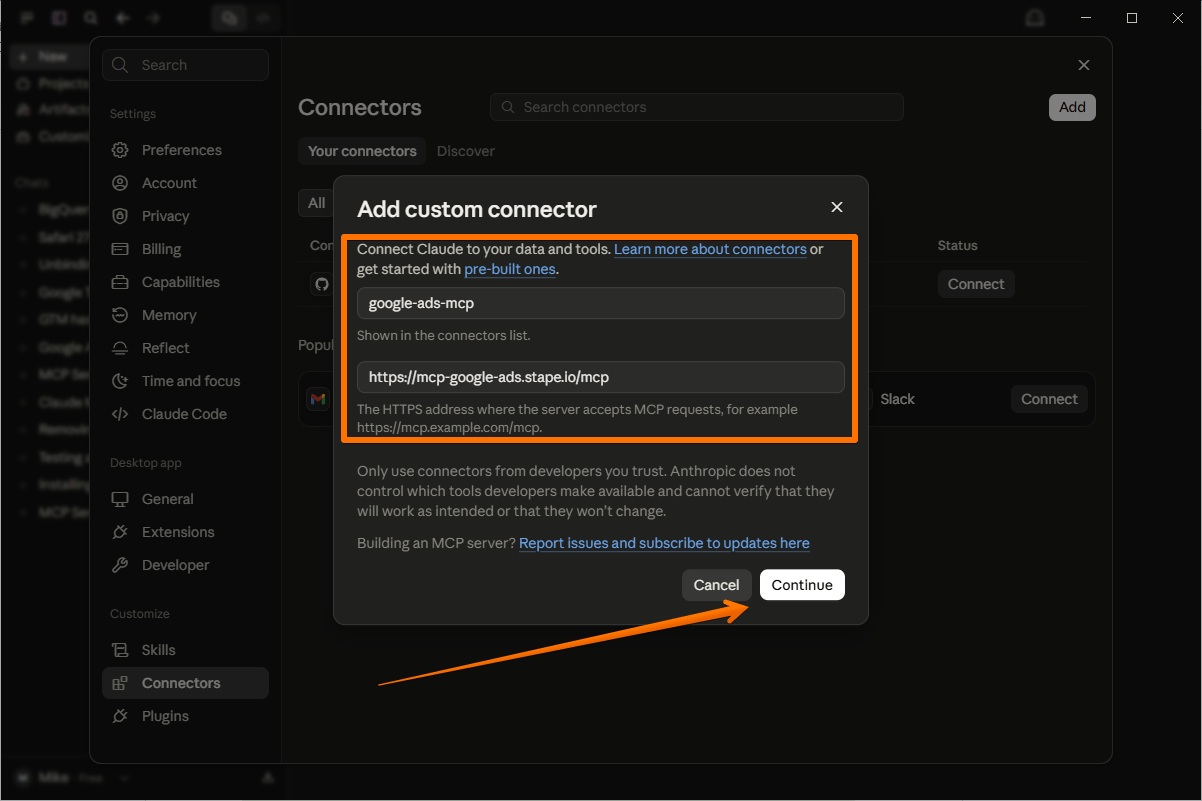
2. Set the name to google-ads-mcp and the URL to https://mcp-google-ads.stape.io/mcp, then click Continue.
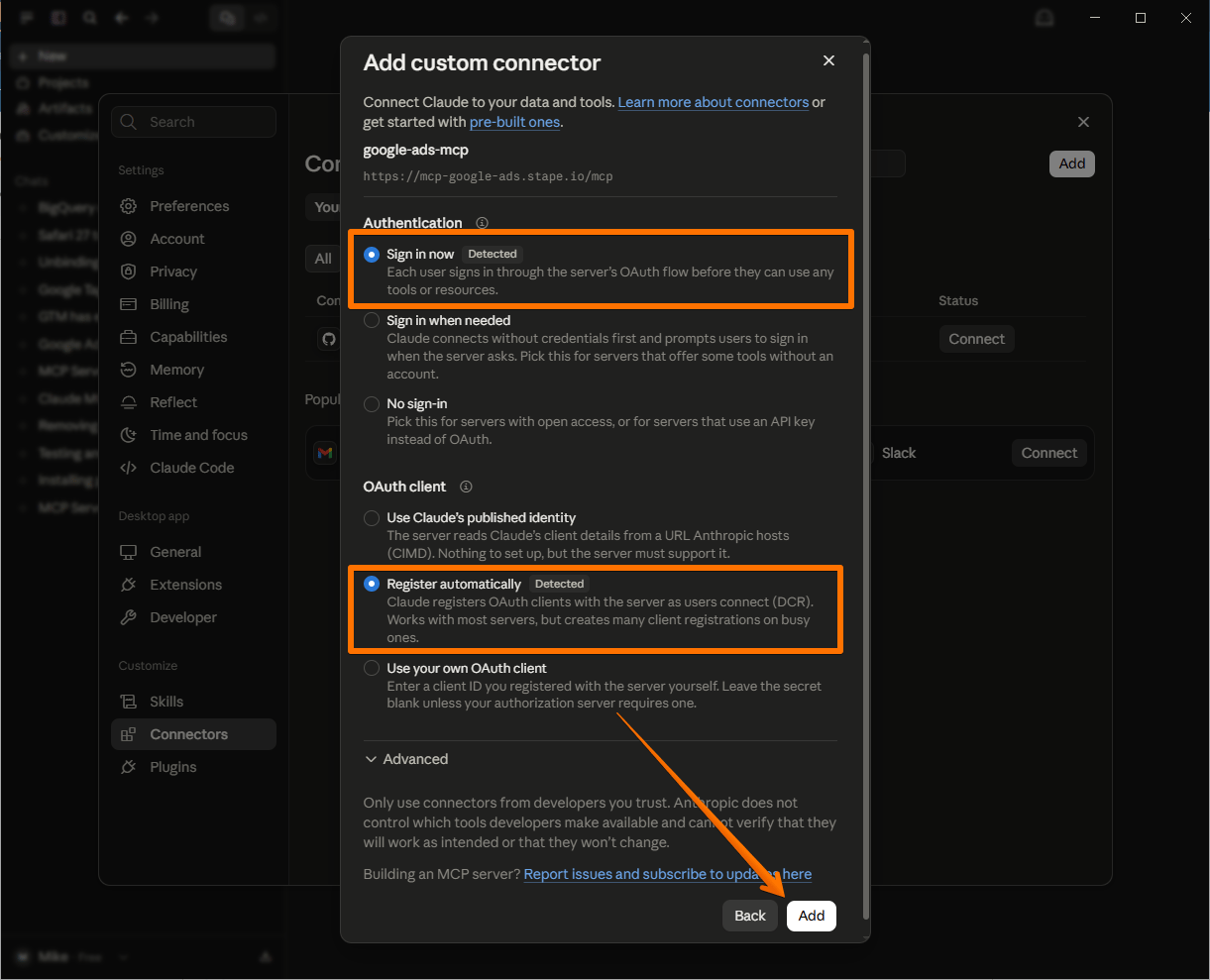
3. For Authentication, select Sign in now → for OAuth client, select Register automatically → click Add.
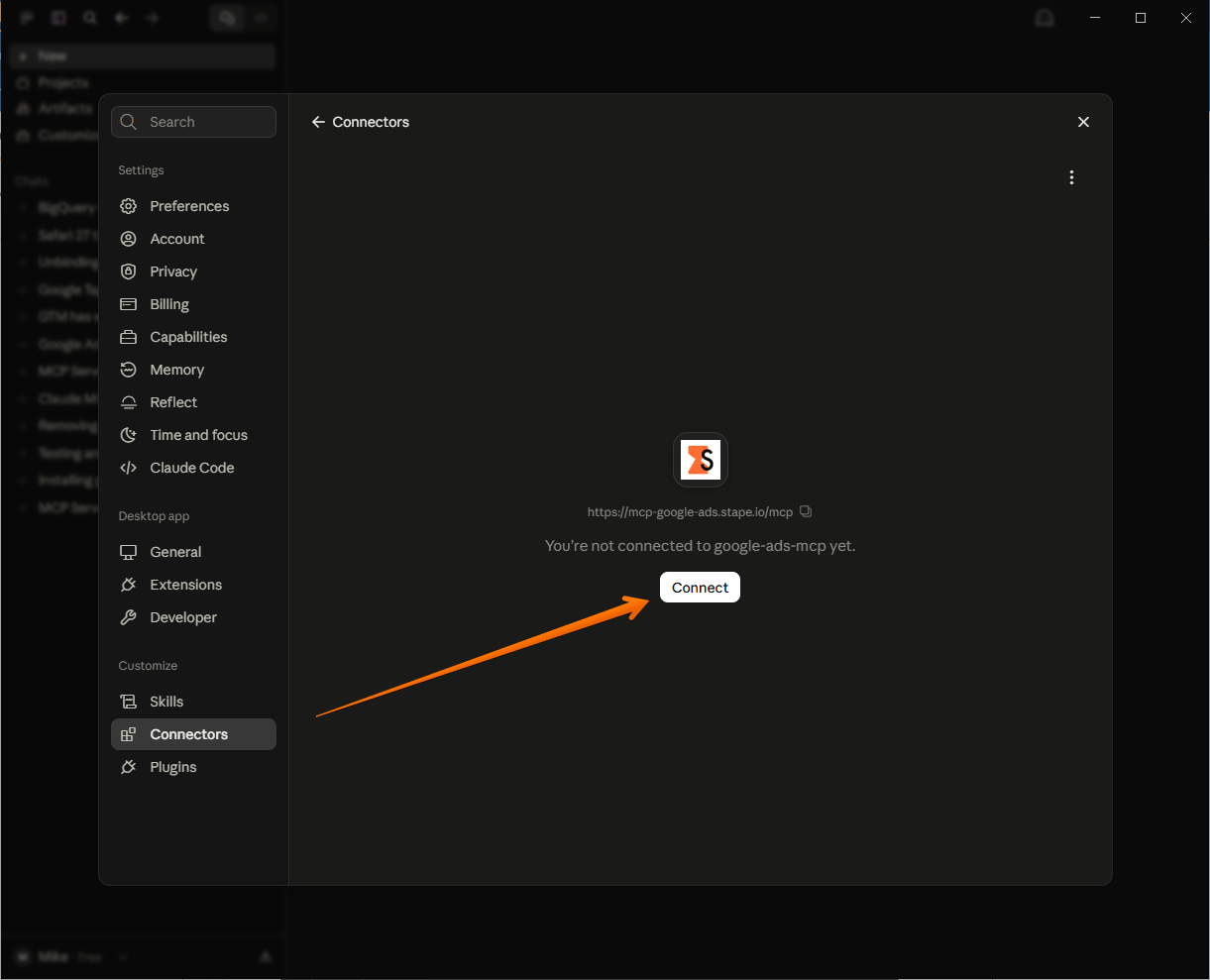
4. On the new screen, click Connect (or click the new connector in the Connectors list).
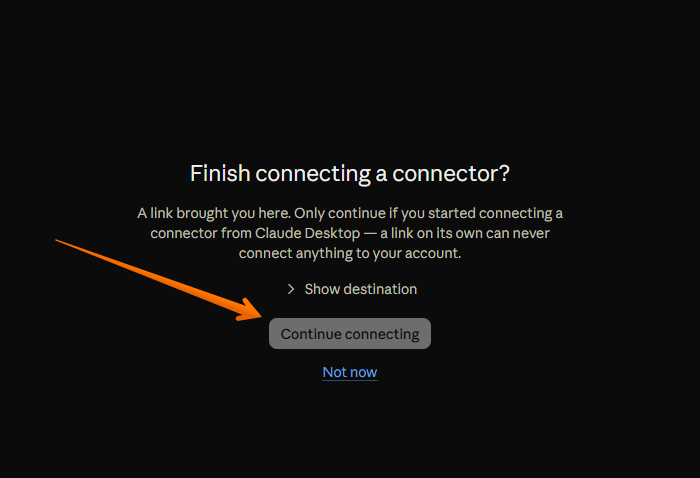
5. A new browser page will open - click Continue connecting and go through the Google OAuth flow.
6. After the access is granted, the tool will be available for your use.

7. Now you can type your request via chat. To verify that it’s working, just type any query related to your Google Ads account, like “List all my Google Ads campaigns” or “What's the total spend across all campaigns this month?”
How to configure the MCP server using mcp-remote
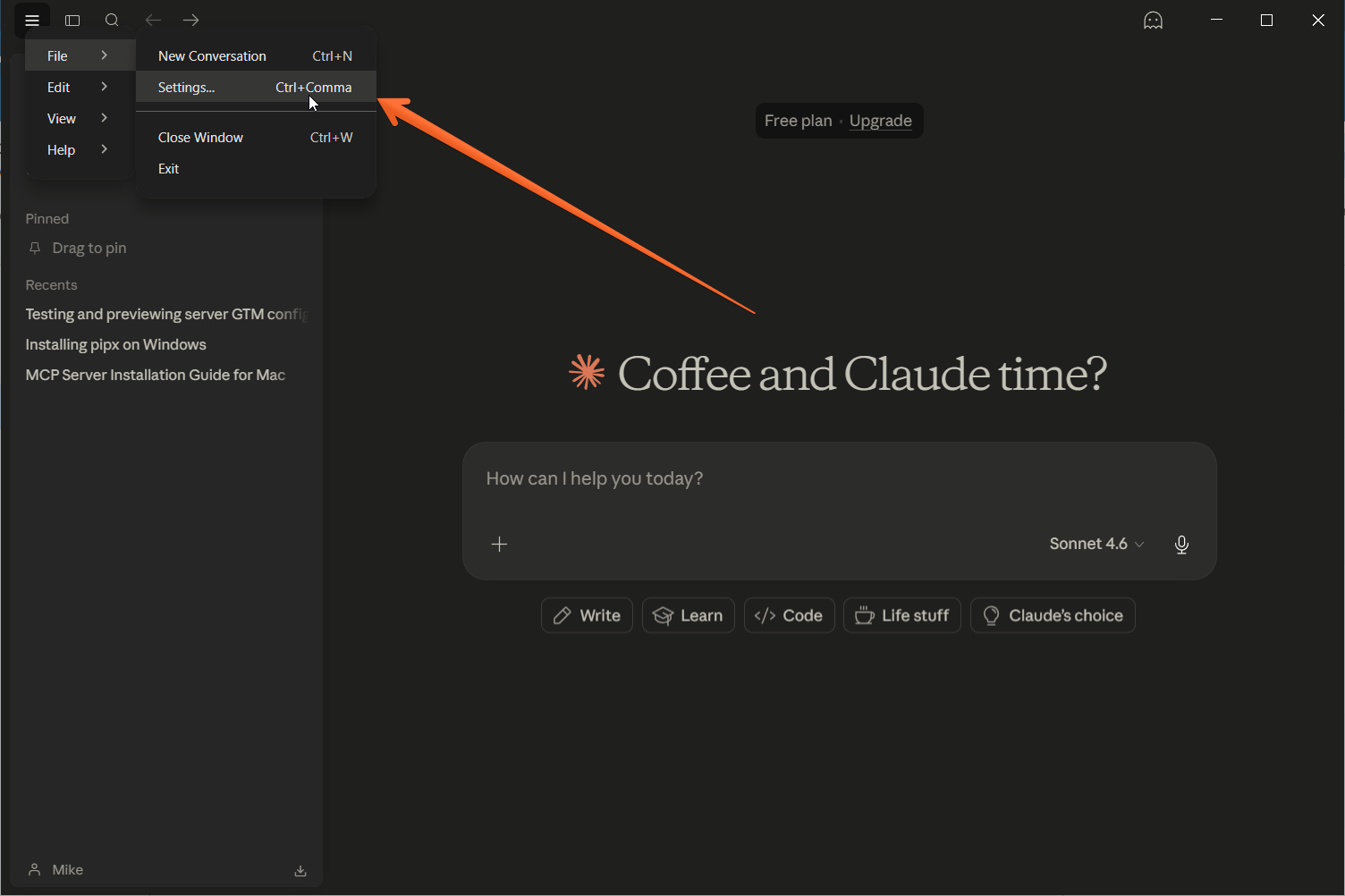
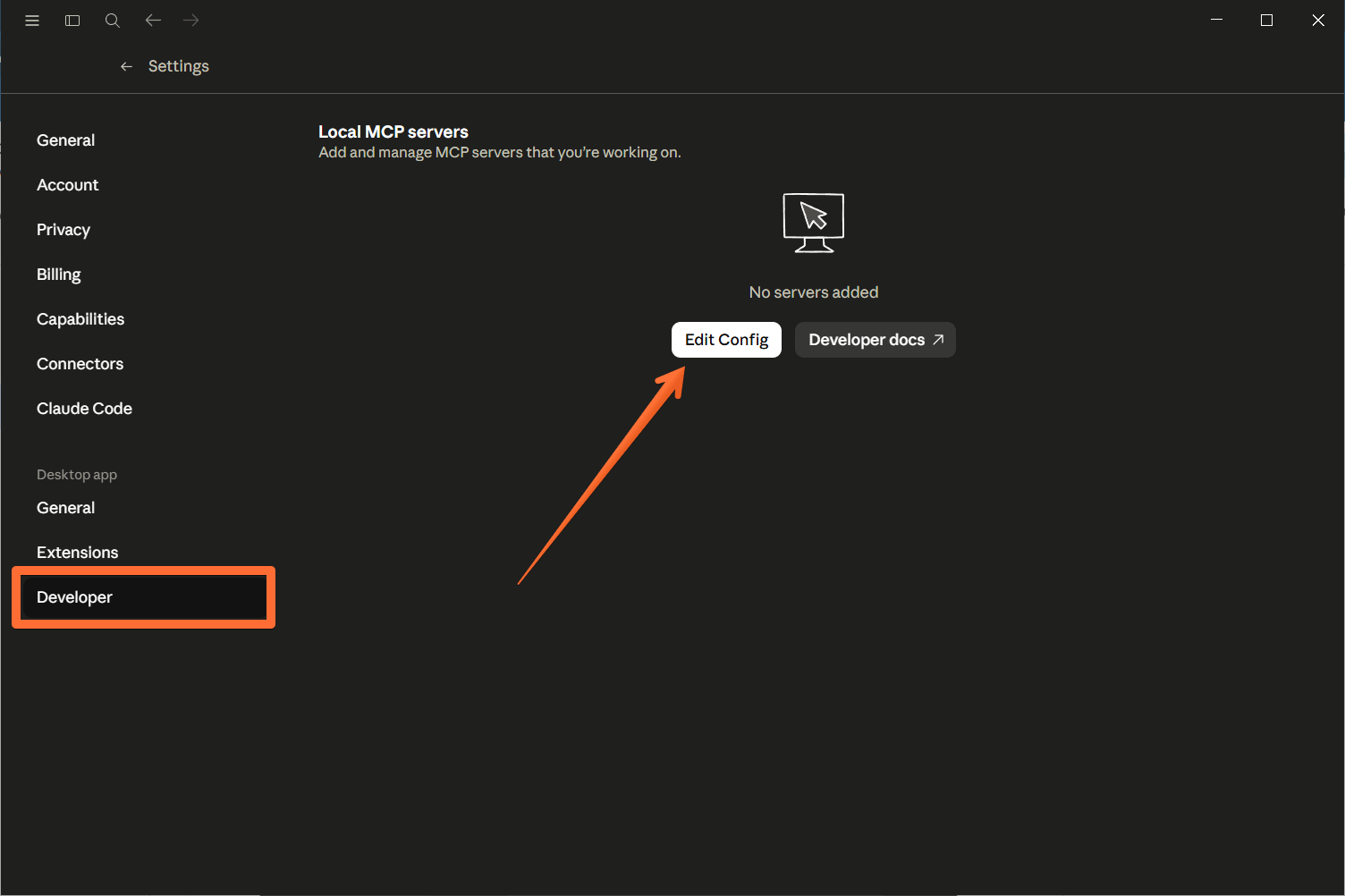
1. Open Claude Desktop and go to File → Settings → Developer → Edit Config → open desktop JSON file called claude_desktop_config.
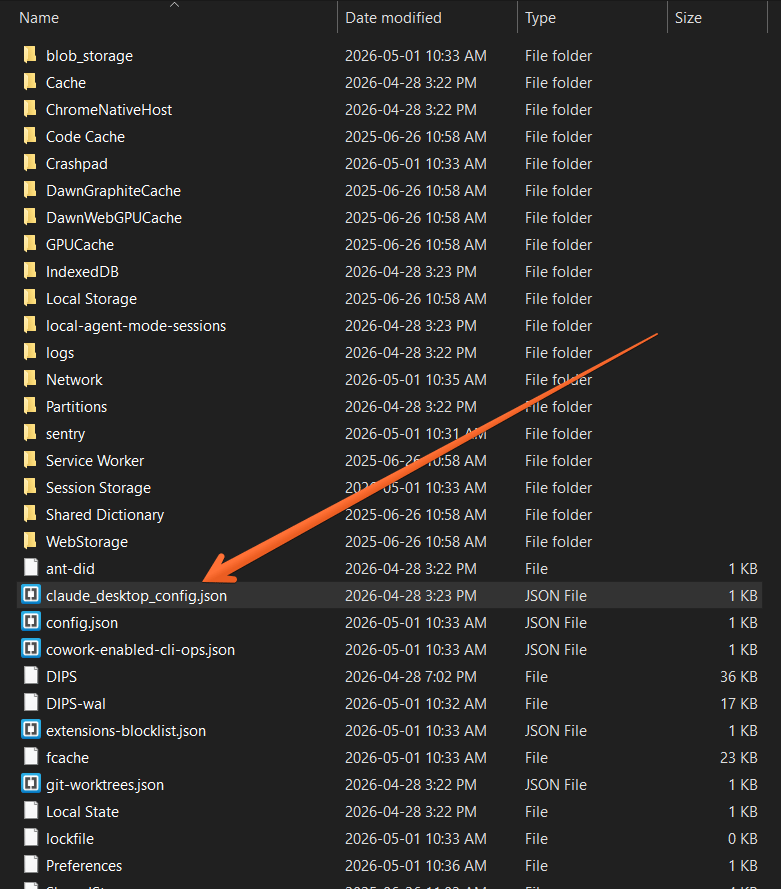
This opens Claude’s JSON configuration file, which is where Claude stores information about the MCP servers it can connect to. Every MCP server that you want Claude to use must be defined in this configuration file.
2. Add the following configuration (remove any existing Google Ads MCP configs):
{
  "mcpServers": {
    "google-ads-mcp": {
     "command": "npx",
      "args": [
        "-y",
        "mcp-remote",
        "https://mcp-google-ads.stape.io/mcp"
      ]
    }
  }
}
3. Save the changes in the file.
4. Restart Claude Desktop. After restarting, a browser window will open. Choose the Google account that has access to the Google Ads property you want to modify using the MCP server by Stape. Complete the authentication process to grant Claude access to your MCP server.
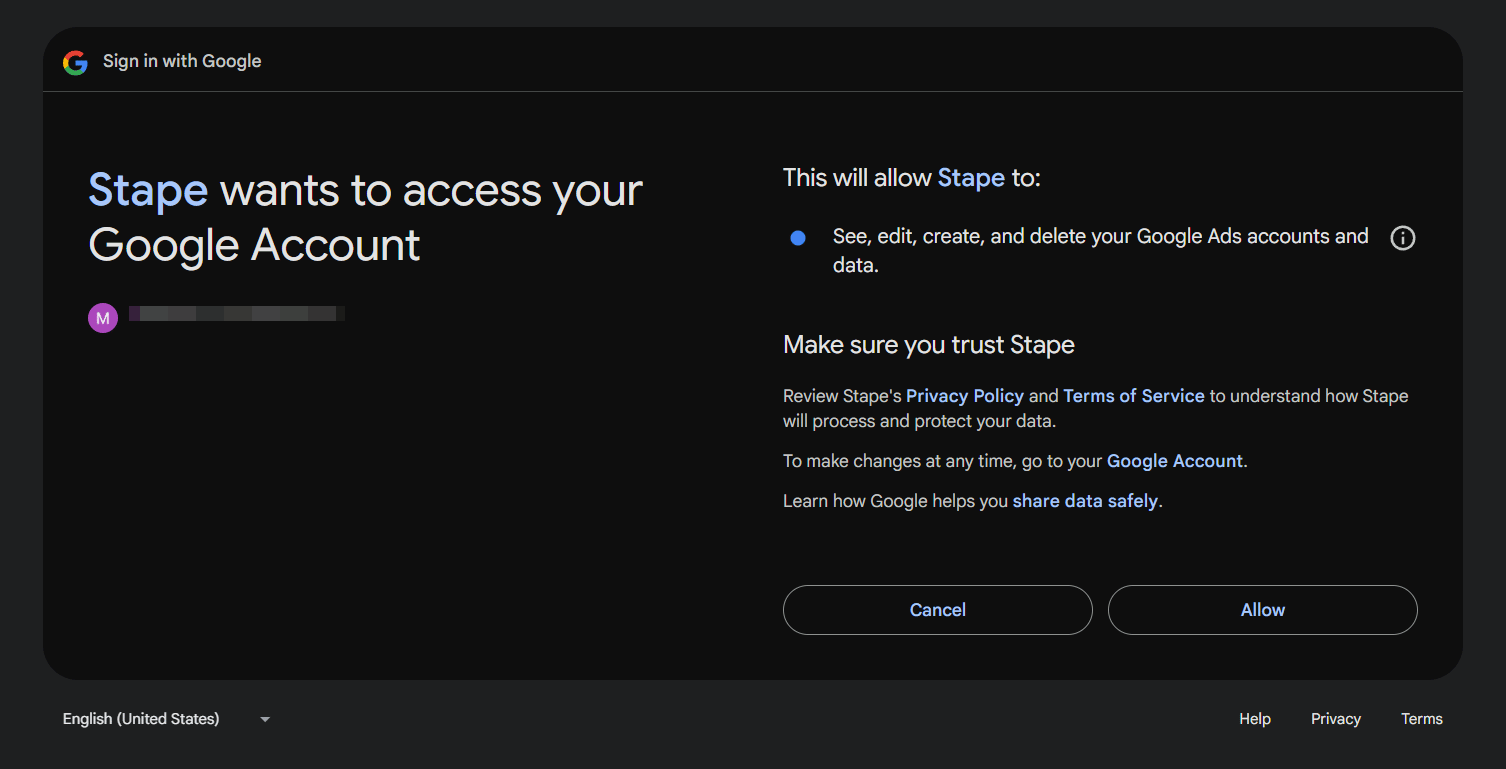
5. After the access is granted, you’ll get the message:

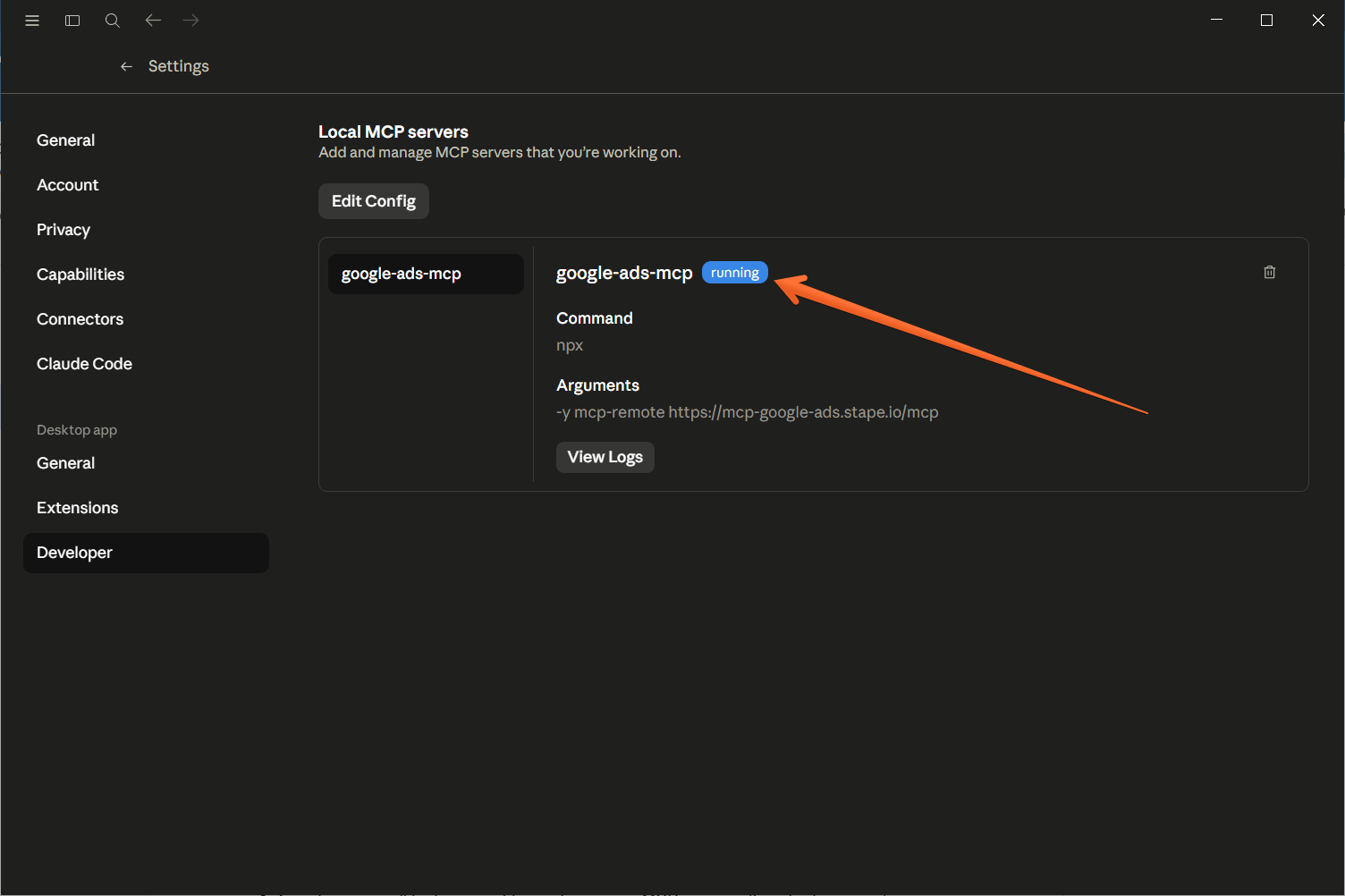
It means that the tool will be available for your use. In Settings → Developer, you will see the status Running next to google-ads-mcp. If you face any problems with configuration, refer to the troubleshooting section further in this guide.
6. Now you can type your request via chat. To verify that it’s working, just type any query related to your Google Ads account, like “List all my Google Ads campaigns” or “What's the total spend across all campaigns this month?”
Using the Google Ads MCP Server with a CLI
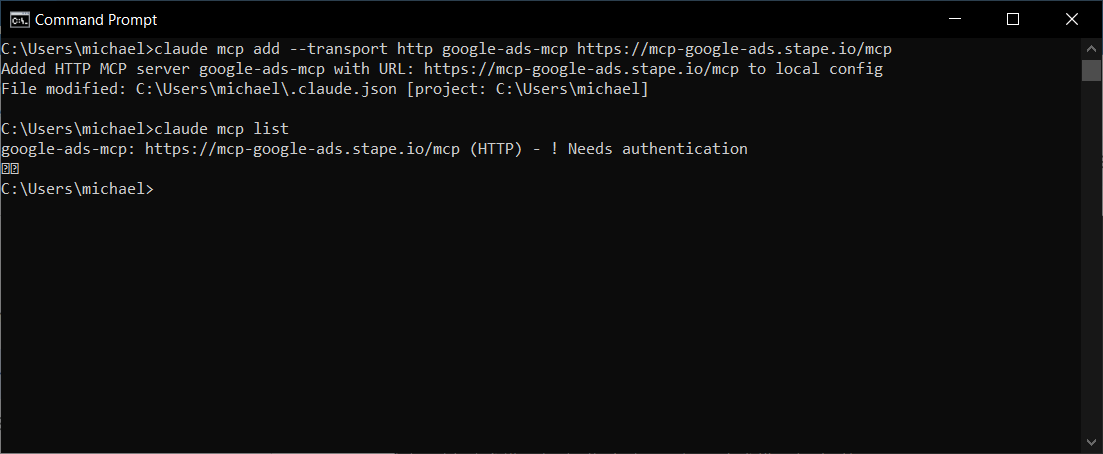
If you prefer working in the terminal rather than a desktop app, it’s pretty simple. For instance, you can add the Google Ads MCP server to Claude Code with a single command:
claude mcp add --transport http google-ads-mcp https://mcp-google-ads.stape.io/mcpThat's it. Claude Code will handle the OAuth authentication flow automatically when you first use the server – a browser window will open for you to log in and grant access, just like with Claude Desktop.
To confirm the server was added successfully, run:
claude mcp listYou should see google-ads-mcp in the output with its URL.
Testing
To check that everything works as intended, simply enter a request in your AI app and see if it’s completed correctly within the Google Ads environment.
MCP Server name length limit
Some MCP clients, like Cursor AI, enforce a 60-character limit on the combined length of the MCP server name and the tool name. If your configuration uses a long server name (e.g., google-ads-mcp-your-additional-long-name), this may cause specific tools to be hidden or filtered out by the client.
Action: to ensure all tools are visible, configure your MCP server with a shorter name (e.g., google-ads-mcp).
The MCP cache
mcp-remote stores credential data in ~/.mcp-auth (or the location defined by the $MCP_REMOTE_CONFIG_DIR$ environment variable). If you run into persistent issues, you should try clearing this cached state and tokens.
Use this command to clear the cache:
rm -rf ~/.mcp-authAfterward, restart your MCP client.
Was this article helpful?
🍽 Table of content:
Comments